Pivot Tables in Excel (original) (raw)
Last Updated : 9 Jun, 2026
Pivot Tables in Excel are a useful tool for summarizing, analyzing and organizing large datasets. They allow users to group, filter, and perform calculations like sums and averages using a simple drag-and-drop interface.
Creating a Pivot Table in Excel
Follow these simple steps to build a Pivot Table in Excel:
Step 1: Preparing the Data
Before creating a Pivot Table, ensure our data is properly formatted:
- **Organize in a Tabular Format: Place our data in rows and columns, with each column having a header.
- **Avoid Blank Rows or Columns: Ensure there are no empty rows or columns within our dataset.
- **Name our Data Range (Optional): Highlight our data and assign a name with Formulas > Define Name for easier reference.

Prepare your Data
Step 2: Selecting the Data
- Click any cell inside our data or
- Highlight the specific range we want to include in the Pivot Table.
Step 3: Inserting a Pivot Table
- Go to the Insert tab on the Excel ribbon.
- Click PivotTable.
- In the Create PivotTable dialog box:
- Verify the selected data range.
- Choose the location:
- **New Worksheet: Places the Pivot Table in a new sheet (recommended).
- **Existing Worksheet: Specify a cell in the current sheet.

Select your Data >>Go to Insert Tab>> Select Pivot Table
**Shortcut Keys:
- **Windows: Press Alt + N + V to open the Create PivotTable dialog box.
- **Mac: Press Command + Option + P to create a Pivot Table.
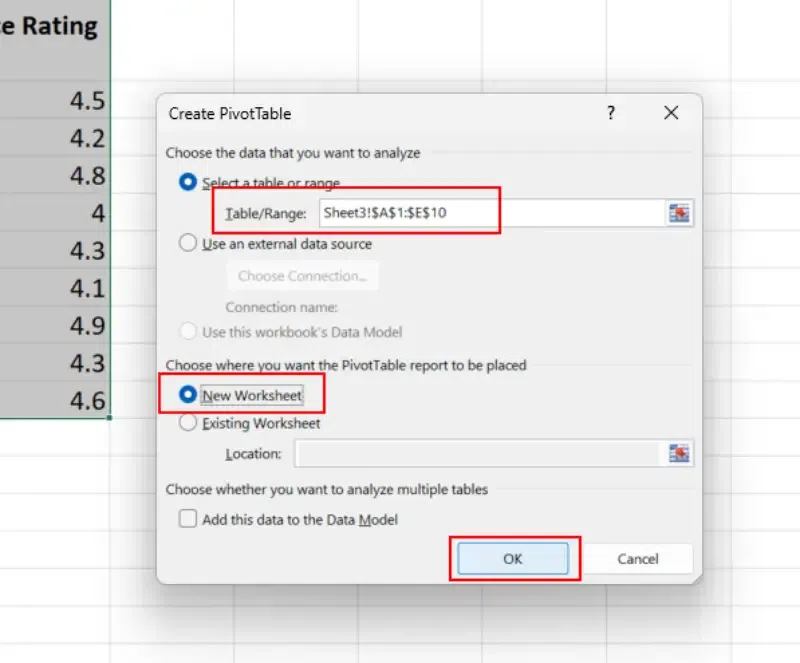
Select your Range>> Select your Sheet and Press OK
Step 4: Build our Pivot Table
We'll see a PivotTable Field List pane on the right side of our screen. This is where we organize our data:
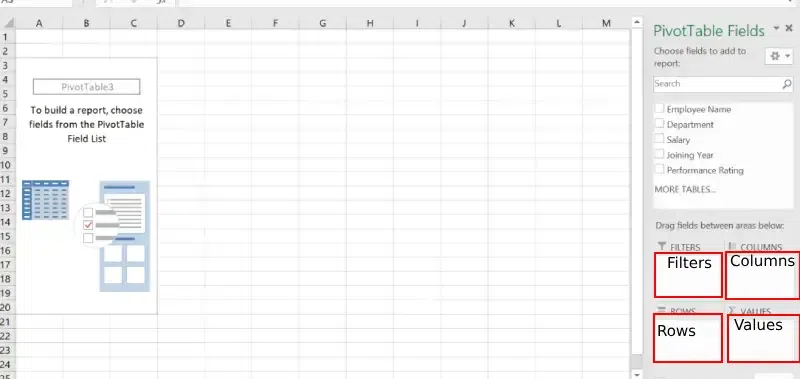
Build your Pivot Table
**a) Drag and Drop Fields:
Drag column headers from the Field List into one of the four areas:
- **Rows: Sets rows for the table.
- **Columns: Creates columns for our data.
- **Values: Adds numerical data to be calculated like sum, count, etc.
- **Filters: Adds filters to refine our analysis.
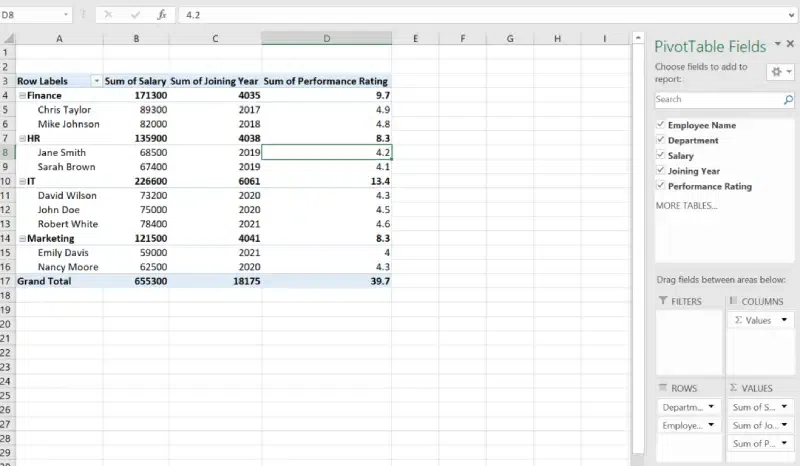
Drag the Fields
**b) Customize Calculations:
Right-click on a value in the Values area and choose Value Field Settings. Then, Select the desired calculation like Sum, Average, Count, etc.
Step 5: Formatting and Customizing the Pivot Table
- **Apply a PivotTable Style: Select the Pivot Table and go to Design > PivotTable Styles to apply a pre-designed format.
- **Sort and Filter: Use the dropdown arrows on row or column headers to sort and filter data.
- **Group Data: Right-click on a row or column item and select Group to organize data by date, number ranges etc.
- **Add Slicers (Optional): Go to Insert > Slicer to create interactive filters for our Pivot Table.
**Shortcut Key:
Windows: Press Alt → J → T → F (sequentially) to open the Field List pane; Mac: no default shortcut available use PivotTable Analyze → Field List.
Step 6: Refresh the Pivot Table
Update the Pivot Table when source data changes. Click anywhere in the Pivot Table.
- Going to PivotTable Analyze > Refresh.
**Select Entire Pivot Table Shortcut Key: For Windows/Mac, Press
Ctrl + A(orCommand + Aon Mac) to select the entire Pivot Table.

Analyze >> Refresh