Master Power Query Excel in 2024: StepbyStep Tutorial (original) (raw)
Last Updated : 23 Jul, 2025
Mastering Power Query in Excel unlocks a powerful suite of tools for data transformation and analysis, enabling users to streamline their workflows and enhance productivity. As a feature integrated into Microsoft Excel, Power Query simplifies the process of importing, cleaning, and transforming data from various sources, making it accessible even for those without extensive programming knowledge. This article serves as a comprehensive guide to help you navigate the complexities of Power Query, from its fundamental features to advanced techniques, ensuring you harness its full potential for effective data management.
In this guide, you will discover how to connect to diverse data sources, apply essential transformations, and automate repetitive tasks using the intuitive Power Query Editor. Whether you're looking to clean up messy datasets or combine information from multiple files, mastering Power Query can significantly reduce manual effort and minimize errors. Join us as we delve into the capabilities of Power Query, empowering you to become proficient in data manipulation within Excel.

Power Query Excel: Step-by-Step Tutorial
Table of Content
- What is Power Query
- What are the key benefits of using Power Query in Excel
- How to Activate Power Query in Excel
- How to Copy and Migrate Power Query in Excel
- What are the Four Phases of Power Query in Excel
- What is a Query List
- What Can You Do With Power Query
- Different Methods to Import Data into the sheet: 8 Methods Explained
- How to Combine Queries in Excel: 2 Methods
What is Power Query
Power Query is a data connection technology that helps Excel users easily discover, connect, transform, and refine data from multiple sources, all within a user-friendly interface. Originally released in 2013 and widely available to Microsoft 365 and Excel 2021 users, Power Query removes the need for complex formulas or advanced programming knowledge, enabling users to handle large datasets with ease.
What are the key benefits of using Power Query in Excel
Power Query in Excel offers numerous benefits that enhance data management and analysis. Here are the key advantages:
Key Benefits of Using Power Query
- Time Efficiency: Power Query automates repetitive tasks, significantly reducing the time spent on data preparation. Users can define a query once and refresh it later, instantly updating their datasets without manual intervention.
- Error Reduction: By standardizing data transformation processes, Power Query minimizes human errors that often occur during manual data handling. This leads to more accurate and reliable analyses.
- User-Friendly Interface: The intuitive graphical interface allows users, even those without technical expertise, to perform complex data transformations through simple clicks. This accessibility encourages broader use among analysts and business users alike.
- Data Integration: Power Query can connect to a wide array of data sources, including databases, CSV files, and web pages. This capability enables users to consolidate information from multiple locations into a single dataset efficiently.
- Scalability: Designed to handle large datasets, Power Query is ideal for businesses with significant data needs. It can process hundreds of thousands of rows without compromising performance.
- Reusability and Consistency: Queries created in Power Query can be reused across different datasets, ensuring consistent application of data transformation rules. This feature enhances the reliability of analyses conducted over time.
- Automation of Data Refresh: Once a query is established, it can automatically refresh the data from its source, ensuring that analyses always utilize the most current information available.
How to Activate Power Query in Excel
Power Query is a free add-in for Excel 2010 and 2013, available for download from Microsoft's website. Just click the download link, select the correct option for your operating system, and Power Query will be installed on your computer.
How to Activate Power Query in Excel 2016
For Excel 2016 and later versions, Power Query comes built-in. You can find it under the Data tab in the Get & Transform Data section.
Step 1: Open Excel
Open Excel and select a blank workbook.
Step 2: Go to the Data Tab
Go to the Data tab in the Excel ribbon.
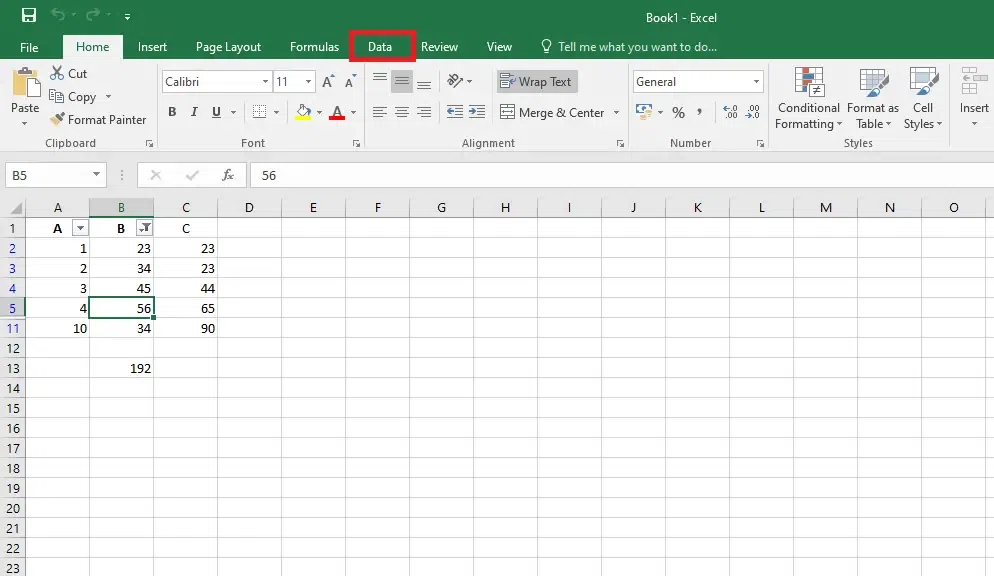
Go to the Data tab
Step 3: Access Power Queries Tools
You will see the 'Get & Transform Data' group, which includes options like 'Get Data,' 'Recent Sources,' and 'Existing Connections.' These are your Power Query tools.

Use Power Queries Tools
How to Copy and Migrate Power Query in Excel
Copying Power Query queries is a helpful feature when working with multiple worksheets or workbooks. Follow these steps to duplicate or migrate your Power Query queries:
**Step 1: Open Worksheet
- **Go to the worksheet from where you want to copy the query.
- Here you can see the Excel worksheet with the power query and we are going to copy the query of this worksheet to a new worksheet.
.webp)
Open Worksheet
**Step 2: Select Queries
- **Navigate to the data on the top of the ribbon and then select Queries & Connections.
- **Selecting queries & connections will open the query tab from where we can copy the query to a new worksheet.

Select Queries
**Step 3: Right-click on the Query
- Now just **Right-click on the Query and then select the copy option.
- We have then successfully copied the query from the queries & connection tab and it can now be pasted into a new worksheet.
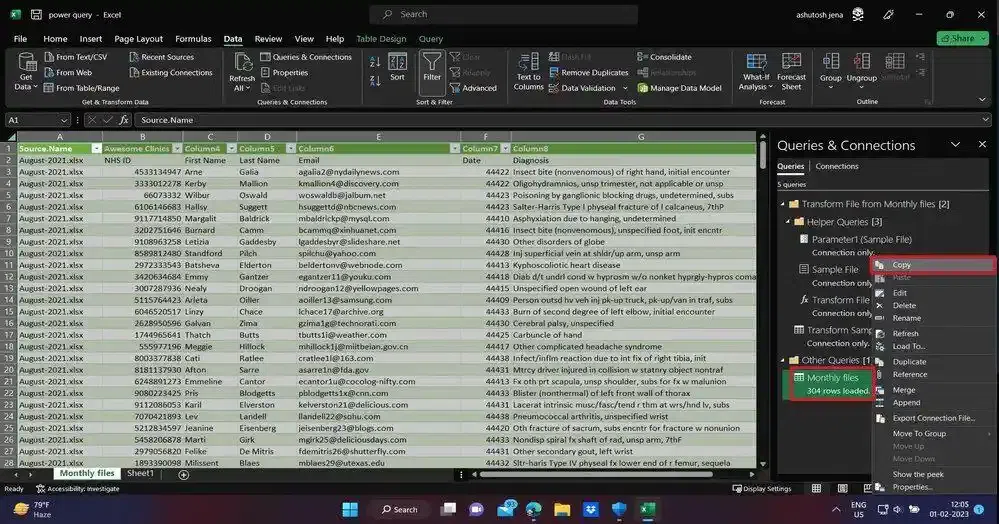
Right-click on the Query
**Step 4: Copy the Query
- Now just open the worksheet where you want to **copy the Query.
- A **new worksheet will be opened where we will paste the query we have copied from the previous worksheet

Copy the Query
**Step 5: Navigate to the Data and Select Queries & Connections
- **Navigate to the data on the top of the ribbon and **select Queries & Connection on the new worksheet.
- Pasting the query in the Queries & connections tab in the new worksheet will apply the filters and import the previous data.

Select Queries and Connections
**Step 6: Paste the Query
**Now paste the copied Query in the queries window.
Now, you have successfully copied a power query.
**Note: The same type of copying can be performed on the query which depends on other queries.

Paste the Query
What are the Four Phases of Power Query in Excel
Power Query provides a structured approach to extract, transform, and load (ETL) data into Excel or Power BI, making data analysis and reporting efficient and streamlined. Here are the four essential phases of Power Query:
Connect
In this phase, users establish a connection to their data source(s), whether it be databases, files, web pages, or other sources. Power Query supports a wide range of sources, and users can enter any necessary authentication or authorization details at this stage.
Transform
After connecting, data is loaded into Power Query, where users can clean and shape it to suit their requirements. Transformation tasks can include removing duplicates, filtering data, merging data, splitting columns, and pivoting data, all of which help to structure the data for analysis.
Combine
Power Query allows for the integration of data from multiple sources in this phase. Users can merge tables, append data, or join datasets based on a common field. This is particularly useful for creating a single, unified view of information from various sources.
Load
Finally, in the Load phase, users determine where to place the transformed data. Options include loading directly into an Excel worksheet, a Power BI report, or creating a connection that automatically refreshes data when the source is updated.
What is a Query List
A query list is a set of saved queries within a database or data management tool, designed for easy access and execution. It organizes a series of predefined query statements or commands that retrieve, filter, sort, or manipulate data from various tables or sources. Query lists enhance efficiency by allowing users to execute frequently used or complex queries without recreating them each time, promoting consistency and reusability in data analysis and management.
What Can You Do With Power Query
Power Query offers a robust set of features designed to enhance data analysis and manipulation. Here are some key functionalities you can leverage with Power Query:
- **Import Data from Multiple Sources: Power Query allows you to connect and import data from a variety of sources, including databases, web pages, Excel files, CSV files, cloud services, and more.
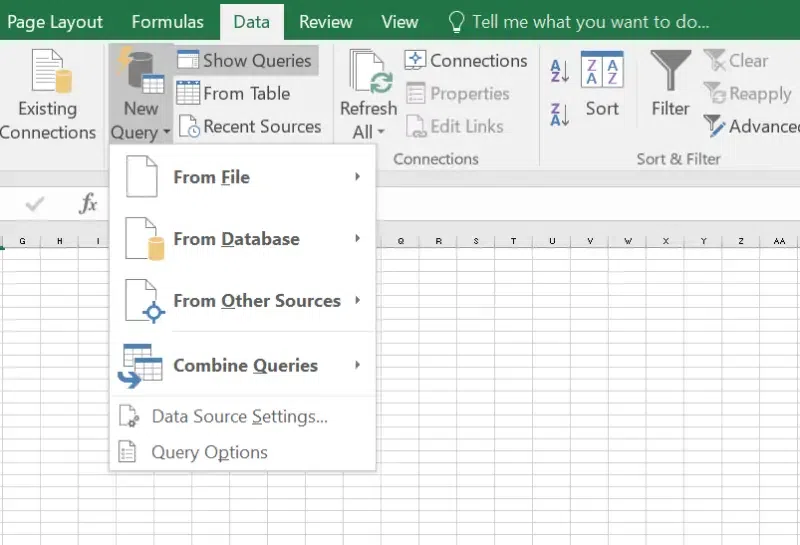
Power Query
- **Clean and Transform Data: Easily clean and transform data by removing duplicates, filtering rows, splitting and merging columns, and changing data types. These transformations are recorded as steps, making it easy to repeat and modify them.
- **Combine Data: You can merge or append queries to combine data from different sources into a single dataset. This is particularly useful for consolidating data from multiple files or tables.
- **Automate Data Refresh: Once you set up your data queries and transformations, you can refresh the data with a single click to keep your dataset up-to-date without manually reapplying transformations.
- **Create Custom Columns: Use custom formulas to create new columns based on your data. This allows for more complex data manipulations tailored to your specific needs.
- **Group and Aggregate Data: Easily group your data by specific criteria and perform aggregations such as sum, average, count, and more. This helps in summarizing and analyzing data effectively.
- **Pivot and Unpivot Columns: Transform your data structure by pivoting columns to rows and vice versa. This is useful for preparing data for analysis or reporting.
- **Parameterize Queries: Create dynamic queries by using parameters, allowing you to adjust your data extraction and transformation criteria without modifying the query itself
Different Methods to Import Data into the sheet: 8 Methods Explained
In Excel, you can import data from various sources, making it a powerful tool for data analysis. Here are some common methods for importing data into Excel, along with examples:
Method 1: Import Data from an Excel File
This method is useful when you have data in another Excel workbook that you want to bring into your current sheet.
Step 1: Go to the Data tab on the ribbon.
Step 2: Click on Get Data > From File > From Workbook.
Step 3: Browse and select the Excel file you want to import.
Step 4: Choose the sheet or table you want to load, then click Load.
**Example: Suppose you have monthly sales data in a file named January_Sales.xlsx. You can import it to your current workbook for analysis or comparison with other months.
Method 2: Import Data from a CSV File
CSV files are commonly used to store tabular data. Importing data from CSV is simple and suitable for most structured data.
Step 1: Go to the Data tab.
Step 2: Click on Get Data > From Text/CSV.
Step 3: Select your CSV file and click Import.
Step 4: Preview the data, ensure it’s formatted correctly, then click Load.
**Example: A marketing report for social media performance is saved as Social_Media_January.csv. You can import this CSV to Excel to analyze metrics like engagement or followers growth.
Method 3: Import Data from a Database (SQL Server)
Excel can connect to databases like SQL Server to pull data directly into your sheet.
Step 1: Go to Data > Get Data > From Database > From SQL Server Database.
Step 2: Enter the Server Name and Database Name.
Step 3: If necessary, provide authentication details (like username and password).
Step 4: Select the table or view you want to import, then click Load.
**Example: An e-commerce business may use SQL Server to store customer data. You can import the Customers table directly into Excel to analyze customer demographics.
Method 4: Import Data from a Web Page
You can pull data directly from websites, such as stock prices or sports scores, using Power Query.
Step 1: Go to Data > Get Data > From Other Sources > From Web.
Step 2: Enter the URL of the website containing the data you want to import, then click OK.
Step 3: Excel will analyze the page and show a list of tables. Select the table you want, then click Load.
**Example: Import a list of live stock prices from a finance website, like Yahoo Finance. This allows you to update the data regularly for real-time analysis.
If you store data in online services like SharePoint or OneDrive, you can connect directly from Excel.
Step 1: Go to Data > Get Data > From Online Services > From SharePoint Folder.
Step 2: Enter the SharePoint site URL.
Step 3: Select the desired file or folder and click Load.
**Example: In a collaborative team, financial reports might be stored on SharePoint. You can import these reports directly into your Excel workbook to analyze data without downloading files manually.
Method 6: Import Data from JSON Files
JSON (JavaScript Object Notation) is often used in web data and APIs. Excel can import data from JSON files for analysis.
Step 1: Go to Data > Get Data > From File > From JSON.
Step 2: Select the JSON file and click Import.
Step 3: Power Query Editor will open. Transform and structure the data as needed, then click Load.
**Example: Import a JSON file containing weather data for the past week. This data can be used to analyze weather patterns
Method 7: Import Data from Microsoft Access Database
Microsoft Access files (.accdb) are commonly used for storing large datasets, and Excel can connect directly to Access.
Step 1: Go to Data > Get Data > From Database > From Microsoft Access Database.
Step 2: Select the Access database file and click Open.
Step 3: Choose the table or query to import, then click Load.
**Example: Import an inventory table from an Access database to analyze stock levels and predict reordering needs.
Method 8: Copy and Paste Data
A quick way to get data into Excel is to copy and paste it from another source, like a website or another spreadsheet.
Step 1: Copy the data from the source.
Step 2: Go to your Excel sheet, click on the cell where you want the data to start, then paste (Ctrl + V).
**Example: You copy data from a government website about population statistics and paste it directly into Excel for further processing.
9. Connect to Online Data Sources (OData, Azure)
Excel can connect to online data services like OData or Azure, which is useful for large datasets or real-time data needs.
Step 1: Go to Data > Get Data > From Other Sources > From OData Feed or From Azure (select specific Azure data source).
Step 2: Enter the service URL or authentication credentials as needed.
Step 3: Select the data to import, then click Load.
**Example: A company’s production data stored in Azure can be imported directly to analyze production metrics in real-time.
How to Combine Queries in Excel: 2 Methods
Combining queries in Excel, especially with Power Query, allows you to merge or append data from different sources or tables into a single dataset. Here are the main methods for combining queries in Excel:
Method 1: Appending Queries
Appending queries is useful when you have multiple tables or datasets with the same structure and want to stack them on top of each other (like combining monthly sales data).
Step 1: Open Power Query by going to the Data tab and selecting Get Data > Launch Power Query Editor.
Step 2: In Power Query, load both tables (queries) you want to combine.
Step 3: Go to the Home tab in Power Query, then click Append Queries > Append Queries as New.
Step 4: Choose the tables you want to append (select Two Tables if there are two, or Three or More Tables for multiple).
Step 5: Click OK, and Power Query will create a new query with the data from both tables combined vertically.
Method 2: Merging Queries
Merging queries allows you to combine tables based on a common key, like joining two tables in a database. This is helpful for consolidating related data, such as customer details and their order history.
Step 1: Open Power Query from the Data tab.
Step 2: Load the tables you want to merge by selecting Get Data > From Table/Range for each table.
Step 3: In the Power Query Editor, go to the Home tab, then select Merge Queries > Merge Queries as New.
Step 4: Select the common column(s) in both tables that will serve as the join key (e.g., Customer ID).
Step 5: Choose the type of join (Inner Join, Left Join, Right Join, etc.).
Step 5: Click OK to create a new query with the merged data.
Conclusion
Mastering Power Query in Excel is a valuable skill that can greatly simplify and enhance your data preparation workflow. By automating repetitive tasks, you can save time, improve data consistency, and make your analysis process more efficient. From data import to transformation and consolidation, Power Query is packed with features that will help you manage data like a pro. Get into Power Query today and elevate your Excel skills to unlock its full potential for data-driven insights!
Know more about Merging Data from All Sheets from Files in some Folder using Power Query