Excel Relative and Absolute Cell References (original) (raw)
Last Updated : 23 Jan, 2026
Understanding cell references is the backbone of writing accurate Excel formulas. Whether you're copying formulas across rows or locking a value in place, knowing when to use relative or absolute references can save time and prevent errors.
Cell Reference in Excel
A cell reference is the address of a cell or a range of cells, identified by a column letter and a row number (for example, A1). Excel uses cell references to determine where to fetch data for calculations.
- You can reference cells within the same worksheet
- You can reference cells from other worksheets (External referencing)
- You can reference cells from other workbooks (Remote referencing)
Types of Cell References in Excel
Excel mainly supports two types of cell references:
- Relative Reference
- Absolute Reference
A third type, mixed reference, is a combination of both and is briefly mentioned below.
**Relative Reference in Excel
A relative reference is Excel’s default reference type. It does not use dollar signs ($). When a formula is copied or filled, the cell references automatically adjust based on their new position.
**Examples: A1, B2, C5
When to use it:
- When performing the same calculation across multiple rows or columns
- When formulas should adapt dynamically
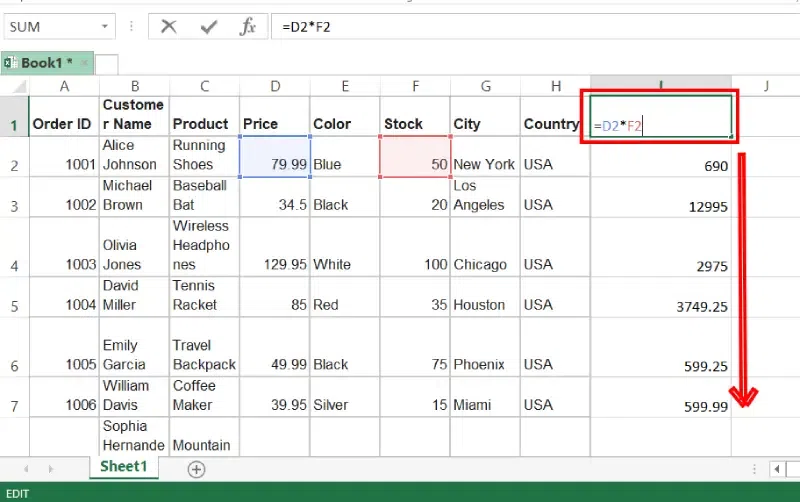
Relative Reference in Excel
Absolute Reference in Excel
An absolute reference locks both the row and column using the dollar sign ($). The reference remains unchanged when copied or filled.
**Examples: $A$1, $C$2
Press F4 after selecting a cell reference to toggle between reference types.
**When to use it:
- When a formula must always refer to a fixed cell (such as tax rate, percentage, or constant value)
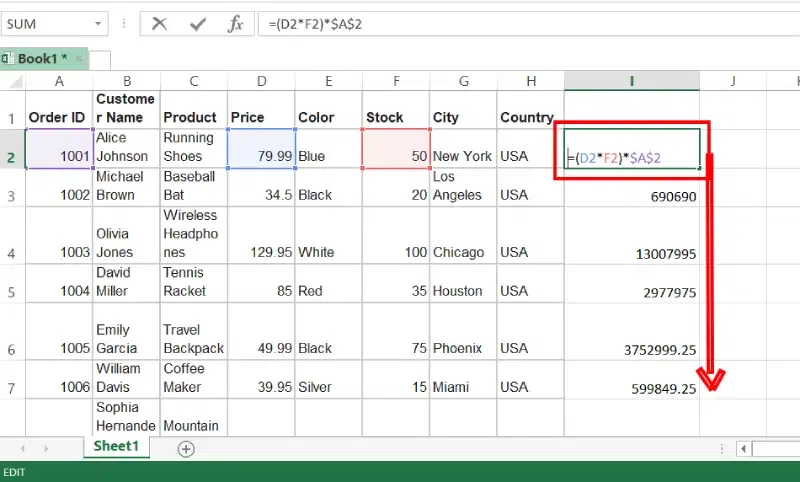
Absolute Reference in Excel
Excel's Relative Reference: Example
We want to add the marks of two subjects entered in column A and column B and display the result in column C. Here, we will use relative reference so that the same rows of columnsExcel A and B are added.
In this example, we are entering marks 1 and 2 in columns A and B respectively with total marks in column C.
**Step 1: Open Excel and Enter Data
- Open your Excel Sheet and enter the data into the Excel sheet.
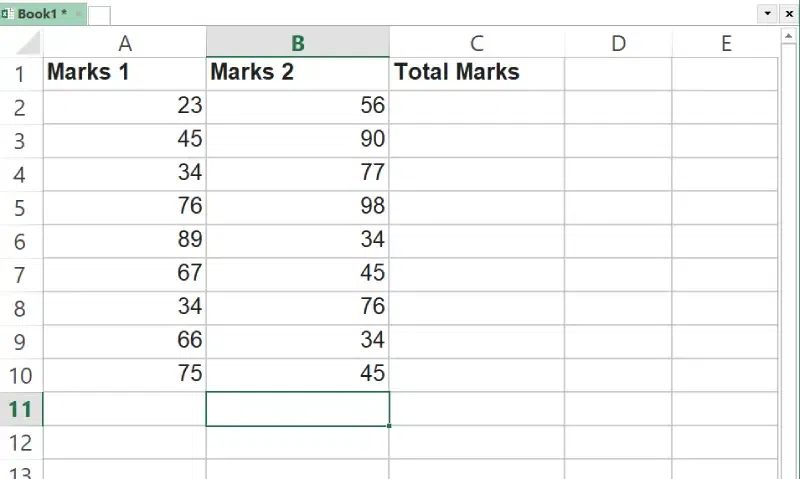
Open Excel and Enter the Data
**Step 2: Enter the Formula
- Now we need to enter the formula to add marks 1 and 2.
- We write the formula in any cell and press enter so that it is calculated.
- In this example, we write the formula(= B2 + A2) in cell C2 and press enter to calculate the formula.
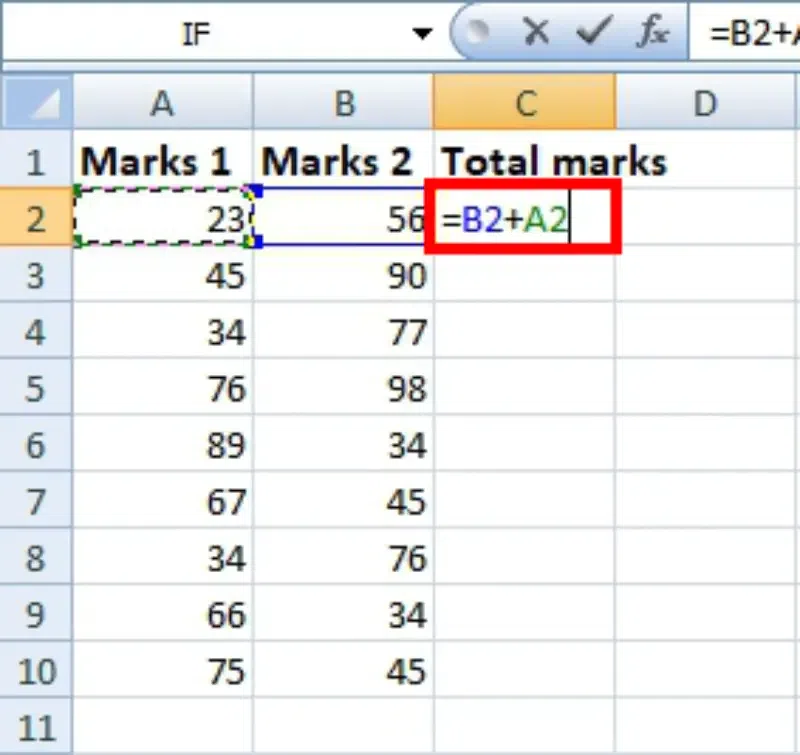
Enter the Formula
**Step 3: Click on Fill Handle
- Now click on the Fill handle at the corner of the cell which contains the formula(C2).
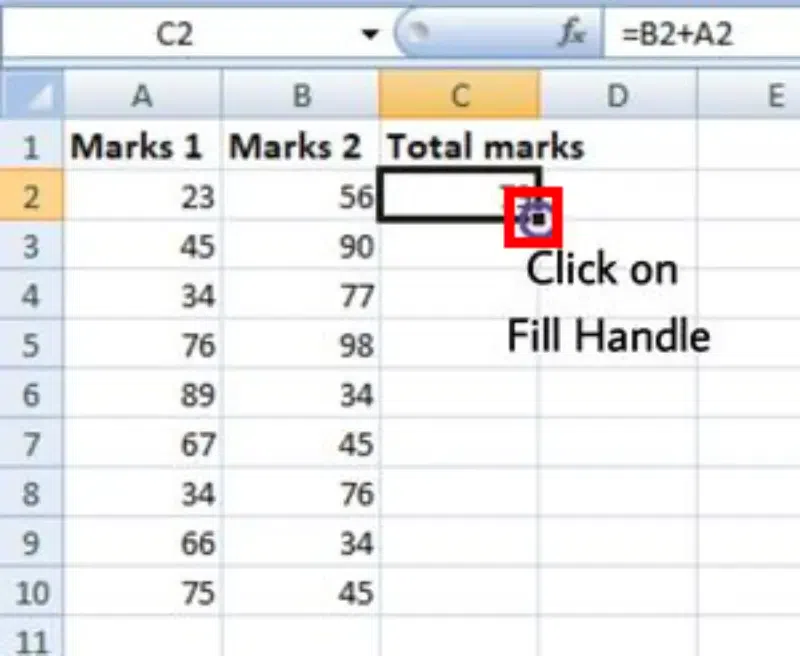
Click on Fill Handle
**Step 4: Drag the Handle
- Drag the Fill handle up to the cells you want to fill. In our example, we will drag it to cell C10.
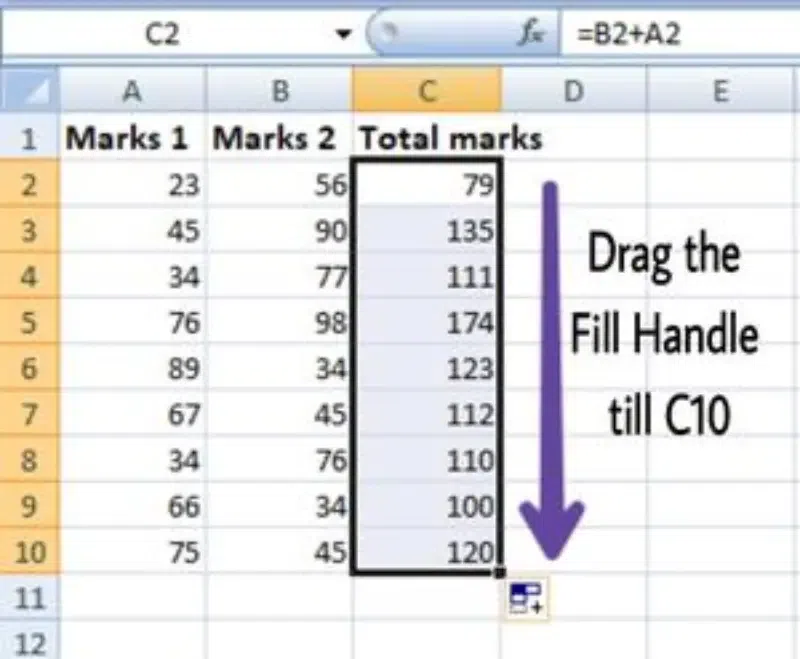
Drag the Handle
- Now we can see that the addition operation is performed between the cells A2 and B2, A3 and B3, and so on.
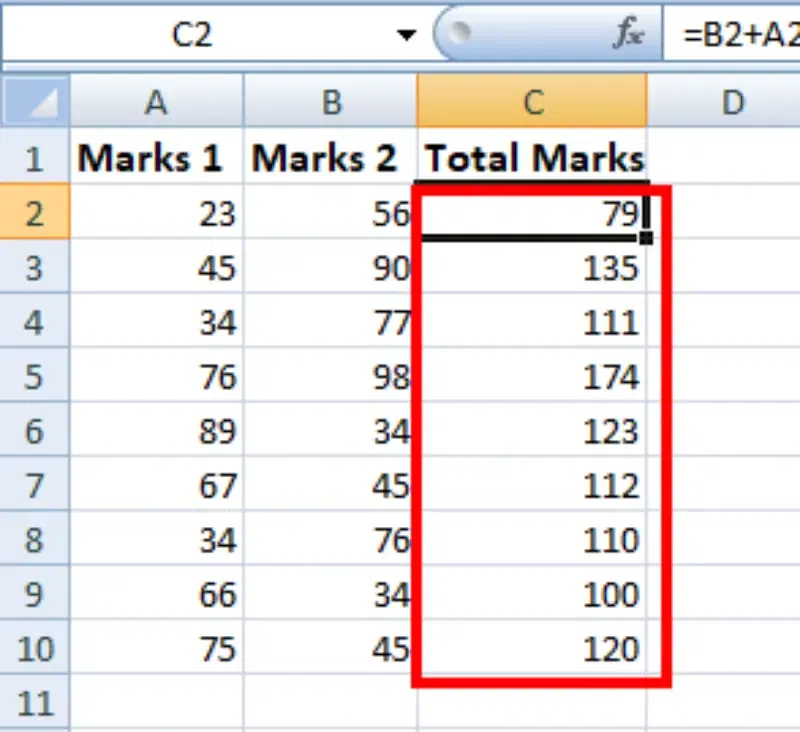
Total Marks Displayed
**Step 5: Check the Performed Action
- You can double-click on any cell to check that the operation is performed in between which cells.
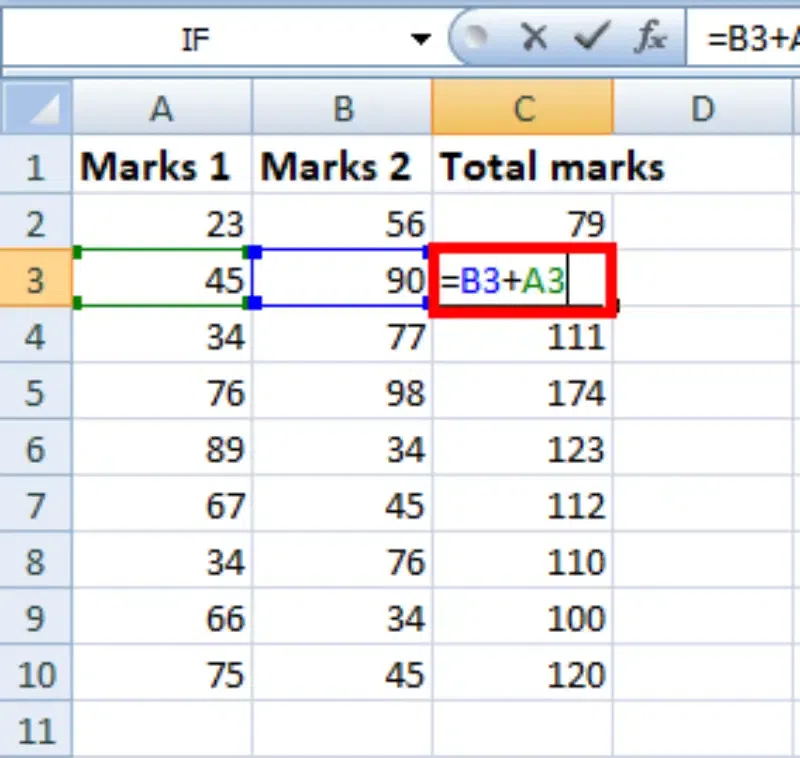
Check the Performed Action
In the above example, we see that the relative address of cell A2 changes to A3, A4, and so on, similarly the relative address changes for column B, depending on the relative position of the row.
**Absolute Reference: Example
For example, We want to multiply the sum of marks of two subjects, entered in column A and column B, with the percentage entered in cell C2 and display the result in column D. Here, we will use absolute reference so that the address of cell C2 remains constant and does not change with the relative position of column and rows.
**Step 1: Open Excel and Enter Data
- Open your Excel Sheet and enter the data into the Excel sheet.
- In this example, we are entering marks 1 and 2 in columns A and B respectively with total marks in column C.
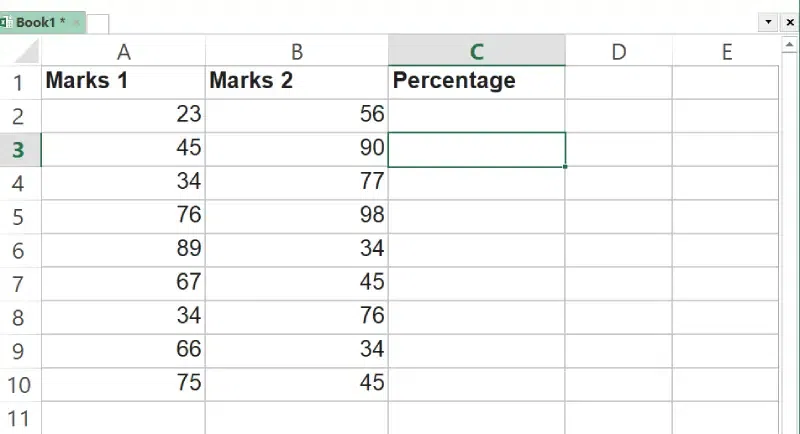
Open Excel and Enter the Data
**Step 2: Enter the Formula
- We write the formula in any cell and press enter so that it is calculated.
- In this example, we write the formula(=(A2+B2)*$C$2) in cell D2 and press enter to calculate the formula
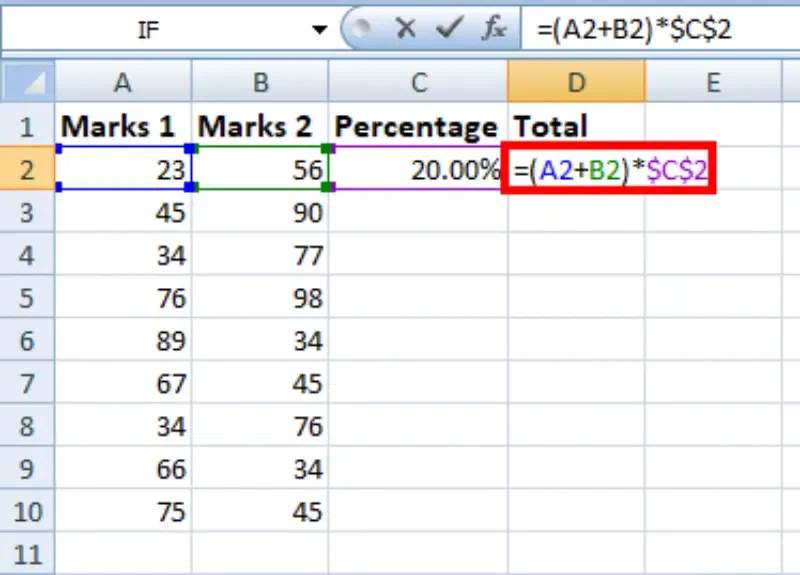
Enter the Formula
**Step 3: Click on Fill Handle
- Now click on the Fill handle at the corner of the cell which contains the formula(D2).
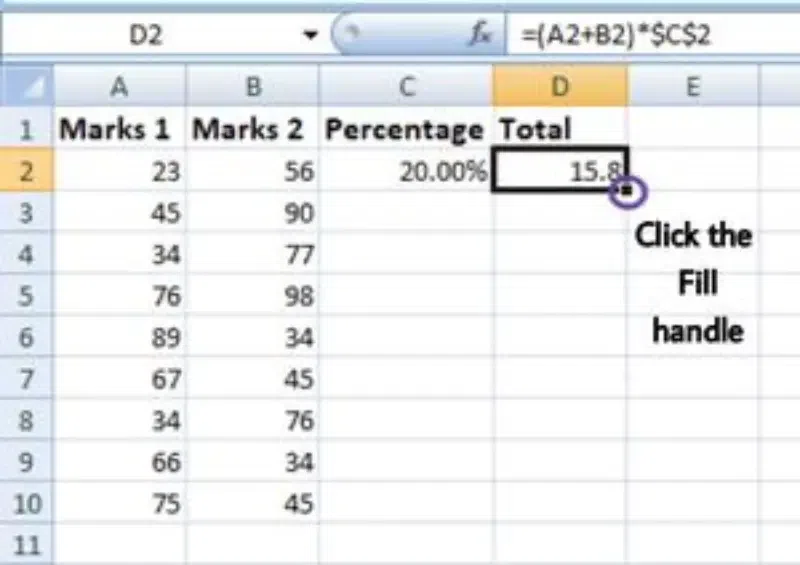
Click on Fill Handle
**Step 4: Drag the Handle
- Drag the Fill handle up to the cells you want to fill. In our example, we will drag it to cell D10.
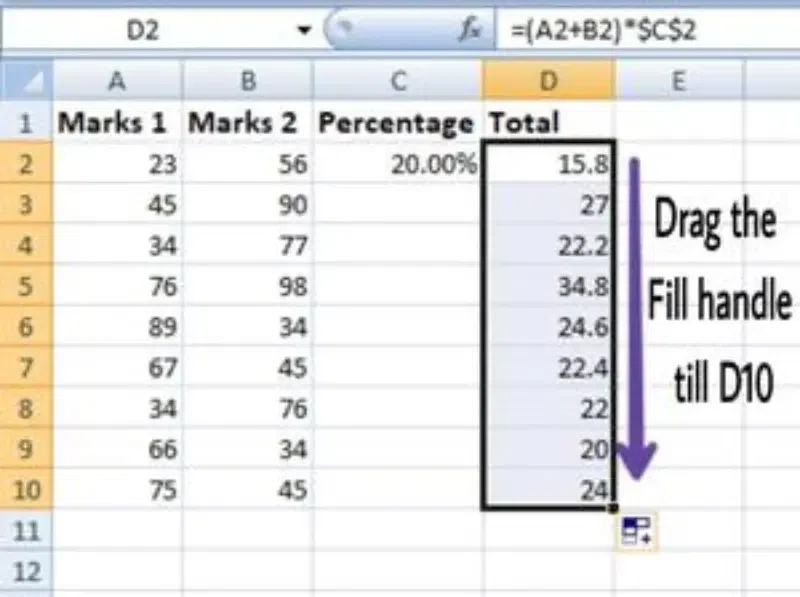
Drag the Handle
- Now we can see that the percentage is calculated in column D.
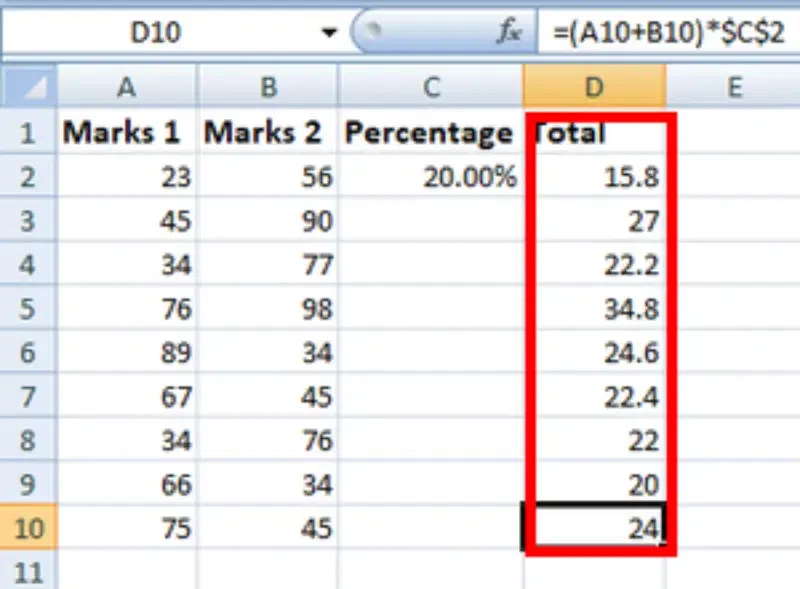
Total Output
**Step 5: Check the Performed Action
- You can double-click on any cell to check that the operation is performed in between which cells, and we see that the address of cell C2 does not change.
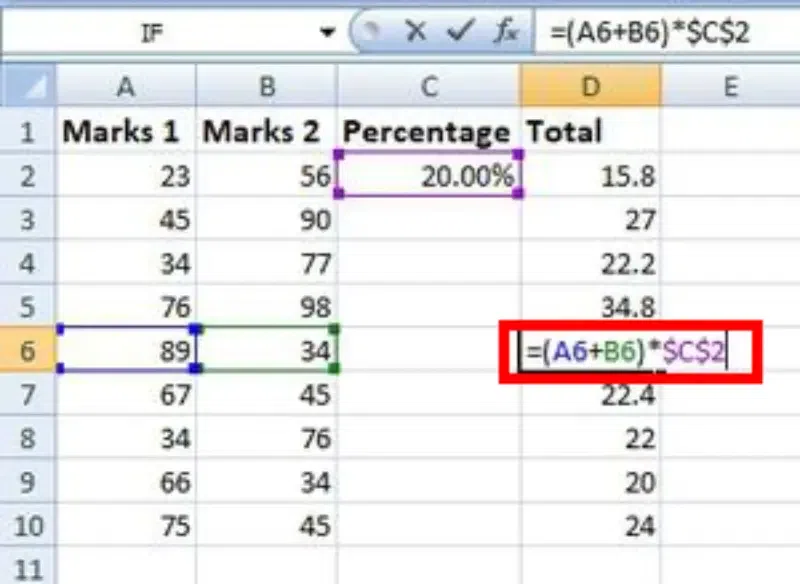
Check the Performed Action
Thus, in the above example, we see that the address of cell C2 is not changed whereas the address of columns A and B changes with the relative position of the row and column, this happened because we used the absolute address of cell C2.
Cell References with Multiple Worksheets in Excel
**Step 1: Open Excel and Enter Data
- Open your Excel Sheet and enter the data into the Excel sheet.
- In this example, we are entering marks 1 and 2 in columns A and B respectively with total marks in column C.
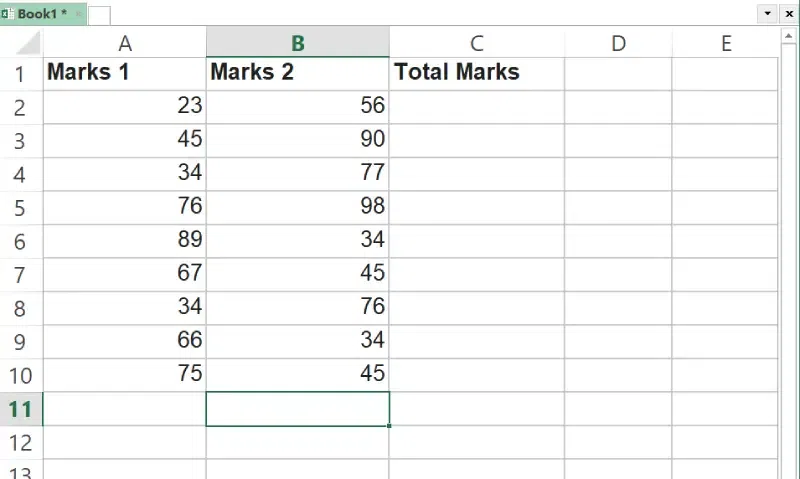
Open Excel and Enter the Data
**Step 2: Locate the Cell for Reference
- Locate the Cell for Reference and note down its worksheet name.
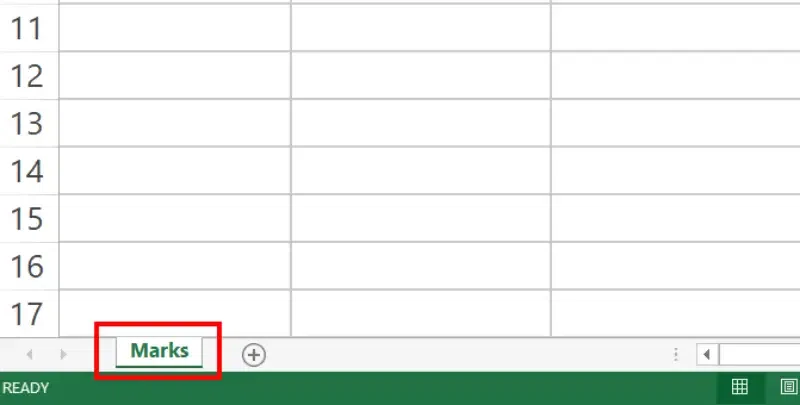
Locate the Cell for Reference
**Step 3: Access Second Worksheet
- Go to the second worksheet of your Choice and Select it
.webp)
Access Second Worksheet
**Step 4: Locate Cell
- Go to the Cell where you want to store the value.
**Step 5: Enter Equals To followed by Sheet Name and Exclamation
- Enter the equal to sign in the selected cell followed by the worksheet name followed by! sign. Hit Enter.
.webp)
Enter Equals To followed by Sheet Name and Exclamation
Difference Between Relative and Absolute Cell References in Excel
| **Aspect | **Relative Reference | **Absolute Reference |
|---|---|---|
| **Definition | Changes automatically based on the formula’s new position when copied or filled | Remains fixed, no matter where the formula is copied or filled |
| **Symbol | No dollar sign ($) used | Dollar signs ($) placed before both column and row |
| **Example | A1 becomes B1 when copied from column A to B | AAA1 stays the same everywhere |
| **Usage | Best for repetitive calculations across rows or columns | Ideal for fixed values like tax rates, percentages, or constants |
| **Syntax | Column letter + row number | $ + column letter + $ + row number |
| **Example Formula | =A1+B1 | =$A$1+$B$1 |
**Also Read: