Committing in Git (original) (raw)
Last Updated : 11 May, 2026
A commit in Git is a snapshot of the project at a specific point in time, storing the state of files along with a unique ID, message, author and timestamp.
- **SHA-1 Hash: A unique identifier for each commit.
- **Commit Message: A descriptive message that explains the purpose of the commit.
- **Author: The person who made the commit.
- **Timestamp: The date and time when the commit was made.
- **Parent Commit(s): The preceding commit(s) in the project history.
Steps Involved in Committing in Git
Committing in Git records the staged changes as a snapshot in the repository along with a commit message.
Step1: Stage the Changes
If a file (e.g., a.txt) is modified, add it to the staging area:
git add a.txt
Step2: Create a Commit
If a file such as a.txt is modified, the changes must first be staged using git add file_name, and then recorded in the repository using git commit.
git commit -m "Commit_message" file_name
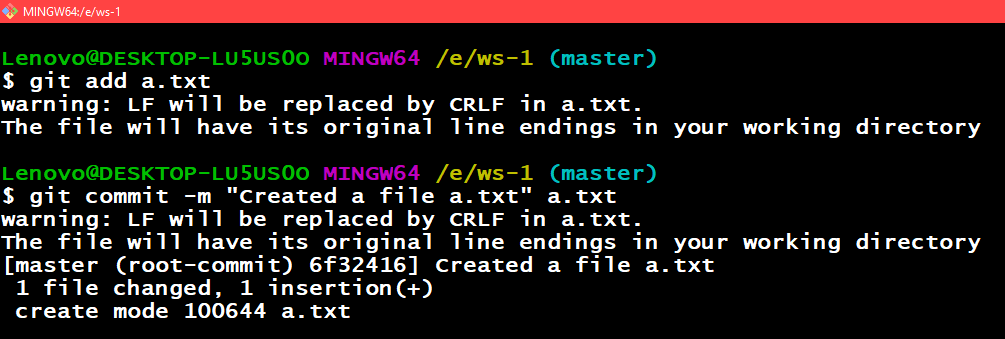
Adding and Committing a file
Shortcuts for Adding Files
If multiple files are changed, Git provides shortcut commands to stage several files at once instead of adding each file individually.
| Git Commands | Action Performed |
|---|---|
| git add --all | Stages all files in the repository, including new, modified, and deleted files. |
| git add . | Stages all changes in the current directory. |
| git add -u | Stages only modified and deleted tracked files, ignoring new untracked files. |
Committing Modified Files Directly
If already tracked files are modified, the command git commit -am "commit_message" stages the changes and creates the commit in a single step.
git commit -am "commit_message"
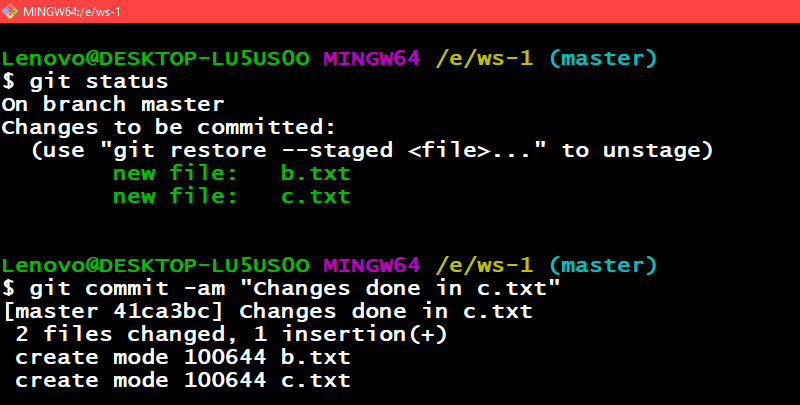
Adding and Committing a file in a single command
Writing Good Commit Message
A good commit message should clearly explain:
- What changes were made
- Why the changes were made
- How the changes affect the project
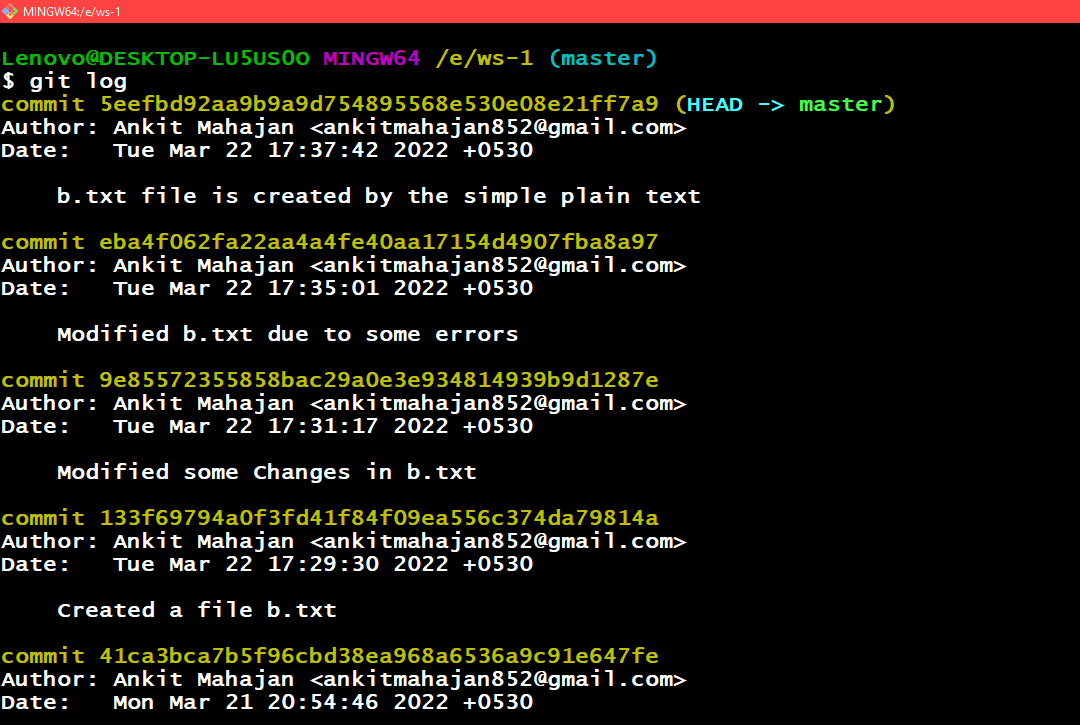
Some of the examples of the Good Commit messages
Amending a commit
If the latest commit has not been pushed to the remote repository and the commit message needs correction, it can be modified using the following command:
git commit --amend
This command allows you to edit or update the most recent commit message.
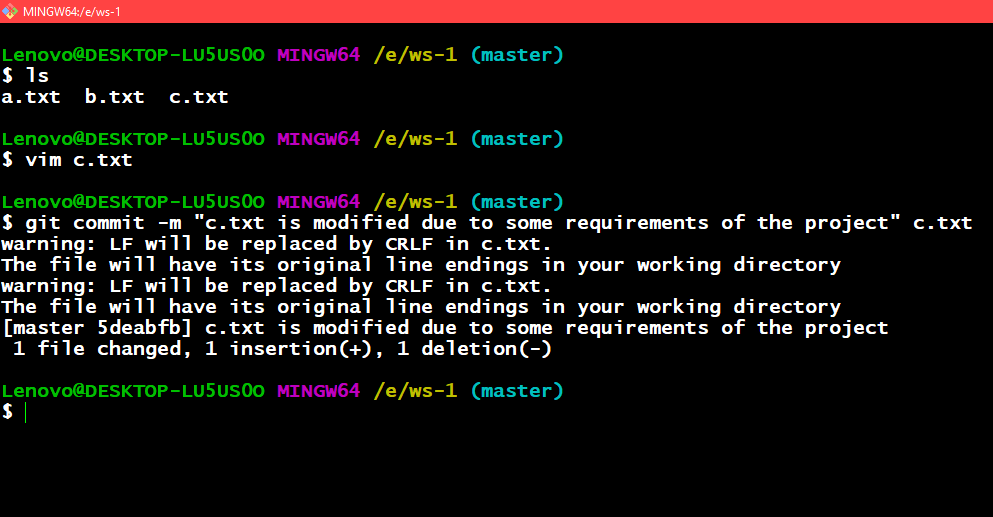
Committing the file c.txt
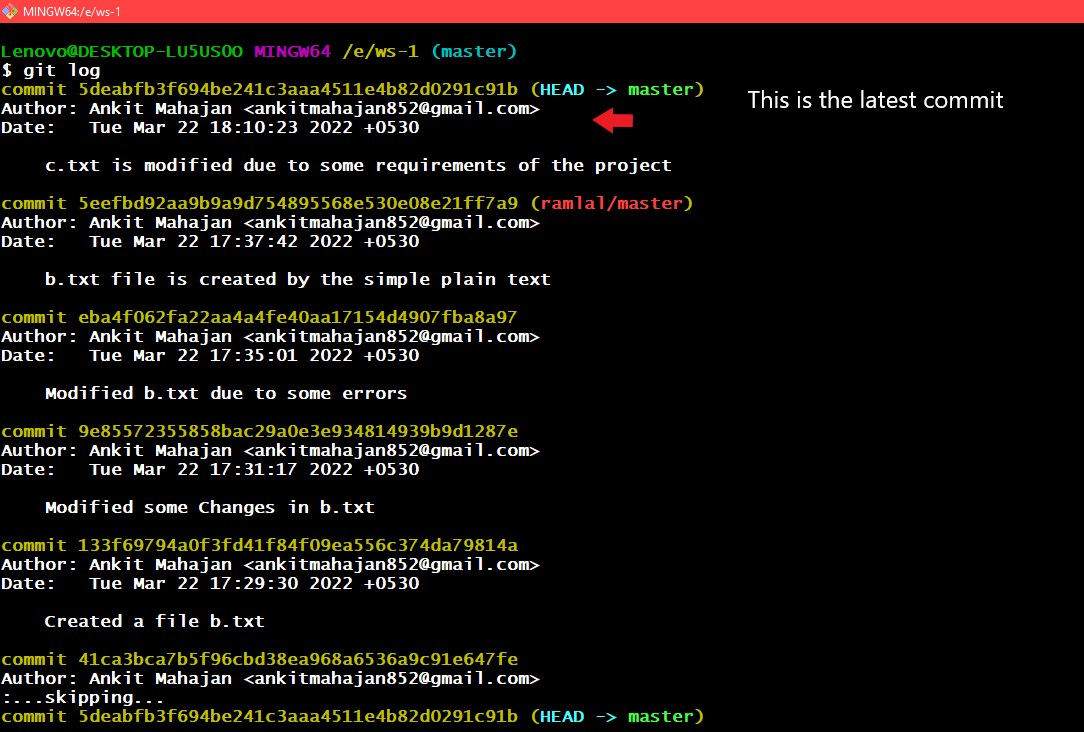
Seeing git logs
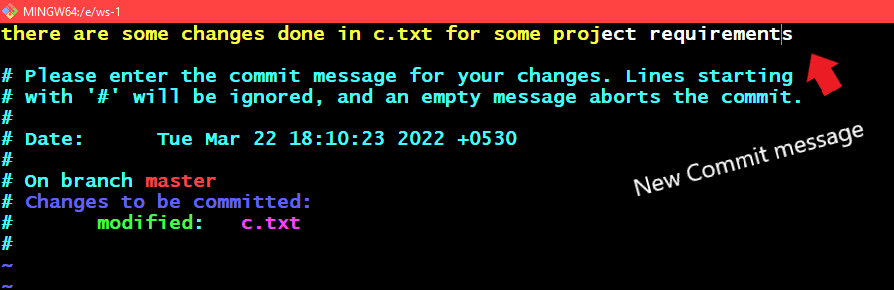
Opens up an editor for changing the commit message
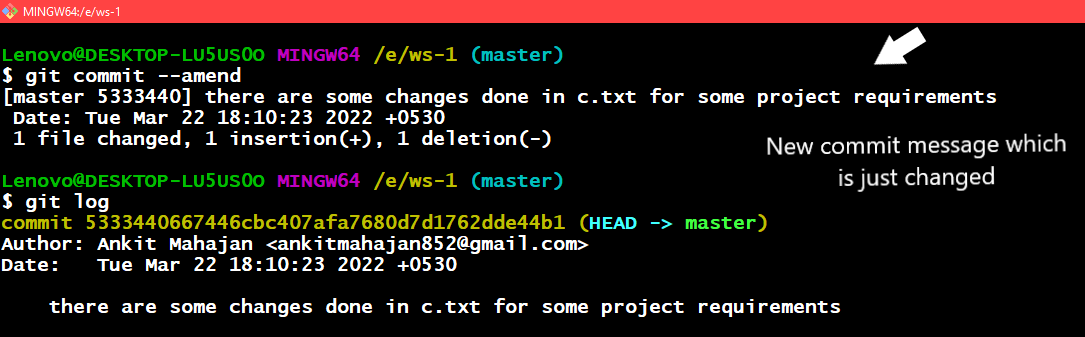
Using the command git commit --amend
To keep the previous message without editing:
git commit --amend --no-edit

Using the command git commit --amend --no-edit
Committing Without Opening an Editor
By default, Git may open a text editor when running git commit. To avoid this, you can provide the commit message directly using the -m option.git commit. To avoid this, you can provide the commit message directly using the -m option.
git commit -m "Commit message here"

Using the git commit with -m as an option
You can also include multiple commit messages in a single command by using multiple -m options.
git commit -m "message_1" -m "message_2"
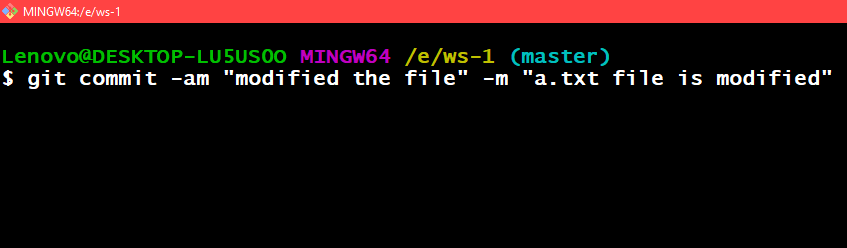
The syntax for passing multiple messages in a git commit command
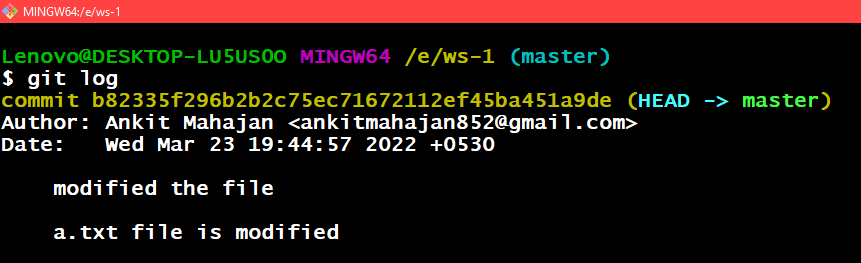
Using git log we can see that the commit messages are in multiple lines now
Committing Changes Directly
Normally, changes must be staged using git add before committing. However, for already tracked files, both staging and committing can be done in a single command.
git commit -am "commit_message here"
This command stages modified tracked files and creates a commit with the specified message.
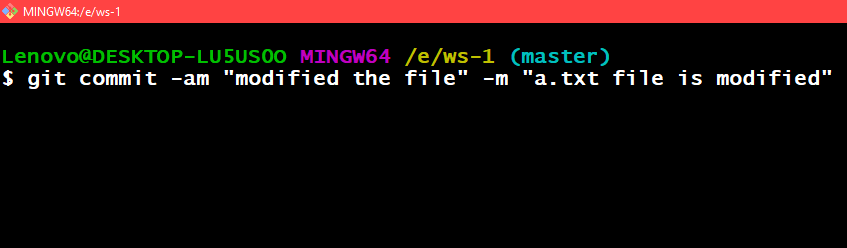
Using the git commit -am "commit_message here"
Committing a Specific File
To commit changes for a particular file, specify the file path along with the commit command.
git commit /path_of_the_file -m "commit_message here"
This commits the changes of the specified file with the provided commit message.

For committing a particular file git commit /path_of_the_file -m "commit_message here"
Selecting Specific Changes for Commit
If multiple changes are made in one or more files but only some changes should be committed, Git allows selective staging using interactive mode.
The following command displays each change (hunk) individually and lets you decide whether to stage it:
git add -p file_name
| Symbol | Action Performed |
|---|---|
| y | Stage this change (hunk). |
| n | Do not stage this change. |
| d | Skip this and all remaining hunks for the file. |
| s | Split the hunk into smaller parts if possible. |
| e | Manually edit the hunk in a text editor before staging. |
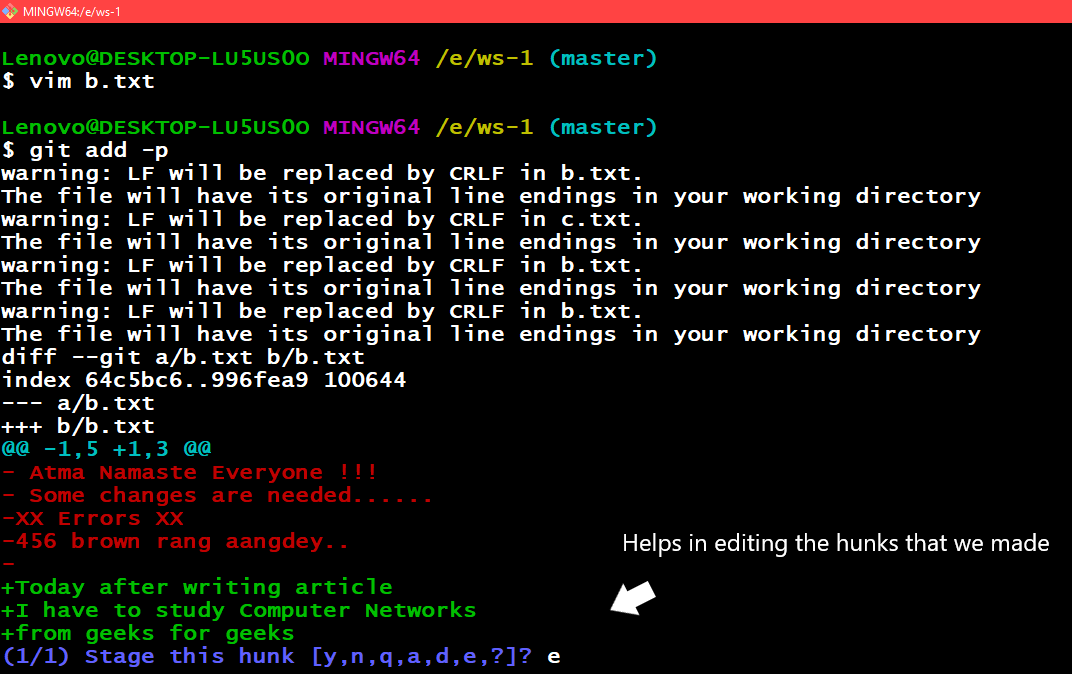
Exploring the -e option of git add -p
Creating an Empty Commit
Normally, a commit records changes to files. However, Git allows creating a commit without modifying or adding any files.
The --allow-empty option enables creating such commits.
git commit --alllow-empty -m "commit_message"
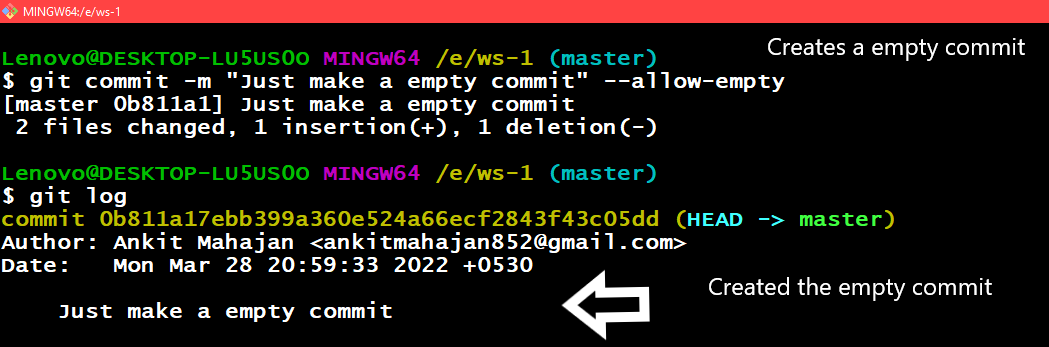
Created an empty commit using the --allow-empty parameter
Committing Changes in Specific Files
To commit changes from particular files, those files must already be staged. You can then specify the file names in the commit command.
git commit file_name1 file_name2 -m "commit_message"
This commits the staged changes only for the specified files.
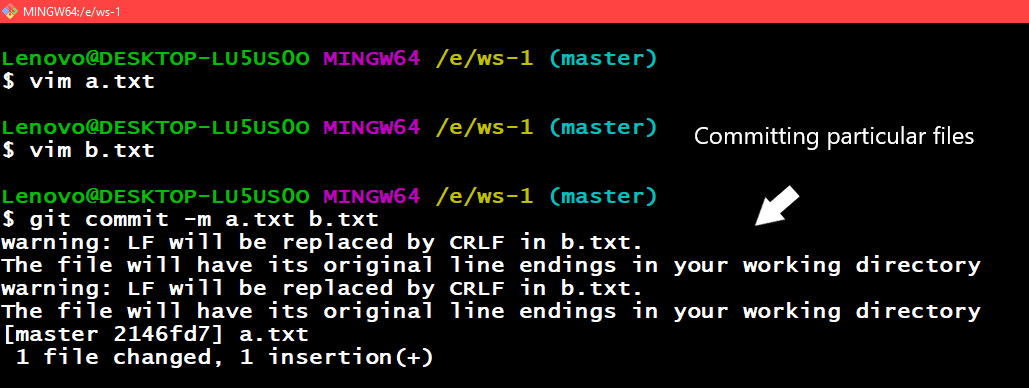
Committing particular files
Committing at a Specific Date
You can specify a custom date for a commit so that it appears with that date in the git log.
git commit -m "commit_message" --date="YYYY-MM-DD"
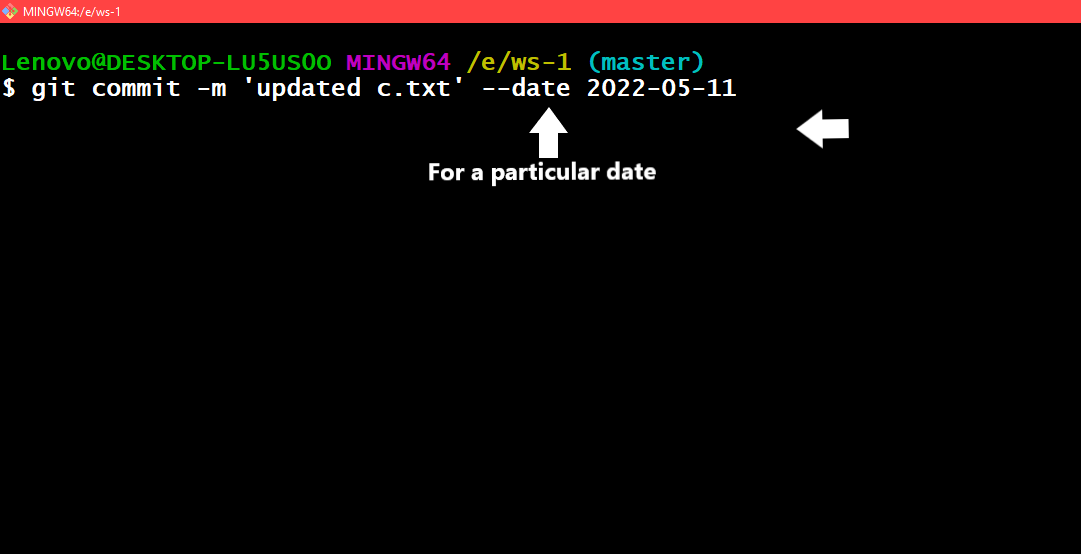
The syntax for committing a file at a particular date
Let us see our commit in the git log

Here we can see that in the git log command output the given commit has the date that we mentioned in the git commit command
The date parameter accepts a lot of flexible formats which are being supported in git.
git commit -m 'commit_message' --date yesterday
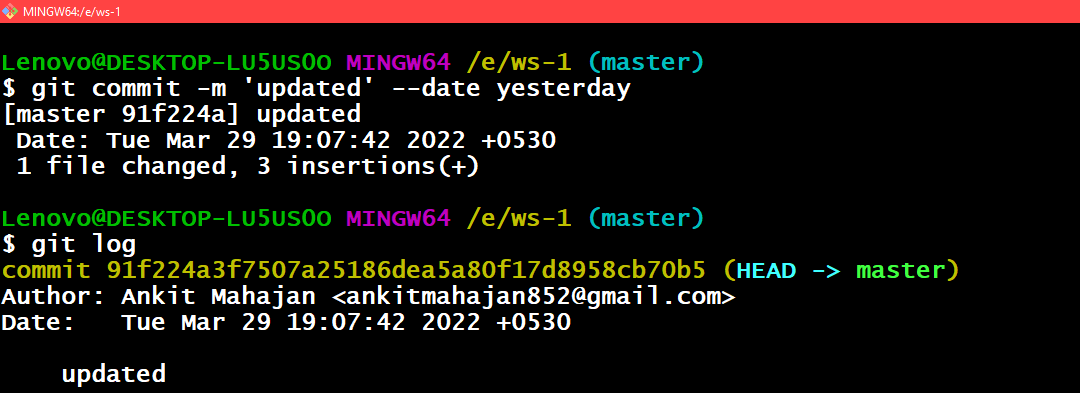
Here we can see in the git log it is showing us yesterday's date
git commit -m 'commit_message' --date '3 days ago'

Using the command git commit -m 'commit_message' --date '3 days ago'
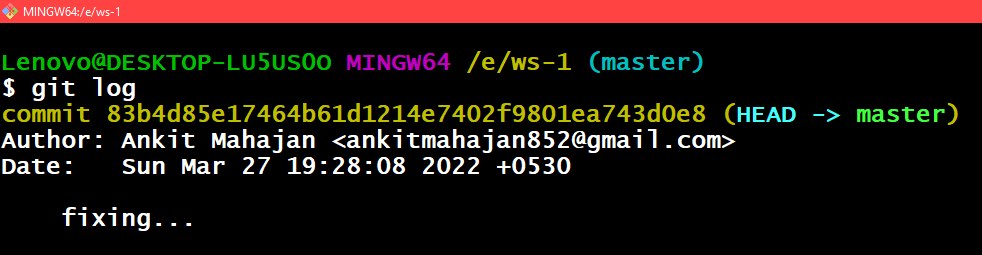
Using the command git log and here we can see that it showing us the commit date 3 days ago because today is 30th march
But when we don't specify time git uses the current time and only the date changes then. Now if you want that the time should be changed.
Amending the Time of commit
We can amend the time of the commit using the below command as follows:
git commit --amend --date="day_name month_name date time YYYY -0400"
Or even
git commit --amend --date="now"
The second command shows the current date and time
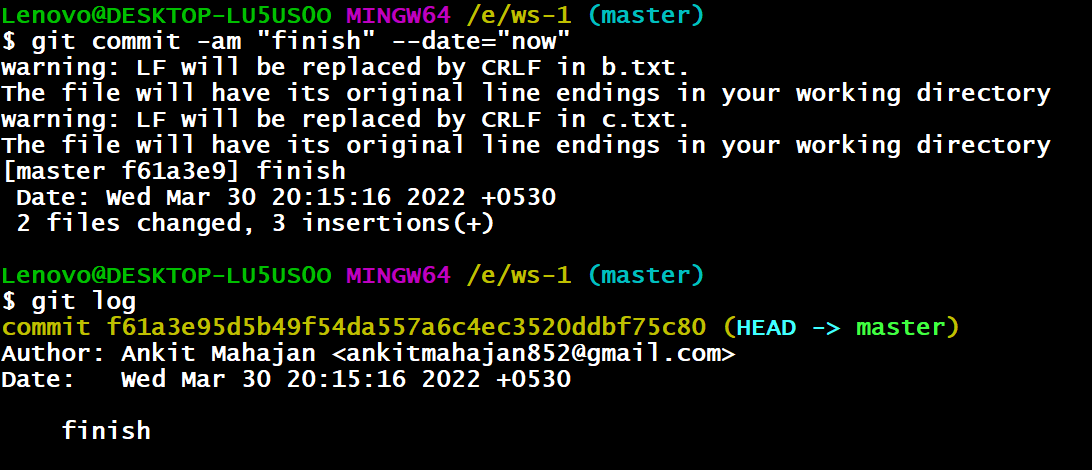
Here we can see in the git log it is showing the current date and time