Difference Between fork and clone in GitHub (original) (raw)
Last Updated : 30 Jun, 2024
Understanding the **difference between **fork and clone in GitHub is important for anyone looking to collaborate on open-source projects or manage their code efficiently. While both actions involve creating a copy of a repository, their purposes and implementations differ significantly. This article will learn these concepts, making it easier for you to navigate GitHub effectively.
What is GitHub?
GitHub is a platform for version control and collaboration, allowing multiple people to work on projects simultaneously. It leverages Git, a distributed version control system, enabling you to track changes in your code, revert to previous stages, and work on different branches independently.
What is a Fork?
A **fork is a personal copy of someone else's repository that lives on your GitHub account. Forking a repository allows you to freely experiment with changes without affecting the original project. This is particularly useful for contributing to open-source projects. Here's a breakdown of the key points:
- **Independent Copy: A forked repository is an independent copy of the original repository, meaning changes made to the fork do not affect the original.
- **Contribution: Forks are commonly used to propose changes to someone else's project. You can modify your fork and then create a pull request to suggest changes to the original repository.
- **Collaboration: Forks are useful for collaborative development, where multiple contributors can work on their versions and merge changes into the original project through pull requests.
How to Fork a Repository
- Navigate to the repository you want to fork.
- Click the **Fork button at the top-right corner of the repository page.
- GitHub will create a copy of the repository under your account.
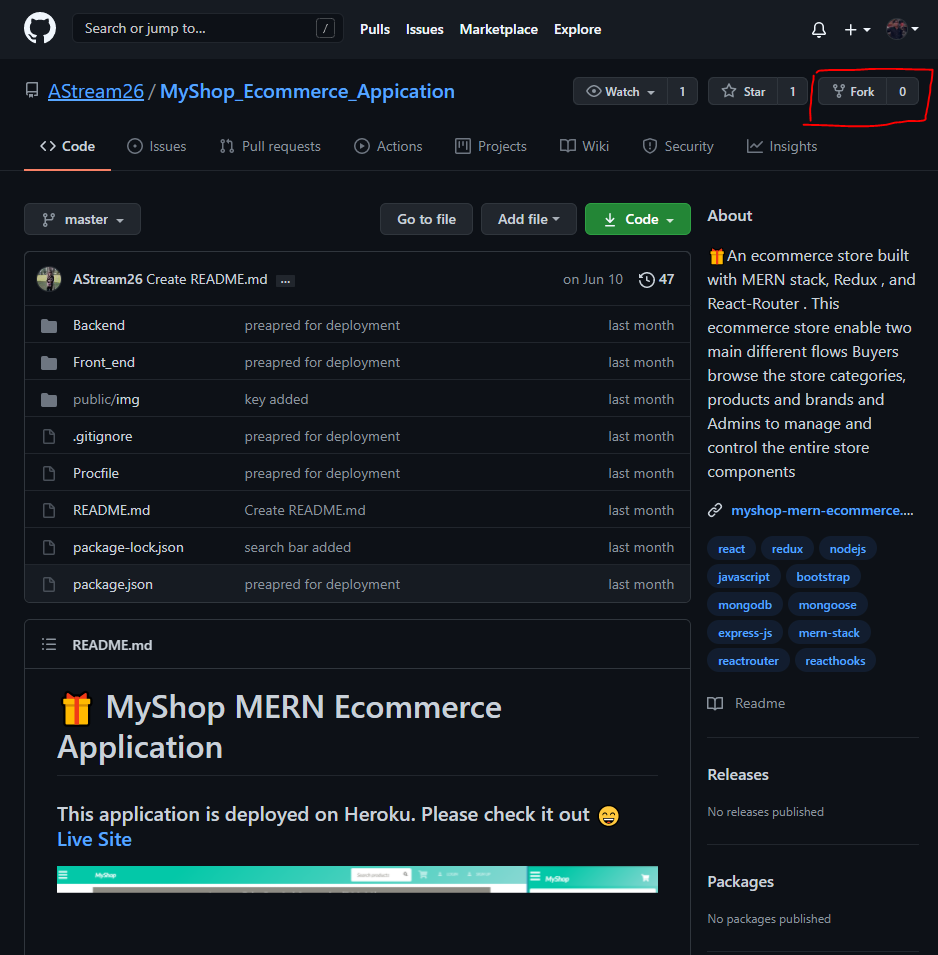
**Note: It will take some time and when the process is complete, the forked copy of the project will open. Now let us see what **Clone stands for in developing projects or be it a smaller program.
What is a Clone?
A **clone is a copy of a repository that is created on your local machine. Cloning a repository allows you to work on a project offline and is the first step in most Git workflows. Here's what you need to know:
- **Local Copy: A cloned repository is a local copy of the repository on your computer. You can modify this copy, commit changes, and push updates to the remote repository.
- **Synchronization: Cloning allows you to synchronize changes between your local and remote repositories using Git commands like
git pullandgit push. - **Version Control: With a cloned repository, you have full access to the project's entire history, including branches, tags, and commits.
How to Clone a Repository
- Navigate to the repository you want to clone.
- Click the **Code button and copy the repository URL.
- Open your terminal or Git Bash.
- Run the command:
git clone [repository URL]
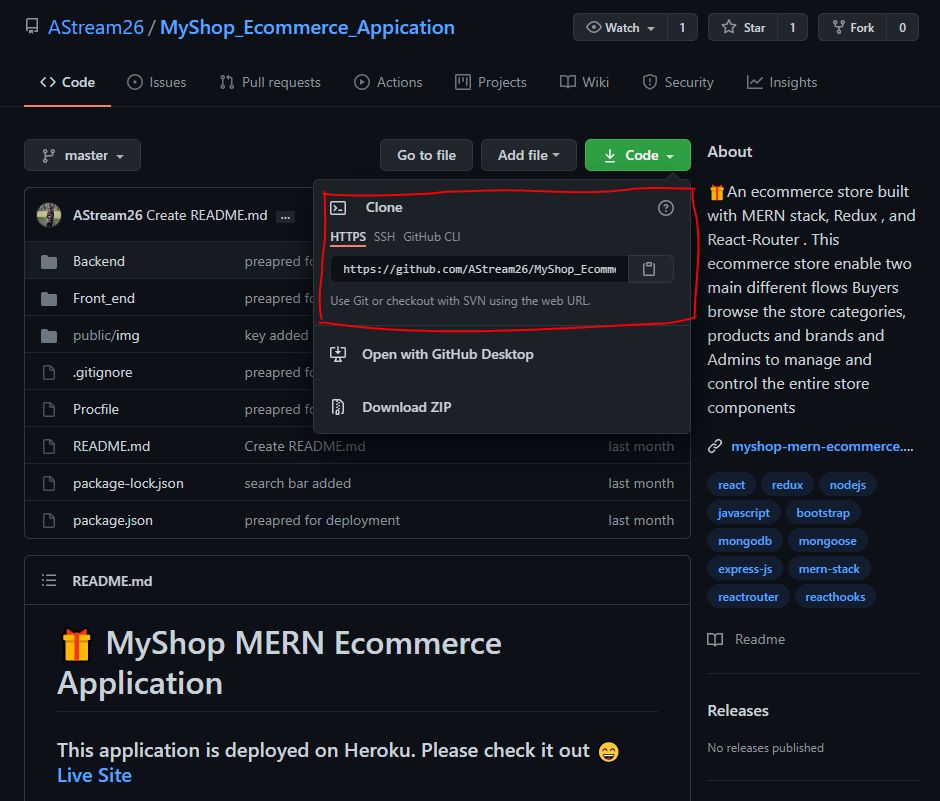
Now let us discuss the conclusive differences between Fork and Clone operation over a repository, been depicted below in a tabular format provided below as follows:
Difference between fork and clone in GitHub
| Fork | Clone |
|---|---|
| Forking is done on the GitHub Account | Cloning is done using Git |
| Forking a repository creates a copy of the original repository on our GitHub account | Cloning a repository creates a copy of the original repository on our local machine |
| Changes made to the forked repository can be merged with the original repository via a pull request | Changes made to the cloned repository cannot be merged with the original repository unless you are the collaborator or the owner of the repository |
| Forking is a concept | Cloning is a process |
| Forking is just containing a separate copy of the repository and there is no command involved | Cloning is done through the command ‘**git clone‘ and it is a process of receiving all the code files to the local machine |