Git Move Files (original) (raw)
Last Updated : 18 Mar, 2026
Git move is used to relocate files or directories within a repository while preserving their history.
- Moves files or folders to a new location using git mv.
- Maintains version history after moving files.
- Automatically stages the move for the next commit.
Usage of git mv
When a file is renamed manually, Git treats it as a deletion and a new file addition instead of a rename, which can affect proper tracking of file history.
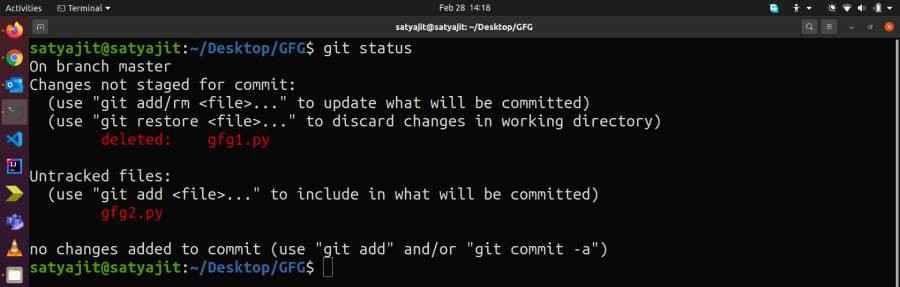
- git status shows gfg1.py as deleted and gfg2.py as an untracked file.
- This indicates Git is interpreting the change as delete + add, not a rename.
- Using git mv ensures Git recognizes it as a rename operation and preserves history.
Options in git mv
git mv provides options to control and customize file move or rename operations.
- **-f: Force rename/move even if target exists.
- **-k: Skip operations that would cause errors.
- **-n: Show what would happen without executing.
- **-v: Display files being moved.
Rename Operation
To rename a file within a Git repository, use the git mv command, which updates the file name while preserving its version history.
git mv oldfilename newfilename
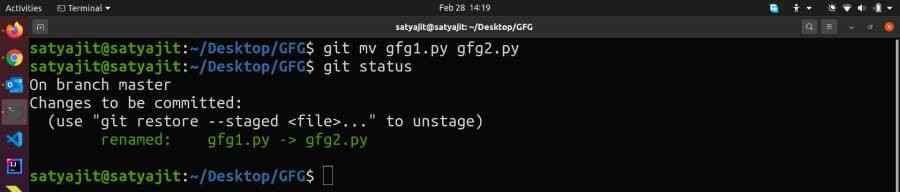
Let’s take the earlier example. This time, we rename the file using the git mv command:
git mv gfg1.py gfg2.py
Now, Git recognizes this as a rename operation instead of a delete and add. This will be reflected in the output of the git status command, where the file is shown as renamed.
Move operation
Files can be moved within a Git repository using the git mv command, which updates the file location while preserving its history.
git mv filename dir/filename
**Example:
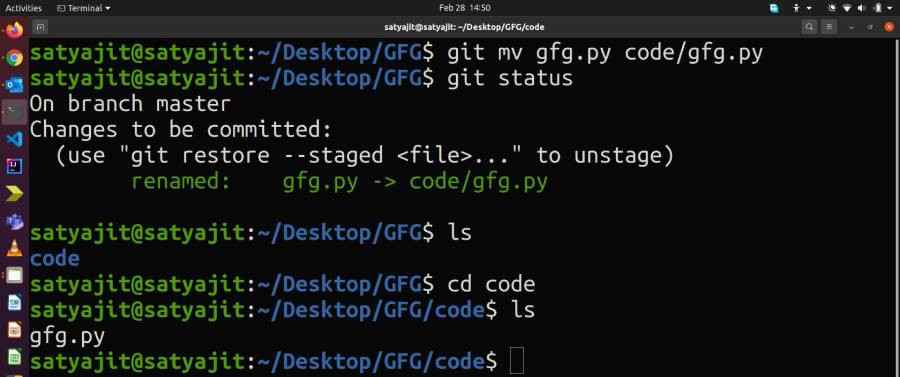
git mv gfg.py code/gfg.py
Consider moving gfg.py to code/gfg.py using git mv, which updates the file location while preserving its history and is reflected in git status.
Handling Conflicts
When moving files, you might encounter conflicts, especially if other team members are working on the same files. Here are some tips to handle conflicts:
- **Communicate with Your Team: Before moving files, inform your team to avoid simultaneous changes.
- **Resolve Conflicts Promptly: Use Git tools to resolve conflicts and complete the move operation.
- **Test Thoroughly: Verify the project after resolution to ensure functionality is unaffected.