Git Rename (original) (raw)
Last Updated : 18 Mar, 2026
Git rename is used to change the name or location of a file while keeping its version history intact. It helps track file movements without losing previous commits.
- Renames or moves files within the repository.
- Preserves commit history of the file.
- Combines rename and staging in a single command (git mv).
Rename using GitHub
Rename a file directly on GitHub through the web interface without using command-line tools.
**Step 1: Open GitHub.
**Step 2: Open the repository to rename any file in that repository.
**Step 3: Open the file which we want to rename.
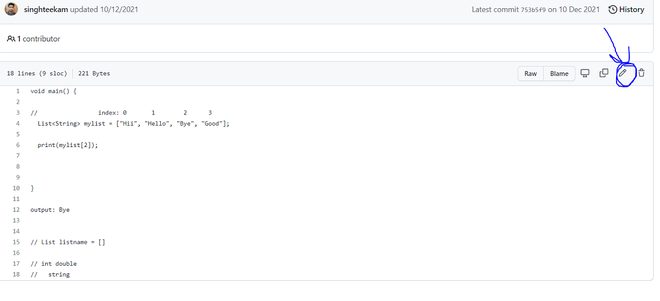
**Step 4: Click the edit button and rename the file.

**Step 5: After renaming the file, commit the changes.
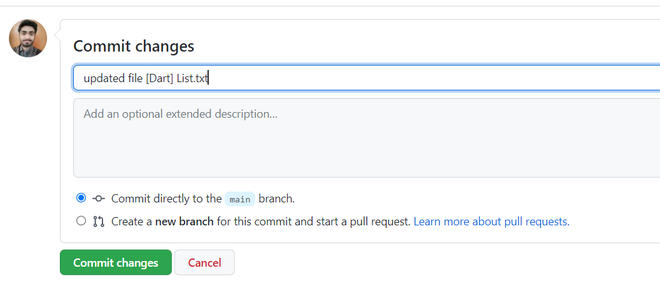
**Step 6: A file with the new name will be saved.
Renaming using the Command Line
Rename a file in Git using the terminal while preserving its history.
**Step 1: Open Git Bash.
**Step 2: Open the repository.
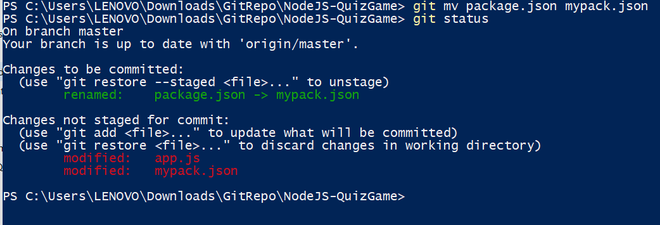
**Step 3: Rename the file using the command:
git mv old_filename new_filename
**Step 4: Check the changes.
git status
**Step 5: Commit the renamed file.
git commit -m "Renamed file"
**Step 6: Push the changes
git push origin branch_name