Host a Website on GitHub For Free (original) (raw)
Last Updated : 11 Nov, 2025
GitHub allows you to host websites for free using GitHub Pages. It’s an easy way to publish static websites, portfolios, or project demos directly from a GitHub repository. With GitHub Pages, your site gets a public URL, and you can update it anytime by pushing changes to the repository.
**Steps for Hosting Website on GitHub
Here, we are going to discuss the step-by-step process of hosting a website on GitHub for free. So, you can also host your portfolio or your college project online with GitHub.
**Step 1: Create a GitHub account
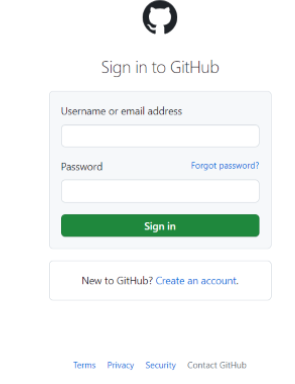
- The first step is to create a GitHub Account if you don't have one already. You can create an account for free on the GitHub website.
- If you already have one then do **github login to your account.
GitHub
**Step 2: Create a New Repository
- Next, you need to create a new repository to host your website.
- To create a new repository, click on the ****"Create repository"** button on your left section after the new registration.
- You can also do it by clicking on the "new" button on your GitHub Dashboard.
- Give your repository a name that corresponds to your username. For example, if your website is called "username", name your repository "username.github.io".

Create new repository
Give the description of the website you are creating and then click on ****"create repository"** button.

Name the repository as your username.github.io
**Step 3: Create an index.html file and a web.css file
- To create a website, you need an HTML file that contains the content of your website.
- You can create a new HTML file using a text editor like Visual Studio Code or Notepad.
- Save the file as "index.html" in your local repository.
Or
Click on ****" creating new file"** or "new file" to create a new file and name the created file.

Create new file
Name the file with the ****".html"** extension so that you can add the HTML code for your website. Add the code for your website below in the edit section.

Create index.html and add the HTML code for your website
Add a description and "**Commit changes" button so that your code gets added and saved on GitHub.

commit the HTML code
Add the CSS code for your website by doing the same process as above and then add a description and click on the ****"Commit changes"** button.

Create index.html and add the CSS code for your website

Commit the CSS code
**Step 4: Enable GitHub Pages
- After pushing your code to your repository, you need to enable GitHub Pages for your repository.
- To do this, navigate to your repository on GitHub and click on the ****"Settings"** tab.
- Scroll down to the ****"Pages"** section from the left section.

Go to pages in the left section in the settings
**Step 5: Visit your website
- Once GitHub Pages are enabled for your repository, your website is now live! You can visit your website by navigating to https://your-username.github.io/ in your web browser.
- It might take a few moments for the changes to propagate and for your website to be accessible.

Visit your hosted site

How to Host a Website on GitHub For Free?
Why Use GitHub for Website Hosting?
- **Free Hosting: GitHub Pages offers free web hosting with custom domains.
- **Ease of Use: It is easy to set up and requires minimal effort, especially for static websites.
- **Version Control: You can easily manage your website’s source code with GitHub’s version control system.
- **Integration with GitHub Projects: If you’re already using GitHub for version control, hosting your website is seamless.