Moving Recent Commits to a New Branch (original) (raw)
Last Updated : 8 Apr, 2026
Moving recent commits to a new branch means transferring the latest commits from the current branch to a separate branch to reorganize or isolate work without losing changes.
- Helps separate work that was committed to the wrong branch
- A new branch is created from the recent commit history
- The original branch can be reset to remove those commits
- Ensures clean project history and better branch management
Git Concepts for Branch Pointer and Commit Movement
The fundamental Git concepts and commands that control how branch pointers and the HEAD move across commits, forming the basis for managing and reorganizing commit history.
1. HEAD
HEAD is a pointer to the most recent commit in the currently checked-out branch. It represents the active working state and moves as new commits are made or when switching branches.
2. git commit -m ""
Records changes from the staging area into the repository as a new commit. Each commit creates a new snapshot, and the HEAD pointer moves forward to this commit.
3. git branch
Creates a new branch, which is simply a pointer to the current commit (HEAD). Multiple branches can point to the same commit initially and diverge over time.
4. Relative References (^ and ~)
Used to navigate commit history without hashes:
- **HEAD^: Moves one commit backward.
- **HEAD~n: Moves n commits backward.
These are useful for identifying previous commits in operations like reset.
5. git reset --hard HEAD~n
Moves the current branch pointer (HEAD) backward by n commits and updates the working directory and staging area to match. This effectively removes recent commits from the current branch.
6. git checkout
Switches between branches by moving the HEAD pointer to the selected branch and updating the working directory accordingly.
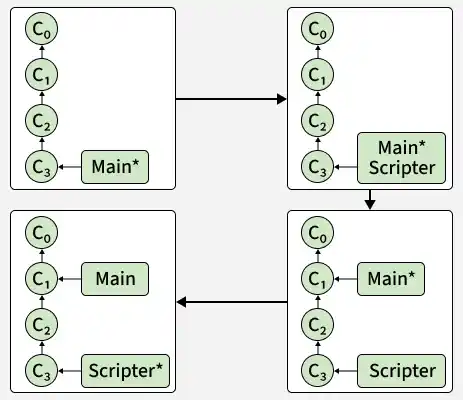
Steps to Move Recent Commits to a New Branch
Step 1: Check Current Status
Before making any changes, it's a good practice to check the current status of your repository. Open your terminal or command prompt and navigate to the repository where you want to move the commits. Use the following command to view the current status:
git status
Step 2: Create a New Branch
Next, create a new branch where you want to move the recent commit(s). Use the following command to create a new branch and switch to it:
git checkout -b new-branch-name
Replace new-branch-name with the desired name for your new branch.
Step 3: Move the Commits
Now, let's move the most recent commit(s) to the newly created branch. There are a couple of ways to achieve this, depending on whether you want to move just the most recent commit or multiple recent commits.
**1. Moving the Most Recent Commit
If you only need to move the most recent commit, you can use the git reset command. Switch back to the original branch:
git checkout original-branch-name
Then, use the following command to reset the original branch to the previous commit, effectively removing the latest commit from this branch:
git reset --hard HEAD~1
Now, switch back to the new branch:
git checkout new-branch-name
And cherry-pick the removed commit onto the new branch:
git cherry-pick original-branch-name
**2. Moving Multiple Recent Commits
If you need to move more than one recent commit, you can adjust the reset command to match the number of commits. For example, to move the last three commits:
git checkout original-branch-name
git reset --hard HEAD~3
git checkout new-branch-name
git cherry-pick original-branch-name..HEAD@{1}
In this command, HEAD~3 indicates the last three commits, and HEAD@{1} refers to the state of the branch before the reset.
Step 4: Verify Changes
After moving the commits, it's essential to verify that everything is in order. Use the git log command on both branches to ensure the commits have been moved correctly:
git log
Check the log for both the original and new branches to confirm the commits are where they should be.
Use Cases
Describes scenarios where commits are reassigned to a different branch to maintain correct workflow, structure, and code organization.
- **Branch Correction: Reassign commits that were mistakenly made on the wrong branch to the appropriate branch.
- **Feature Isolation: Separate ongoing changes into a dedicated branch for better modular development and testing.
- **Workflow Optimization: Maintain a structured and clean commit history, especially in collaborative environments where branches map to specific tasks or features.