How to Undo Git Reset? (original) (raw)
Last Updated : 3 Jun, 2024
Did you make a mistake with `****git reset --hard**` and lose your uncommitted changes? Depending on the situation, there might be a way to get them back. Here's what you can do:
What is `git reset --hard`?
This command discards any uncommitted changes and moves your project back to a specific point in history. It's a powerful tool, but use it carefully!
Recovering Lost Work (if possible):
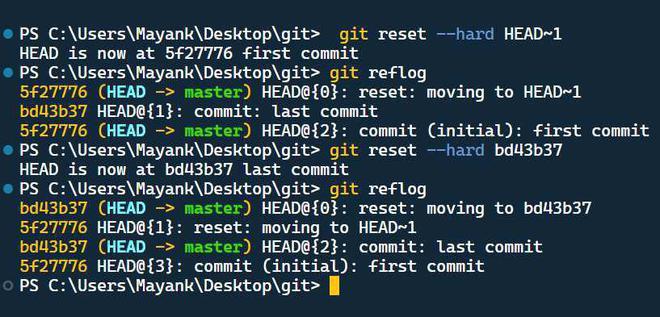
complete process
**Step 1. Checking the Git Reflog:
Git keeps a log of changes to your project's history. Use the `****git reflog**` command to view this log. Look for the commit hash (unique code) before the **`HEAD~` reset (where `` indicates how many commits you went back). This is the commit you want to recover from.
git reflog
Step 2. Going Back in Time (partially):
Use `git reset --hard <commit_hash>` to detach your project to that specific commit. This essentially undo the `****git reset --hard` and brings you back to the desired state.
git reset --hard
Important Reminders:
- This approach also erases any uncommitted changes you made **after the commit you're reverting to.
- There's no guarantee of success, especially if you haven't used `****git reflog**` before or if the reset was a long time ago.
- Consider using `****git reset --soft**` or `****git checkout**` for safer alternatives that won't erase your work.