How to Upload Project on GitHub from Android Studio? (original) (raw)
Last Updated : 12 Jul, 2025
Learning how to **upload a project to GitHub from Android Studio is an essential skill for developers, as it allows you to share your code, collaborate with others, and manage version control. With **GitHub integration in Android Studio, it's easy to push your project to a repository. This guide will walk you through the steps to **push your project to GitHub from Android Studio, covering everything from setting up **version control in Android Studio to making your first commit and push. 0
Steps to Upload Project on GitHub from Android Studio
**Step 1: Go to the **VCS panel which is present at the top of Android Studio and click on it. After clicking select "**Enable Version Control Integration".
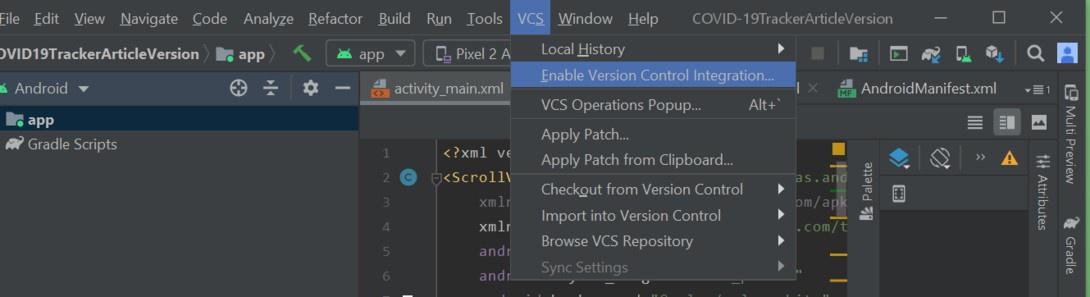
Upload Project on GitHub from Android Studio
After clicking the **Enable Version Control Integration a pop up will arise like following. Then select **Git from the drop down menu and click **OK. This will initialize the project for GitHub.
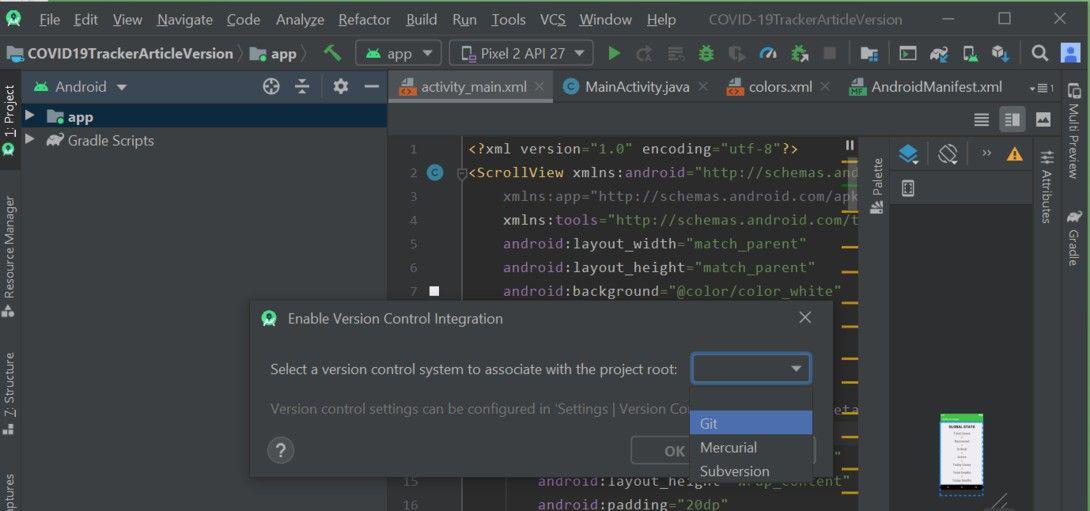
Upload Project on GitHub from Android Studio
**Step 2: The next step is click on the green tick present in the upper part of the Android Studio. Basically this symbol refers to **Commit and what it does is it will collect the all unversioned files and make them ready to update in gitHub.
.jpg)
Upload Project on GitHub from Android Studio
After clicking this a new screen will pop up like the following. Now, first select the **unversioned files, then input the **Commit message as "Initial Commit" and then click on the **Commit button.
.jpg)
Upload Project on GitHub from Android Studio
Now the project is ready to upload in GitHub.
**Step 3: The last step to be followed is to go to **VCS then select **Import into Version Control and then click on **Share project on **GitHub.

Upload Project on GitHub from Android Studio
After clicking this a pop up will arise where user has to enter its GitHub **login id and **password. After successfully logged in to its account one more pop up will come like following where the user has to give its **Repository name and the **Description of their repository. Then click on the share button and done.
**Note: Don't put blank spaces or special characters while giving Repository name.

Upload Project on GitHub from Android Studio
Conclusion
By mastering the process of **uploading a project to GitHub from **Android Studio, you can effectively collaborate with other developers and manage your code's version history. The built-in **GitHub integration in Android Studio makes it simple to share your work with the community or your team. Don't forget to utilize features like **commit and push to GitHub and sync your project regularly to keep your repository updated.