Git Commit (original) (raw)
Last Updated : 27 Feb, 2026
git commit saves a snapshot of staged changes into the Git repository, creating a point in history that helps track and manage project progress.
- Commits store changes from the staging area into the repository.
- Each commit represents a snapshot of the project at a specific time.
- Git records metadata like author, timestamp, commit message, and parent commit.
- After committing, the working directory and staging area remain active for further changes.
Ways to Use the git commit Command
Ways to Use the git commit Command explains the different methods and options available for creating commits in Git.
1. Commit with a Message
git commit -m "Initial commit"
- Saves staged changes with the provided message.
- Messages should be concise but descriptive.
2. Commit All Changes at Once
git commit -a -m "Update all tracked files"
Automatically stages modified and deleted tracked files before committing.
**Note: Does not include untracked files-you still need git add for those.
3. Amend Last Commit
git commit --amend -m "Updated commit message"
- Modify the last commit’s message or add new staged changes.
- Useful for correcting mistakes in the most recent commit.
4. Commit Interactively
git commit -p
- Allows you to commit changes hunk by hunk, giving fine-grained control over commits.
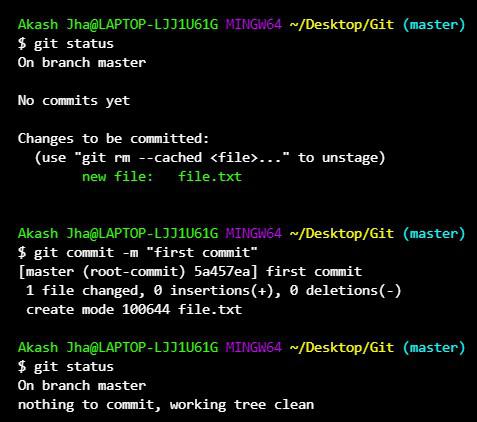
git commit
Common Options for git commit
| Option | Description |
|---|---|
| -m | Add a commit message inline |
| -a | Automatically stage modified and deleted tracked files |
| --amend | Modify the last commit |
| -p | Commit interactively by hunk |
| --dry-run | Show what would be committed without actually committing |
Working with Git Commit
Working with Git Commit explains how commits are created, customized, viewed, amended, and managed in a Git workflow.
1. Understanding Commits and HEAD
- Each commit is a node in Git’s history, and HEAD points to the current commit on the active branch.
- Commits link to previous ones, and HEAD points to the latest commit.
2. Git Commit Flags
**Git provides several flags to customize commits:
- **git commit -m "commit message": Creates a commit with the given commit message.
- **git commit -a: Automatically stages all tracked files that have been modified and commits them.
- **git commit -am "message": Stages all tracked changes and commits them in one step.
3. Handling Modifications After a Commit
- Modify & Commit: Edit files - stage with git add - commit with git commit.
- **View Changes: Use git show.
- **View History: Use git log to see all commits.
4. Amending a Commit
To fix the last commit without adding a new history:
git commit --amend -m "new message"