Working With Git Repositories (original) (raw)
Last Updated : 11 May, 2026
A Git repository is a storage space that contains project files along with the complete history of changes, enabling version control and collaboration.
- Stores project files and tracks every modification made to the code.
- Allows developers to revert to previous versions and manage project history.
- Supports collaboration using local and remote repositories on platforms like GitHub, GitLab, or Bitbucket.
Types of Git Repositories
1. Local Repository
A local repository is a Git repository stored on a developer’s local machine that contains project files and their complete version history.
- Stores project files, commit history, and branches on the local system.
- Allows developers to make changes and manage versions without internet access.
- Changes can later be synchronized with a remote repository.
2. Remote Repository
A remote repository is a Git repository hosted on a server or platform that allows multiple developers to collaborate on a project.
- Hosted on platforms like GitHub, GitLab, or Bitbucket.
- Allows developers to access, clone, and contribute to the same project.
Getting Started with Git Repositories
To start working on a remote project, the repository must be cloned to the local system. Cloning creates a complete local copy of the repository, including files, commit history, and branches.
1. Clone a Git repository
Cloning creates a local copy of a remote Git repository so developers can access all files, history, and branches and start working on the project locally. To clone a repository, use the following command:
git clone https://github.com/username/repository

2. Adding a Remote Repository to Local Repository
A remote repository can be added to a local repository to simplify pushing and fetching changes. By default, cloning creates a remote named origin that links the local repository to the source repository.

- The origin repository is the default remote repository created during cloning.
- It links the local repository to the remote repository.
- The git push command is used to send local changes to the origin remote by default.
To add a remote repository with the local repository, $ git remote add command is used. The file name and path are to be passed to this command as an argument.
git remote add

This will add the remote repository at the given path with the local repository.

Here, it can be seen that a new repository named new_remote has been added with the existing remotes.
3. Renaming a Remote Repository
You can rename an existing remote repository in Git if its name needs to be updated by using the following command:
git remote rename

**Note: The default remote repository 'origin' gets created only when a repository is cloned but not when a repository is created with the use of git init command.
4. Pushing Changes to a Remote Repository
After making changes to your local repository, you'll want to push those changes to the remote repository so that others can access and collaborate on them. This can be done using the git push command.
By default, Git will push changes from the current branch to the same branch in the remote repository:
git push origin
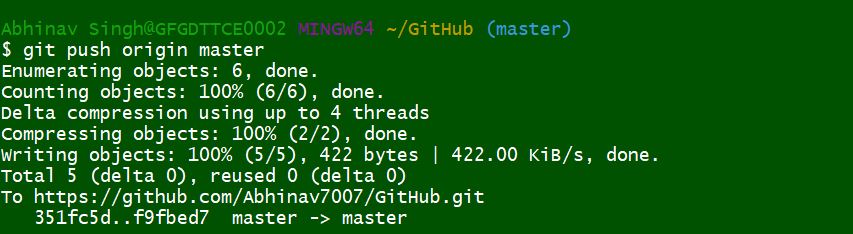
Specify the branch name in the push command to push changes to the correct branch in the remote repository.
5. Pull or Fetch from a Remote Repository
Pulling or fetching retrieves updates from the central repository to synchronize the local repository with the latest changes using git pull or git fetch.
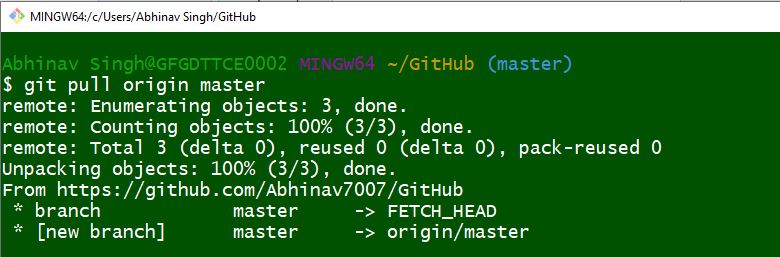
- Both git pull and git fetch are used to update the repository with the latest changes.
- git fetch updates only the remote tracking branches.
- git pull updates both the remote repository and the local branch.
Best Practices
Best practices in Git helps maintain a clean workflow and improves collaboration in development projects.
- **Write Clear Commit Messages: Use descriptive messages to explain the purpose of each change.
- **Use Branches Strategically: Work on features or fixes in separate branches to keep the main branch stable.
- **Regularly Push and Pull Changes: Keep the local repository synchronized with the remote repository.
- **Review Changes Before Committing: Use git status and git diff to check changes before committing.