HTML Canvas Basics (original) (raw)
Last Updated : 21 Jan, 2026
HTML Canvas is an element used to draw graphics dynamically on a web page using JavaScript. It acts as a container for rendering shapes, text, images, and animations.
- Requires JavaScript to draw graphics on the canvas.
- Supports drawing paths, rectangles, circles, text, and images.
- Represents a rectangular drawing area on a webpage.
- Has no border or content by default unless styled or scripted. HTML `
`
Here, By using of canvas with a linear gradient & stroke-style text in HTML.
Syntax:
Content...**Note: It is recommended to have an id attribute (to be referred to in a script), and a width and height attribute to define the size of the canvas. To add a border, use the style attribute.
Supported Properties of HTML Canvas
| **Canvas Property | **Description |
|---|---|
| Colors and Styles | Used to set fill color, stroke color, and styling for shapes and text. |
| Shadows | Adds shadow effects to shapes and text drawn on the canvas. |
| Line Styles | Controls line width, line caps, and line joins for strokes. |
| Rectangles | Used to draw and manipulate rectangular shapes on the canvas. |
| Paths | Allows drawing custom shapes using lines and curves. |
| Transformations | Enables scaling, rotating, translating, and skewing canvas objects. |
| Text | Used to draw and style text on the canvas area. |
| Pixel Manipulation | Allows direct access and modification of pixel data. |
| Compositing | Controls how new drawings are combined with existing content. |
| Image Drawing | Used to draw images onto the canvas from external sources. |
Drawing Shapes and Graphics Using HTML Canvas
There are various shapes that can be possible to draw using Canvas, which are discussed below.
Example 1: To demonstrates the empty canvas
HTML `
`
Example 2: Using HTML Canvas to draw a circle
HTML `
Circle Drawing`
Example 4: Use of linear-gradient property in HTML Canvas.
HTML `
`
Example 5: Draw the image by using the canvas tag.
HTML `
Image to use:

<p>Canvas to fill:</p>
<canvas id="gfg"
        width="300"
        height="300"
        style="border:1px solid #d3d3d3; ">
</canvas>

<p>
    <button onclick="gfg()">
      Click to Try
      </button>
</p>
<script>
function gfg() {
    let g = document.getElementById("gfg");
    let geeks = g.getContext("2d");
    let img = document.getElementById("image");
    geeks.drawImage(img, 0, 0);
}
</script>
`
**Output:
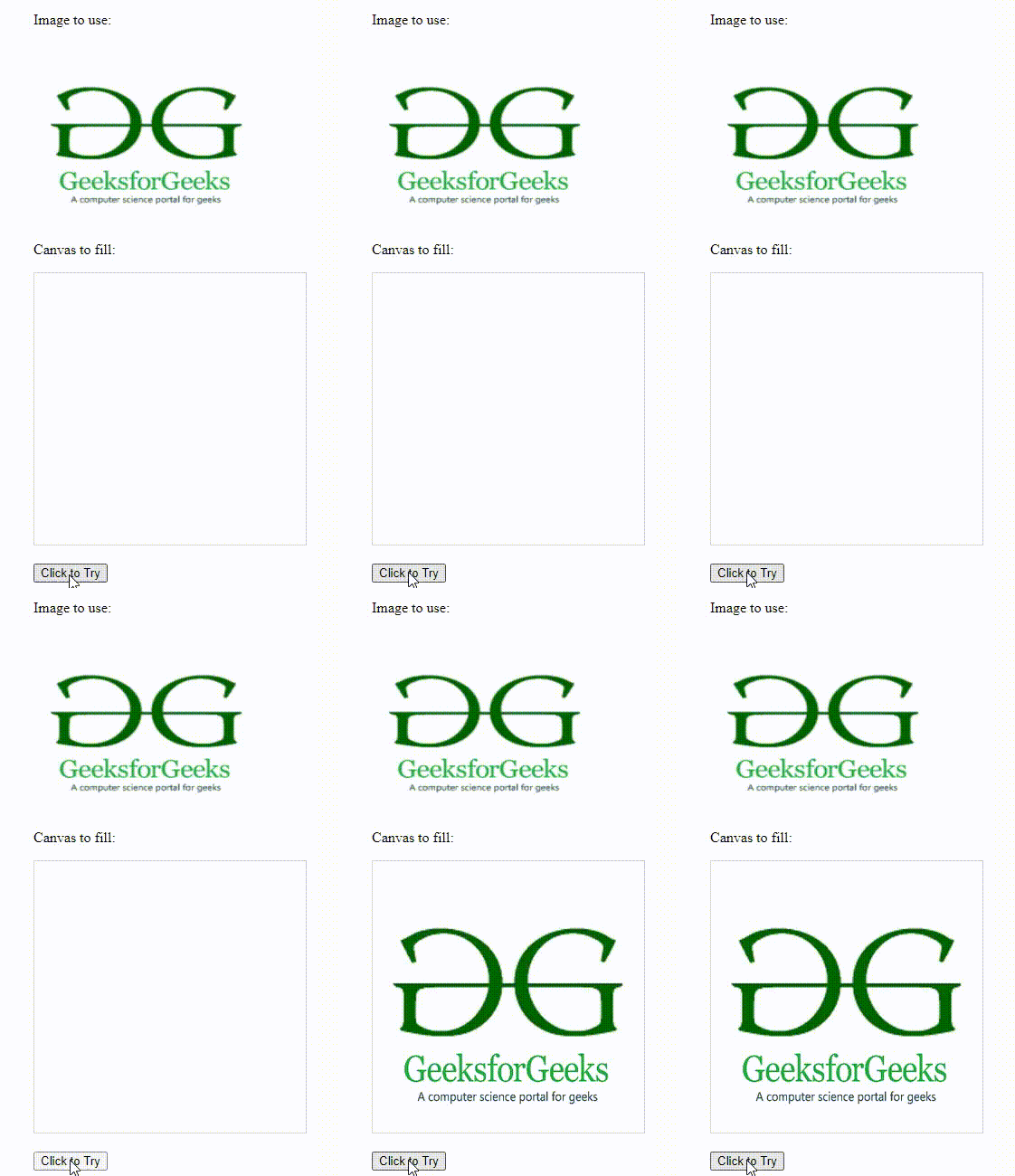
Drawing image with tag
Example 6: Using the Shadow blur property in HTML Canvas.
HTML `
`
Output:
HTML Canvas with Shadow blur property
Example 7: Use rotate() method in the HTML Canvas.
HTML `
`
Example 8: By using the translate() method to remap the (0,0) position on the canvas.
HTML `
`
**Output:

HTML Canvas with translate() method
Example 9: By using the transform() method in HTML Canvas.
HTML `
`
Creating Animation in HTML Canvas
Animation in an HTML5 canvas is created using JavaScript to draw and update graphics repeatedly over time. By controlling the timing of redraws, objects on the canvas appear to move or change, creating an animation effect.
- JavaScript controls canvas animation by repeatedly updating drawings at specific time intervals.
- setInterval(callback, time) runs a function continuously after every fixed time delay, making it suitable for simple animations.
- setTimeout(callback, time) runs a function only once after a delay and is often used recursively for controlled animations.
- These timing methods help manage frame updates, movement speed, and smooth visual effects on the canvas.