How to Enable Live Server on Visual Studio Code (original) (raw)
Last Updated : 17 Dec, 2024
When working on web development projects, you often need to manually refresh the browser to see the changes you make in your code. The **Live Server extension for **Visual Studio Code automates this process by creating a local development server. With Live Server, any time you save your HTML, CSS, or JavaScript files, the browser will automatically refresh to reflect those changes instantly. This significantly enhances your productivity and eliminates the need for constant manual refreshing.
Steps for Installing and Enabling Live Server on VS Code
Below is a step-by-step guide to **install and **enable Live Server on VS Code:
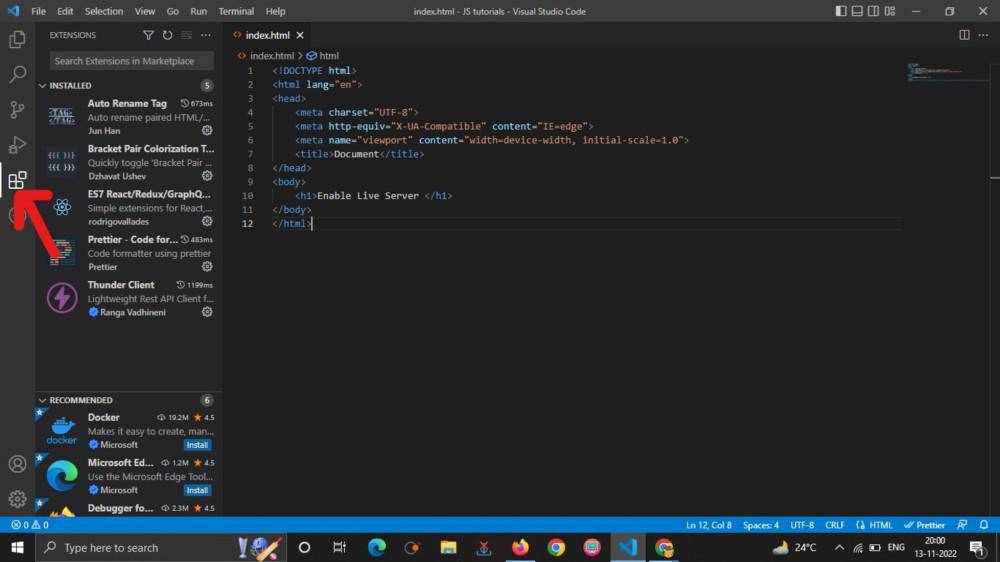
Step 1: Open Extensions Panel
- Open **Visual Studio Code.
- In the **Activity Bar on the left side, click on the **Extensions icon (it looks like a square with four squares inside, located on the bottom of the sidebar).
- Alternatively, you can use the shortcut
Ctrl+Shift+X(Windows/Linux) orCmd+Shift+X(Mac).
Step 2: Search for Live Server
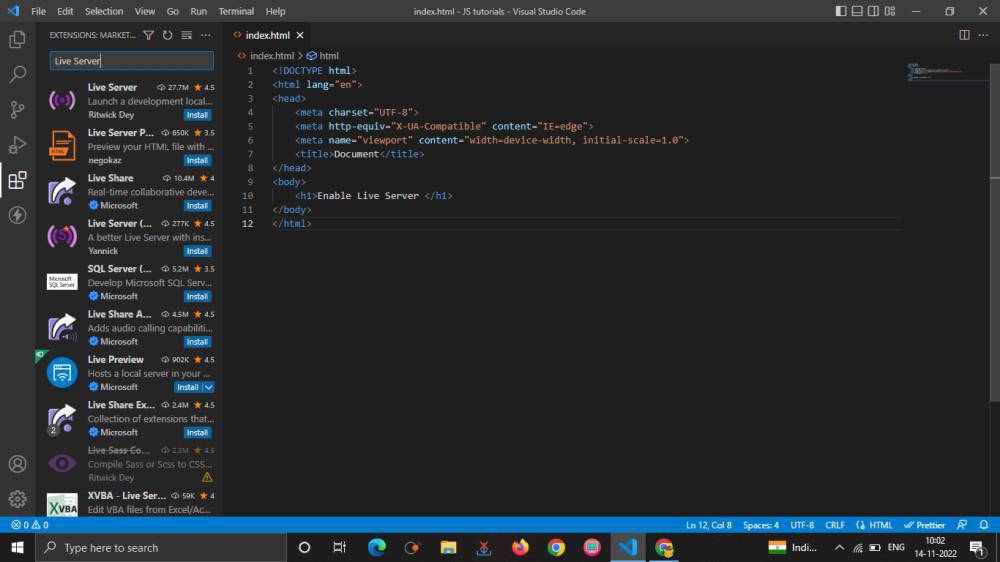
- In the Extensions search box, type ****"Live Server"**.
- Look for the extension titled ****"Live Server"** by **Ritwick Dey (this is the most popular and widely used extension).
- Click on **Install to install the Live Server extension.
**Step 3: Verify the Installation
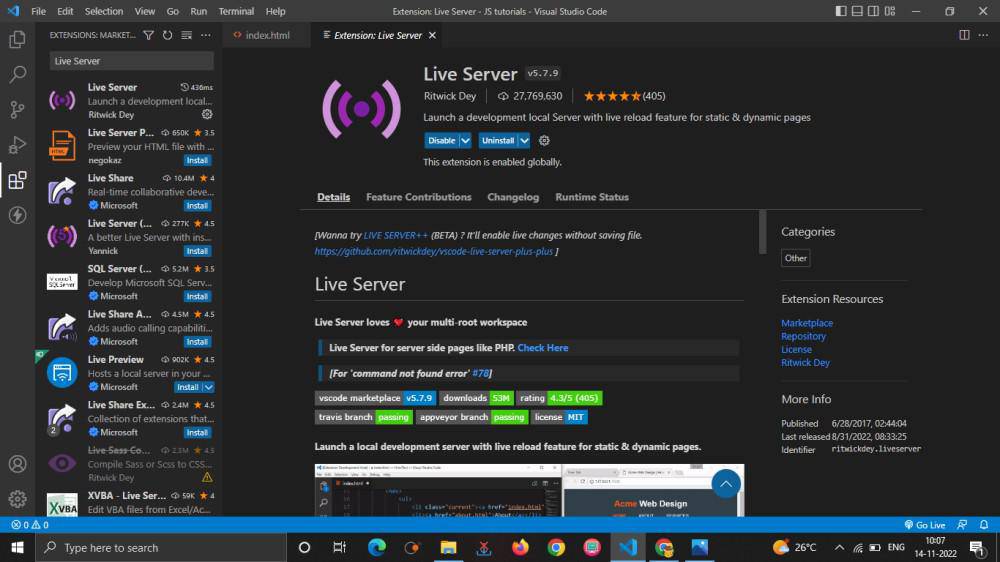
- After installation, you will see a ****"Installed"** message in the Extensions panel.
- You can also check the Extensions sidebar, and **Live Server should now be listed among your installed extensions.
**Step 4: Launch Live Server
- Open the **HTML file you want to preview in the browser.
- At the bottom-right corner of the VS Code window, you will see a **Go Live button. Click on it to start the Live Server.
- Alternatively, you can right-click on your HTML file and select ****"Open with Live Server"** from the context menu.

**Step 5: Live Preview in Browser
- Your default web browser will open automatically with a live preview of your HTML page.
- As you make changes to your code in VS Code, simply save the file (
Ctrl+SorCmd+S), and the browser will automatically refresh, reflecting the changes instantly.

**Step 6: Stop Live Server (Optional)
- To stop the Live Server, simply click on the ****"Port: [number]"** (for example, **Port: 5500) at the bottom-right corner of VS Code, or press
Alt + Q(Windows/Linux) orOption + Q(Mac). This will stop the live server and close the browser window. - You can also use the **Stop Live Server button from the **VS Code status bar if it's visible.
**What to Do If the "Go Live" Button is Not Showing in VS Code (but Live Server is Working)
If you've installed the **Live Server extension successfully, but the ****"Go Live"** button is not showing up at the bottom-right corner of Visual Studio Code, don't worry—there are a few common reasons why this might happen and simple solutions to fix it. Here’s how to troubleshoot:
**1. Ensure You Have an HTML File Open
The ****"Go Live"** button typically appears when you have an **HTML file open in your workspace. Live Server works by serving HTML files in your default web browser, so make sure you're working on an HTML file.**Fix: If you're working with other files like CSS or JavaScript and need to see them live, open an **HTML file to activate the ****"Go Live"** button.
**2. Check the File is Part of a Workspace
If you're opening a single file without a workspace (for instance, just opening a single HTML file directly), the **Go Live button may not appear. Live Server generally works better when you're working in a folder or project workspace.**Fix: Open the **entire folder or project in VS Code instead of just a single file. You can do this by selecting **File → Open Folder and navigating to your project folder.
**3. Restart VS Code
Sometimes, the ****"Go Live"** button may not appear immediately due to a minor glitch or issue when loading VS Code.**Fix: Simply restart **VS Code and open your workspace again. This should refresh the editor and make the ****"Go Live"** button visible if everything else is working.
**4. Check for Conflicting Extensions
Other extensions might conflict with **Live Server and prevent the button from showing up. Extensions like **Live Preview or **Browser Preview may cause such issues.**Fix: Try disabling other conflicting extensions temporarily to see if that resolves the issue. You can disable extensions by going to the **Extensions panel (Ctrl+Shift+X), finding the extension, and clicking **Disable.
**5. Reinstall the Live Server Extension
If nothing else works, the **Live Server extension itself may not have installed properly.**Fix: Uninstall and reinstall the **Live Server extension:
- Go to **Extensions Panel (
Ctrl+Shift+X). - Search for **Live Server.
- Click the **Uninstall button, then reinstall it.
**6. Manually Open Live Server
If the ****"Go Live"** button is still not showing, you can always **manually start the Live Server:
- Right-click on your HTML file in the editor or Explorer and select ****"Open with Live Server"** from the context menu.
- This will open your HTML file in your browser and start a live server.
**7. Check VS Code Settings for Live Server
Sometimes, settings within VS Code may prevent the button from appearing or functioning properly.**Fix: Check your **VS Code settings related to **Live Server:
- Go to **File → Preferences → Settings (or
Ctrl+,). - Search for **Live Server and ensure the settings are configured correctly (such as default browser, port number, etc.).
- Make sure that **Live Server: Settings: Show Go Live Button is enabled.
**8. Check for Updates
Make sure that both **VS Code and the **Live Server extension are up to date. Sometimes, an update may fix bugs that prevent the **Go Live button from showing.**Fix:
- Go to **Help → Check for Updates in VS Code to ensure you're running the latest version of the editor.
- Similarly, update the **Live Server extension by navigating to the **Extensions Panel and selecting **Update if available.
**Additional Tips for Using Live Server
**1. Custom Port for Live Server
If you want to change the default port used by Live Server (which is typically 5500), you can do this by:
- Going to **File → **Preferences → **Settings.
- Search for **Live Server and look for **Custom Browser and Port options to set the port number according to your preference.
**2. Open a Specific File in Live Server
To launch a specific file (e.g., index.html) directly on Live Server, simply right-click on that file and select **Open with Live Server.
**3. Live Server Settings
In addition to the custom port, you can configure Live Server to open in a specific browser, set the wait time for automatic refresh, and control other behaviors from the settings menu.
- Access settings by navigating to **Settings → **Extensions → **Live Server Config.
**4. Live Server Extension Commands
- **Live Server: Open with Live Server: Right-click on your HTML file and choose this option.
- **Live Server: Stop Live Server: If you need to manually stop the server, use this command.
**5. Supported File Types
Live Server works not only with HTML files but also with other web development files, including CSS and JavaScript. As long as your code is part of a web development project, you can preview it live in the browser.
**Conclusion
Enabling Live Server in Visual Studio Code streamlines the web development process by providing automatic live previews in your browser. The simple installation steps and automatic refresh make it a must-have tool for front-end developers. By following the above steps, you'll have Live Server up and running in no time, allowing you to see your changes instantly without manual browser refresh.