How to Install FFmpeg on Windows (original) (raw)
Last Updated : 23 Jul, 2025
FFmpeg is an open-source, versatile software that is widely used among Windows 10 and 11 users for creating and handling multimedia files right from editing to converting. So, it doesn't matter whether you're a beginner or a professional, if you're looking for a reliable and lightweight tool, then FFmpeg is for you.
In this guide, we're going to explain how you can download and install FFmpeg on Windows 10 and 11.
Prerequisites
- A working Internet connection
- Windows PC
- Administrative Rights
Steps to Download FFmpeg on Windows
You can download the FFmpeg for Windows by following these 2 simple steps. Let's find out:
1. Visit the official Website and Select the Compatible OS
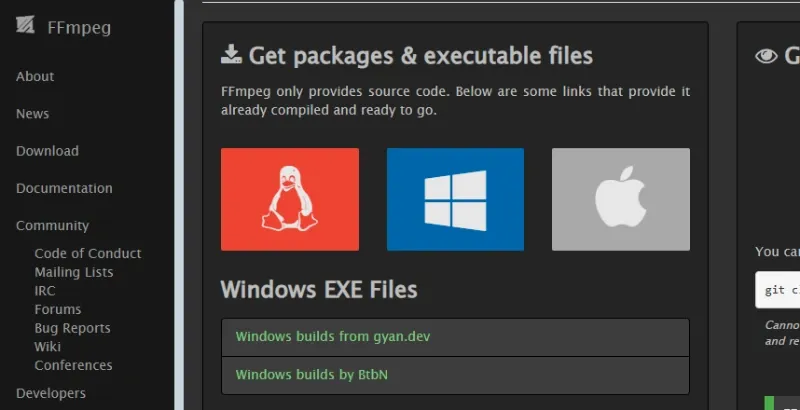
Open your web browser and visit the official website of FFmpeg for Windows.
2. Choose your Compatible Version
Scroll over the Windows Logo, you'll see 2 options.
- Windows builds from gyan.dev
- Windows builds by BtbN
You can click on the second option, it will redirect you to its GitHub page. Navigate and download the ZIP file.
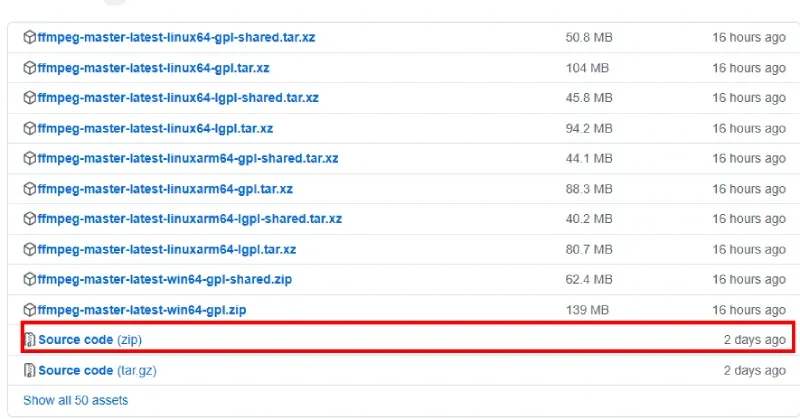
Release Builds
Steps to Install FFmpeg on Windows
Once you download the ZIP file, Now, it's time to start extracting the file and Install it in your Windows computer. Let's begin:
1. Navigate to the ZIP path
Locate the downloaded file so that you can unzip its folder.
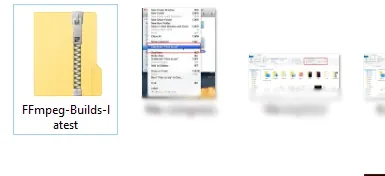
ZIP folder
2. Unzip the Downloaded FFmpeg File
Right-click on the ZIP file and click on "Extract All" and choose a new path to unzip the extracted files.
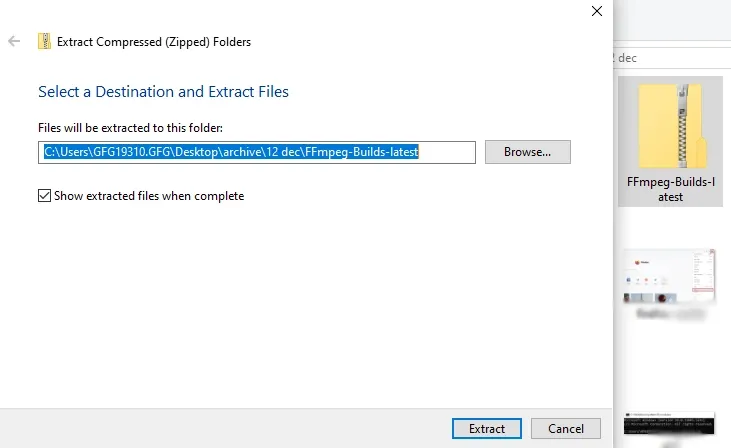
Unzip the FFmpeg file
Configure FFmpeg Installer - 2 Steps
This is a crucial step to run this tool, once you allow FFmpeg to your system path, it can be easily used from the Command line. Let's check out these two steps to configure the FFmpeg tool in your Windows 10 or 11.
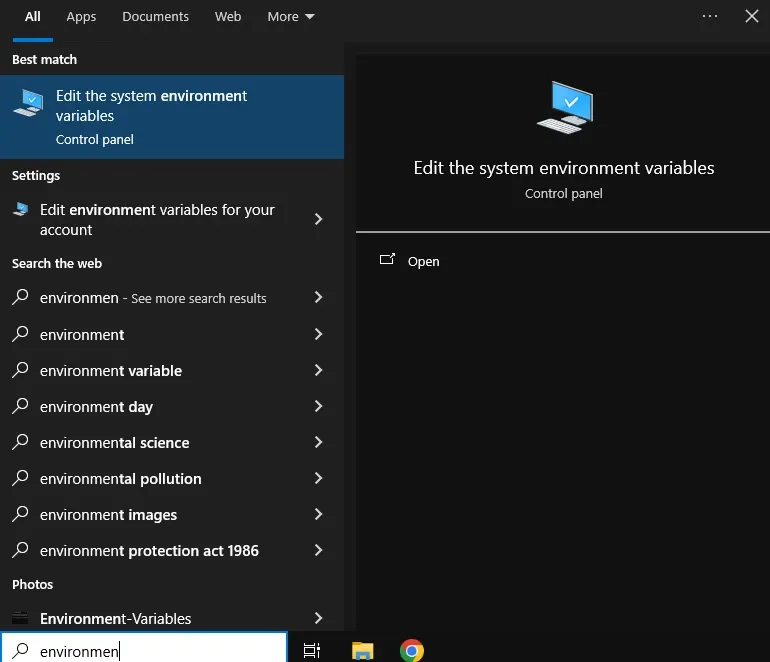
1. Press **Win + S and type "Environment Variables", you'll see an option by this name "Edit the system environment variables" Hit the Enter button.
2. Click on **path > **edit and then click **New and enter the **path to the extracted folder of FFmpeg. Click on save and exit.
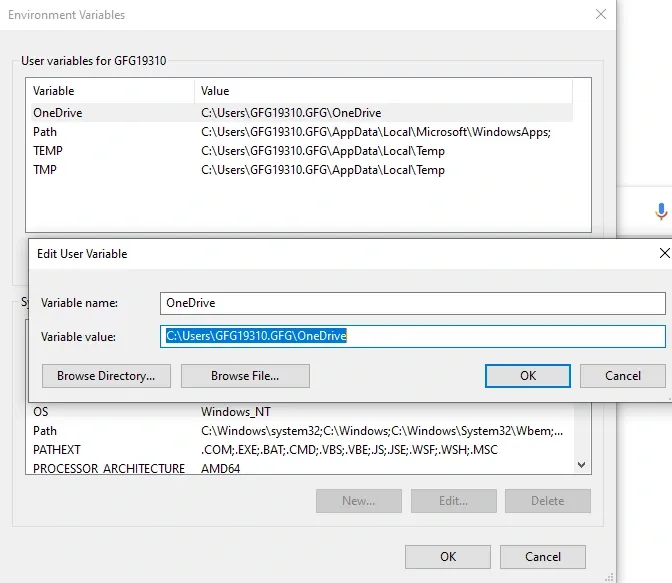
Edit Environment
**Verify the FFmpeg Installation
Once you finish the installation, you can verify the same via the command prompt. Here's how you can do it:
**1. Open Command Prompt
Go to Start and type "Command Prompt" and select ****"Run as administrator"**
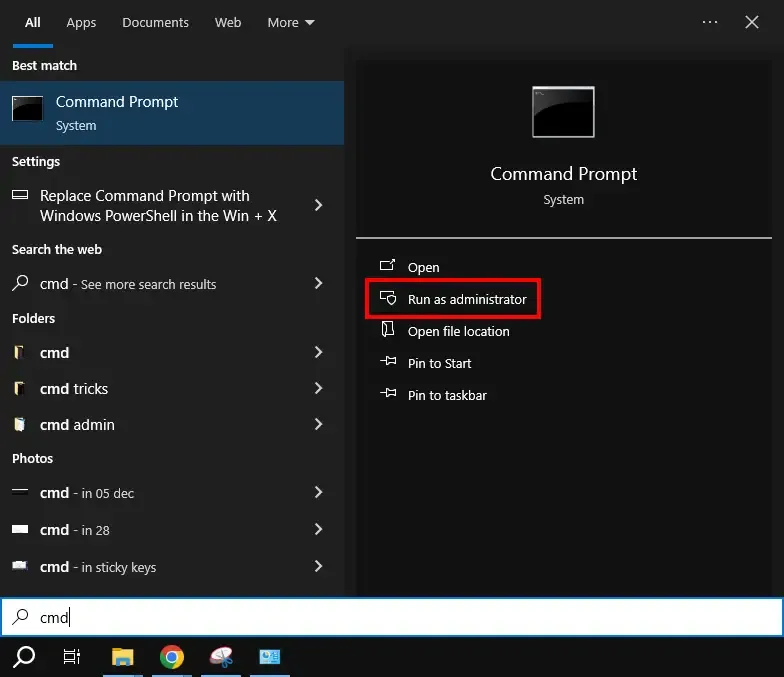
Open command prompt as admin
2. Run FFmpeg Installer Verification
Restart your computer and verify the installation by running:
ffmpeg -version
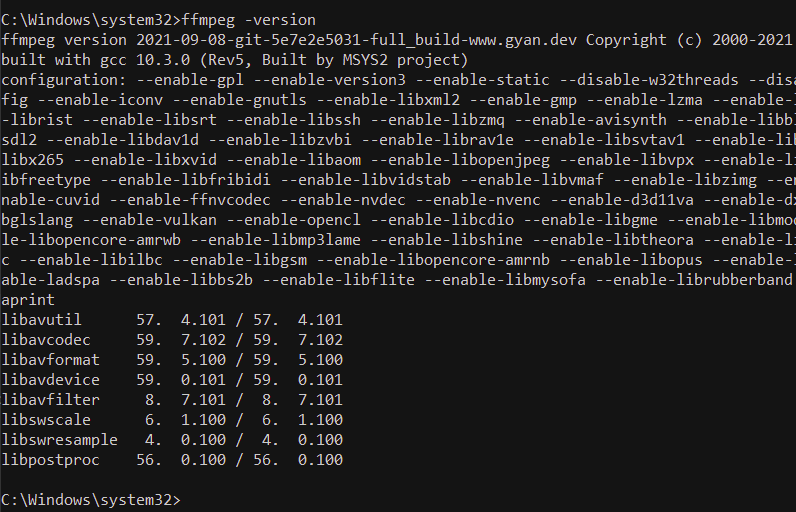
By following these methods, you can easily download, install, and verify the installer on your Windows computer. FFmpeg not only empowers you to handle media files (including video) but also provides solutions to perform audio editing and file compression. The above-mentioned steps have been segregated in such a way that if you're a beginner or a professional, it should create any issue to get FFmpeg in your Windows 10 and 11.