How to Install Nessus in Windows? (original) (raw)
Last Updated : 1 Feb, 2023
Nessus is a security scanner tool, provided by Tenable Incorporation. Nessus is among the best tools for remote vulnerability scanning, presently available. It provides many features such as port scanning, vulnerability scanning, visualization of scan results, etc. Before understanding how to install Nessus on Windows, let's take a look at the prerequisites for the installation of Nessus.
Prerequisites
- A computer with Windows operating system installed and running.
- 4 GB of RAM (minimum). Recommended 8 GB RAM.
- At least four 2 GHz CPU cores.
- 30 GB of disk space.
Steps to Install Nessus in Windows
Step 1: Downloading Nessus Installer.
Firstly, download the Nessus windows installer from its official website. On the download page, select the Nessus version you want to install and your Windows architecture; for most users, it will be 'Windows - x86_64'. You will be prompted to accept the user agreement. Read it, accept it, and continue. It would look like this after downloading.
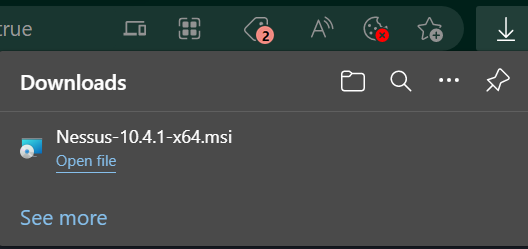
Step 2: Installing the Nessus Tool.
- After the downloading is done, go to your download folder and run the installer file as administrator. Doing this will take you to the installation wizard.
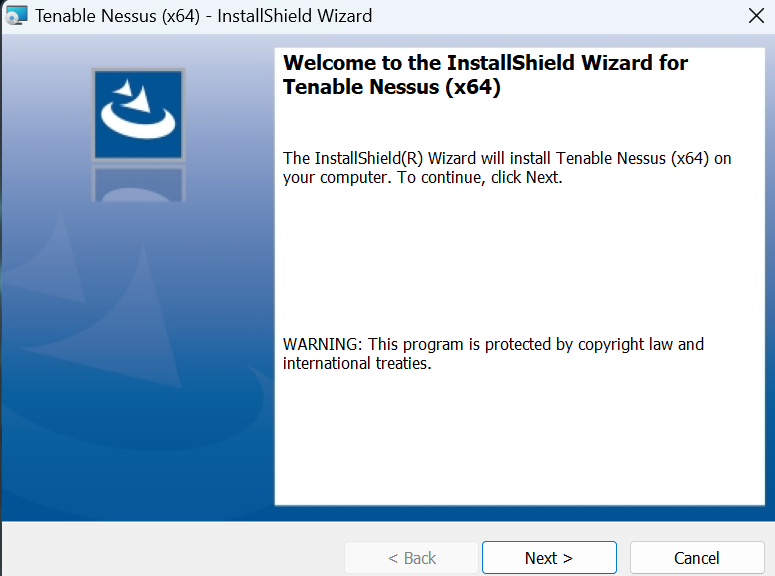
- Click Next and continue to the user agreement widget.
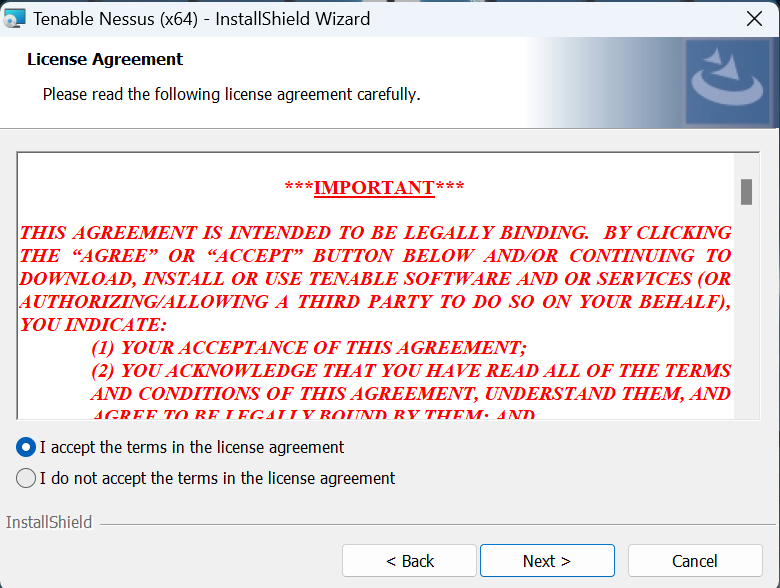
- Agree to the license agreement and click Next.

- Now, the installation wizard will install it in C drive by default. If you want to change the installation location, click Next else you can change it to your desired location.
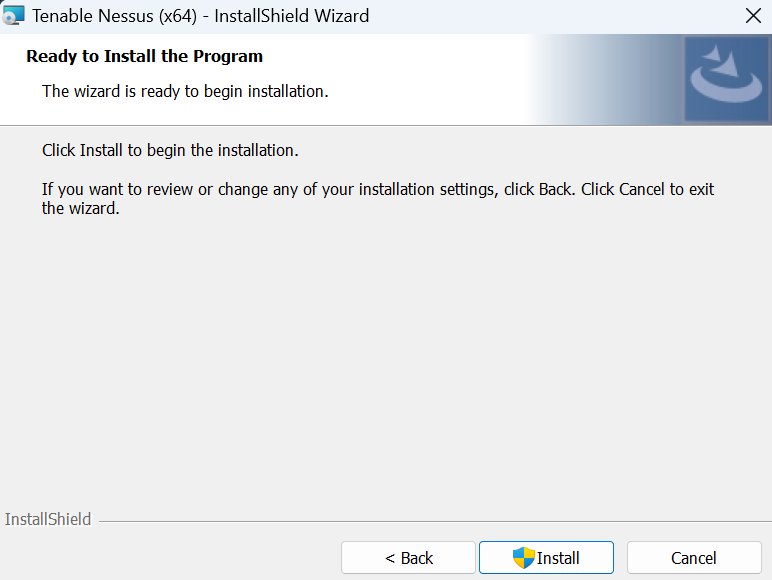
- Now, you will be asked to install it. Click on install and also allow the wizard when a UAC permission is prompted.

Once the installation is done, click Finish.
Step 3: Setting Up Nessus in Browser.
When you click on Finish in the installation wizard, it will open the Nessus interface in your default browser on the URL: http://localhost:8834/WelcomeToNessus-Install/welcome. It would look like this:
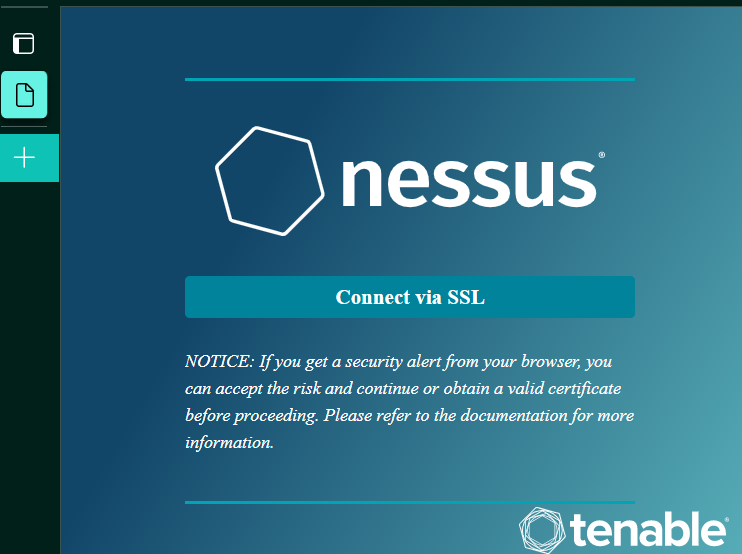
Now we shall proceed to set up Nessus in Browser. Click on 'Connect via SSL' in your browser window. After this, you'll be prompted that the connection is not safe. Ignore it and continue. A page like this will open.

Click on Nessus Essentials as it is the only free version of Nessus, and it is best suited for beginners. Then, continue.

Here, you will be asked for an activation code; Enter your name and E-mail address, and the code will be sent to that E-mail address. If you are an existing Nessus user, you can skip this step and continue to log in.
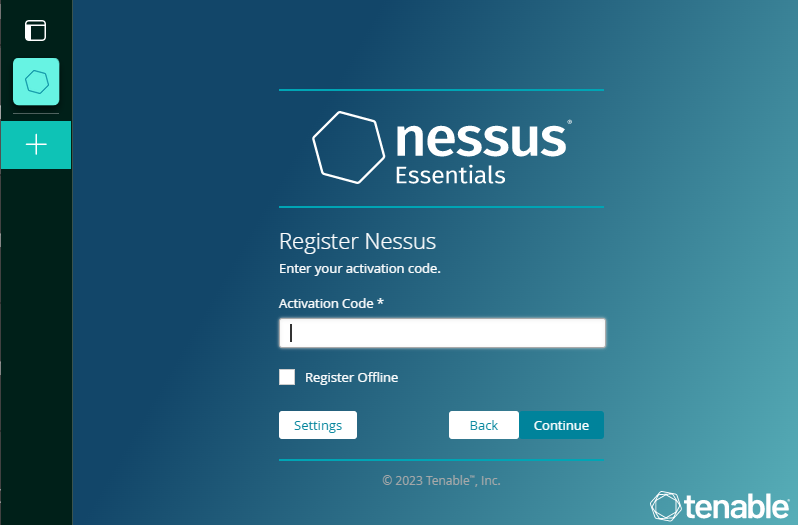
Enter the activation code received in your E-mail. Keep in mind that this is a one-time activation code, if you uninstall Nessus or your browser, you'll need to verify it again with a new code. After entering the code, you will be asked to create a new Administration account. Enter the new credentials and create the account.

Once the administrator account is created, Nessus will install all the required plugins and essential tools. Let the process complete; make sure that the internet connection is not interrupted.
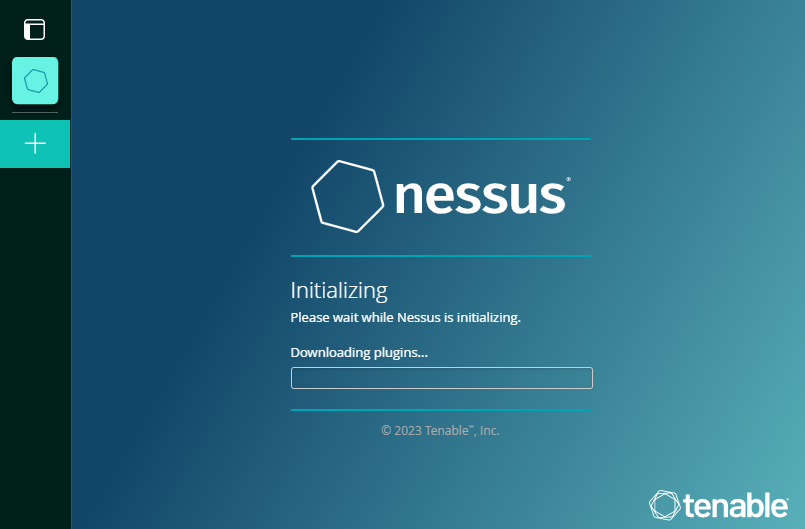
After the installation of the plugins is completed, you will be taken to your dashboard. However, the functionality of Nessus will be limited until all the plugins are compiled.

Now Nessus's Essentials version is completely installed on your computer. You can perform various scans after the plugins are compiled.
Conclusion
This article presented a step-by-step guide on how to install Nessus on Windows and set up the Nessus in your browser with detailed steps and images.