Installation of Virtual machine (original) (raw)
Last Updated : 28 Nov, 2025
A Virtual Machine (VM) is software that creates a simulated computer inside your real system, allowing multiple operating systems to run independently on the same physical hardware. It virtualizes resources like CPU, RAM, storage, and network to provide isolated environments for different tasks.
- It allows running multiple operating systems on a single physical machine.
- Each VM works as an independent computer with its own OS and resources.
- It uses your system’s hardware (CPU, RAM, disk, and network) in a virtualized form.
- Common VM tools include VirtualBox, VMware, and Hyper-V.
Downloading and Installing VirtualBox
Follow the given below steps download and install the virtual box
Step 1: Download VirtualBox
- Open your web browser and go to the official VirtualBox website.
- On the download page, select the Windows hosts option to download the installer (.exe file).

Step 2: Start the Installer
- Locate the downloaded .exe file (usually in the Downloads folder).
- Double-click the file to launch the VirtualBox Setup Wizard.
Step 3: Getting Started
- The setup window will open with a welcome screen.
- Click Next to begin the installation process.

Step 4: Select Installation Location
- Choose where you want VirtualBox to be installed (or keep the default path).
- Click Next to continue.

Step 5: Create Shortcuts and Entries
- Select whether you want shortcuts on the Desktop and in the Start Menu.
- Confirm any additional options like file associations.
- Click Next.

Step 6: Confirm Installation
- A summary screen will appear showing your chosen settings.
- Click Install to start copying files and installing VirtualBox

Step 7: Installing Files and Certificates
- The installer will copy files and set up VirtualBox components.

- If Windows asks to install device software or certificates (e.g., for network adapters), click Install or Allow.

Step 8: Finish Installation
- Once the installation completes, you’ll see a Finish button.
- Make sure the “Start Oracle VM VirtualBox after installation” option is checked if you want to open it immediately.
- Click Finish.

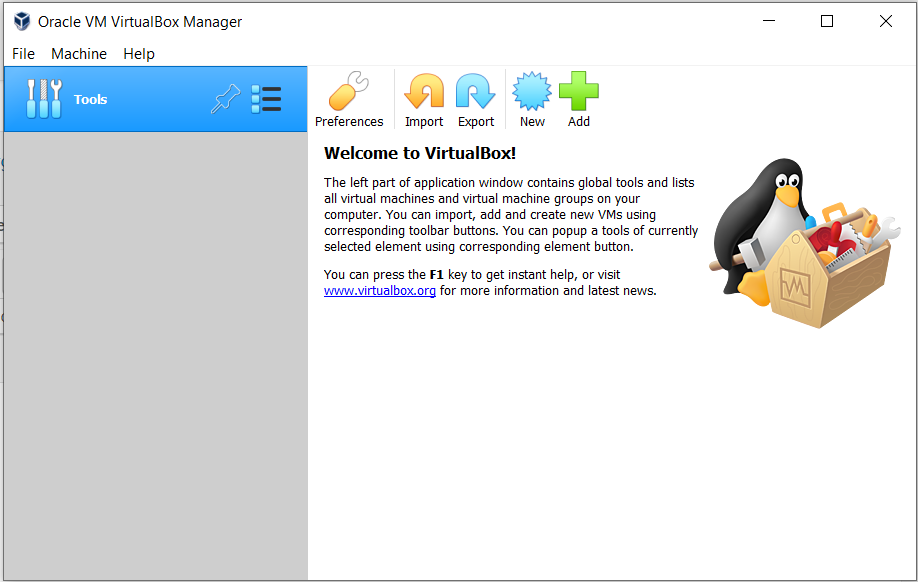
- When you will open virtualbox it will look like as shown below: