Create a New Maven Project from Command Prompt (original) (raw)
Last Updated : 9 Jan, 2026
In this guide, we will learn how to create a new Maven project using the Command Line Interface (CLI). Maven is a powerful build automation tool that simplifies project management, especially for Java projects. There are different ways to create a Maven project, including using an Integrated Development Environment (IDE) or the CLI. This article will focus on the CLI method.
Prerequisites
Before creating a Maven project, ensure the following prerequisites are met:
- **Java Development Kit (JDK) Installed: Verify by running java -version in the command prompt.
- **Maven Installed: Verify by running mvn -version in the command prompt. Ensure Maven is downloaded, extracted, and the PATH variable is set correctly.
- **Verifying Maven Installation: To check if Maven is installed correctly, open a command prompt or terminal and run:
mvn -version
You should see output indicating the Maven version, Maven home, and the Java version being used.
Creating a Maven Project Using CLI
There are two ways to create a Maven project using the CLI:
- Interactive Mode
- Non-Interactive Mode.
Method 1: Interactive Mode
In interactive mode, Maven prompts you for input during the project creation process. Follow these steps:
- **Open Command Prompt: Open your command prompt or terminal.
- **Run the Archetype Command: Use the following command to start the interactive project creation process:
mvn archetype:generate
Maven will prompt you to select an archetype (template).
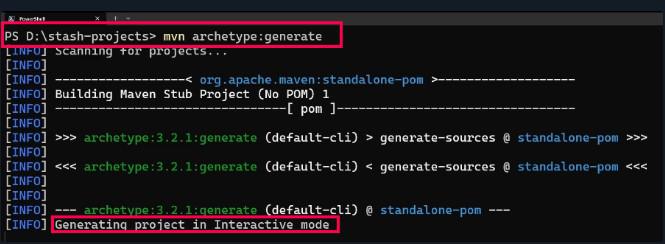
Maven in Interactive Mode
For a typical Java project, you can choose maven-archetype-quickstart. The ID for this archetype is usually 2158.
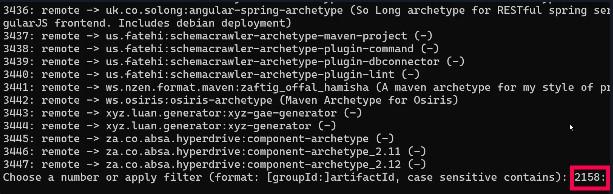
choose maven-archetype-quickstart
**Provide Details: Maven will ask for the following details:
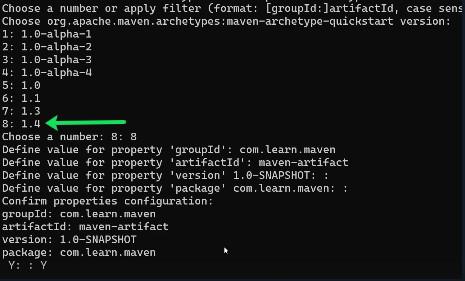
Provide Details
- **Group ID: A unique identifier for your project (e.g., **com.learn.maven).
- **Artifact ID: The name of the final package (e.g., **maven-artifact).
- **Version: The version of the project (default is **1.0-SNAPSHOT).
- **Confirm Details: Confirm the details and Maven will generate the project structure.
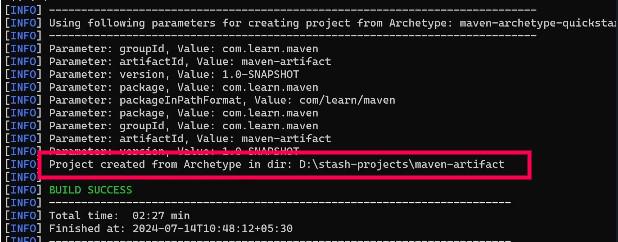
Generate the project structure by Interactive Mode in maven
**Change to the Directory which you stored Project:
cd maven-artifact
**You can see the project using the
maven-artifact> ls
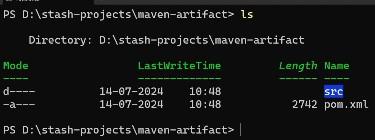
maven-artifact> ls -Command Output
With the help of these command we can see the structure of the project in the command Prompt
maven-artifact> tree
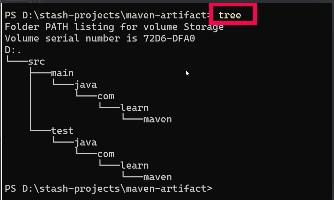
maven-artifact> tree Command Output
Method 2: Non-Interactive Mode
In non-interactive mode, all details are provided in a single command, which automates the process without further input. Follow these steps:
**Open Command Prompt: Open your command prompt or terminal.
mvn archetype:generate -DgroupId=com.mycompany.app -DartifactId=my-app -DarchetypeArtifactId=maven-archetype-quickstart -DarchetypeVersion=1.4 -DinteractiveMode=false
**Run the Command with Parameters: Use the following command, replacing the placeholders with your desired values:
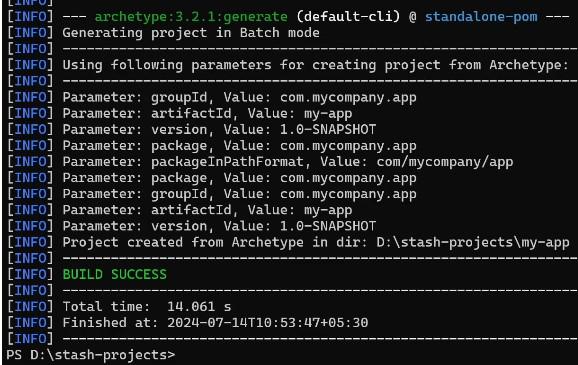
Run the Command with Parameters
Maven will create the project without prompting for additional input.
With the help of these commands we will see the Structure of the project
maven-artifact> tree
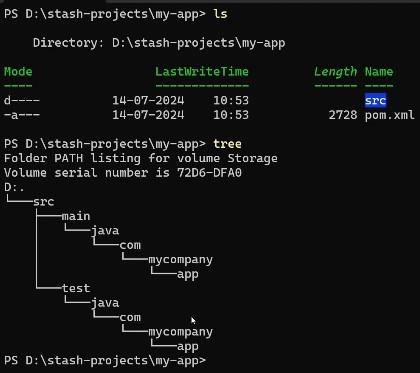
maven-artifact> tree Command Output