Reading and Writing Data to Excel File in Java using Apache POI (original) (raw)
Last Updated : 28 Oct, 2025
Java does not provide built-in APIs to handle Microsoft Excel files. To perform operations such as creating, reading, or updating Excel sheets, we use the Apache POI library.
Apache POI is an open-source Java library developed by the Apache Software Foundation. It allows Java programs to read, write, and manipulate Microsoft Office documents such as Excel, Word, and PowerPoint.
It supports:
- **HSSF (Horrible Spreadsheet Format): for .xls (Excel 97–2003)
- **XSSF (XML Spreadsheet Format): for .xlsx (Excel 2007 and later)
Adding Apache POI to Your Project
To use Apache POI, you need to add the following dependencies to your project.
For Maven:
org.apache.poi poi 5.2.5 org.apache.poi poi-ooxml 5.2.5
For Gradle:
implementation 'org.apache.poi:poi:5.2.5'
implementation 'org.apache.poi:poi-ooxml:5.2.5'
Writing Data to Excel File
**Steps:
- Create a workbook (XSSFWorkbook for .xlsx files)
- Create a sheet inside the workbook
- Create rows and cells inside the sheet
- Fill the cells with data
- Write the workbook to an output stream
- Close the workbook
**Example:
Java `
import java.io.FileOutputStream; import java.io.IOException; import java.util.Map; import java.util.TreeMap; import org.apache.poi.ss.usermodel.*; import org.apache.poi.xssf.usermodel.XSSFSheet; import org.apache.poi.xssf.usermodel.XSSFWorkbook;
public class WriteExcelExample {
public static void main(String[] args) {
    // Create a new workbook
    XSSFWorkbook workbook = new XSSFWorkbook();

    // Create a sheet
    XSSFSheet sheet = workbook.createSheet("Student Details");

    // Data to write
    Map<String, Object[]> data = new TreeMap<>();
    data.put("1", new Object[]{"ID", "NAME", "LASTNAME"});
    data.put("2", new Object[]{1, "Pankaj", "Kumar"});
    data.put("3", new Object[]{2, "Prakashni", "Yadav"});
    data.put("4", new Object[]{3, "Ayan", "Mondal"});
    data.put("5", new Object[]{4, "Virat", "Kohli"});

    int rowNum = 0;

    for (String key : data.keySet()) {
        Row row = sheet.createRow(rowNum++);
        Object[] objArr = data.get(key);
        int cellNum = 0;
        for (Object obj : objArr) {
            Cell cell = row.createCell(cellNum++);
            if (obj instanceof String)
                cell.setCellValue((String) obj);
            else if (obj instanceof Integer)
                cell.setCellValue((Integer) obj);
        }
    }

    try (FileOutputStream out = new FileOutputStream("StudentData.xlsx")) {
        workbook.write(out);
        System.out.println("StudentData.xlsx written successfully.");
    } catch (IOException e) {
        e.printStackTrace();
    }
}
}
`
**Output:
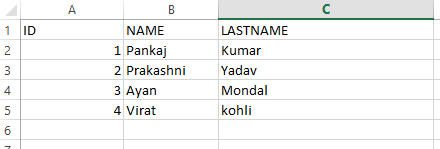
Output
- **XSSFWorkbook: represents an Excel workbook in .xlsx format
- **createSheet(): creates a new sheet
- **createRow() and createCell(): create rows and cells dynamically
- **setCellValue(): assigns values to cells
- Finally, the workbook is written to the disk using FileOutputStream
Reading Data from Excel File
**Steps:
- Create a FileInputStream from the Excel file
- Create a workbook instance (XSSFWorkbook)
- Get the desired sheet
- Iterate through rows and cells
- Retrieve values based on cell type
- Close the workbook
**Example:
Java `
import java.io.FileInputStream; import java.io.IOException; import java.util.Iterator; import org.apache.poi.ss.usermodel.*; import org.apache.poi.xssf.usermodel.XSSFSheet; import org.apache.poi.xssf.usermodel.XSSFWorkbook;
public class ReadExcelExample {
public static void main(String[] args) {

    try (FileInputStream file = new FileInputStream("StudentData.xlsx");
         XSSFWorkbook workbook = new XSSFWorkbook(file)) {

        XSSFSheet sheet = workbook.getSheetAt(0);

        Iterator<Row> rowIterator = sheet.iterator();
        while (rowIterator.hasNext()) {
            Row row = rowIterator.next();
            Iterator<Cell> cellIterator = row.cellIterator();

            while (cellIterator.hasNext()) {
                Cell cell = cellIterator.next();
                switch (cell.getCellType()) {
                    case STRING:
                        System.out.print(cell.getStringCellValue() + "\t");
                        break;
                    case NUMERIC:
                        System.out.print(cell.getNumericCellValue() + "\t");
                        break;
                    default:
                        break;
                }
            }
            System.out.println();
        }

    } catch (IOException e) {
        e.printStackTrace();
    }
}
}
`
- The program reads the file StudentData.xlsx.
- It retrieves each row and cell, printing data to the console.
- getCellType() ensures correct handling of string and numeric cells.
Reading Excel File from a Specific Path
You can read Excel files stored at any path using an absolute file location.
Java `
import java.io.FileInputStream; import java.io.InputStream; import org.apache.poi.ss.usermodel.*; import org.apache.poi.openxml4j.exceptions.InvalidFormatException;
public class ReadExcelFromPath {
private static final String FILE_PATH =
    "C:\\Users\\pankaj\\Desktop\\projectOutput\\mobilitymodel.xlsx";

public static void read() throws IOException, InvalidFormatException {
    try (InputStream inp = new FileInputStream(FILE_PATH)) {
        Workbook wb = WorkbookFactory.create(inp);
        Sheet sheet = wb.getSheetAt(0);

        for (Row row : sheet) {
            for (Cell cell : row) {
                System.out.print(cell.toString() + "\t");
            }
            System.out.println();
        }
    }
}
}
`
WorkbookFactory.create() can open both .xls and .xlsx files, making it more flexible than using specific XSSFWorkbook or HSSFWorkbook.
Appending Data to an Existing Excel File
This example shows how to add new data to an already existing sheet.
Java `
import java.io.FileInputStream; import java.io.FileOutputStream; import java.io.IOException; import org.apache.poi.ss.usermodel.*; import org.apache.poi.openxml4j.exceptions.InvalidFormatException;
public class AppendExcelExample {
private static final String FILE_PATH =
    "C:\\Users\\pankaj\\Desktop\\projectOutput\\blo.xlsx";

public static void append() throws IOException, InvalidFormatException {

    try (FileInputStream file = new FileInputStream(FILE_PATH);
         Workbook workbook = WorkbookFactory.create(file)) {

        Sheet sheet = workbook.getSheetAt(0);
        int lastRow = sheet.getLastRowNum();

        Row newRow = sheet.createRow(lastRow + 1);
        newRow.createCell(0).setCellValue("xyz");
        newRow.createCell(1).setCellValue("appended");
        newRow.createCell(2).setCellValue(2025);

        try (FileOutputStream out = new FileOutputStream(FILE_PATH)) {
            workbook.write(out);
            System.out.println("Data appended successfully.");
        }
    }
}
}
`