How to make responsive sliding login and registration form using HTML CSS and JavaScript ? (original) (raw)
Last Updated : 5 Aug, 2025
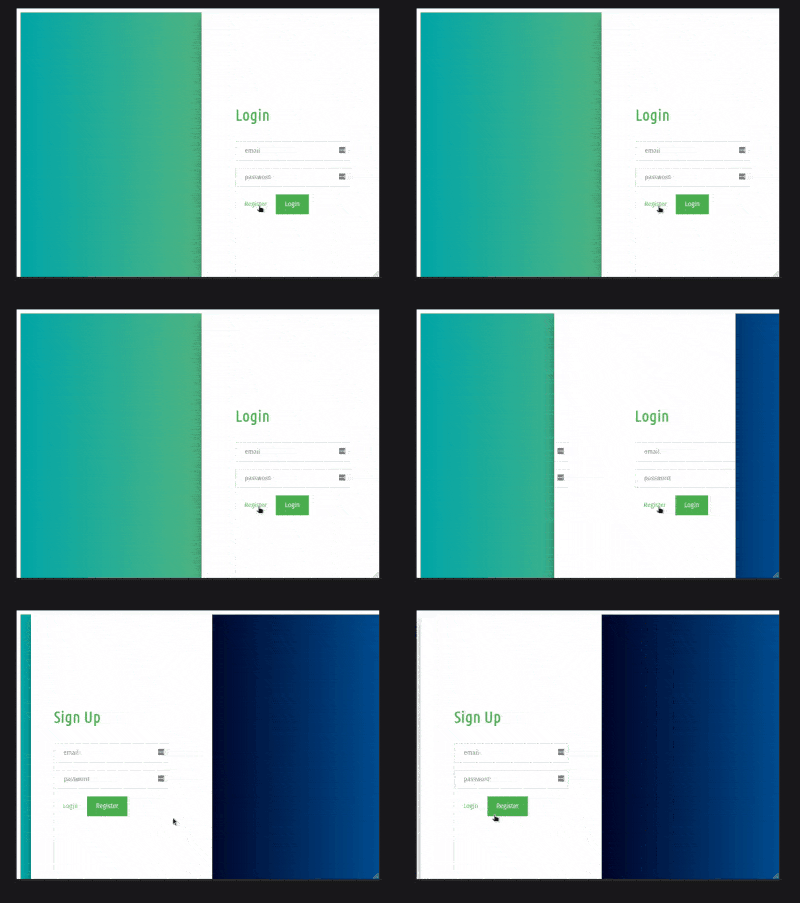
In this article, we will learn how to make responsive sliding login and registration forms using HTML, CSS, and javascript. Forms are used on webpages for the user to enter their required details that further send to the server for processing. A form is also known as a web form or HTML form. In this article, you will learn to make a responsive sliding login and registration form using HTML, CSS, and JavaScript.
The main crux of this article is to slide form in to-for(left-right) motion when clicking the buttons and this can be done using the **animate() method in JQuery which is an inbuilt method in jQuery that is used to change the state of the element with CSS style.
**Syntax:
(selector).animate({styles}, para1, para2, para3);
Using the animate() method in JQuery is discussed further in this article.
**Example: Here is the implementation of the above-explained method.
**HTML Code: First we will add HTML code to form the basic structure of the Login and Registration form.
HTML `
<div id="slide">
    <div class="top">
        <div class="left">
            <div class="content">
                <h2>Sign Up</h2>
                <form method="post"
                    onsubmit="return false;">
                    <div>
                        <input type="text"
                            placeholder="email" />

                        <br />
                        <input type="password"
                            placeholder="password" />
                    </div>
                </form>

                <button id="LeftToRight"
                    class="on-off">Login
                </button>

                <button>Register</button>
            </div>
        </div>

        <div class="right">
            <div class="content">
                <h2>Login</h2>
                <form method="post"
                    onsubmit="return false;">
                    <div>
                        <input type="text"
                            placeholder="email" />

                        <br />
                        <input type="password"
                            placeholder="password" />
                    </div>

                    <button id="RightToLeft"
                        class="on-off">Register
                    </button>

                    <button>Login</button>
                </form>
            </div>
        </div>
    </div>
</div>
`
**CSS Code: Now we will add CSS code to style the forms. Comments are provided to understand the CSS code.
style.css
CSS `
body { height: 100%; overflow: hidden; width: 100%; box-sizing: border-box; }
/* Adding background image to right side */ .background-Right { position: absolute; right: 0; width: 50%; height: 100%; background: linear-gradient(to right, #000428, #004e92); background-size: cover; background-position: 50% 50%; }
/* Adding background image to left side */ .background-Left { position: absolute; left: 0; width: 50%; height: 100%; background: linear-gradient(to right, #02a8a8, #4fb783); background-size: cover; background-position: 50% 50%; }
#background { width: 100%; height: 100%; position: absolute; z-index: -3; }
/* Slide is used to slide the form left-right sides when toggle on button */ #slide { width: 50%; max-height: 100%; height: 100%; overflow: hidden; margin-left: 50%; position: absolute; box-shadow: 0 14px 28px rgba(0, 0, 0, 0.25), 0 10px 10px rgba(0, 0, 0, 0.22); }
/* This make forms z-index greater than background-image */ .top { width: 200%; height: 100%; position: relative; left: 0; left: -100%; }
/* This indicates Login-form will appear on the left side */ .left { width: 50%; height: 100%; background: #ffff; left: 0; position: absolute; }
/* This indicates Register-form will appear on the right side */ .right { width: 50%; height: 100%; background: #ffff; right: 0; position: absolute; }
/* Position the form into center of the viewbox */ .content { width: 250px; margin: 0 auto; top: 30%; position: absolute; left: 50%; margin-left: -125px; }
.content h2 { color: #4caf50; font-size: 35px; }
button { background-color: #4caf50; color: white; width: auto; padding: 14px 20px; margin: 8px 0; border: none; cursor: pointer; }
input[type="text"], input[type="password"] { width: 100%; padding: 12px 20px; margin: 8px 0; display: inline-block; border: 1px solid #ccc; box-sizing: border-box; }
/* off class is used to indicate the active button like login or register button */ .on-off { background: none; color: #4caf50; box-shadow: none; }
`
**JavaScript Code: Finally, we will add javascript code, where we will use**jQuery ( Javascript Framework) to slide the login and register form from left-right and vice versa.
- When a user clicks on ****#RightToLeft** section i.e. **register button(Login form), the outer container i.e ****.top** section is moved by 100% on the right side by adding **margin-left: +100% and adding margin-left:0% on the slide section whose initial margin-left was +50%. This animate() method helps to show the sliding effect on the login-register form.
- The same thing happens when the user clicks on #LeftToRight section i.e login button(Sign-Up form), the outer container i.e ****.top** section is moved by -100% on the left side by adding **margin-left: 0% whose before value was **margin-left: +100% as explained above and adding **margin-left:+50% on slide section whose before value was **margin-left: 0% as explained above
**Note: To use Jquery you just need to add Jquery CDN into the HTML code.
JavaScript `
$(document).ready(function () { $("#RightToLeft").on("click", function () { $("#slide").animate({ marginLeft: "0", }); $(".top").animate({ marginLeft: "100%", }); }); $("#LeftToRight").on("click", function () { $("#slide").animate({ marginLeft: "50%", }); $(".top").animate({ marginLeft: "0", }); }); });
`
**Output: