What Is Webpack? (original) (raw)
Last Updated : 23 Jul, 2025
Webpack is a tool that takes your application’s dependencies and bundles them into static files optimized for web browsers. It helps manage and transform resources, improving load times and scalability.
By using entry points, loaders, and plugins, Webpack enables developers to:
- Modularize code for better readability.
- Handle non-JS assets like CSS, images, and fonts.
- Optimize the code for faster performance.
Key Features of Webpack
- **Code Splitting: Allows splitting your application into smaller bundles for better loading efficiency.
- **Loaders: Transforms files like CSS, TypeScript, or SCSS into JavaScript modules that can be included in the bundle.
- **Plugins: Extend Webpack’s functionality, such as optimizing assets, defining environment variables, or minifying files.
- **Hot Module Replacement (HMR): Enables real-time updates without reloading the page, boosting development speed.
- **Tree Shaking: Removes unused code, reducing bundle size and improving performance.
How Webpack Works
Webpack works by creating a dependency graph starting from a specified entry point and recursively processing all dependencies to generate single or multiple bundles.
**Core Components
- **Entry Point: The starting file for building the dependency graph (e.g., index.js).
- **Output: Specifies the location where the bundled files will be placed.
- **Loaders: Defines how to process different file types.
- **Plugins: Enhance and automate specific tasks like minification or asset optimization.
Steps To Implement Webpack
Step 1: Initialize a Node.js Project
First, create a directory for the project and initialize it with npm:
mkdir my-webpack-project cd my-webpack-project npm init -y
Step 2: Install Webpack and Related Packages
Next, you need to install Webpack and some necessary dependencies:
npm install webpack webpack-cli --save-dev npm install style-loader css-loader html-webpack-plugin --save-dev
Folder Structure
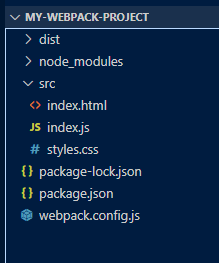
Folder Structure
Dependencies
"devDependencies": { "css-loader": "^7.1.2", "html-webpack-plugin": "^5.6.0", "style-loader": "^4.0.0", "webpack": "^5.94.0", "webpack-cli": "^5.1.4" }
Step 3: Create the Webpack Configuration File
Create a file named webpack.config.js in the project’s root directory and add the following configuration:
JavaScript `
//webpack.config.js
const path = require('path'); const HtmlWebpackPlugin = require('html-webpack-plugin');
module.exports = { entry: './src/index.js',
output: {
    path: path.resolve(__dirname, 'dist'),
    filename: 'bundle.js',
},
module: {
    rules: [
        {
            test: /\.css$/,
            use: ['style-loader', 'css-loader'],
        },
    ],
},
plugins: [
    new HtmlWebpackPlugin({
        template: './src/index.html',
    }),
],
mode: 'development',
};
`
Step 4: Create Source Files
Now, let’s create the necessary files for the project inside the src folder.
**JavaScript File (src/index.js):
JavaScript `
//src/index.js
import './styles.css';
const message = document.createElement('h1'); message.textContent = "Hello Webpack!"; document.body.appendChild(message);
`
**CSS File (src/styles.css):
CSS `
/* src/styles.css */
body { font-family: Arial, sans-serif; background-color: #f0f0f0; color: #333; text-align: center; padding: 50px; }
`
**HTML File (src/index.html):
HTML `
My Webpack Project`
Step 5: Add a Script to package.json
In the package.json file, add a script to run Webpack:
"scripts": { "build": "webpack" }
Now you need to run the command to build the project
npm run build

Webpack Build
We can now see that the a dist folder with all the files created.
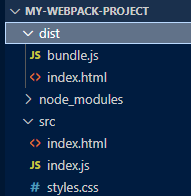
Webpack Output
Why Use Webpack?
- It ensures faster loading by bundling and compressing files.
- Helps developers write modular and maintainable code.
- Simplifies integration of tools like Babel or PostCSS.
- Provides flexibility to tailor configurations for any project.
Other Uses of Webpack
- **Asset Management: Webpack can handle images, fonts, and other static assets with file-loader and url-loader.
- **Environment-Specific Configurations: Use webpack-merge to maintain separate configurations for development and production.
- **Performance Optimization: Enable caching with **cache: true in production mode. Use terser-webpack-plugin for JavaScript minification.
- **Source Maps: Generate source maps for debugging purposes using the devtool option.