ProgressBar in Kotlin (original) (raw)
Last Updated : 12 Jul, 2025
Android **ProgressBar is a user interface control that indicates the progress of an operation. For example, downloading a file, uploading a file on the internet we can see the progress bar to estimate the time remaining in operation.
There are two modes of ProgressBar
- Determinate ProgressBar
- Indeterminate ProgressBar
**Determinate ProgressBar
In common, we use the Determinate progress mode in ProgressBar because it shows the quantity of progress that has occurred like the (%) percentage of the file downloaded, how much data was uploaded or downloaded on the internet, etc. If we have to use determinate we set the style of the progress bar as below:
XML `
`
**Indeterminate ProgressBar
Here, we don't get the idea of the progress of work means how much it has been completed or How long it will take to complete.
We can use indeterminate progressBar like below by setting the indeterminate attribute as true.
XML `
`
Different Attributes of ProgressBar Widgets
| XML Attributes | Description |
|---|---|
| android:id | Used to uniquely identify the control |
| android:min | Used to set minimum value |
| android:max | Used to set the maximum value |
| android:progress | Used to set the default progress integer value between 0 and max. |
| android:minHeight | Used to set the height of the progress bar. |
| android:minWidth | Used to set the width of the progress bar. |
| android:background | Used to set the background color for progress bar |
| android:indeterminate | Used to enable indeterminate progress mode. |
| android:padding | Used to set the padding for left, right, top, or bottom of the progress bar. |
Step by Step Implementation
Step 1: Create a new project
To create a new project in Android Studio please refer to How to Create/Start a New Project in Android Studio.
Step 2: Add ProgressBar Widget in activity_main.xml file
Navigate to **res > layout > activity_main.xml and add a Progress bar and Button to show and hide the progress bar.
**activity_main.xml:
XML `
<androidx.constraintlayout.widget.ConstraintLayout xmlns:android="http://schemas.android.com/apk/res/android" xmlns:app="http://schemas.android.com/apk/res-auto" xmlns:tools="http://schemas.android.com/tools" android:id="@+id/main" android:layout_width="match_parent" android:layout_height="match_parent" android:background="@color/white" tools:context=".MainActivity">
<!--on below line we are creating a progress bar-->
<ProgressBar
    android:id="@+id/progressBar"
    android:layout_width="wrap_content"
    android:layout_height="wrap_content"
    app:layout_constraintBottom_toTopOf="@+id/button"
    app:layout_constraintEnd_toEndOf="parent"
    app:layout_constraintStart_toStartOf="parent"
    app:layout_constraintTop_toTopOf="parent"
    app:layout_constraintVertical_chainStyle="packed"/>

<!--on below line we are creating a button-->
<Button
    android:id="@+id/button"
    android:layout_width="wrap_content"
    android:layout_height="wrap_content"
    android:layout_marginTop="32dp"
    android:text="Show/Hide"
    app:layout_constraintBottom_toBottomOf="parent"
    app:layout_constraintEnd_toEndOf="parent"
    app:layout_constraintStart_toStartOf="parent"
    app:layout_constraintTop_toBottomOf="@+id/progressBar" />
</androidx.constraintlayout.widget.ConstraintLayout>
`
**Design UI:
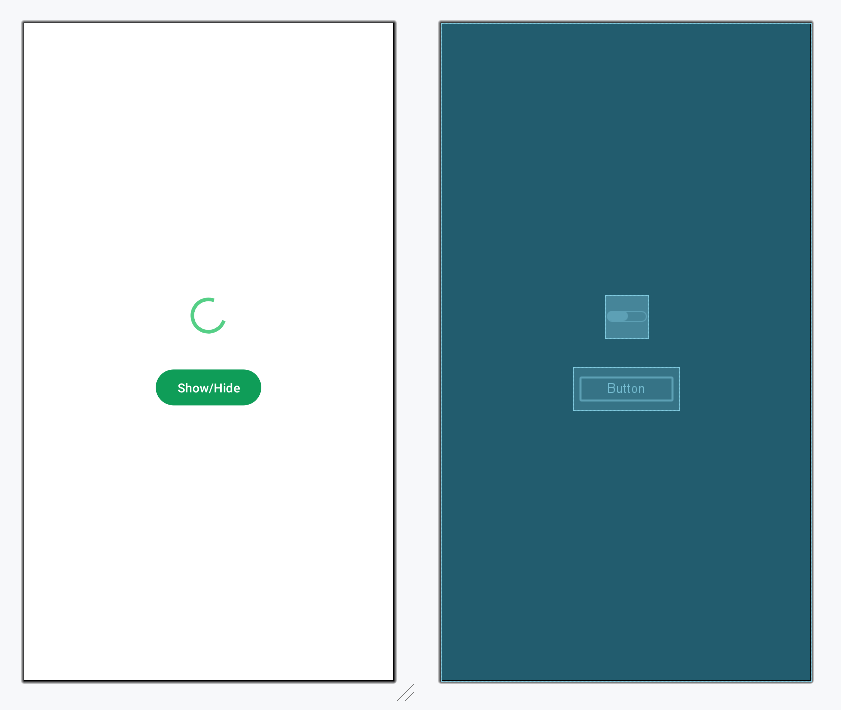
Step 3: Access the ProgressBar Widget in MainActivity.kt file
Navigate to **app > java > {package-name} > MainActivity.kt and add the code for the functionality of the Progress bar.
**MainActivity.kt:
Kotlin `
package org.geeksforgeeks.demo
import android.os.Bundle import android.view.View import android.widget.Button import android.widget.ProgressBar import androidx.appcompat.app.AppCompatActivity
class MainActivity : AppCompatActivity() { private lateinit var showProgressBtn: Button private lateinit var loadingPB: ProgressBar private var isProgressVisible = false
override fun onCreate(savedInstanceState: Bundle?) {
    super.onCreate(savedInstanceState)
    setContentView(R.layout.activity_main)

    // initializing our variables.
    showProgressBtn = findViewById(R.id.button)
    loadingPB = findViewById(R.id.progressBar)

    // set visibility off by default
    loadingPB.visibility = View.GONE

    showProgressBtn.setOnClickListener {

        // checking if progress bar is already visible.
        if (isProgressVisible) {
            loadingPB.visibility = View.GONE
            isProgressVisible = false
        }
        else {
            loadingPB.visibility = View.VISIBLE
            isProgressVisible = true
        }
    }
}
}
`