aptget command in Linux (original) (raw)
apt-get command in Linux
Last Updated : 19 May, 2026
The apt-get command is a command-line package management tool used in Debian-based Linux distributions such as Ubuntu and Debian. It allows users to install, update, upgrade and remove software packages easily by fetching them from configured repositories.
- Used to manage software packages from the terminal
- Automatically handles package dependencies
- Works with online repositories and local packages
- Essential tool for system administrators and Linux users
Most Commonly Used apt-get Commands
1. Update Package Index
This command updates the local package list from the configured repositories. It does not install or upgrade any software but ensures the system has the latest package information.
**Command:
sudo apt-get update
**Output:
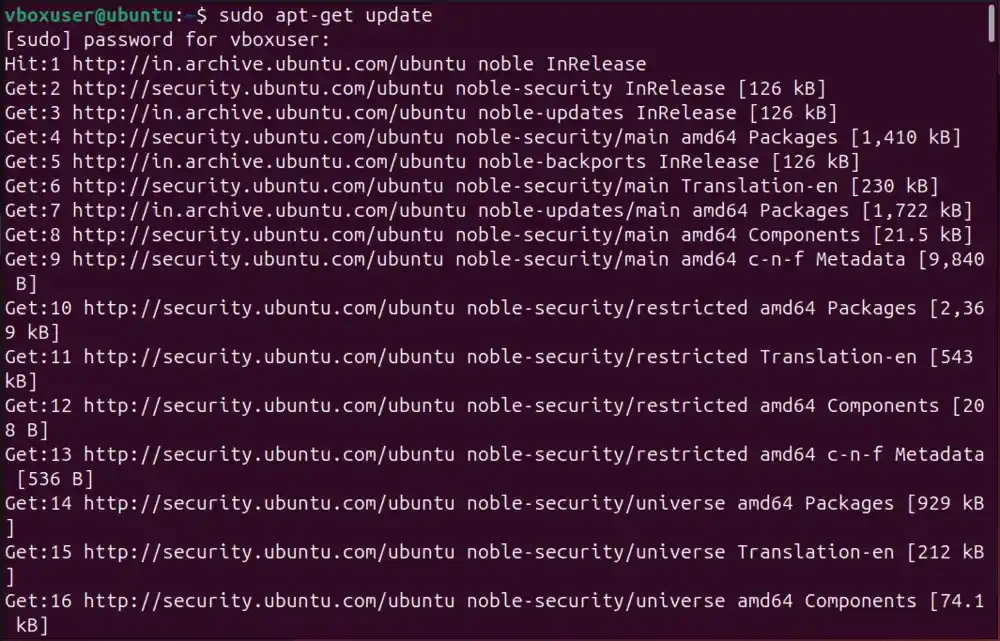
Output
2. Upgrade Installed Packages
This command upgrades all installed packages to their latest available versions. An update should be performed before running this command.
**Command:
sudo apt-get upgrade
**Output:
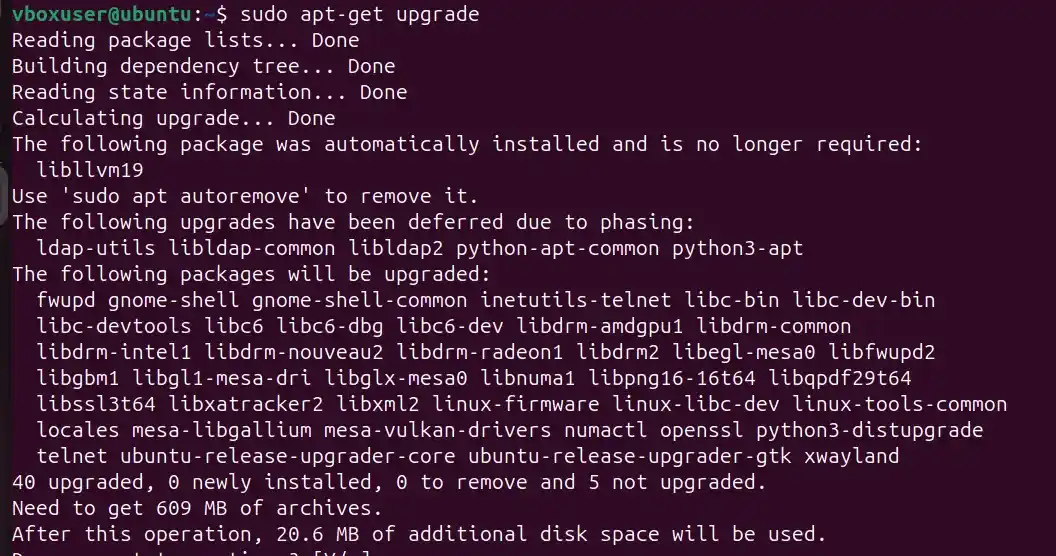
Output
3. Dselect Upgrade
This command upgrades the system based on selections made using the dselect tool. It installs and removes packages according to those selections.
**Command:
sudo apt-get dselect-upgrade
**Output:
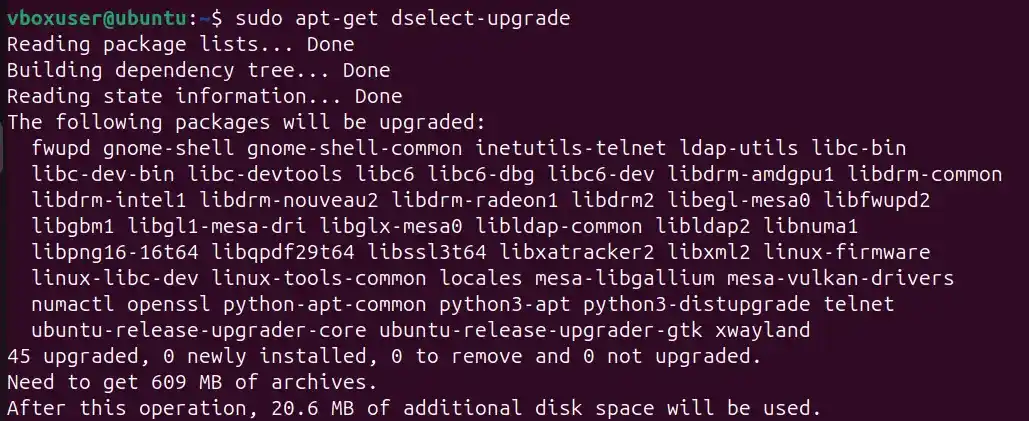
Output
**NOTE : dselect-upgrade is Rarely used in practice; mainly for legacy dselect tool
4. Distribution Upgrade
This command performs an advanced upgrade. It handles changing dependencies and may install or remove packages to complete the upgrade.
**Command:
sudo apt-get dist-upgrade
**Output:
Output
5. Install Packages
This command installs one or more packages and automatically installs their dependencies.
**Command:
sudo apt-get install vim
**Note: You can also specify package versions or target distributions, but this should be done carefully as it may downgrade packages.
6. Reinstall Packages
This command reinstalls a package that is already installed, restoring it to its default state.
**Command:
sudo apt-get install --reinstall firefox
7. Remove Packages
This command removes a package but keeps its configuration files.
sudo apt-get remove vim
8. Purge Packages
This command removes a package along with its configuration files.
**Command:
sudo apt-get purge vim
9. Check for Broken Dependencies
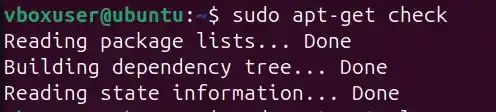
This command checks the system for broken dependencies and looks for inconsistencies in the package system.
**Command:
sudo apt-get check
**Output:
10. Download Packages
This command downloads a package without installing it.
**Command:
sudo apt-get download firefox
11. Clean Package Cache
This command removes all downloaded package files stored in the local cache.
**Command:
sudo apt-get clean
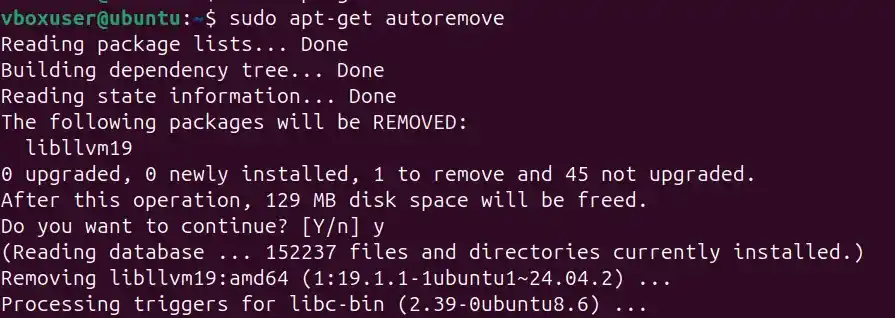
12. Remove Unused Dependencies
This command removes packages that were installed automatically as dependencies and are no longer needed.
**Command:
sudo apt-get autoremove
**Output:
13. Download Source Code
This command downloads the source code of a package in tarball format.
**Command:
sudo apt-get source firefox
14. Show Package Information
This command displays detailed information about a package, including version, dependencies, and description.
**Command:
sudo apt-get show firefox
Syntax
sudo apt-get [options] [command] [package(s)]
- **sudo: The sudo command is used to execute apt-get with administrative (root) privileges. Since package management involves system-level changes, administrative access is required.
- **apt-get: The package management command itself.
- **[options]: Options modify the behavior of the command. For example, -y automatically answers “yes” to prompts, and -s simulates the operation without making changes.
- **[package(s)]: Specifies the package name or names to be installed, removed, or upgraded. Multiple packages can be specified by separating them with spaces.
Options Available in apt-get
The apt-get command supports several options to control its behavior:
- **--no-install-recommends: Prevents installation of recommended packages that are not strictly required.
- **--install-suggests: Installs suggested packages along with the requested package.
- **-d or --download-only: Downloads packages without installing them.
- **-f or --fix-broken: Attempts to fix broken dependencies.
- **-m or --ignore-missing: Ignores missing or unavailable packages.
- **--no-download: Uses only cached packages and avoids downloading new ones.
- **-q or --quiet: Suppresses output messages, useful in scripts.
- **-s or --simulate: Simulates the command without making changes.
- **-y or --assume-yes: Automatically answers “yes” to prompts.
- **--assume-no: Automatically answers “no” to prompts.
- **--no-show-upgraded: Suppresses the list of upgraded packages during an upgrade.
- **-V or --verbose-versions: Displays detailed version information.
- **-b or --build: Builds a package from source.
- **--no-upgrade: Installs a package without upgrading existing ones.
- **--only-upgrade: Upgrades a package without installing new ones.
- **--reinstall: Reinstalls an installed package.
- **-h or --help: Displays the help manual.
Difference Between apt and apt-get
| Feature | apt | apt-get |
|---|---|---|
| **Purpose | High-level tool designed for interactive use | Low-level tool mainly used for scripts and automation |
| **User Experience | Cleaner output with progress bars and colored text | Detailed but less user-friendly output |
| **Command Simplicity | Combines common operations (e.g., update + upgrade) | Requires separate commands for each task |
| **Stability for Scripts | Not recommended for scripts (output may change) | Stable interface, safe for scripting |
| **Features | Combines functionalities of apt-get, apt-cache, and apt-config | Focused mainly on installation and removal |
| **Availability | Introduced later for better usability | Available since early Debian versions |