chgrp command in Linux with Examples (original) (raw)
Last Updated : 3 Nov, 2025
The `chgrp` command in Linux is used to change the group ownership of a file or directory. All files in Linux belong to an owner and a group. You can set the owner by using “chown” command, and the group by the "chgrp" command.
Here is the example of Changing Group Ownership of a Single File
sudo chgrp geeksforgeeks abc.txt

For a single File
Here the group name of the file abc.txt was changed from kcVirtual to geeksforgeeks. Note that when files are created the groupname of the file is the same as the owner under which the file was created.
**Syntax of `chgrp` command in Linux
chgrp [OPTION]… GROUP FILE…chgrp [OPTION]… –reference=RFILE FILE…
**Options available in `chgrp` command in Linux
First, we need to have administrator permission to add or delete groups. We can login as root for this purpose or use sudo. In order to add a new group, we can use:
sudo addgroup geeksforgeeks
1. `-c` or `--changes` Option
To describe the action for each File whose group actually changes.
**Example:
sudo chgrp -c geeksforgeeks f1

-c
2. `-f` Option
To suppress error messages.
**Example:
sudo chgrp -f geeksforgeeks f2

-f
3. `-v` Option
To describe the action or non-action taken for every File.
**Example:
sudo chgrp -v geeksforgeeks f1

-v
4. `--dereference` or `--no-dereference` Option
To change the group name of link files.
**Example:
sudo chgrp --dereference geeksforgeeks symbolic_link

--dereference
Here, symbolic_link is the link file for f1. When using the --dereference option, the group ownership of the actual file pointed to by symbolic_link gets changed.
**Example:
sudo chgrp --no-dereference geeksforgeeks symbolic_link
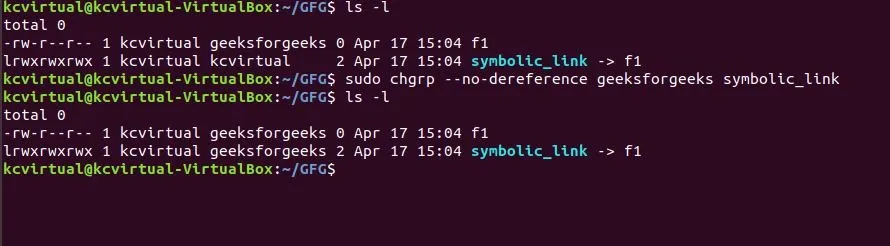
Here, symbolic_link is the link file for f1. When using the --no-dereference option, the group ownership of the symbolic_link itself is changed, rather than the target file it points to.
Examples of chgrp Command
Example 1: Changing Group Ownership of Multiple Files
The 'chgrp' command can also handle multiple files at once. For instance:
chgrp developers file1.txt file2.txt file3.txt
Here, 'file1.txt', 'file2.txt', and 'file3.txt' will all be assigned to the 'developers' group.
Example 2: Changing Group Ownership of a Directory or Folder
To change the group ownership of a folder.
sudo chgrp geeksforgeeks GFG

For directory or folder
Example 3: Recursively change the group ownership of a folder
To recursively change the group ownership of a folder and all of its contents.
sudo chgrp -R geeksforgeeks GFG

Recursively
- As we can see the group of the folder GFG and its contents F1, F2 was all kcvirtual initially and they were changed to geeksforgeeks with the single command.
Example 4: Using the groupname of a reference file
Using the groupname of a reference file to change the group of another file or folder.
sudo chgrp -R --reference=abc.txt GFG
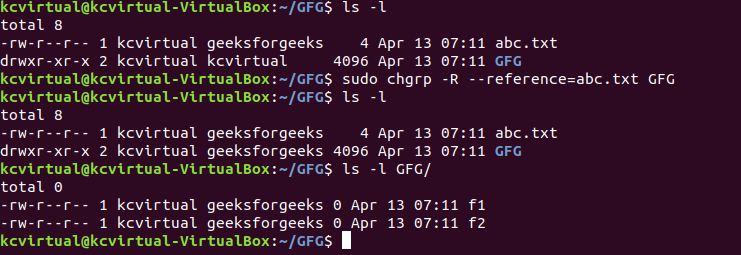
reference file
The groupname of the reference file abc.txt was used to recursively change the group of the folder GFG and all its contents using the --reference option.