chmod Command in Linux (original) (raw)
Last Updated : 12 May, 2026
The chmod (change mode) command in Linux/UNIX is used to modify file and directory permissions. It controls who can read, write, or execute a file by setting access rights for the owner, group, and others. Let’s use the chmod command to set the permission to 745.
**Command:
chmod 745 newfile.txt
**Output:
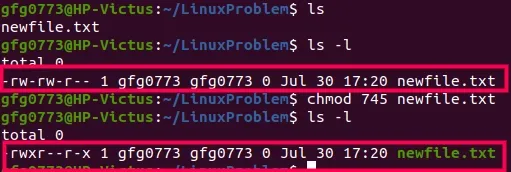
Breakdown of -rwxr--r-x:
- Owner (7): rwx : read, write, execute
- Group (4): r-- : read only
- Others (5): r-x : read & execute
Here, the file is:
- Fully accessible (read/write/execute) by the owner
- Read-only for the group
- Read + execute for others
Options Available in chmod Command
| Mode | Owner | Group | Others | Typical use for scripts |
|---|---|---|---|---|
| 700 | rwx | --- | --- | Private script (only you can run/edit). |
| 711 | rwx | --x | --x | Executable/traverse only; contents not readable. |
| 744 | rwx | r-- | r-- | You edit & run; others can read (not execute). |
| 750 | rwx | r-x | --- | Team-only executable; hidden from others. |
| 754 | rwx | r-x | r-- | Exec for group, read-only for others. |
| 755 | rwx | r-x | r-x | Common: everyone can run, only you edit. |
| 775 | rwx | rwx | r-x | Shared within a group (both owner & group can edit/run). |
**Note: Options in `chmod` are basically used for modifying permissions across multiple files or directories at once.
Syntax:
chmod [options] [mode] [File_name]
Here:
- **Options: Optional flags that modify the behavior of the
chmodcommand. - **Mode: The permissions to be set, represented by a three-digit octal number or symbolic notation (e.g., u=rw,go=rx).
- **File_name: The name of the file or directory for which the permissions are to be changed.
Permission Types
In Linux, permissions determine who has control over a file or directory. These permissions specify who can read (access), write (edit or delete), or execute (run) a file, based on user roles: owner, group, and others.
- **Read (
r): Allows viewing the contents of the file. - **Write (
w): Allows modifying the file or directory. - **Execute (
x): Allows running the file as a program or entering the directory.
1. Examples of Using Octal mode
Suppose we want to give read and write permissions to the file owner, read, write, and execute permissions to the group, and read-only permission to others. Then the command would be:
chmod 674 [file_name]
- 6 represent permission of file Owner which are (rw-).
- 7 represent permission of Group which are (rwx).
- 4 represent permission of Other which is (r--).
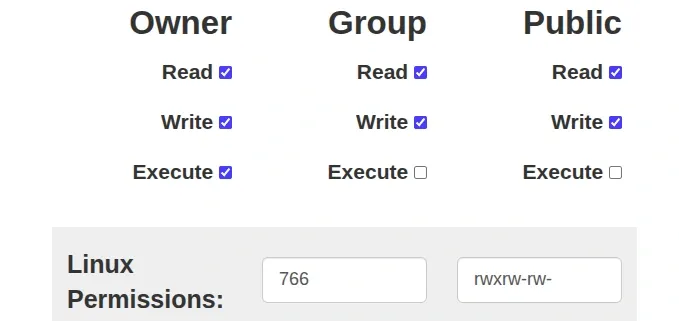
Here, we use a calculator to view the permissions. For example, the owner has read, write, and execute permissions, while the group and others (public) have only read and write permissions, but cannot execute the file.
**2. Equivalent Numeric Permission
**Syntax:
chmod 766 filename
**Table:
| User Type | Permissions | Binary | Value |
|---|---|---|---|
| Owner | rwx | 111 | 7 |
| Group | rw- | 110 | 6 |
| Others | rw- | 110 | 6 |
3. Example of Reverting Changes Made by "chmod" Command
To undo or revert changes made by the chmod command in Linux, you simply need to run the chmod command again and specify the correct permissions you want.
Steps to revert permission changes:
- Decide the correct permission you want to restore.
- Use the chmod command again with the appropriate octal value.
Example
If you want to revert the permissions to rw-r--r--
- Owner: read + write
- Group: read-only
- Others: read-only
The corresponding octal value is 644. (read = 4, write = 2).
**Command:
chmod 644 file_or_directory_name
Replace file_or_directory_name with the actual name of your file or directory.
**Example with a file:
If the file name is a.txt, run:
chmod 644 a.txt
**Result:
- **Before reverting: permissions were modified

ls -l a.txt (used to display all the permission a.txt has)
- **After reverting: permissions are restored to rw-r--r--
.webp)
Here we can see that changes has be done
Making a script executable in Linux
In Linux, scripts are typically written in languages like Bash, Python, or Perl. While the script's content is crucial, ensuring it has executable permissions is equally important. Without execution permissions, Linux won't allow the script to run.
Step 1: Navigate to the Script's Directory
Open the terminal and use the cd command to navigate to the directory where your script is located.
**Example:
cd /path/to/your/script
Step 2: Check Current Permissions
Use the `ls` command with the `-l` option to list the files in the directory along with their permissions. This step helps you identify the current permissions of your script:
ls -l

checking current permission
Step 3: Make the Script Executable
To make a script executable, you need to use the `chmod` command. Assuming your script is named `example.sh`, you can make it executable with the following command:
chmod +x example.sh
This command adds the execute (+x) permission to the script.
Step 4: Verify Changes
Run the `ls -l` command again to verify that the script now has execute permissions. You should see an 'x' in the permission field for the script:
ls -l

verifying changes after making script executable
Step 5: Execute the Script
Now that your script has executable permissions, you can run it using the `./` notation followed by the script's name. For example:
./example.sh

execute the script
This notation tells Linux to look in the current directory (.) for the script named example.sh.