cp Command in Linux (original) (raw)
Last Updated : 11 Apr, 2026
The cp (copy) command in Linux is used to duplicate files or directories from one location to another within the file system. It supports copying single files, multiple files, and entire directories, with options to control overwriting and attribute preservation.
- Copy data from one file to another
- Copy multiple files into a directory
- Recursively copy directories and subdirectories
- Overwrite existing files by default
It offers three principal modes of operation, each serving different purposes.
1. Copying Between Two Files in Linux
When the cp command is provided with two file names, it copies the contents of the source file to the destination file.
- If the destination file does not exist, it is created.
- If the destination file already exists, it is overwritten without warning.
cp Sorce_file Destination_file
**Example 1: Copy to a New File
Create a new file by copying the contents of an existing file.
cp a.txt b.txt
- a.txt exists in the directory
- b.txt does not exist, so it is created
- Contents of a.txt are copied into b.txt

copy a file in Linux
We used `ls` command to display all the file in the current directory.
**Example 2: Overwrite an Existing File
Replace the contents of an existing file with another file’s contents.
cp a.txt c.txt
- c.txt already exists
- Its contents are replaced with the contents of a.txt

Copy a file in Linux
We used `ls` command to display all the file in the current directory and used `cat`command to display the content in the text file.
Syntax
The cp command has a flexible syntax depending on whether you are copying a single file, multiple files, or directories.
cp [options]
cp [options] ...
- **cp: invokes the copy command
- **[options]: optional flags that modify the behavior (e.g., -i, -f, -r, -p)
- ****:** the file or directory to be copied
- **** ...:** allows specifying multiple source files
- ****:** target file or directory
- ****<destination_directory>:** if copying multiple files, the destination must be a directory
- ****...:** indicates that multiple sources can be specified
2. Copy files to a Directory in Linux
When the cp command is given one or more source files followed by a destination directory, it copies each source file into the destination directory using the same file names.
- f the destination directory does not exist, it is created.
- If files with the same name already exist in the destination, they are overwritten without warning.
cp Src_file1 Src_file2 ... Dest_directory
- **Src_file1 Src_file2 ...: one or more source files
- **Dest_directory: directory where files are copied
- ****...:** indicates that multiple source files can be specified
**Example: Copy Multiple Files to a Directory
Copy several files into a single directory in one command.
cp a.txt b.txt c.txt new/
- a.txt, b.txt, and c.txt are source files
- **new/ is the destination directory
- All files are copied into new/ with their original names

Copy multiple files to another directory
We used `ls` command to display all the file in the "new" directory to confirm the successful copy of file in that directory.
3. How to Copy Directories in Linux
- By default, the cp command cannot copy directories.
- To copy a directory and its contents, the -r or -R (recursive) option must be used.
cp -R Src_directory Dest_directory
- **-R: enables recursive copying of directories
- **Src_directory: directory to be copied
- **Dest_directory: target directory

copying files between two directories
**Behavior Details
- If Dest_directory does not exist, it is created and the contents of Src_directory are copied into it.
- If Dest_directory already exists, Src_directory is copied as a subdirectory inside Dest_directory.
Options Available in cp Command
1. -i (Interactive Mode) – Prompt Before Overwriting Files
The -i option enables interactive mode for the cp command. In this mode, cp asks for user confirmation before overwriting an existing destination file. By default, cp overwrites files silently. The -i option changes this behavior by introducing a safety check.
**Syntax:
cp -i Source_file Destination_file
**Example:
cp -i a.txt b.txt

Copy a File in Linux Using `-i`
Here,
- **ls: command shows that both a.txt and b.txt exist
- **cat a.txt: displays the contents of a.txt
- **cat b.txt: displays the contents of b.txt
- **cp -i a.txt b.txt: starts an interactive copy operation
- The system prompts for confirmation before overwriting b.txt
- User enters y to confirm the overwrite
- **cat b.txt: now shows the contents copied from a.txt
2. -f (Force Mode) – Overwrite Files Without Prompt
The -f option enables force mode for the cp command. In this mode, cp overwrites the destination file without asking for confirmation, even if it has restrictive permissions. By default, if cp cannot write to the destination file due to permissions, it fails. The -f option deletes the destination file first (if needed) and then copies the source file.
**Syntax:
cp -f Source_file Destination_file
**Example:
cp -f a.txt b.txt

Copy a File in Linux Using `-f`
- **ls: command shows a.txt and b.txt exist
- **cat a.txt: displays the contents of a.txt
- **cat b.txt: displays the contents of b.txt
- **cp -f a.txt b.txt: starts a forced copy operation
- **b.txt: is overwritten without any prompt, even if permissions are restrictive
- **cat b.txt: now shows the contents copied from a.txt
3. -r / -R (Recursive Mode) – Copy Directories and Subdirectories
The -r or -R option enables recursive copying in the cp command. With this option, cp can copy an entire directory along with all its subdirectories and files. By default, cp cannot copy directories without this option. Using -r ensures that the complete directory structure is preserved in the destination.
**Syntax:
cp -r Source_directory Destination_directory
**Example:
cp -r geeksforgeeks gfg
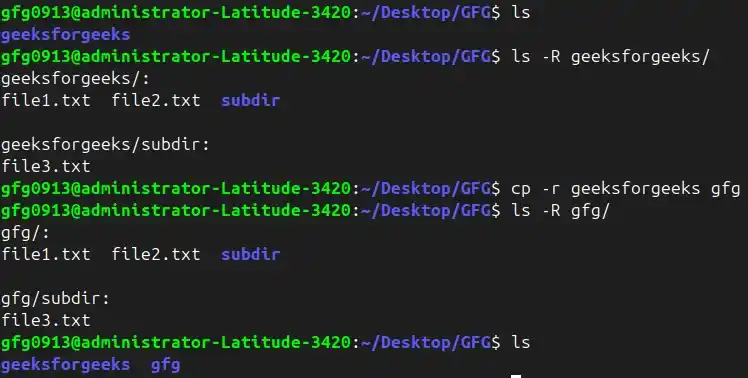
- **geeksforgeeks: is the source directory
- **gfg: is the destination directory (created automatically if it doesn’t exist)
- All files and subdirectories inside geeksforgeeks are copied recursively
4. -p (Preserve Attributes) – Retain File Permissions, Ownership, and Timestamps
The -p option preserves important file attributes while copying.
These attributes include:
- File permissions (read, write, execute)
- Ownership (user and group, if you have permission)
- Timestamps (last modification and last access times)
By default, cp creates a new file with default attributes. Using -p ensures the copy maintains the same characteristics as the source file.
**Note: For the preservation of characteristics, you must be the root user of the system, otherwise characteristics change.
**Syntax:
cp -p Source_file Destination_file
**Example:
cp -p d.txt b.txt
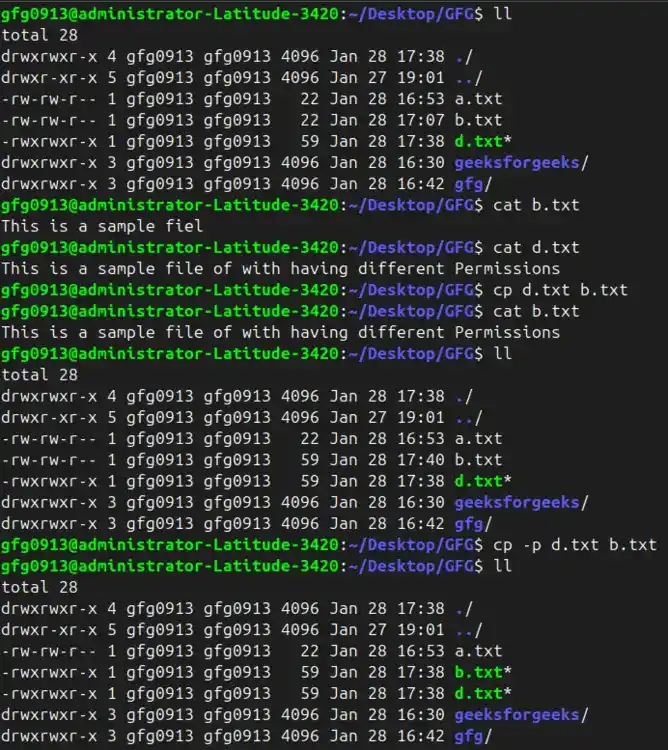
- **b.txt is the source file
- **d.txt is the destination file
- All permissions, ownership (if allowed), and timestamps of b.txt are retained in d.txt
- File content is also copied exactly
5. * (Wildcard) – Copy Multiple Files Matching a Pattern
The * wildcard allows the cp command to select and copy multiple files at once based on a pattern. This is especially useful when you want to copy files with a common extension or naming convention without listing each file individually.
**How it works:
- * matches zero or more characters in file names
- For example, *.txt matches all files ending with .txt in the current directory
**Syntax:
cp *.txt Destination_directory
**Example:
cp *.txt new/

Copy a File in Linux Using `*`
- All files in the current directory ending with .txt are selected
- new/ is the destination directory
- Each matched file is copied into new/ with the same name