Creating a Network in Docker and Connecting a Container to That Network (original) (raw)
Last Updated : 4 Sep, 2025
Networks are created so that the devices which are inside that network can connect to each other and transfer of files can take place. In docker also, we can create a network and can create a container and connect to the respective network and two containers that are connected to the same network can communicate with each other.
These containers can also communicate with the host in which the docker is deployed. The communication will take place by using the IP address of each other. A container can connect to one or more networks in that docker host.
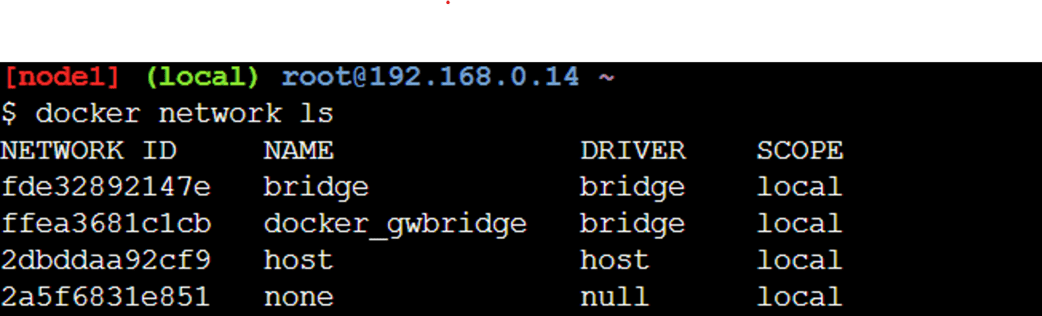
**1: In the first step we run a command to see the list of networks in your docker host.
sudo docker network ls
2: Creating a Network
While you can use the default bridge network, it's a best practice to create your own for better isolation and automatic service discovery (containers can find each other by name).
Let's create a new bridge network:
docker network create my-app-network
This command creates a new network of the bridge driver type named my-app-network.
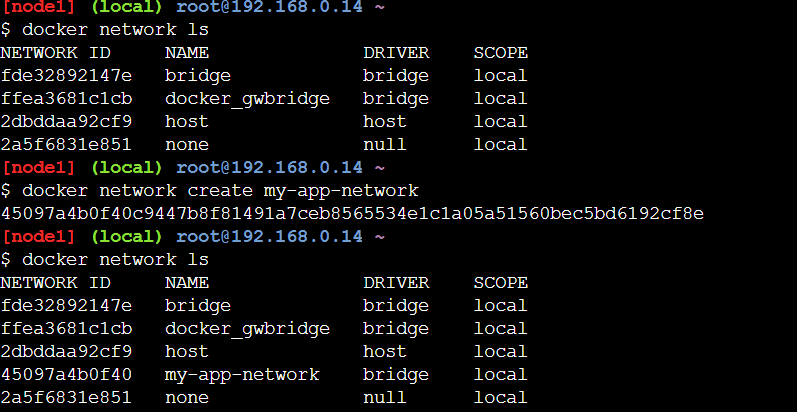
Notice that there is no container currently connected to the bridge driver as the brackets are empty.
**3. Running Containers on a Network
Now, let's run two Nginx containers and attach them to our new network.
docker run -d --name web-server-1 --network my-app-network nginx
docker run -d --name web-server-2 --network my-app-network nginx
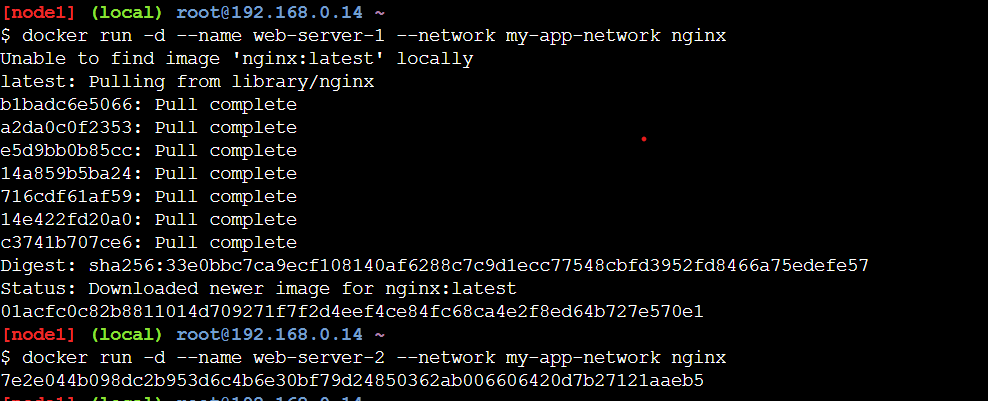
The --network flag tells Docker which network to attach the container to.
**4. Inspecting a Network
The inspect command gives you detailed information about a network, including which containers are connected to it and their IP addresses.
docker network inspect my-app-network
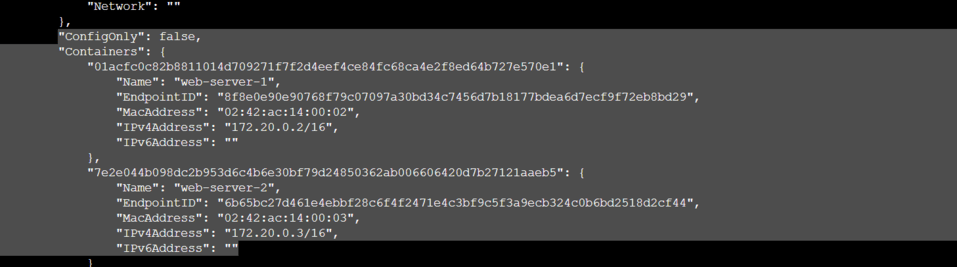
You'll see a JSON output. Look for the "Containers" section to see web-server-1 and web-server-2 listed.
**5. Testing Container-to-Container Communication
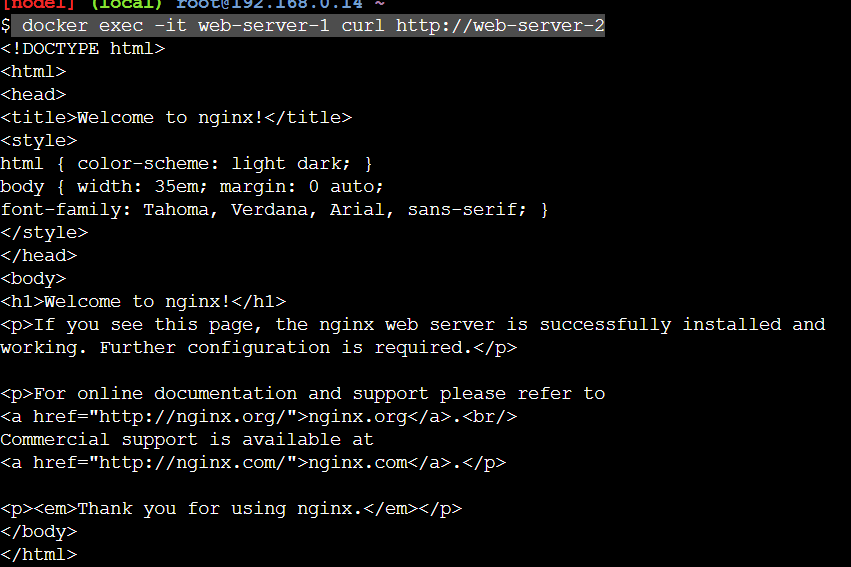
Because these containers are on a user-defined bridge network, they can communicate using their names. Let's test this by pinging web-server-2 from web-server-1.
docker exec -it web-server-1 curl http://web-server-2
**6. Connecting a Running Container to a Network
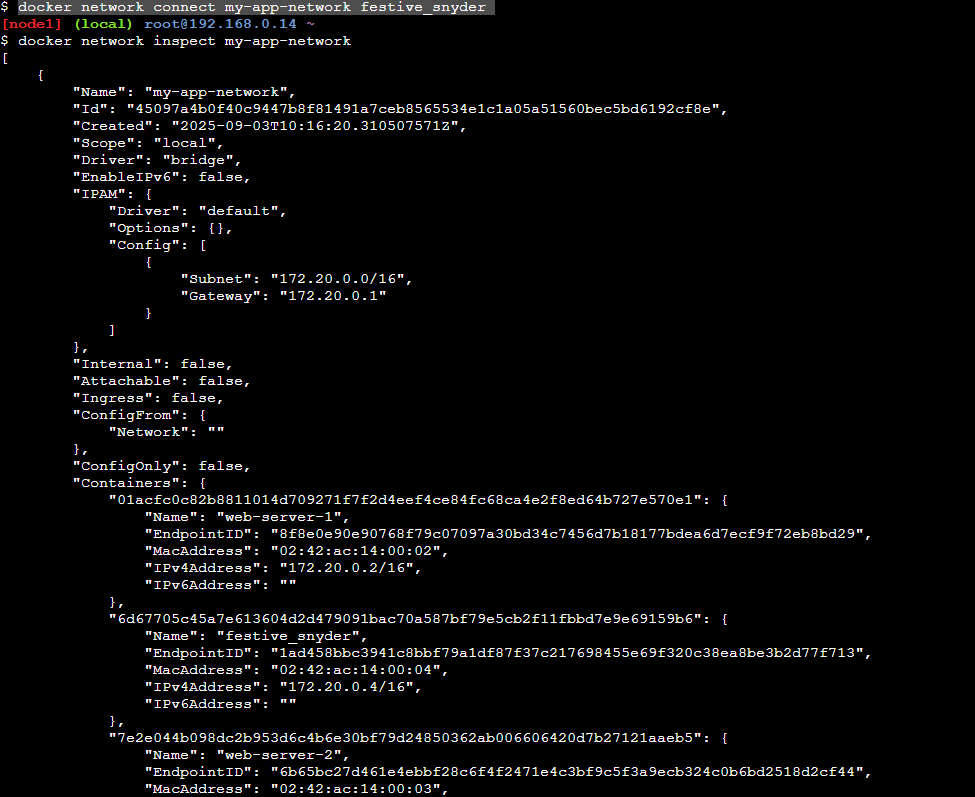
You can also attach a container that is already running to a network.
docker network connect my-app-network
**7. Disconnecting a Container
To remove a container from a network:
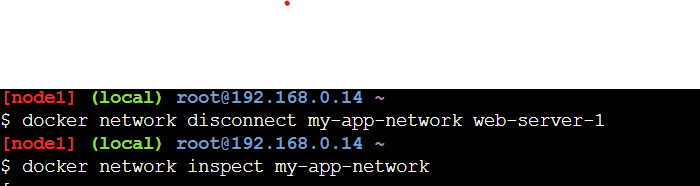
docker network disconnect my-app-network web-server-1