crontab in Linux (original) (raw)
Last Updated : 23 Jan, 2026
The crontab command in Linux is used to create, edit, and manage scheduled tasks (cron jobs) that run automatically at specified times or intervals. It allows users to automate repetitive system and administrative tasks without manual intervention.
- Used to schedule recurring jobs
- Runs tasks automatically in the background
- Uses time-based scheduling format
- Commonly used for backups, updates, and maintenance tasks
Example: To check the Crontab In System.
Check crontab for scheduling the jobs in Linux.
**Syntax:
systemctl status cron
**Output:
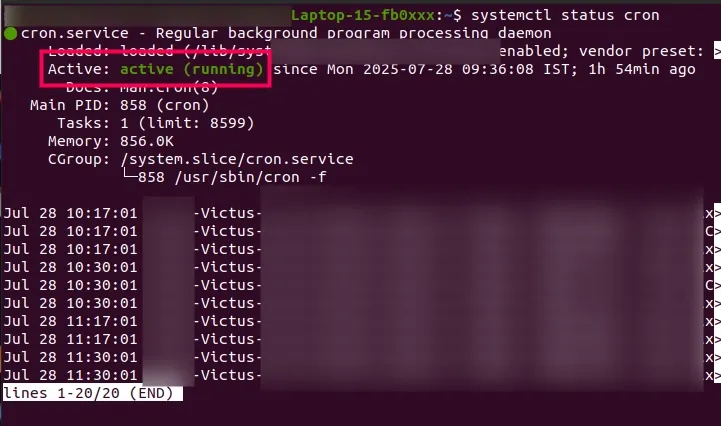
Shows whether the cron service is active (running), inactive, or stopped.
Working of Crontab
Crontab allows users to schedule commands or scripts to run automatically at fixed times or regular intervals. The following points explain how crontab functions in a Linux system.
Crontab Configuration
- Each user on a Linux system can maintain their own crontab file containing scheduled tasks.
- Crontab files define which commands or scripts should run and when.
Time Specification
- Crontab uses five time fields to define the execution schedule.
- These fields represent minute, hour, day of the month, month, and day of the week.
Scheduled Execution
- The cron daemon continuously scans crontab files for scheduled jobs.
- When the current time matches a scheduled entry, the corresponding command is executed.
Logging and Notifications
- By default, cron sends the output of jobs to the user’s email address.
- Users can redirect output to files or disable email notifications if required.
System-wide and User-specific Jobs
- System administrators manage global cron jobs using /etc/crontab and /etc/cron.d/.
- Individual users manage their own scheduled tasks using the crontab -e command.
Syntax:
MIN HOUR DOM MON DOW CMD
Let's break down each field and discuss as follows:
MIN (Minute)
- Specifies the exact minute when the command will run.
- Allowed values range from 0 to 59.
HOUR
- Denotes the hour of the day when the command is scheduled to execute.
- Allowed values range from 0 to 23 (24-hour format).
DOM (Day of Month)
- Specifies the day of the month on which the task will run.
- Allowed values range from 1 to 31.
MON (Month)
- Indicates the month during which the command will be executed.
- Allowed values range from 1 to 12.
DOW (Day of Week)
- Specifies the day of the week for task execution.
- Allowed values range from 0 to 7, where 0 and 7 both represent Sunday.
CMD (Command)
- Represents the actual command or script that will run at the scheduled time.
- This field contains any valid Linux command or script path.
Usage and Examples of Linux Crontab Jobs
Example 1. To View the Crontab entries
1. View Current Logged-In User’s Crontab entries:
**Syntax:
crontab -l
**Output:

**2. To View Root Crontab entries: Login as root user (su – root)=
**Syntax:
crontab -l
**Output:

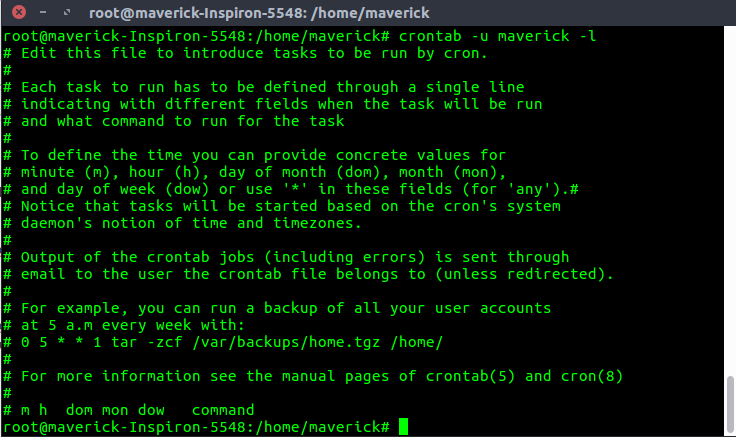
**3. To view crontab entries of other Linux users: Login to root and follow the syntax.
**Syntax:
crontab -u [username] -l
**Output:
Example 2.Edit Crontab Entries for the Current User
To edit a crontab entries, use crontab -e. By default, this will edit the currently logged-in user crontab.
**Syntax:
crontab -e
**Output:

Example 3. Scheduling a Job For a Specific Time:
- The basic usage of cron is to execute a job in a specific time as shown below. This will execute the Full backup shell script (full-backup) on 10th June at 08:30 AM.
- The time field uses 24 hours format. So, for 8 AM use 8, and 8 PM use 20.
**Syntax:
30 08 10 06 * /home/sujal/myscript.sh
**Output:
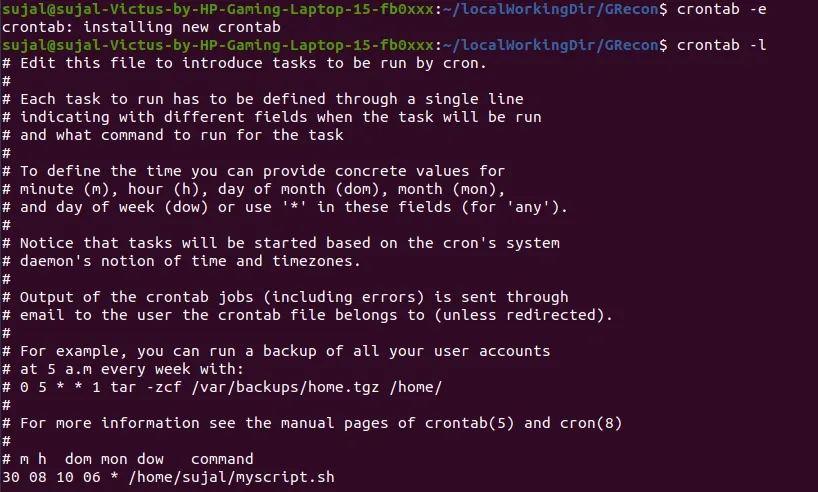
- 30 – 30th Minute 08 – 08 AM 10 – 10th Day 06 – 6th Month (June) * – Every day of the week
Example 4. To Schedule a Job for Every Minute using Cron:
Ideally, you may not have a requirement to schedule a job every minute. But understanding this example will help you understand the other examples.
**Syntax:
**Example:
- /home/sujal/myscript.sh
The * means all the possible units — i.e. every minute of every hour throughout the year. More than using this * directly, you will find it very useful in the following cases.
When you specify */5 in the minute field means every 5 minutes. When you specify 0-10/2 in the minute field means every 2 minutes in the first 10 minutes. Thus the above convention can be used for all the other 4 fields.
Example 5. To Schedule a Background Cron Job for Every 10 Minutes:
Use the following command, if you want to check the disk space every 10 minutes.
**Command:
*/10 * * * * /home/sujal/myscript.sh
**Output:

- It executes the specified command check-disk-space every 10 minutes throughout the year. But you may have a requirement of executing the command only during certain hours or vice versa.
- The above examples show how to do those things. Instead of specifying values in the 5 fields, we can specify them using a single keyword as mentioned below.
- There are special cases in which instead of the above 5 fields you can use @ followed by a keyword — such as reboot, midnight, yearly, or hourly.
Keyword Equivalent @yearly 0 0 1 1 * @daily 0 0 * * * @hourly 0 * * * * @reboot Run at startup.
Example 6. To Schedule a Job For More Than One Time
The following script takes an incremental backup twice a day every day. This example executes the specified incremental backup shell script (incremental-backup) at 1:00 and 11:00 every day.
- The comma-separated value in a field specifies that the command needs to be executed at all the mentioned times.
**Command:
00 1,11 * * * /home/sujal/myscript.sh
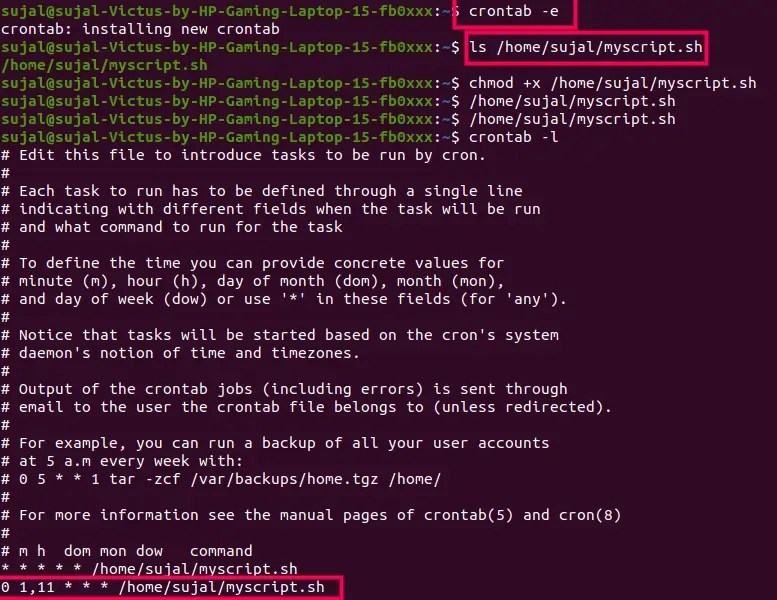
- 00 – 0th Minute (Top of the hour) 1,11 – 1 AM and 11 AM * – Every day * – Every month * – Every day of the week
Example 7. To Schedule a Job for a Within Certain Range of Time
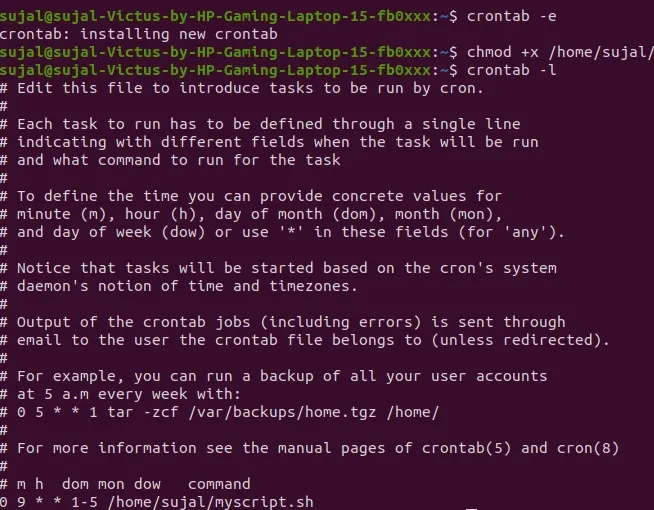
**Approach 1: If you wanted a job to be scheduled for every hour within a specific range of time then use the following.
- Cron Job every day during working hours: This example checks the status of the database every day (including weekends) during the working hours 9 a.m – 6 p.m
**Command:
0 9 * * 1-5 /home/sujal/myscript.sh
**Output:
**Approach 2: 00 – 0th Minute (Top of the hour) 09-18 – 9 am, 10 am, 11 am, 12 am, 1 pm, 2 pm, 3 pm, 4 pm, 5 pm, 6 pm * – Every day * – Every month * – Every day of the week
- Cron Job every weekday during working hours: This example checks the status of the database every weekday (i.e. excluding Sat and Sun) during the working hours 9 a.m – 6 p.m.
**Command:
00 09-18 * * 1-5 /home/sujal/myscript.sh
- 00 – 0th Minute (Top of the hour) 09-18 – 9 am, 10 am, 11 am, 12 am, 1 pm, 2 pm, 3 pm, 4 pm, 5 pm, 6 pm * – Every day * – Every month 1-5 -Mon, Tue, Wed, Thu and Fri (Every Weekday)
Example 8. To Schedule a Job for the First Minute of Every Year Using @yearly:
If you want a job to be executed on the first minute of every year, then you can use the @yearly cron keyword as shown below.
- This will execute the system annual maintenance using the annual-maintenance shell script at 00:00 on Jan 1st for every year.
**Command:
@yearly /home/sujal/myscript.sh
**Output:

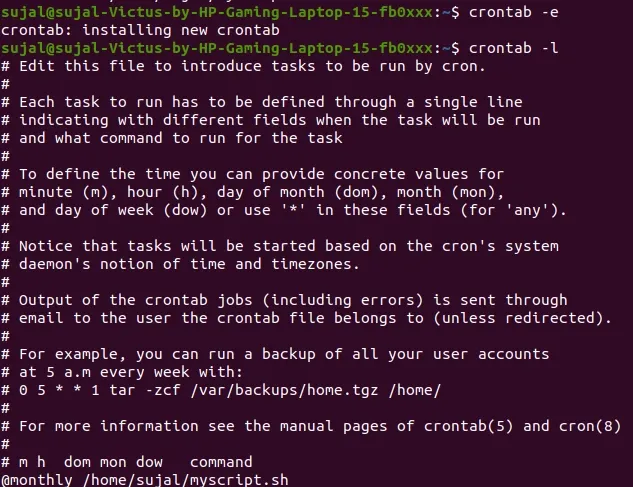
Example 9. To Schedule a Cron Job Beginning of Every Month Using @monthly:
It is similar to the @yearly as above. But executes the command monthly once using the @monthly cron keyword. This will execute the shell script tape-backup at 00:00 on the 1st of every month.
**Command:
@monthly /home/sujal/myscript.sh
**Output:
Example 10. To Schedule a Background Job Every Day Using @daily:
Using the @daily cron keyword, this will do a daily log file cleanup using the cleanup-logs shell script at 00:00 every day.
**Command:
@daily /home/sujal/myscript.sh
**Output:

Example 11. To Execute a Command after Every Reboot Using @reboot:
Using the @reboot cron keyword, this will execute the specified command once after the machine gets booted every time.
**Command:
@reboot CMD
Features of Linux Crontab
1. Flexible Scheduling
- Allows scheduling tasks at specific times, intervals, days, and months.
- Supports complex schedules for precise task execution.
2. Automated Task Execution
- Automatically runs commands or scripts without user intervention.
- Ideal for repetitive tasks such as backups, updates, and maintenance.
3. User-Specific Configuration
- Each user can maintain a separate crontab file.
- Enables personalized task scheduling based on individual requirements.
4. Special Time Indicators
- Provides predefined keywords like @reboot, @daily, and @weekly.
- Simplifies configuration for commonly recurring tasks.