csplit Command in Linux (original) (raw)
Last Updated : 31 Jan, 2026
The csplit command in Linux is used to split a file into multiple smaller files. You can specify where to split the file, such as after a specific line number or when a particular word or pattern is found. It is mainly useful when working with large text files that need to be divided into meaningful sections.
- Splits one file into multiple output files
- File can be split using line numbers or text patterns
- Output files are created with sequential names like xx00, xx01
- Displays the size of each output file on the terminal
Example 1: Split a File at a Specific Line Number
This example splits a file into two parts starting from a given line number. Consider a text file named 'list.txt' with contents as follows:
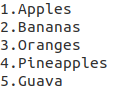
**Command:
csplit list.txt 2
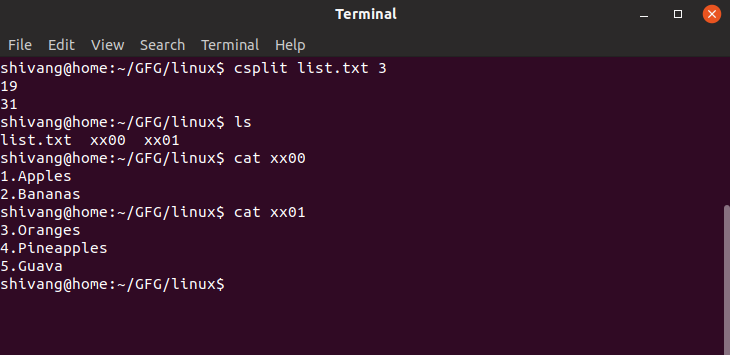
- The first output file (xx00) contains lines before line 2
- The second output file (xx01) starts from line 2
- Numbers shown are the byte sizes of the created files
**Note : Output files are created as xx00, xx01 in the current directory.
Example 2: Split a File Using a Text Pattern
This command splits a file when a specific word or text is found.
**Command:
csplit list.txt /Papaya/
- The file is split where the word Papaya appears
- Content before the word goes into xx00
- Content starting from the matched line goes into xx01
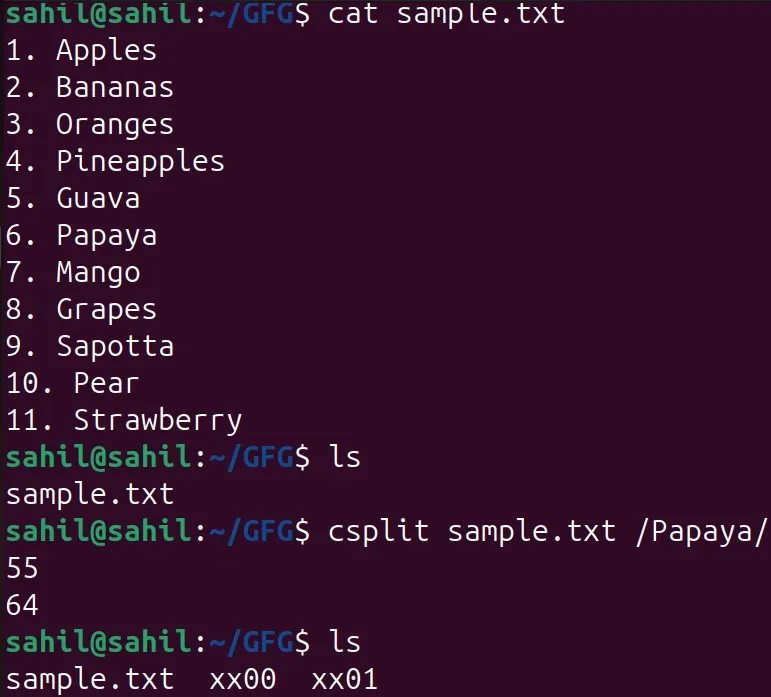
Split a File Using a Text Pattern
Example 3: Split a File into Multiple Parts Using Line Numbers
You can split a file into more than two parts by specifying multiple line numbers.
**Command:
csplit list.txt 2 5
- File is split at line 2 and line 5
- Three output files are created: xx00, xx01, xx02

Split a File into Multiple Parts
Syntax
csplit [options] filename pattern...
- **[options]: Optional flags that modify the behavior of csplit (like changing file names, keeping files, or removing empty files)
- **filename: The name of the file you want to split
- **pattern...: Line numbers or text patterns where the file should be split
**Notes: Line numbers start from 1. Text patterns should be written between slashes, e.g., /pattern/. By default, output files are named xx00, xx01, xx02, …, csplit prints the size (in bytes) of each split file to the terminal.
Options for the csplit Command
The csplit command provides several options to control output file naming, handle errors, and remove empty files. Below are the most commonly used options.
1. -f, --Prefix:
This option allows you to give a custom name prefix to all output files instead of the default xx. It is helpful when splitting multiple files or when you want the split files to have meaningful names for easier identification.
**Command:
csplit -f abc file.txt 2
- **-f abc : sets the prefix of output files to abc
- **Default xx00, xx01 : now become abc00, abc01

2. -k, --keep-files : Keep Files on Error
By default, if csplit encounters an error while splitting a file, it deletes all partially created output files. Using -k ensures that all files created before the error are kept, which is useful if you do not want to lose work or want to inspect partial outputs.
**Command:
csplit -k file.txt 2 {3}
- -k prevents automatic deletion of output files during errors

3. -n, --digits : Number of Digits in File Names
This option allows you to control the number of digits used in the suffix of output files. It is especially useful when splitting a file into many parts, so the naming stays consistent and files are sorted correctly in the directory.
**Command:
csplit -n 1 file.txt 2
- **-n 1 : uses 1 digits in the file suffix instead of default 2

**4. -z, --elide-empty-files : Remove Empty Files
When splitting a file, sometimes an output file may be empty (for example, if the pattern occurs at the end of the file). Using -z prevents creating these empty files, keeping only files that contain actual content. This is useful for cleaning up directories and avoiding unnecessary empty files.
**Command:
csplit -z file.txt 4
- -**z : skips creation of empty files

5. -s, --quiet : Suppress Byte Count Output
This option hides the byte counts of the split files from the terminal. It is useful when you only want the files created and do not care about their sizes. It also keeps the output clean and is helpful when running csplit in scripts or automated tasks.
**Command:
csplit -s list.txt 2 5
- Splits the file at lines 2 and 5
- Does not display the size of the output files on the terminal
- All split files are still created (xx00, xx01, xx02)
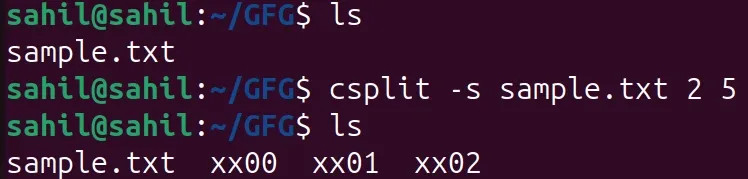
Suppress byte count
6. -b FORMAT, --suffix-format=FORMAT : Customize File Suffix Format
This option allows you to change the numeric suffix format of output files using a sprintf style format (for example %03d, %04d). It is helpful when splitting a file into many parts, so the files are consistently named and easy to sort.
**Command:
csplit -b "%03d" list.txt 2 5
- By default, csplit uses 2-digit suffixes (xx00, xx01)
- Using -b "%03d" changes suffixes to 3 digits (xx000, xx001)
- Makes file names uniform and sortable, especially for large splits
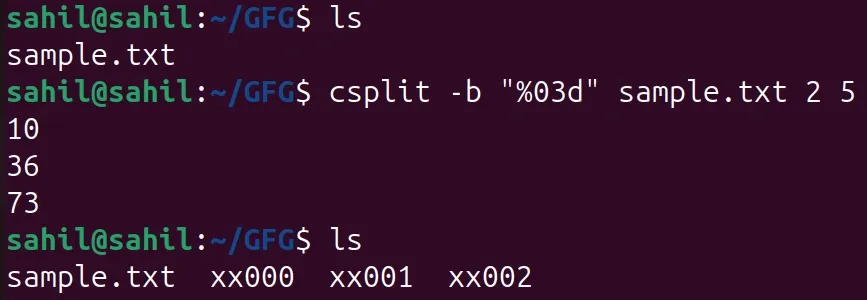
Customized file suffix format
Real-World Use Cases
The csplit command is commonly used when working with large text files that need to be divided into smaller, meaningful parts for easier processing and analysis.
Use Case 1: Split a Log File by Error Messages
System log files often contain repeated error sections. You can split the log file each time an error appears.
csplit system.log /ERROR/
- The file is split whenever the word ERROR appears
- Each split file contains one error section
- Useful for debugging and log analysis
Use Case 2: Split a File into Fixed Sections Using Line Numbers
When a file follows a fixed structure, you can split it using line numbers.
csplit report.txt 50 100
- First split occurs at line 50
- Second split occurs at line 100
- Three output files are created
Use Case 3: Split Configuration Files into Logical Parts
Large configuration files can be split based on section headers.
csplit config.conf /DATABASE/ /NETWORK/
- File is split at lines where DATABASE and NETWORK appear
- Each section is saved into a separate file
Use Case 4: Use csplit in Scripts Without Terminal Output
When using csplit inside scripts, you may want clean output.
csplit -s data.txt 10 20
- Files are split silently
- No byte count output is displayed