cut Command in Linux (original) (raw)
Last Updated : 31 Jan, 2026
The cut command in Linux is used to extract specific parts of each line from a file or input. You can extract data based on byte position, character position, or fields separated by a delimiter. It is mainly used to select and display required columns from text files.
- Extracts specific bytes, characters, or fields from each line
- Works with delimiters like space, tab, or custom characters
- Reads input from a file or standard input (stdin)
- Commonly used for text processing and data filtering
Example 1: Running cut Without Any Option
If you run the cut command without specifying any option, it results in an error.
- The cut command always needs what to extract
- You must use options like -b, -c, or -f
cat sample.txt
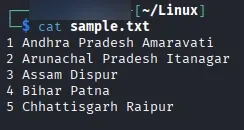
cut sample.txt
- The cut command always needs what to extract
- You must use options like -b, -c, or -f

This example extracts the 2nd and 3rd fields from each line using space as the delimiter.
cut -d " " -f 2 sample.txt
- **-d " ": Sets space as the field delimiter.
- **-f 2: Extracts the second field from each line.
- Only selected fields are displayed on the terminal
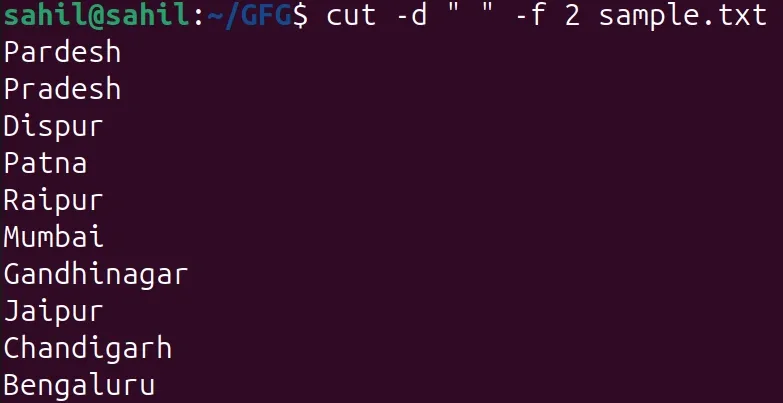
Extracting fields using space as delimiter
You can extract more than one field at the same time.
cut -d " " -f 1,2 sample.txt
- **-f 1,2: extracts the 1st and 2nd fields from each line of sample.txt, using a space (" ") as the delimiter.
- It displays only the selected columns (e.g., state and capital names) from the input file.
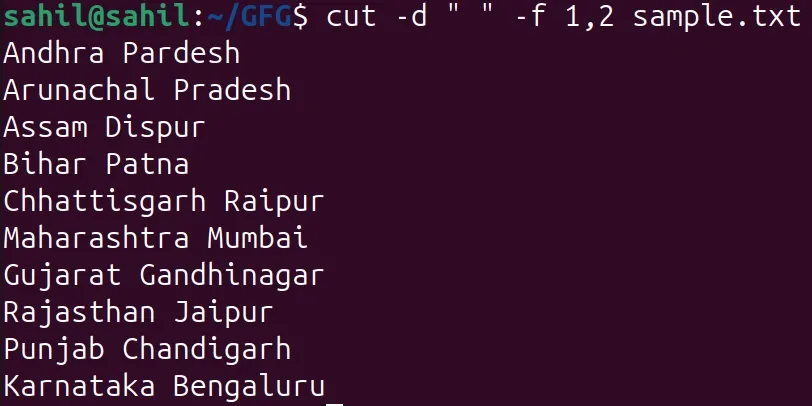
Extracting multiple fields
Syntax
cut OPTION... [FILE]..
- **OPTION: Specifies how the cut command behaves. such as: bytes (-b) characters (-c) fields (-f)
- **FILE: The input file from which data is extracted. If no file is provided, cut reads input from standard input (stdin).
**Note: At least one option (-b, -c, or -f) is mandatory
Options Available in cut Command
The cut command provides several options to extract specific parts of each line. Each option focuses on how the data is selected.
The -b option is used to extract specific byte positions from each line of a file. It is useful when working with fixed-width data or files where each byte position has a meaning.
Bytes can be specified as:
- Individual positions (e.g., 1,3,5)
- Ranges (e.g., 1-4)
- From start or till end of the line
**Example 1: Extract Specific Bytes
It will extract and display the 1st, 2nd, and 3rd bytes (characters) from each line of the state.txt file
cut -b 1,2,3 state.txt
- -b 1,2,3 selects the 1st, 2nd, and 3rd bytes
- These bytes are extracted from each line
- Only the selected bytes are printed on the terminal

Extract Specific Bytes
**Example 2: Extract Bytes Using Ranges
It will extract characters from positions 1 to 3, and then from 5 to 7, from each line of the file named state.txt
cut -b 1-3,5-7 state.txt
- 1-3 extracts bytes from position 1 to 3
- 5-7 extracts bytes from position 5 to 7
- Both ranges are applied to each line of the file

list with range
**Example 3: Extract Bytes from Beginning to End of Line
This example extracts all bytes starting from the first byte till the end.
cut -b 1- state.txt
- 1- means from byte 1 to the last byte
- Entire line is printed as-is

special form with -b option
**Example 4: Extract Bytes from Beginning up to a Specific Position
This example extracts bytes from the first byte up to the third byte.
cut -b -3 state.txt
- -3 means extract from byte 1 to byte 3
- Starting position is automatically assumed as 1
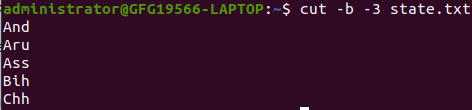
special form -b option
**-c (column): The -c option in the cut command Unix extracts characters. You can specify a list of character positions with commas or a range with a hyphen (-).
Tabs and backspaces are treated as single characters, and a valid character list is required to avoid errors.
- Character positions start from 1
- Tabs and spaces are treated as single characters
- Recommended for text-based files
**Syntax:
cut -c [(k)-(n)/(k),(n)/(n)] filename
Here, k denotes the starting position of the character and n denotes the ending position of the character in each line, if _k and _n are separated by "-" otherwise they are only the position of character in each line from the file taken as an input.
**Example 1: Extract Specific Characters from Each Line
It will extract and display the characters at positions 2, 5, and 7 from each line of the file named state.txt
cut -c 2,5,7 state.txt
- -c 2,5,7 selects characters at positions 2, 5, and 7
- These characters are printed from each line
- All other characters are ignored

Extract specific characters
This cut in Unix command prints the 2nd, 5th, and 7th characters from each line.
**Example 2: Extract a Range of Characters
It extracts and displays the first 7 characters from each line of the file named state.txt.
cut -c 1-7 state.txt
- 1-7 selects characters from position 1 to 7
- Output includes only the selected portion of each line
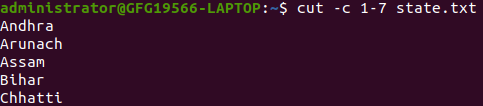
Extract first seven characters
Above cut command prints first seven characters of each line from the file. Cut uses a special form for selecting characters from beginning upto the end of the line:
**Example 3: Extract Characters from Beginning to End of Line
It extracts and displays the first character of each line from the file named state.txt.
cut -c 1- state.txt
- 1- means from character 1 to the last character
- Entire line is displayed
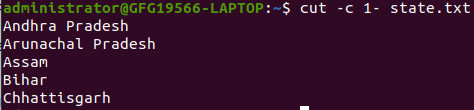
selecting characters from beginning to end of line using -c option
Above command prints starting from first character to end. Here in command only starting position is specified and the ending position is omitted.
**Example 4: Extract Characters from Beginning up to a Specific Position
This example extracts characters from the first character up to the fifth character.
cut -c -5 state.txt
- -5 extracts characters from position 1 to 5
- Starting position is assumed automatically

selecting characters from beginning to end of line using -c option
Above command prints starting position to the fifth character. Here the starting position is omitted and the ending position is specified.
The -f option is used to extract specific fields (columns) from each line of a file. Fields are groups of characters separated by a delimiter. By default, the delimiter is TAB, but you can use the -d option to specify other delimiters like space, comma, or colon.
**Note: Space is not considered as delimiter in UNIX.
**Syntax:
cut -d "delimiter" -f (field number) file.txt
**Example 1: Attempt to Extract a Field Using Default Delimiter
This example shows what happens when you try to extract a field without defining a delimiter. It helps users understand why specifying -d is important, otherwise the command may not work as expected.
cut -f 1 state.txt
- Default delimiter is TAB
- Since state.txt is space-separated, no field split occurs
- Entire line is printed instead of a single field
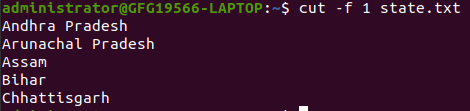
Extract first field using -f option
**Note: Always specify -d when your file is not tab-separated.
**Example 2: Extract the First Field Using Space as Delimiter
This example extracts only the first column (state names) from a space-separated file. Useful when you want one specific column from structured text.
If `**-d` option is used then it considered space as a field separator or delimiter:
cut -d " " -f 1 state.txt
- **-d " ": sets space as the field delimiter
- **-f 1: selects the first field from each line
- Only the required column is displayed
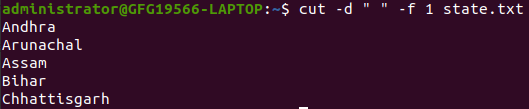
space as a field separator or delimiter
**Example 3: Extract a Continuous Range of Fields
This example demonstrates how to extract a group of consecutive fields. Helpful when data spans across multiple columns that belong together.
Command prints field from first to fourth of each line from the file.
cut -d " " -f 1-4 state.txt
- **-d " ": sets space as the delimiter.

Command prints field from first to fourth
4. --complement: Invert the Selected Fields or Characters
This option is used to reverse the selection made by other options such as -f or -c. Instead of printing the selected fields or characters, it prints everything except the specified ones.
- Must be used with another selection option (-f or -c)
- Cannot be used alone
- Helpful for excluding unwanted data instead of selecting required data
**Example 1: Remove the First Field from Each Line
This example removes the first column from a space-separated file and prints the remaining fields. It helps when the first column is not required for further processing.
cut --complement -d " " -f 1 state.txt
- **-d " ": sets space as the delimiter.
- **-f 1: selects the first field.
- **--complement: tells cut to exclude the selected field.
- All fields except the first one are printed.

--complement
**Example 2: Remove a Specific Character Position
This example removes a specific character position from each line. It is useful when you want to delete fixed-position characters such as formatting symbols.
cut --complement -c 5 state.txt
- **-c 5: selects the 5th character from each line.
- **--complement: excludes that character.
- All characters except the 5th one are printed.

--complement
5. --output-delimiter: Change the Output Field Separator
The --output-delimiter option is used to change the delimiter used in the output. By default, the output delimiter is the same as the input delimiter specified using -d.
- Works only when using the -f option
- Does not modify the input file
- Affects only how data is displayed on the terminal
- Very useful for data formatting in scripts
**Example: Change Output Delimiter to a Custom Symbol
This example changes the output delimiter from space to % while extracting selected fields. It helps when you want the output in a specific format.
cut -d " " -f 1,2 state.txt --output-delimiter='%'
- **-d " ": tells the cut command that fields in the file are separated by spaces.
- **-f 1,2: selects the first and second fields from each line.
- By default, these two fields would be printed with a space between them.
- **--output-delimiter='%': changes this space into a percent (%) symbol in the output.
- The original file remains unchanged, only the displayed output is formatted differently.

6. Display Version (--version) Using cut Command
**--version: This option is used to display the version of cut which is currently running on your system.
cut --version

display version of cut command
Real-World Use Cases
The cut command is often combined with other Linux commands using pipes (|). This allows you to extract only the required part of data and then process it further.
1. Extract a Column and Sort It
This example extracts the first field (state names) from a space-separated file and then sorts them in reverse order.
cat state.txt | cut -d ' ' -f 1 | sort -r
- **cat state.txt: displays the content of the file.
- **cut -d " " -f 1: extracts only the first field (state names).
- **sort -r: sorts the extracted names in reverse alphabetical order.
- The final output shows only sorted state names.

using tail with pipe (|) in cut command
This example extracts data from only the first few lines of a file and saves the result to another file. Helpful when previewing or processing large files.
cat state.txt | head -n 3 | cut -d ' ' -f 1 > list.txt
- **cat state.txt: sends file content to the pipeline.
- **head -n 3: limits the output to the first three lines.
- **cut -d " " -f 1: extracts the first field from those lines.
- **>: redirects the output into list.txt.
cat list.txt

redirecting output in different file