df command in Linux with Examples (original) (raw)
Last Updated : 3 Nov, 2025
disk free also known as `df`, which is a powerful utility that provides valuable information on disk space utilization. The df command displays information about file system disk space usage on the mounted file system. This command retrieves the information from `/proc/mounts` or `/etc/mtab`. By default, df command shows disk space in Kilobytes (KB) and uses the SI unit suffixes (e.g, M for megabytes, G for gigabytes) for clarity.
**Syntax
The basic syntax of df is:
df [options] [filesystems]
Here,
options: These are optional flags that modify the output of the command. We'll discuss some important ones later.filesystems: You can specify specific filesystems (mount points) to check their usage instead of getting information for all mounted drives.
If no file name is given, it displays the space available on all currently mounted file systems.
**For example:
df
This will display information about all the mounted file systems which will include total size, used space, usage percentage, and the mount point.

df
This command displays a table with columns for:
- **Filesystem: The name of the mounted storage device (e.g.,
/dev/sda4). - **Size: The total size of the filesystem in bytes.
- **Used: The amount of space currently occupied by data in bytes.
- **Avail: The amount of free space available in bytes.
- **Use%: The percentage of the filesystem used.
- **Mounted on: The directory where the filesystem is mounted (e.g.,
/,/home).
Now, if you specify a particular file, then it will show the mount information of that particular file.
**For example:
df jayesh.txt

df jayesh.txt
You can replace `jayesh.txt` with the desired file name
**Options Available in `df` command in Linux
| Options | Description |
|---|---|
| '-a' or '--all' | Includes pseudo, duplicate, and inaccessible file systems in the output. |
| '-B ' or '--block-size=' | Scales sizes by SIZE before printing them. |
| '-h' or '--human-readable' | Prints sizes in a human-readable format using power of 1024. |
| '-H' or '--si' | Prints sizes in a human-readable format using power of 1000. |
| '-i' or '--inodes' | Lists inode information instead of block usage. |
| '-l' or '--local' | Limits listing to local file systems. |
| '-P' or '--portability' | Uses POSIX output format for better portability. |
| '--sync' | Invokes sync before getting usage info. |
| '--total' | Elides all entries insignificant to available space and produces a grand total. |
| '-t ' or '--type=' | Limits listing to file systems of type TYPE. |
| '-T' or '--print-type' | Prints file system type |
Usage and Implementation of df command in Linux
`-a` option in `df` command in Linux
If you want to display all the file system, use -a option.
df -a

df -a
`-h` or `-H` option in `df` command in Linux
Use -h option to display size in power of 1024
df -h jayesh.txt

df -h jayesh.txt
Use -H option to display sizes in power of 1000
df -H jayesh.txt

df -H jayesh.txt
`--total` option in `df` command in Linux
To get complete grand total, use --total option
df --total
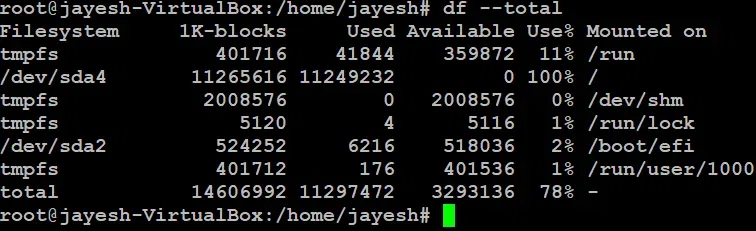
df --total
`-T` option in `df` command in Linux.
Use -T option to display file type
For example:
df -T jayesh.txt

df -T jayesh.txt
You can see the file type for `jayesh.txt` is ext4
`--help` option in `df` command in Linux
And for more help, you can use --help option.
df --help

df --help
`-x` option in `df` command in Linux
Exclude specific file system types from the output
For Example: tmpfs
df -x tmpfs

df -x tmpfs