Gzip Command in Linux (original) (raw)
Last Updated : 13 May, 2026
The gzip command in Linux is used to compress files efficiently, reducing their size to save disk space and speed up file transfers without data loss. It is widely used for compressing log files, backups, and large text files. By default, gzip compresses a file and replaces it with a .gz version of the same name.
- Uses the DEFLATE algorithm (LZ77 + Huffman coding) for speed and efficiency.
- Supports decompression using the -d option or the gunzip command.
- Maintains original file metadata such as timestamp and name (unless modified).
Example 1: Compress a File Using gzip
Compress a file to reduce its size. Creates mydoc.txt.gz in the same directory and removes mydoc.txt by default.
**Command:
gzip mydoc.txt
**Output:

Example 2: Decompress a .gz File
Restore the original file from a compressed .gz file. This command decompresses the specified gzip file, leaving the original uncompressed file intact.
**Command:
gzip -d mydoc.txt.gz
**Output:
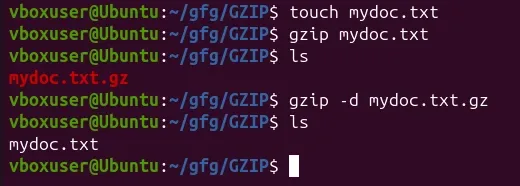
Here,
- **touch mydoc.txt: Creates an empty file.
- **gzip mydoc.txt: Compresses it into mydoc.txt.gz and deletes the original.
- **gzip -d mydoc.txt.gz: Decompresses it back to mydoc.txt and deletes the .gz file.
Syntax
gzip [Options] [files]
- **gzip: Command used to compress files in Linux.
- **[options]: Optional flags that modify the behavior of the command (e.g., -d, -k, -v).
- [files**]:** Name of the file to be compressed.
Options Available in gzip Command
1. -k: Keep the Original File
By default, gzip deletes the original file after compression. The -k option keeps the original file along with the compressed .gz file.
**Command:
gzip -k example.txt
This command compresses "example.txt" and keeps the original file intact.
**Output:
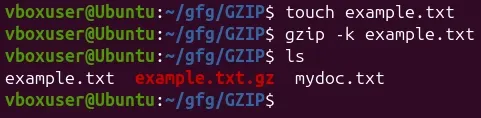
Here,
- **touch example.txt: Creates an empty file named example.txt.
- **gzip -k example.txt: Compresses it into example.txt.gz while keeping the original file.
- **ls: Shows both files 'example.txt' (original) and 'example.txt.gz' (compressed).
2. -v: Verbose Mode
Displays detailed information during compression or decompression. Shows file name, original size, compressed size, and compression ratio.
**Command:
gzip -v example1.txt
**Output:
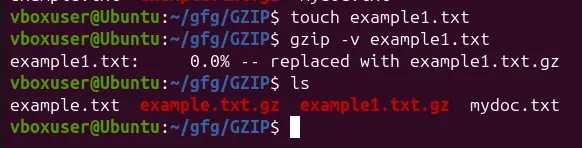
3. -f: Force Compression
In cases where the compressed file already exists, the -f option forcefully overwrites it. Forces compression and overwrites the existing .gz file without prompting. Useful when a compressed file with the same name already exists.
**Command:
gzip -f example2.txt
**Output:

**Note: Compresses "example.txt" and overwrites any existing "example.txt.gz" file
4. Compress Multiple Files
gzip can compress multiple files in a single command. Each file is compressed separately into its own .gz file.
**Command:
gzip file1.txt file2.txt file3.txt
**Output:
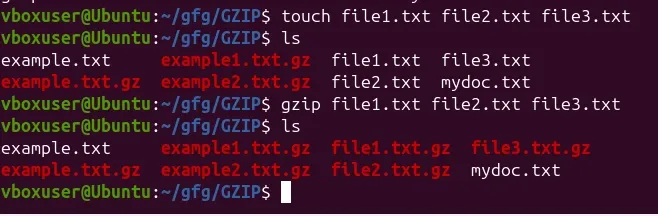
gzip vs zip Commands: When to Use
The gzip and zip commands are both used for file compression in Linux, but they differ in functionality, compression method, and usage scenarios.
| Feature | Gzip | Zip |
|---|---|---|
| **Compression Algorithm | Uses the DEFLATE algorithm. | Uses various compression algorithms, including DEFLATE, LZ77, and others. |
| **File Format | Typically appends ".gz" to compressed files. | Uses ".zip" extension for compressed archives. |
| **Archiving Approach | Common practice is to use tarball (.tar) before compression. | Compresses individual files and then adds them to the archive. |
| **File Extraction | Requires decompression of the entire file before extracting specific files. | Allows direct extraction of individual files without full decompression. |
| **Compression Efficiency | Generally offers better compression, especially for a large number of files. | Compression efficiency may vary, and it might be less effective than Gzip for certain scenarios. |
| **Extraction Time | Takes longer to extract a specific file from a compressed archive. | Allows quicker extraction of individual files from the archive. |
| **Ideal Use Case | Well-suited for compressing a large number of files into a single archive. | Suitable for compressing and archiving individual files with a focus on easy extraction. |
| **Redundancy Utilization | Efficiently utilizes redundancy in files to reduce overall file size. | May result in larger archive sizes, especially when compressing identical files multiple times. |