Controling systemd Services on Remote Linux Server (original) (raw)
Last Updated : 18 May, 2026
systemd is a modern system and service manager for Linux that handles service startup, process tracking, and resource management. It replaces traditional SysVinit scripts with a unified, dependency-based approach to controlling system services and resources.
- Provides parallelized system startup for faster boot times.
- Supports on-demand activation of daemons and background services.
- Tracks and manages processes using Linux control groups (cgroups).
- Maintains mount and automount points.
- Uses unit files to define and control services, sockets, mounts, and other system resources.
Controlling systemd Services on a Remote Linux Server
systemd allows administrators to manage services on a remote Linux server using SSH-based connections. Follow the steps below to configure and control systemd services remotely.
Step 1: Create a dedicated systemd management user on the remote server
Log in to the remote server and create a user that will be used to manage systemd services:
**Command:
sudo useradd --create-home systemd-manager
- (Optional but recommended) Set a password or configure SSH key-based authentication for this user.

Output
Step 2: Prepare SSH key-based authentication
Create the .ssh directory for the new user and set proper permissions:
sudo mkdir /home/systemd-manager/.ssh
sudo chmod 700 /home/systemd-manager/.ssh
sudo chown systemd-manager:systemd-manager /home/systemd-manager/.ssh
**Copy your public SSH key into the following file on the remote server:
/home/systemd-manager/.ssh/authorized_keys
**Set correct permissions:
sudo chmod 600 /home/systemd-manager/.ssh/authorized_keys
sudo chown systemd-manager:systemd-manager /home/systemd-manager/.ssh/authorized_keys

systemd relies on PolicyKit (polkit) to authorize privileged operations. Ensure polkit is installed on the remote server:
**Command:
sudo apt install policykit-1
- To allow the systemd-manager user to manage systemd services, appropriate polkit rules must be configured. This step is required for starting, stopping, or reloading services remotely.

Output
Step 4: Remotely manage systemd services
Once SSH access and authorization are configured, use the systemctl command with the --host (or -H) option to manage services on the remote server.
**For example, to check the status of the nginx service:
systemctl --host systemd-manager@server.example.org status nginx

Output
Step 5: Perform additional systemd operations
You can perform other systemd actions remotely in the same way. For example, to reload systemd configuration files on the remote host:
**Command:
systemctl --host systemd-manager@server.example.org daemon-reload

Output
Step 6: End the Remote Session
Each systemctl --host command uses a separate SSH connection. Once your commands are complete, simply exit the terminal or press Ctrl+C if a command is running interactively.
**For more information, consult the manual page:
man systemctl
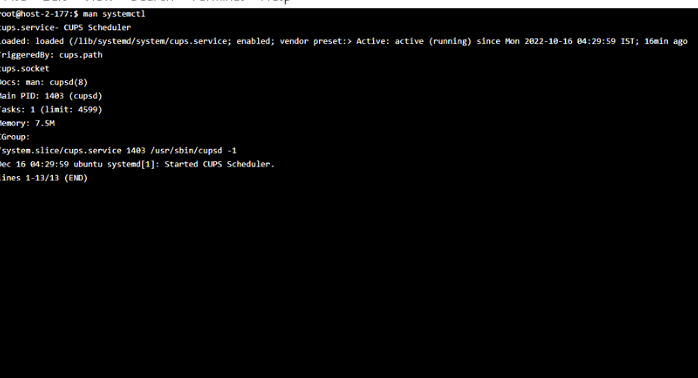
Output