How to Deploy Static Website using Caddy Webserver? (original) (raw)
Last Updated : 7 Oct, 2024
Deploying a **static website with Caddy is a simple and efficient way to host a website. Caddy is a modern, fast, and easy-to-use web server that simplifies the process of deploying websites with automatic HTTPS. In this guide, we will show you **how to use a **Caddy webserver to **host a static website. Whether you're new to **Caddy webserver static site deployment or looking to improve your hosting workflow, this guide covers everything from installing Caddy to configuring your **Caddyfile for static website hosting.
How to Deploy Static Website using Caddy Webserver?
Prerequisites
- Basic Linux experience
- An Ubuntu VPS(new/existing)
- Basic knowledge of HTML and CSS
- Domain name
**Step 1: login into your new/existing VPS and make sure its packages are up to date.
ssh user@<vps-ip/hostname>
sudo apt update && sudo apt upgrade
**Step 2: Install the latest version of the Go programming language. The below command will install the latest version of Go Snap( whatever version you install make sure it is above 1.14.2)
sudo snap install go --classic

Go installed
**Step 3: Download and install the latest version of caddy, caddy helps us to install caddy easily.
sudo apt install -y debian-keyring debian-archive-keyring apt-transport-https
curl -1sLf 'https://dl.cloudsmith.io/public/caddy/xcaddy/gpg.key' | sudo apt-key add -
curl -1sLf 'https://dl.cloudsmith.io/public/caddy/xcaddy/debian.deb.txt' | sudo tee /etc/apt/sources.list.d/caddy-xcaddy.list
sudo apt update
sudo apt install xcaddy
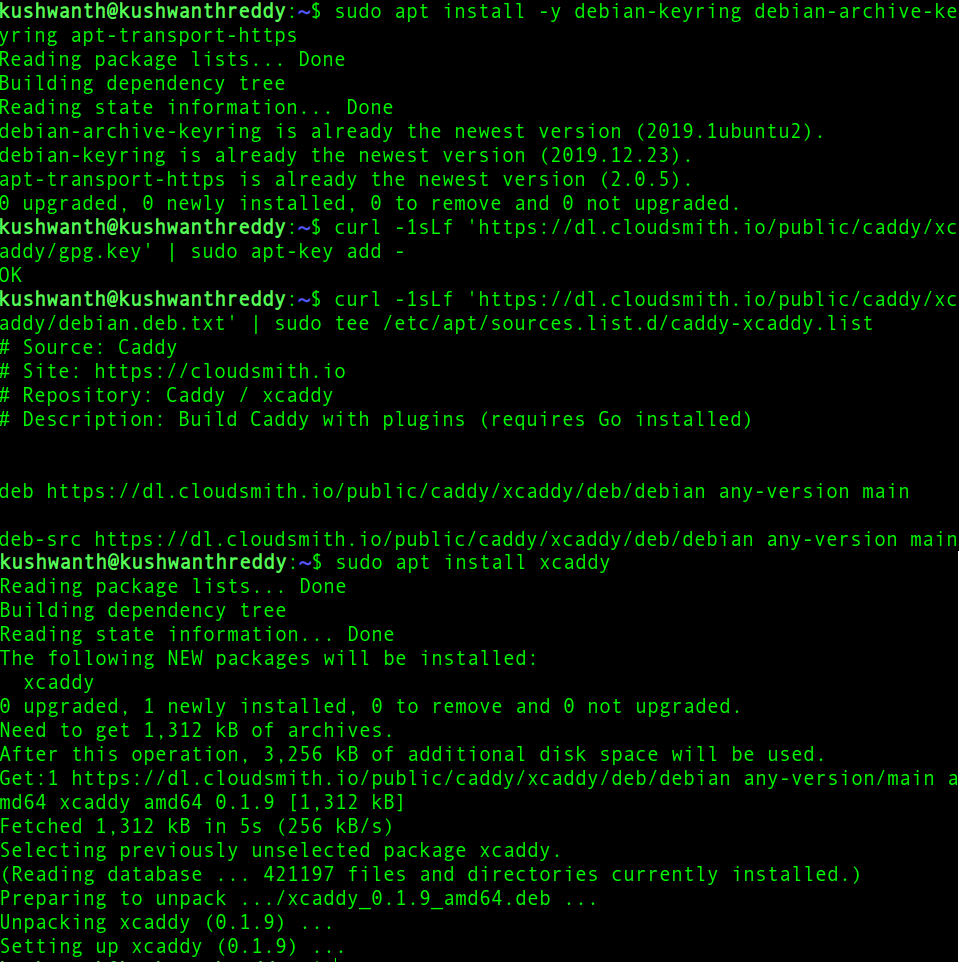
Installing Xcaddy
**Step 4: After installing Caddy now we need to install the Caddy webserver. For that follow the below command.s
mkdir ~/caddyserver
cd ~/caddyserver
// for only caddy build
xcaddy build
// for building caddy with some plugins
xcaddy build --with=github.com/caddy-dns/cloudflare
sudo mv caddy /usr/bin
To check whether the caddy is installed successfully or not you can use the below command if it prints out the version of the caddy then it's installed.
caddy version
//output
v2.4.2 h1:chB106RlsIaY4mVEyq9OQM5g/9lHYVputo/LAX2ndFg=

Caddy Web server installed
**Step 5: Configure system service so that Caddy can be launched automatically on the system boot
sudo groupadd --system caddy
sudo useradd --system --gid caddy --create-home --home-dir /var/lib/caddy --shell /usr/sbin/nologin --comment "Caddy web server | learned from GFG" caddy

Added user and group caddy
As caddy requires its group and user to run the system process, the first command creates a new group caddy(you can give your name, but it will be useful to identify in case of troubleshooting) and the second command creates a user again named caddy and assigns it to caddy group.no login command says that you catalog inn into the shell as a caddy user.
**Step 6: Create a caddy service file and add the required permissions to it.
sudo nano /etc/systemd/system/caddy.service
Copy and paste the below-prebuilt system service file from the Caddy repository
caddy.service
For using Caddy with a config file.
Make sure the ExecStart and ExecReload commands are correct
for your installation.
See https://caddyserver.com/docs/install for instructions.
WARNING: This service does not use the --resume flag, so if you
use the API to make changes, they will be overwritten by the
Caddyfile next time the service is restarted. If you intend to
use Caddy's API to configure it, add the --resume flag to the
caddy run command or use the caddy-api.service file instead.
[Unit]
Description=Caddy
Documentation=https://caddyserver.com/docs/
After=network.target network-online.target
Requires=network-online.target
[Service]
Type=notify
User=caddy
Group=caddy
ExecStart=/usr/bin/caddy run --environ --config /etc/caddy/Caddyfile
ExecReload=/usr/bin/caddy reload --config /etc/caddy/Caddyfile
TimeoutStopSec=5s
LimitNOFILE=1048576
LimitNPROC=512
PrivateTmp=true
ProtectSystem=full
AmbientCapabilities=CAP_NET_BIND_SERVICE
[Install]
WantedBy=multi-user.target
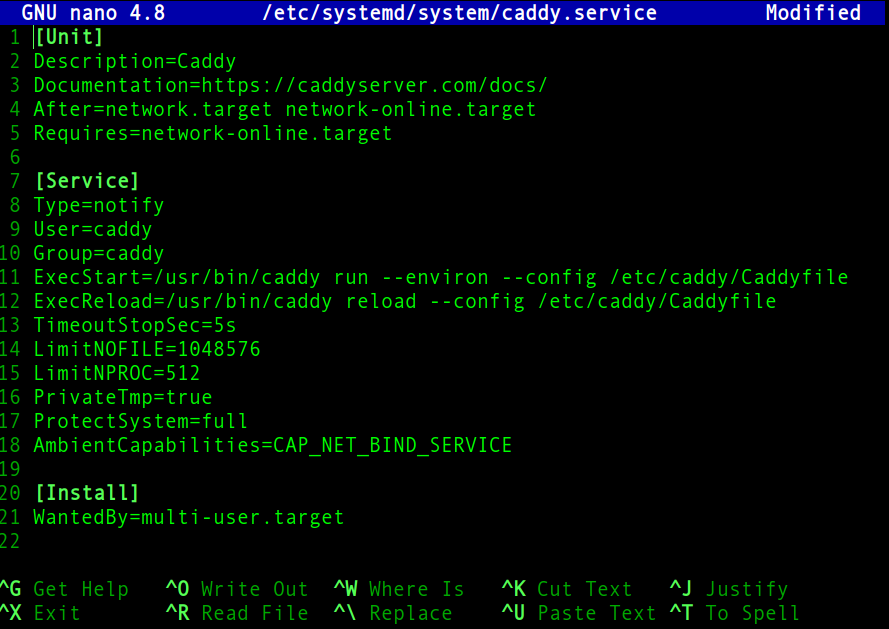
systemd service
Assign permission so that only the root user can modify it
sudo chmod 644 /etc/systemd/system/caddy.service
**Step 7: Now we need to set directory permissions to caddy directories
// 755 permission gives root user rwx but others only rx for caddy binary
sudo chmod 755 /usr/bin/caddy
// creating caddy configuration folder
sudo mkdir /etc/caddy
// creating caddy config file
sudo touch /etc/caddy/Caddyfile
//giving ownership of caddy config folder to both root user and caddy group
sudo chown -R root:caddy /etc/caddy
// creating ssl folder for caddy to store the fetched ssl certificates
sudo mkdir /etc/ssl/caddy
//giving ownership of caddy config folder to both root user and caddy group
sudo chown -R root:caddy /etc/ssl/caddy
// 770 ensures that caddy can write to the folder and it can't be executed
sudo chmod 0770 /etc/ssl/caddy
// create and assign ownership of website contents to caddy upper and group
sudo mkdir /var/www/public_html
sudo chown caddy:caddy /var/www/public_html
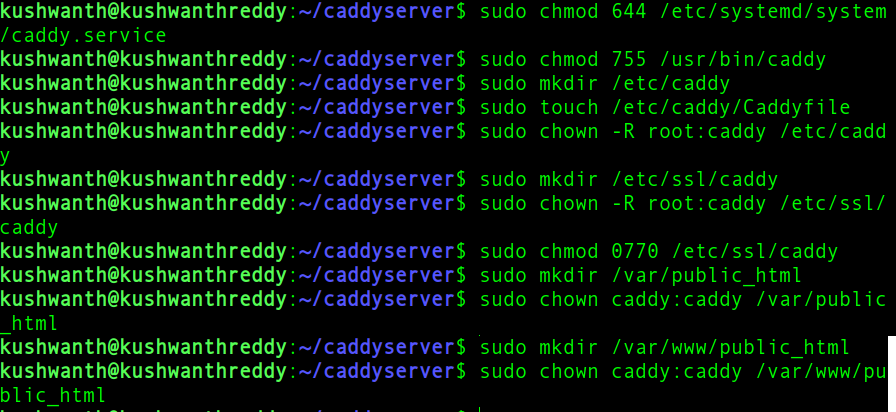
Setting permissions
**Step 8: Create a simple index.html file in the public_html folder we created in the previous step
sudo nano /var/www/public_html/index.html
Host Static website using Caddy web serverWelcome to GeeksForGeeks
This article explains how to host static websites using caddy webserver
Thank You for Reading
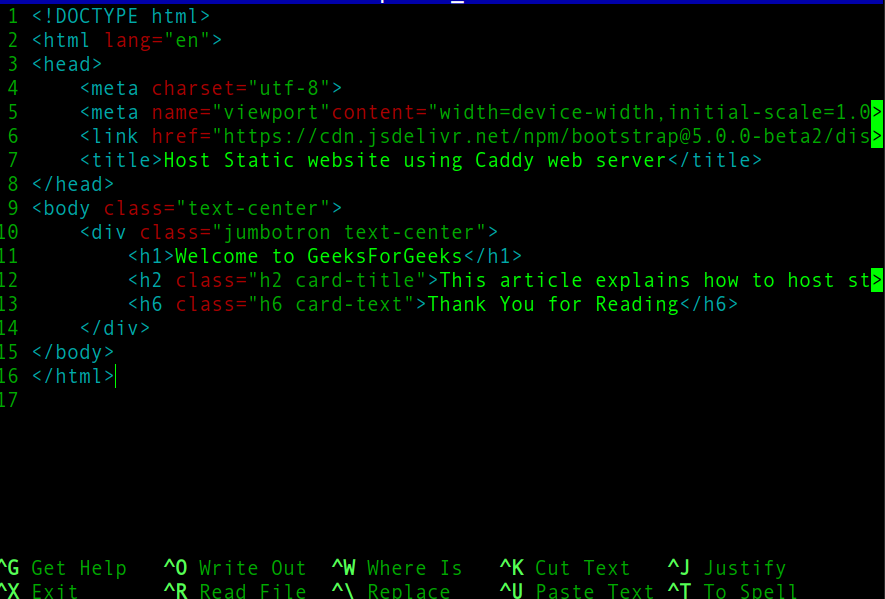
index.html
**Step 9: Configuring Caddy for this you need to edit the config file we created in step 7.
sudo nano /etc/caddy/Caddyfile
Below is a sample caddy config file. _The first line tells the caddy the domain name(example.com) that the block of configuration belongs to. It's also used to fetch SSL certificates.
- The TLS block helps us to configure SSL for the domain, for this specific file configuration email the hostname for any issuance and errors in the SSL fetching and configuration.
- Root tells the root directory of the website contents
- Encoding of the content
- File_server helps caddy to serve static files
- Header block tells caddy to send these headers along with the response, the specific config tells caddy to serve CSP, XSS, HSTS, and cache control headers along with the response
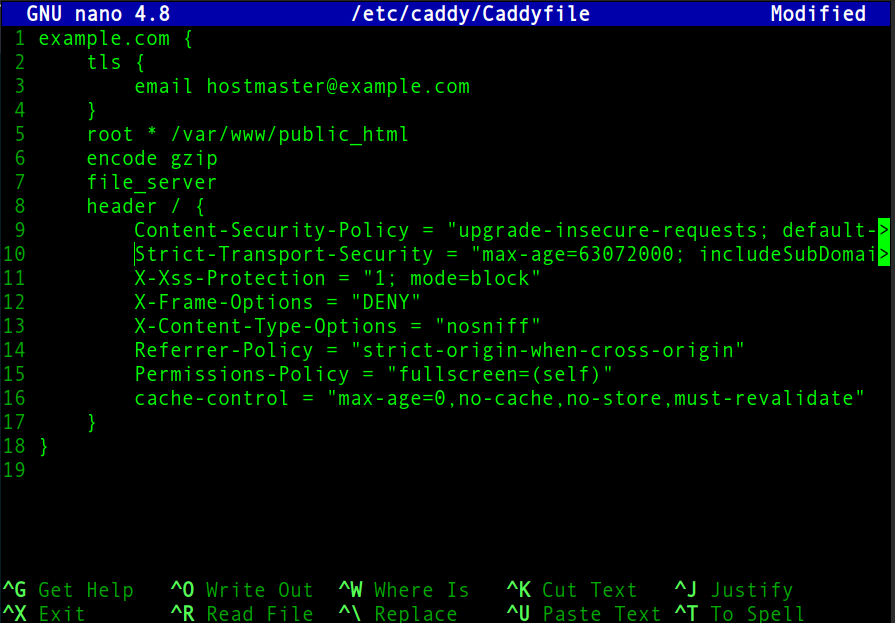
Caddyfile
**Step 10: Now run caddy using the below commands
// reloading daemon to apply caddy system service file
sudo systemctl daemon-reload
// starting caddy
sudo systemctl start caddy
//activating caddy system file
sudo systemctl enable caddy
sudo systemctl restart caddy
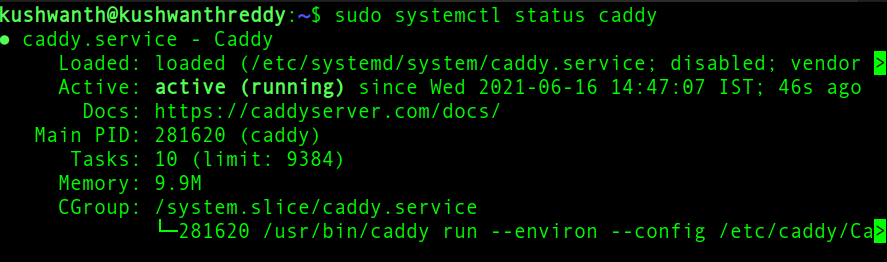
The Caddy server running successfully
**Now visit your website from your favorite browser:

Running in browser
Conclusion
Deploying a **static website using a **Caddy web server is an ideal solution for developers who want a fast and secure way to host their sites. The steps to **deploy a static site with a Caddy server are straightforward, and with the automatic HTTPS feature, your site will be secure by default. Once you have configured your **Caddy static site setup, you'll find that managing and updating your static website becomes a hassle-free experience. With **Caddy webserver, hosting and maintaining static sites has never been easier.