Handling Script Failures in Bash (original) (raw)
Last Updated : 22 Apr, 2026
Bash scripts often perform multiple system tasks and errors are inevitable. Proper error handling ensures that your scripts exit gracefully and provide meaningful feedback to users, preventing unexpected behaviour or system issues.
- Ensures scripts stop execution upon errors.
- Helps provide informative error messages to users.
- Reduces risk of incomplete operations or data corruption.
- Enables debugging and easier maintenance.
Understanding Exit Codes
Exit codes indicate the result of a command or script execution in Bash.
- **0: Indicates successful execution.
- **1 - 255: Error or specific conditions.
- ****$?:** Special variable storing the exit code of the last executed command.
Scripts can check exit codes to determine if a command succeeded and act accordingly.
Example: Checking Exit Status
**Script:
#!/bin/bash
mkdir /tmp/example
echo $?
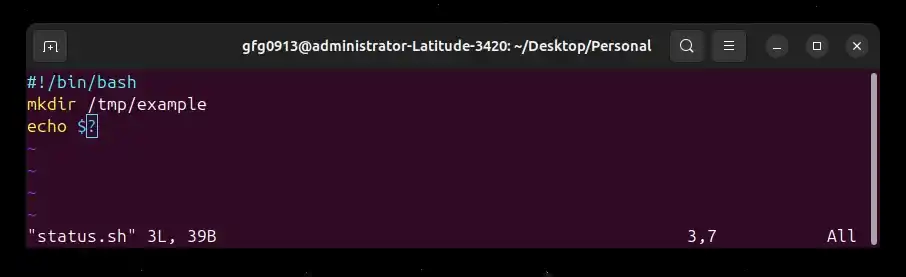
**Output (Successful Case):
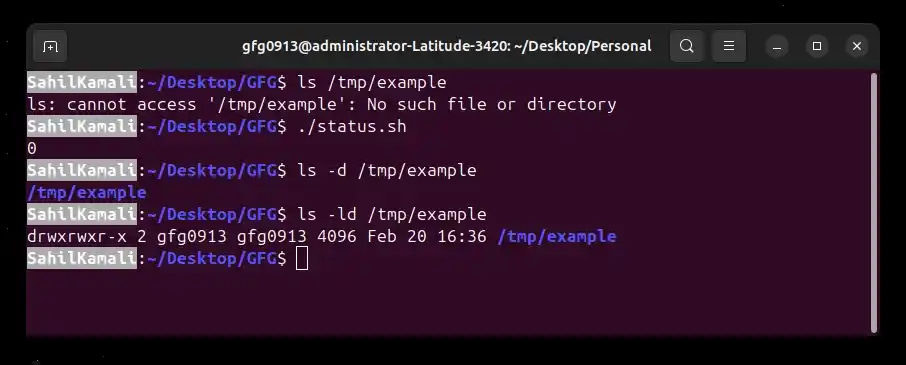
- The directory is created successfully, the exit code is 0.
**Output (Failure Case):
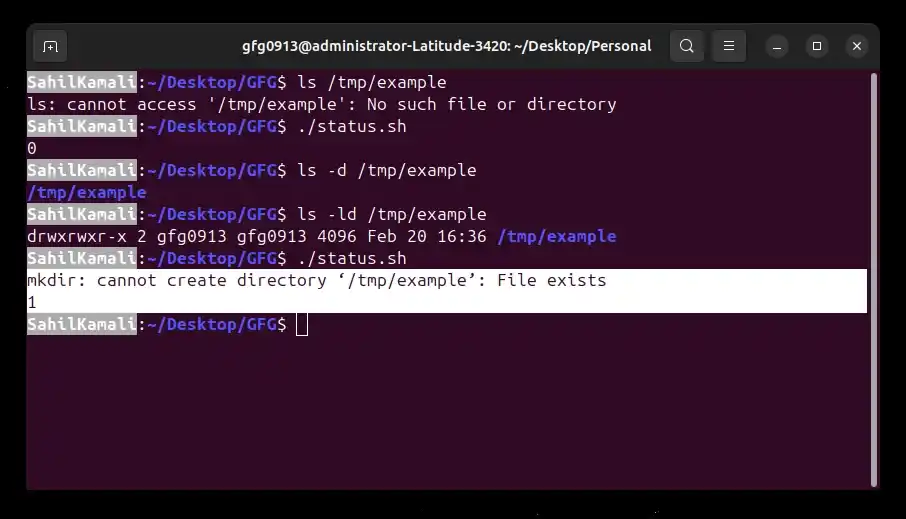
- The command fails (for example, the directory already exists), the exit code will be non-zero.
Techniques for Error Handling in Bash
1. Using the exit Command and Exit Codes
The exit command is the most direct way to stop a Bash script when an error occurs. It terminates the script immediately and returns a numeric exit status to the shell.
**Example: Exit When a Command Fails
Stop the script if directory creation fails.
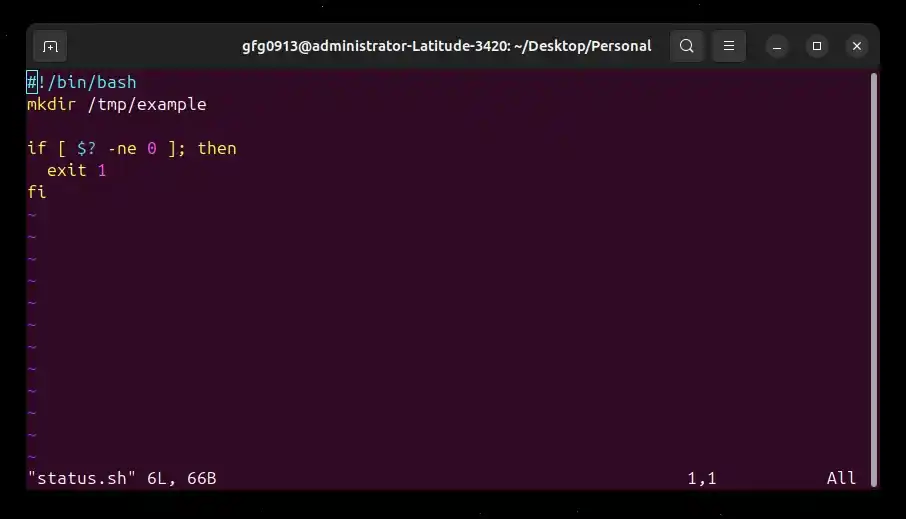
**Script:
#!/bin/bash
mkdir /tmp/example
if [ $? -ne 0 ]; then
exit 1
fi
- **mkdir /tmp/example: Attempts to create a directory.
- ****$?:** Stores the exit status of mkdir.
- **-ne 0: Checks if the exit code is not equal to 0 (meaning failure).
- **exit 1: Stops the script and returns status code 1.
**Output (Failure Case):
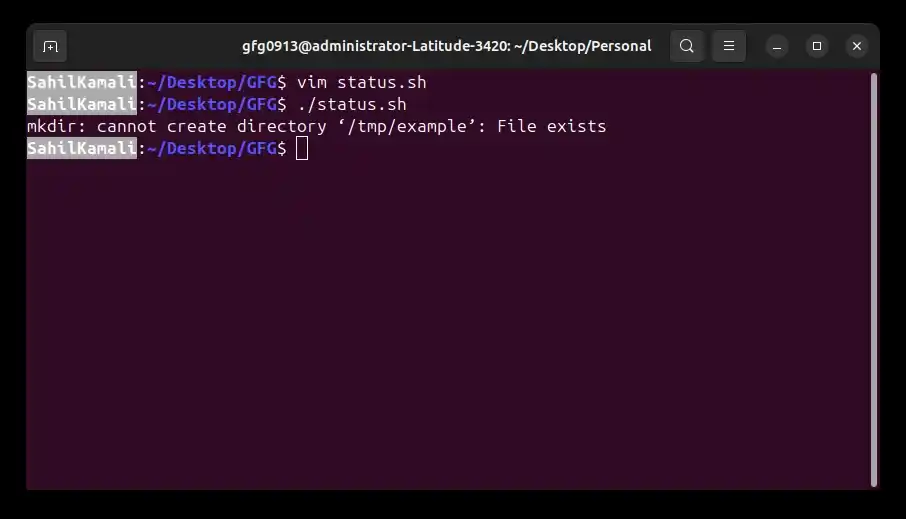
- The script exits immediately after the failure.
**Example with Error Message:
Provide user-friendly feedback before exiting.
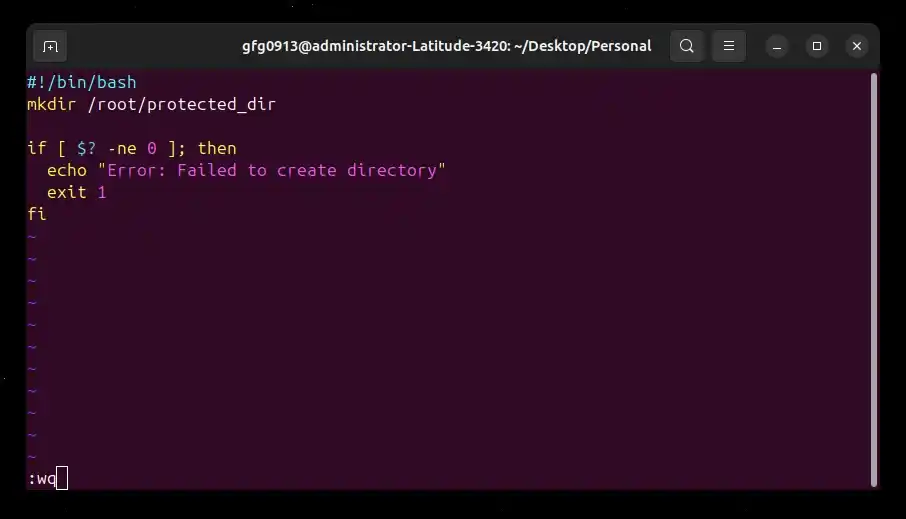
**Script:
#!/bin/bash
mkdir /root/protected_dir
if [ $? -ne 0 ]; then
echo "Error: Failed to create directory"
exit 1
fi
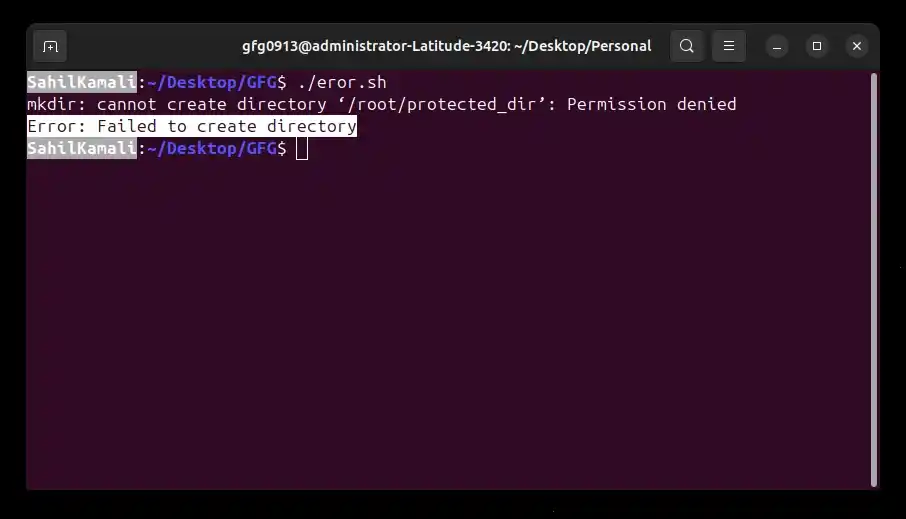
- If the command fails (for example, due to permission denied),
- The script prints an error message.
- Then exits with status code 1.
**Output:
2. Using set -e to Exit Automatically on Errors
The set -e option instructs Bash to exit the script immediately if any command returns a non-zero exit status. This removes the need to manually check $? after every command.
- Automatically stops script execution on error.
- Reduces repetitive conditional checks.
- Suitable for scripts where any failure is critical.
- Improves readability in short automation scripts.
**Note: set -e applies to the entire script. If a command fails inside a function or subshell, the script will also exit.
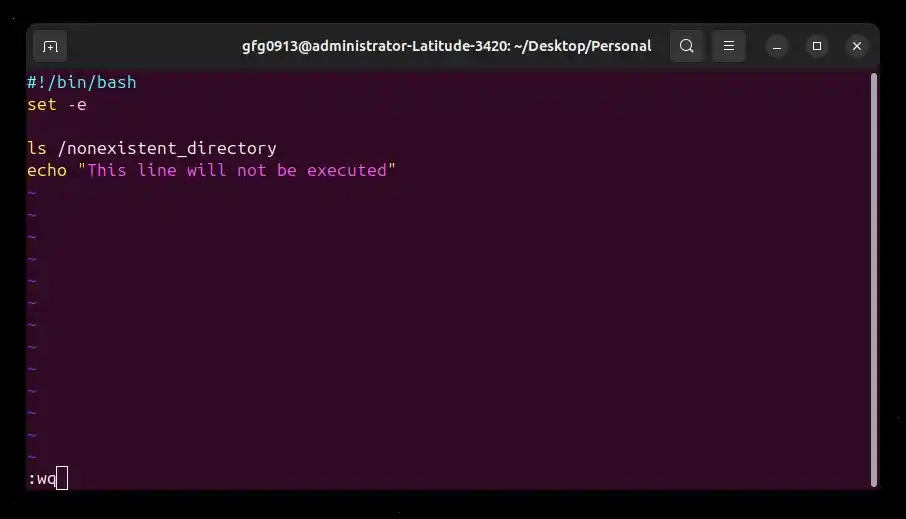
**Example: Immediate Exit on Failure
Stop execution as soon as a command fails.
**Script:
#!/bin/bash
set -e
ls /nonexistent_directory
echo "This line will not be executed"
**Output:
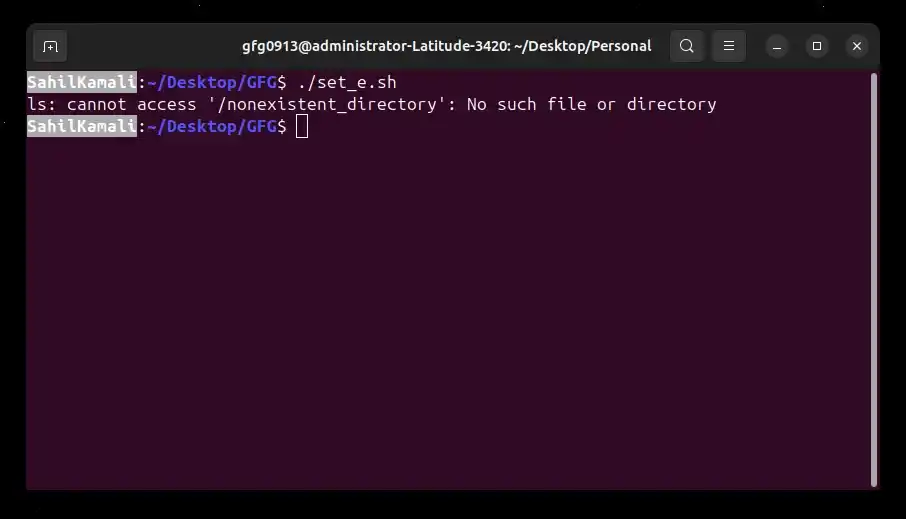
- The script terminates after the error.
3. Using trap Command for Cleanup and Error Handling
The trap command allows you to specify commands to be executed when a script exits, regardless of whether it exits successfully or due to an error. This is particularly useful for cleanup tasks like removing temporary files or undoing operations.
- Ensures specific actions are performed when the script terminates.
- Useful for cleanup operations (e.g., removing temporary files).
- Works for both normal exits and error-triggered exits.
- Enhances script reliability and safety.
**Example: Cleanup on Exit
Remove a temporary directory when the script exits.
**Script:
#!/bin/bash
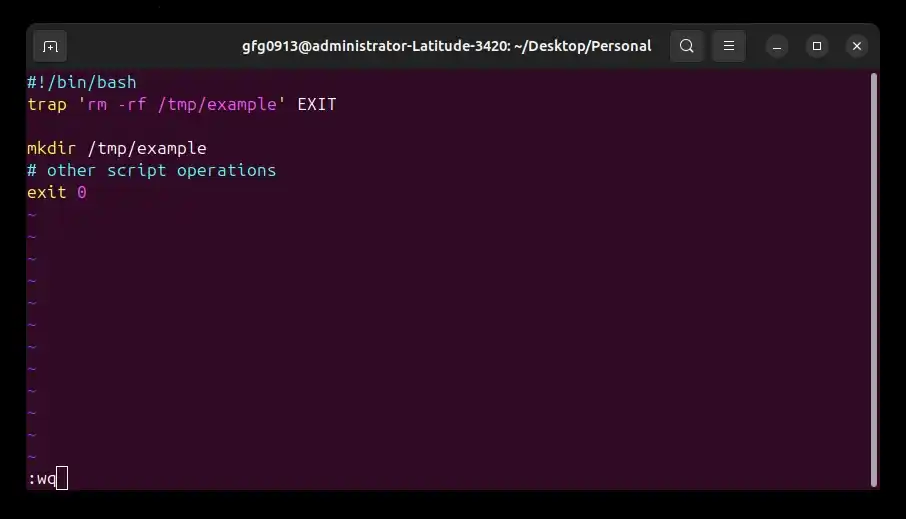
trap 'rm -rf /tmp/example' EXIT
mkdir /tmp/example
other script operations
exit 0
- trap 'rm -rf /tmp/example' EXIT sets up a cleanup command that runs when the script exits.
- Whether the script exits successfully (exit 0) or due to an error, the rm command will be triggered to delete the /tmp/example directory.
**Output:
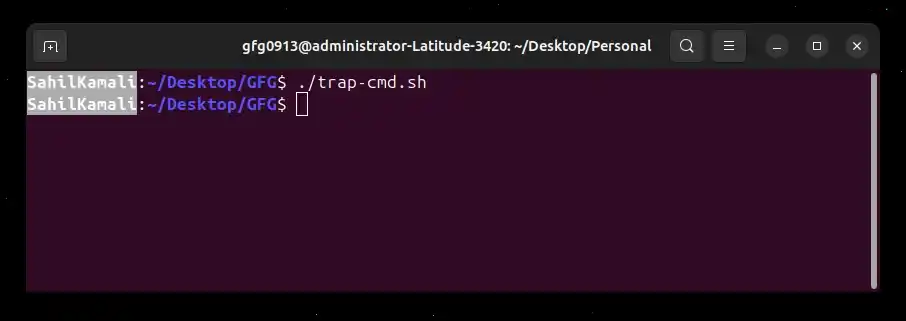
- The script will create the directory /tmp/example, run some commands and then clean up by removing the directory.
4. Command Substitution for Error Handling
Command substitution allows you to capture the output of a command and store it in a variable. This is useful when you want to display meaningful error messages or process command results before deciding whether to exit the script.
- Captures command output using $(...).
- Allows custom error reporting.
- Can combine standard output and error output.
- Useful for logging and debugging purposes.
**Example: Capture Output and Check Failure
Store the result of a command and exit if it fails.
**Script:
#!/bin/bash
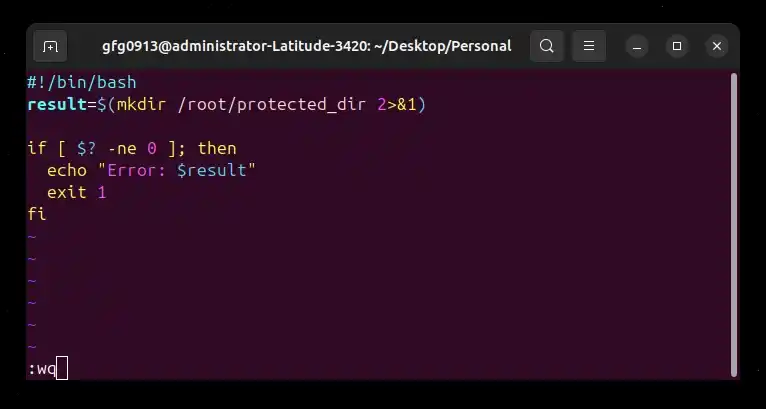
result=$(mkdir /root/protected_dir 2>&1)
if [ $? -ne 0 ]; then
echo "Error: $result"
exit 1
fi
- ****$(...):** Executes the command inside and stores its output in result.
- **2>&1: Redirects standard error (2) to standard output (1), ensuring error messages are captured.
- ****$?:** Checks the exit status of the mkdir command.
- If the command fails, the script prints the captured error message and exits.
**Output (Failure Case):
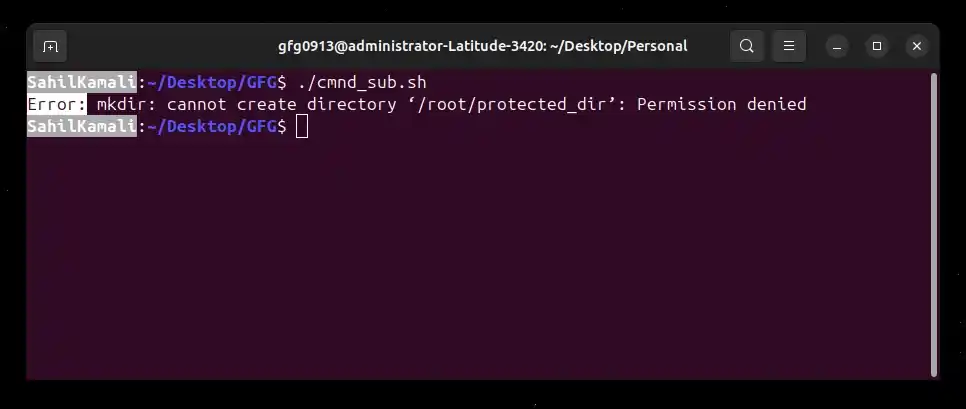
In this example, if the mkdir command fails to create the directory, the error message will be assigned to the "result" variable and displayed on the console.
5. Suppressing Error Messages
In some cases, a command may fail but the error message is not important for the user. Bash allows you to suppress error output while still checking whether the command succeeded or failed.
**Example: Suppress Standard Error
Hide error messages but exit if the command fails.
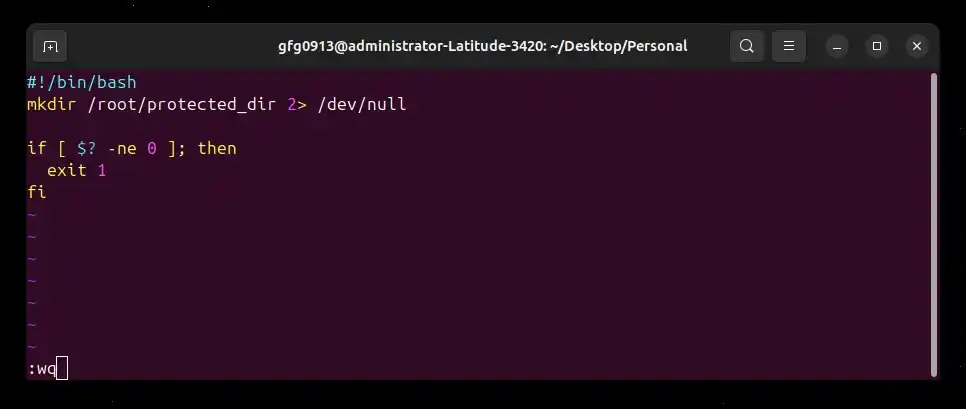
**Script:
#!/bin/bash
mkdir /root/protected_dir 2> /dev/null
if [ $? -ne 0 ]; then
exit 1
fi
- **2>: redirects standard error (file descriptor 2).
- ****/dev/null:** is a special file that discards all data written to it, means send error messages to nowhere.
- $? still stores the actual exit status of the command.
**Output:
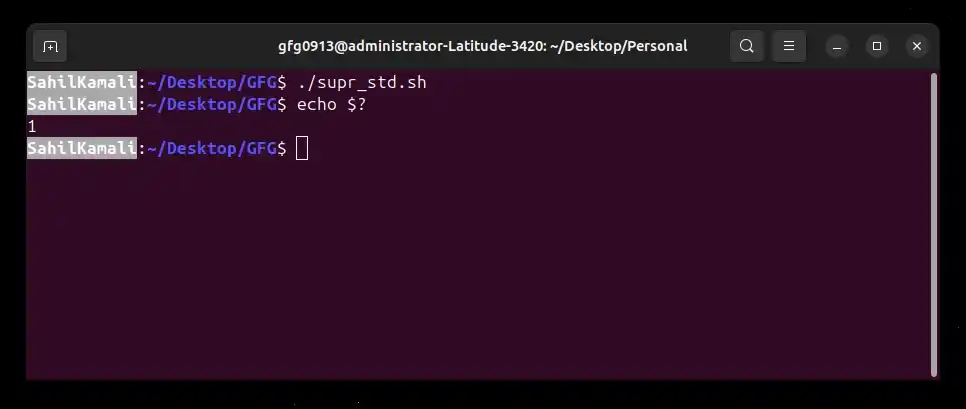
- permission is denied, no error message is displayed, the script exits with status code 1.
6. Exit When Any Command Fails
Sometimes, you want a script to stop immediately if any command fails, not just specific ones. Bash provides multiple ways to achieve this, including set -e, the || operator and manual exit status checks.
- Ensures critical scripts don’t continue after failures.
- Can be applied globally (set -e) or per command (|| exit 1).
- $? allows manual verification of command success.
- Provides more control over error handling compared to suppressing messages.
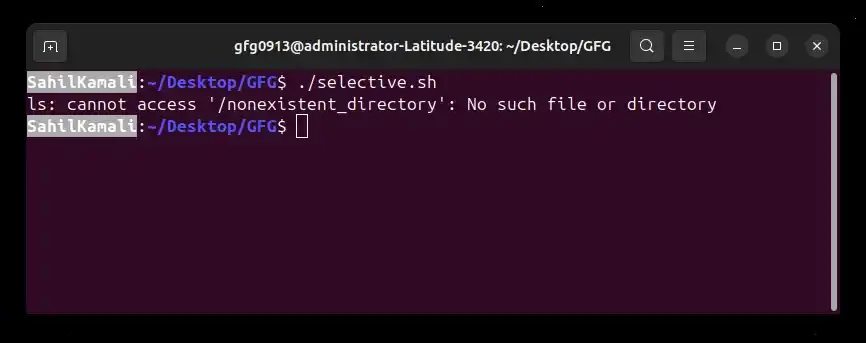
**Using || exit 1:
Exit only if a specific command fails.
**Script:
#!/bin/bash
ls /nonexistent_directory || exit 1
echo "This line will not be executed"
- The || operator executes the command on its right only if the previous command fails.
- Here, exit 1 runs when ls fails, stopping the script.
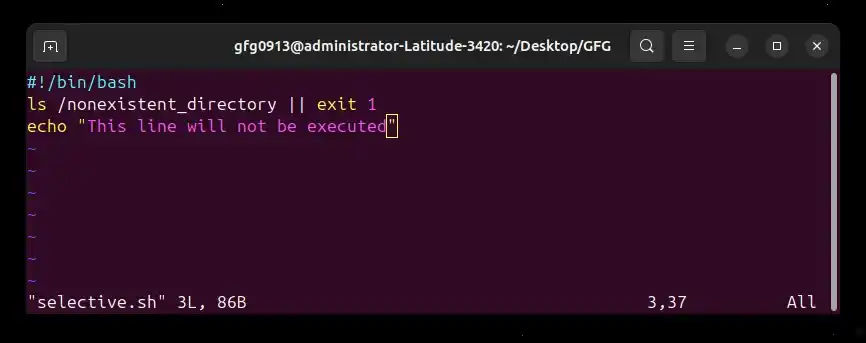
**Output:
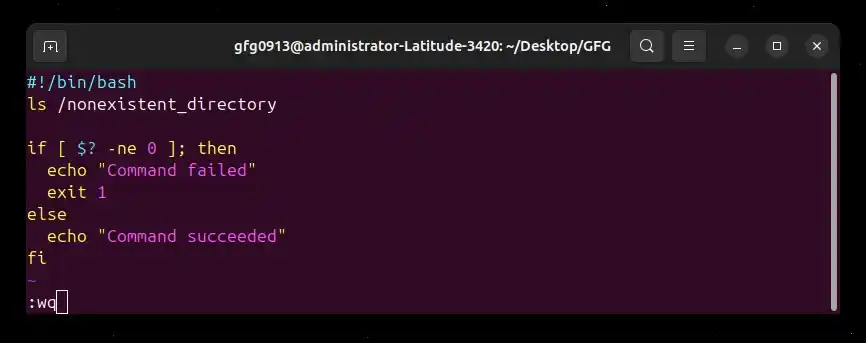
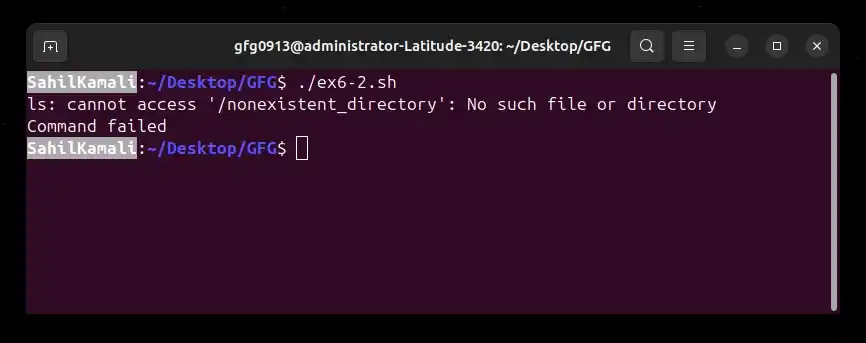
**Using $? with an if Condition
Check the last command’s exit status and decide whether to exit.
**Script:
#!/bin/bash
ls /nonexistent_directory
if [ $? -ne 0 ]; then
echo "Command failed"
exit 1
else
echo "Command succeeded"
fi
**Output:
**Important Notes:
- set -e exits on failures inside functions or subshells by default.
- To temporarily allow failures in a specific block:
set +e
commands that may fail
set -e
- The || exit 1 method stops the script only if a specific command fails.
- Using $? manually provides flexibility for logging, messaging, or conditional actions.
7. Exit Only When Specific Commands Fail
In some cases, you might not want to stop the entire script if just one command fails. Instead, you can choose to exit only when specific commands fail, allowing other commands to continue executing.
- Exit only when important commands fail.
- Allows flexibility to skip errors for non-critical operations.
- Use the || operator or $? for selective error handling.
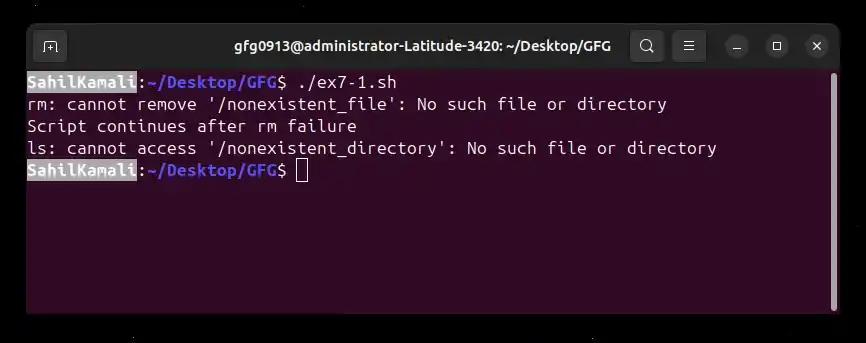
**Using || exit 1 for Specific Commands
Stop the script when a particular (critical) command fails, but continue executing other non-critical commands.
**Script:
#!/bin/bash
Non-critical command (allowed to fail)
rm /nonexistent_file || true
echo "Script continues after rm failure"
Critical command (must succeed)
ls /nonexistent_directory || exit 1
echo "This line will NOT run if ls fails"
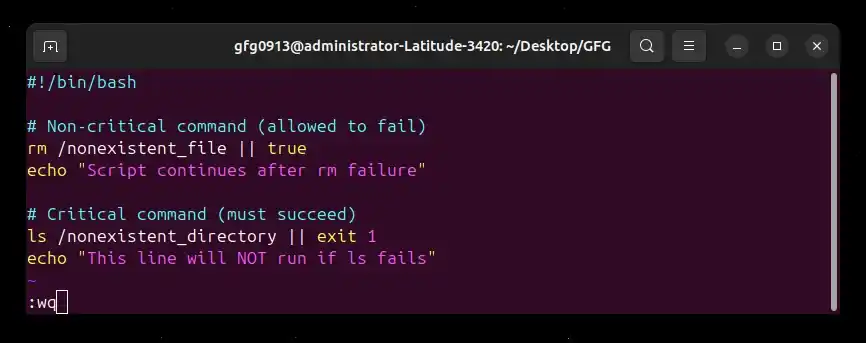
**Output:
**Using $? to Check Exit Status
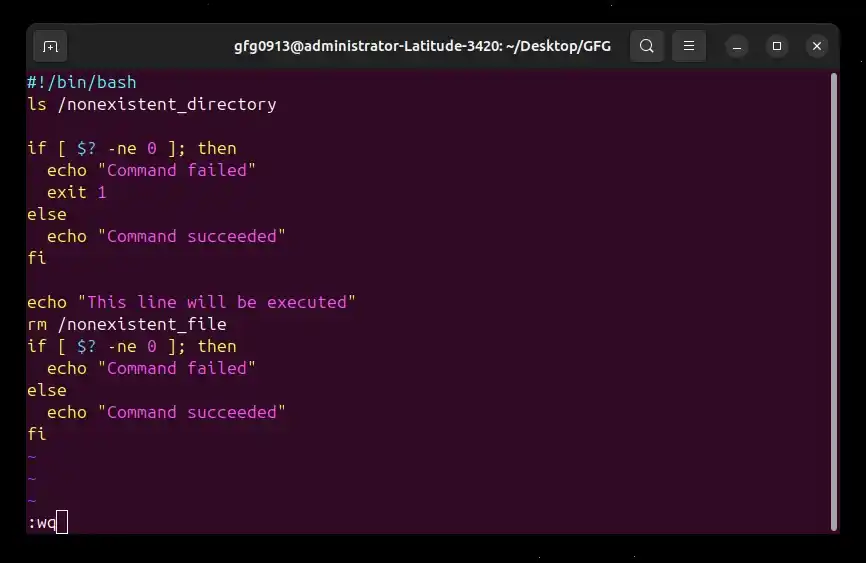
Manually check whether a command succeeded or failed before deciding to exit.
**Script:
#!/bin/bash
ls /nonexistent_directory
if [ $? -ne 0 ]; then
echo "Command failed"
exit 1
else
echo "Command succeeded"
fi
echo "This line will be executed"
rm /nonexistent_file
if [ $? -ne 0 ]; then
echo "Command failed"
else
echo "Command succeeded"
fi
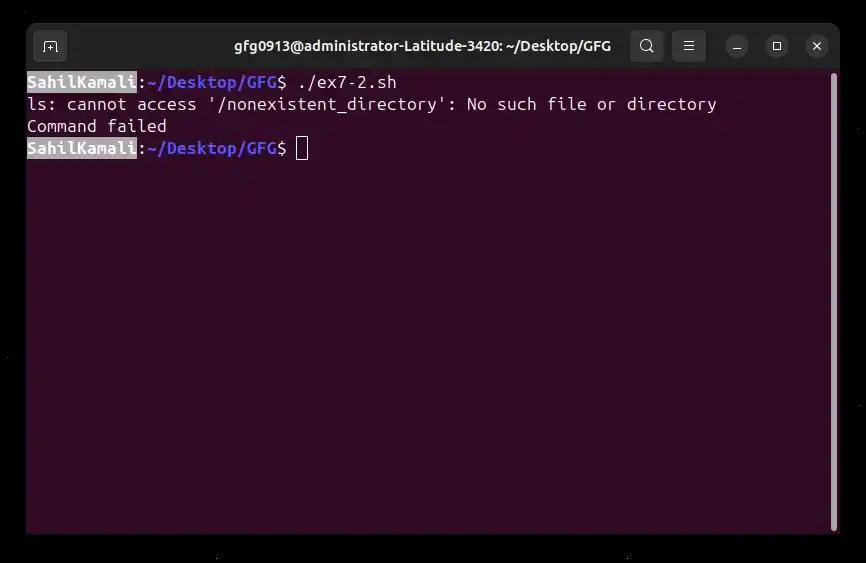
**Output:
Practical Tips for Handling Script Failures
Handling errors effectively in Bash scripts ensures reliability, readability and easier maintenance. Here are some best practices and tips:
- **Always check exit status: Use $? or || exit 1 to handle critical commands.
- **Use set -e for critical scripts: Automatically stops the script if any command fails.
- **Combine trap with cleanup tasks: Always clean up temporary files or undo partial operations.
- **Suppress non-critical errors: Use 2> /dev/null or || true to ignore harmless failures.
- **Provide clear messages: Inform the user when a command fails to aid debugging.
- **Be selective: Not every failure requires the script to exit, handle important commands explicitly.