Installation and Configuration of MongoDB in Ubuntu (original) (raw)
Last Updated : 3 Feb, 2026
MongoDB is a flexible and scalable NoSQL database that can be installed and configured on Ubuntu with careful setup.
- MongoDB offers flexibility, scalability, and ease of use.
- Requires proper installation and configuration on Ubuntu.
- Enables efficient use of MongoDB on Ubuntu systems.
Requirements to Install and Configure MongoDB in Ubuntu
MongoDB 7.0 Community Edition supports the following 64-bit Ubuntu LTS (long-term support) releases on x86_64 architecture:
- Ubuntu 22.04 LTS (“Jammy”)
- Ubuntu 20.04 LTS (“Focal”)
Review the Production Notes document before deploying MongoDB in a production environment.
Steps to Install and Configure MongoDB in Ubuntu
Follow the steps given below to install MongoDB:
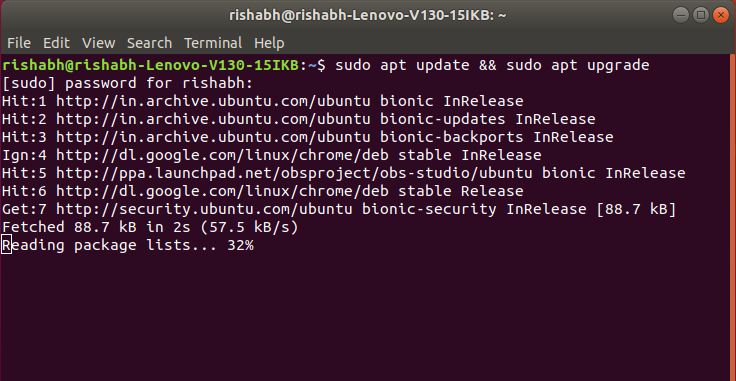
**Step 1: First we need to update and upgrade our system repository to install MongoDB. Type the following command in our terminal and then press Enter.
sudo apt update && sudo apt upgrade
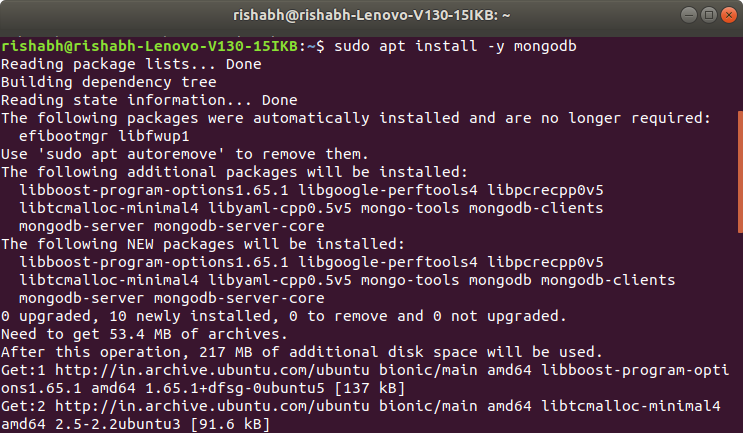
*Step 2: Now, install the MongoDB package using ****'**apt*'**. Type the following command and press Enter.
sudo apt install -y mongodb
**Step 3: Check the service status for MongoDB with the help of following command:
sudo systemctl status mongodb
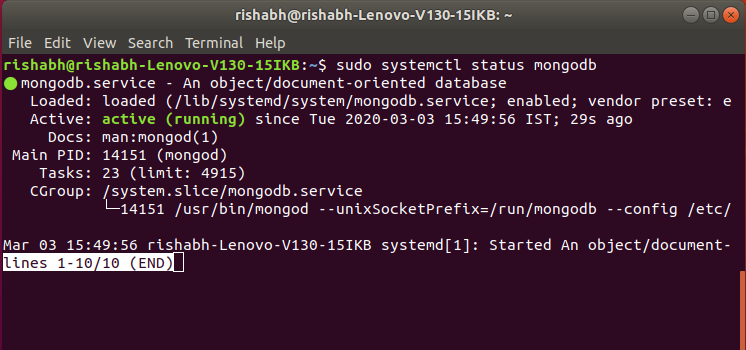
systemctl verifies that MongoDB server is up and running.
**Step 4: Now check if the installation process is done correctly and everything is working fine. Go through the following command:
mongo --eval 'db.runCommand({ connectionStatus: 1 })'
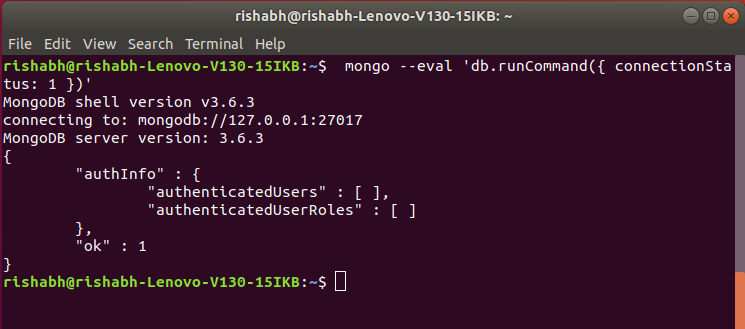
the value "1" in ok field indicates that the server is working properly with no errors.
**Step 5: MongoDB services can be started and stopped with the use of following commands: To stop running the MongoDB service, use command :
sudo systemctl stop mongodb
MongoDB service has been stopped and can be checked by using the status command:
sudo systemctl status mongodb
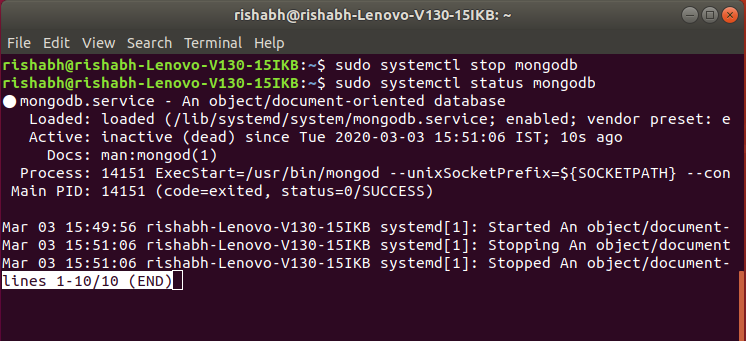
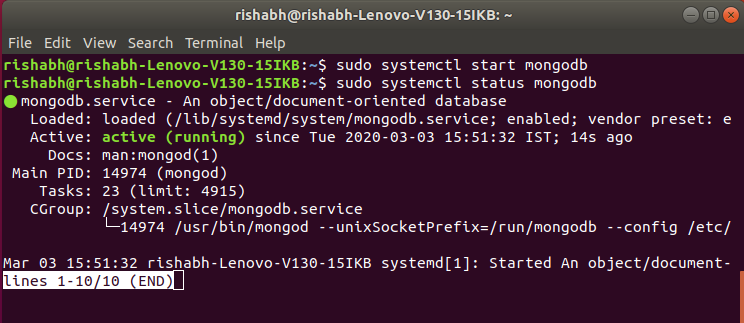
As it can be seen that the service has stopped, to start the service we can use :
sudo systemctl start mongodb
**Step 6: Accessing the MongoDB Shell
MongoDB provides a command-line interface called the MongoDB shell, which allows us to interact with the database.
To access the MongoDB shell, simply type the following command in your terminal:
mongo
We are now connected to the MongoDB server, and you can start executing commands to create databases, collections, and documents.
Features of MongoDB
Some features of MongoDB are listed below:
- **Document-Oriented: Stores data as flexible BSON (JSON-like) documents for complex data handling.
- **Scalability: Supports horizontal scaling for large datasets and high-traffic applications.
- **High Performance: Optimized with indexing, sharding, and replica sets for fast operations.
- **Flexible Schema: Allows dynamic schema changes without strict structure.
- **Rich Query Language: Supports complex queries, aggregations, and data manipulation.
- **High Availability: Ensures availability through replica sets and automatic failover.
- **Horizontal Scaling: Distributes data across servers using sharding to handle growth.
Use Cases of MongoDB
Here are some use cases of MongoDB:
- **Content Management and Delivery: Stores and serves large volumes of unstructured content like articles, images, and videos.
- **Real-Time Analytics: Enables fast analysis of large datasets to derive insights quickly.
- **Mobile and IoT Applications: Handles data from mobile devices and IoT sensors with flexible schemas and geospatial support.
- **E-commerce: Supports scalable platforms with complex product catalogs and user data.
- **Social Networking: Manages large amounts of user-generated content, relationships, and activity feeds.
- **Log and Event Data: Efficiently stores and analyzes high-volume logs and event data.
- **Catalog and Inventory Management: Powers inventory and catalog systems for retail and supply chain applications.