Installing Atom Editor on Linux (original) (raw)
Last Updated : 8 May, 2026
Atom is a free, open-source, cross-platform text editor developed by GitHub. It features a clean and modern interface that enhances productivity while coding. With strong community support and extensive customization options, Atom allows developers to tailor their workspace according to their preferences. Its flexibility and rich ecosystem make it suitable for both beginners and experienced programmers.
- Supports multiple programming languages with syntax highlighting
- Provides a built-in package manager for extending functionality
- Includes smart auto-completion and code suggestions
- Allows theme and UI customization for a personalized experience
- Offers integrated Git and GitHub support for version control
**Note: Atom has been officially discontinued and archived by GitHub as of December 15, 2022. It no longer receives updates, security patches or official support. Users are encouraged to consider modern alternatives such as Visual Studio Code, Sublime Text or Zed.
Methods to Install Atom on Linux
1. Install Using Snap (Easy Method)
Snap packages bundle the application along with all required dependencies. This makes installation simple but can increase package size and startup time. Snap packages work on most major Linux distributions, including Ubuntu, Linux Mint, Debian, Fedora and Kali Linux.
**Install Command:
sudo snap install atom --classic
**Output:
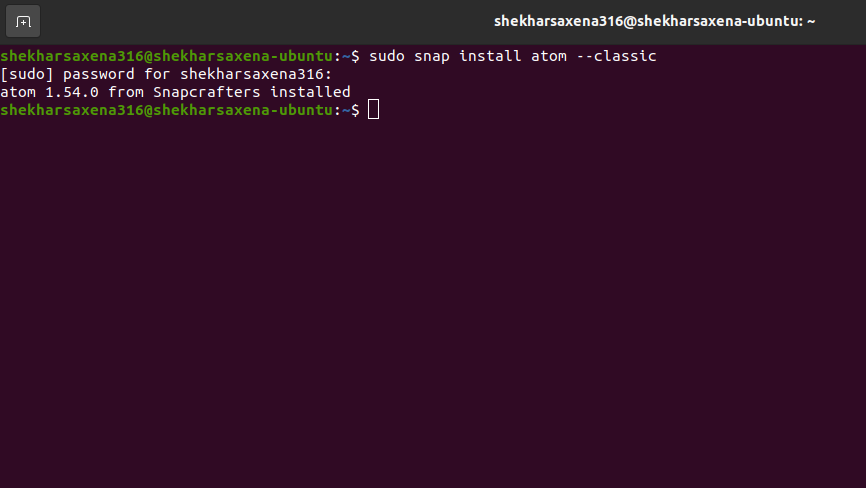
Installing Atom Text Editor using snap
**Note: Snap is easy to use and manage, but it may not offer the best performance compared to native packages.
2. Install Using .deb or .rpm Package (Recommended Method)
Atom can be installed using .deb or .rpm packages depending on the Linux distribution. This method provides better system integration and performance.
- Debian-based systems (Ubuntu, Linux Mint, Kali Linux) use .deb packages.
- Fedora and similar distributions use .rpm packages.
**Steps:
- Download the appropriate package from the official Atom website.
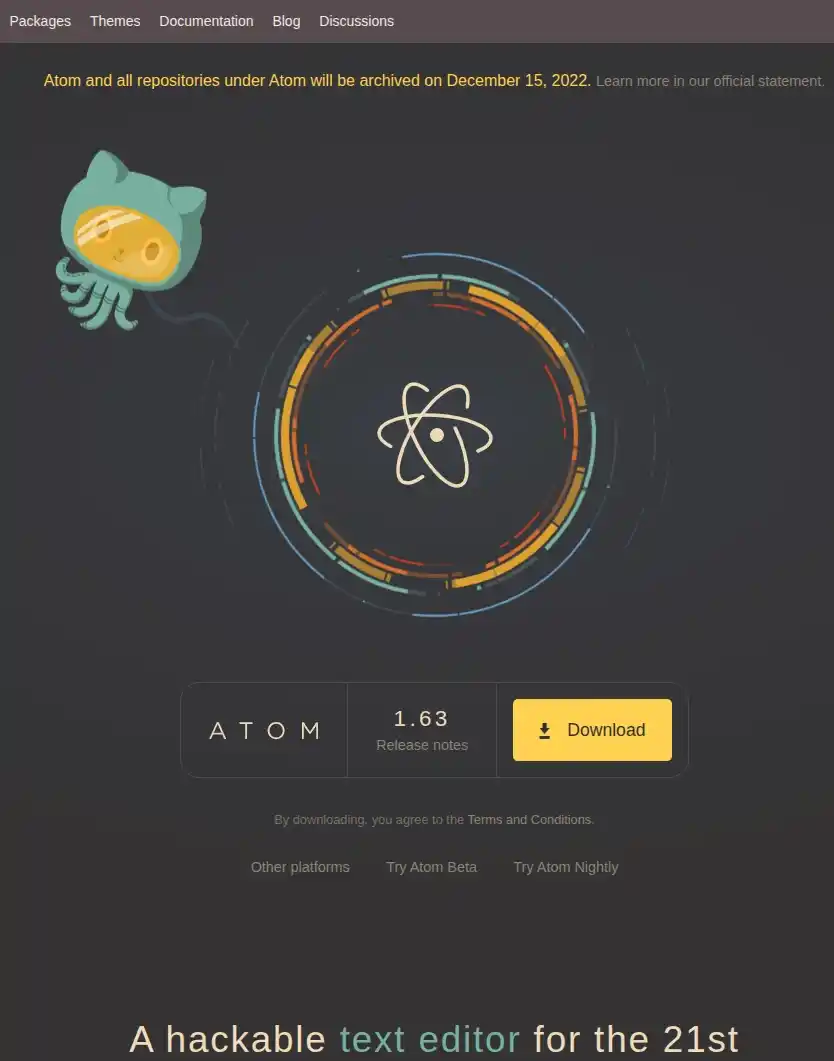
- Double-click the downloaded file. Follow the on-screen instructions to complete the installation.
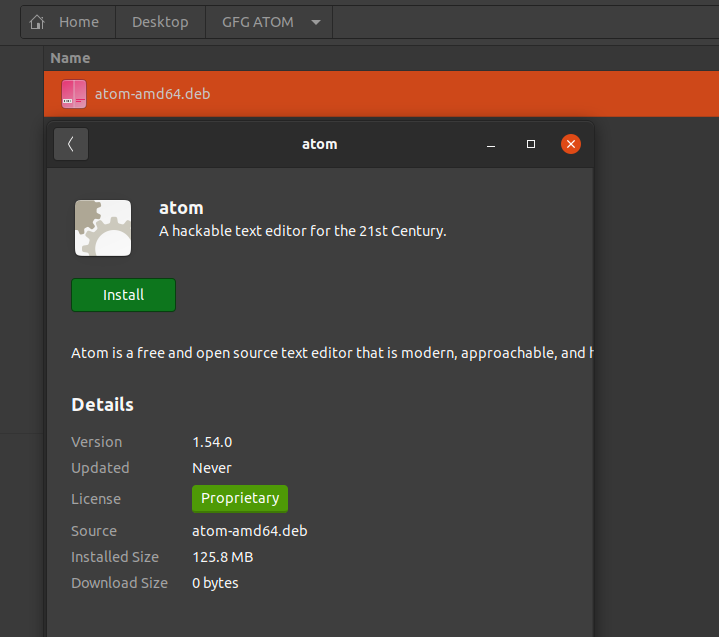
Installing Atom Text-Editor using .deb/.rpm files
**Note: These packages are available only for 64-bit systems. Make sure your OS is 64-bit before downloading.
3. Install Using PPA (For 32-bit Debian-Based Systems)
For 32-bit Debian Linux users, they can install atom via PPA. PPA is Personal Package Archive which allows developers to create the repository and distribute the software.
- This method allows 32-bit users to install Atom through a maintained repository.
**Installation Commands:
sudo add-apt-repository ppa:webupd8team/atom
sudo apt-get update
sudo apt-get install atom
**Output:
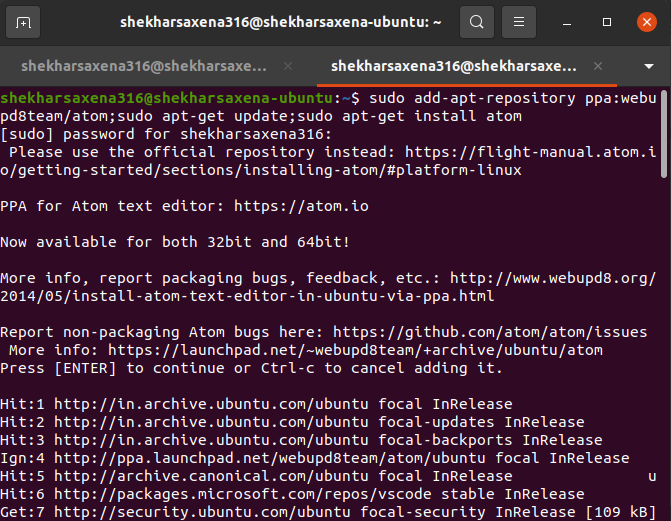
Installing Atom Text-Editor using PPA : For 32-bit Systems
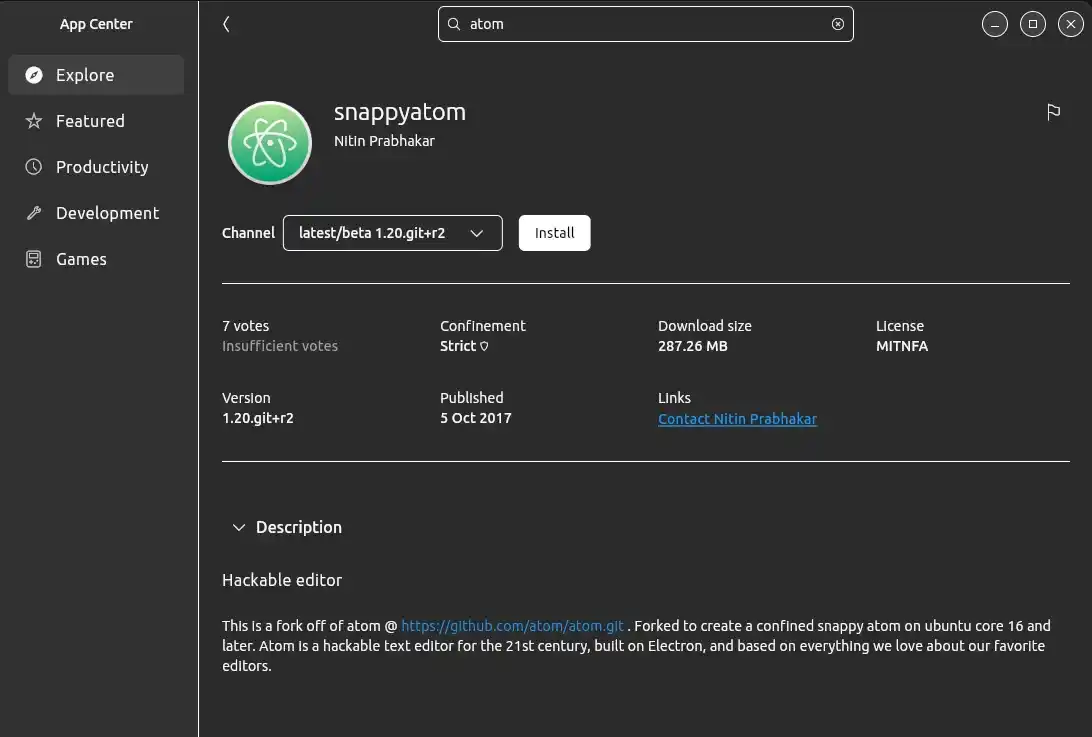
4. Install Using Ubuntu Software Center
Atom can be installed using Ubuntu's Software Center also. This is just the snap-version of Atom which is mentioned above, hence it is not recommended.
Launching Atom Text-Editor
1. From Terminal
**Command:
atom
**Output:
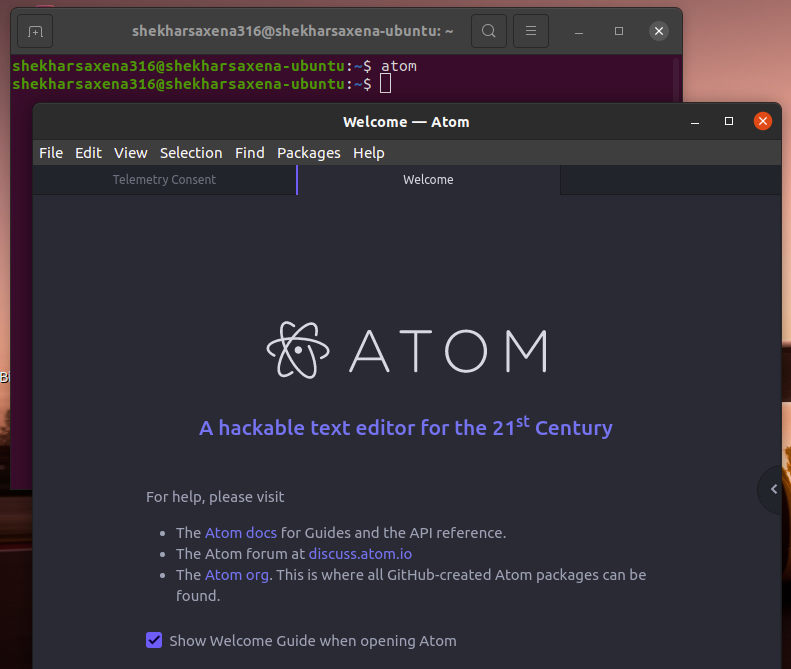
Launching Atom from Terminal
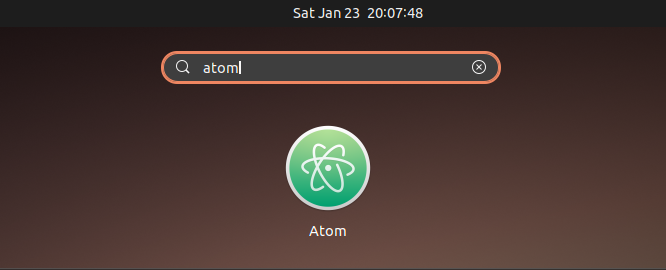
Launching Atom from Applications Menu