Saving Command Output to a File in Linux (original) (raw)
Last Updated : 7 May, 2026
Linux provides a powerful Command-Line Interface (CLI) for executing commands efficiently. Command output can be stored in files for logging, analysis, debugging or documentation. Saving output is especially useful when working with large results or generating system reports.
- Redirect command output to a file
- Overwrite or append data safely
- Automatically create files if they do not exist
- Display output on the terminal while saving it
- Useful for logs, scripts and automation tasks
Methods to Save Command Output in Linux
Using Redirection Operators
We can use redirection operators to save command output to files. Redirection operators redirect the output of a command to a file rather than the terminal.
**Two primary operators are:
- **>: Overwrite mode
- **>>: Append mode
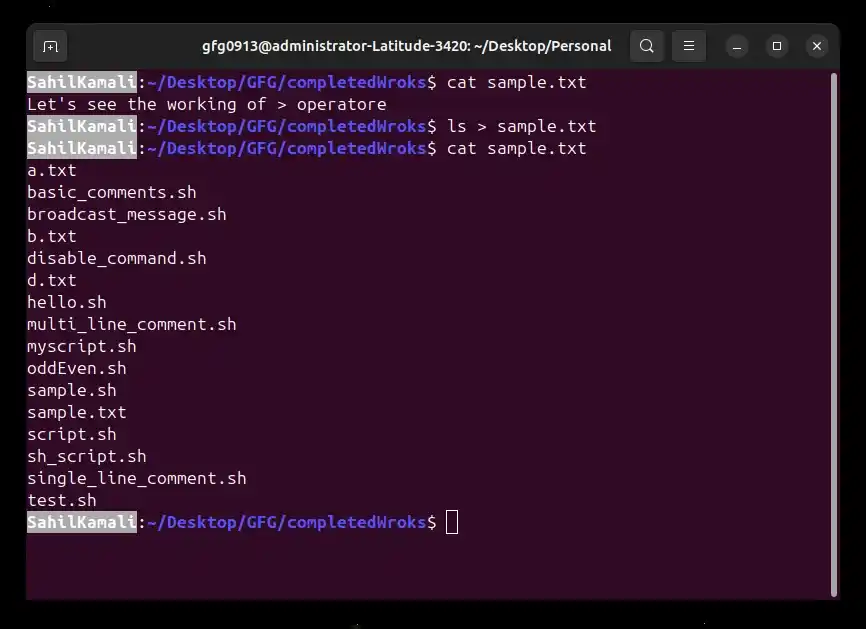
Example 1: Using > (Overwrite Mode)
Store command output in a file and remove any existing content.
**Command:
ls > sample.txt
- **ls: lists files and directories.
- **>: redirects standard output to sample.txt.
- Existing file content is erased.
**Note: If the file does not exist, it is created automatically.
**Output:
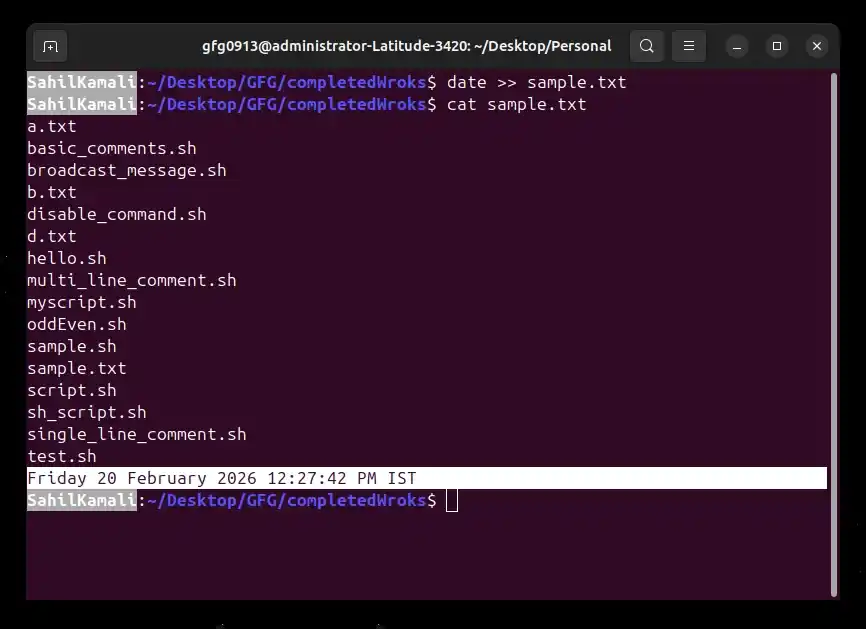
Example 2: Using >> (Append Mode)
Add new output to the end of a file without deleting existing content.
**Command:
date >> sample.txt
**Output:
Syntax of Redirection
command > filename
command >> filename
- **command: Any executable Linux command
- **>: Redirect and overwrite
- **>>: Redirect and append
- **filename: Target file for storing output
**Note: If the file does not exist, Linux creates it automatically.
Using the tee Command
Redirection operators send output only to a file. To display output on the terminal and save it simultaneously, use the tee command. tee reads standard input and writes it to both the terminal and a file.
**Syntax:
command | tee filename
- ****| (pipe):** passes the output from the command to tee.
- **filename: is the target file where the output is saved.
**Note: Existing file content is overwritten unless the append option is used.
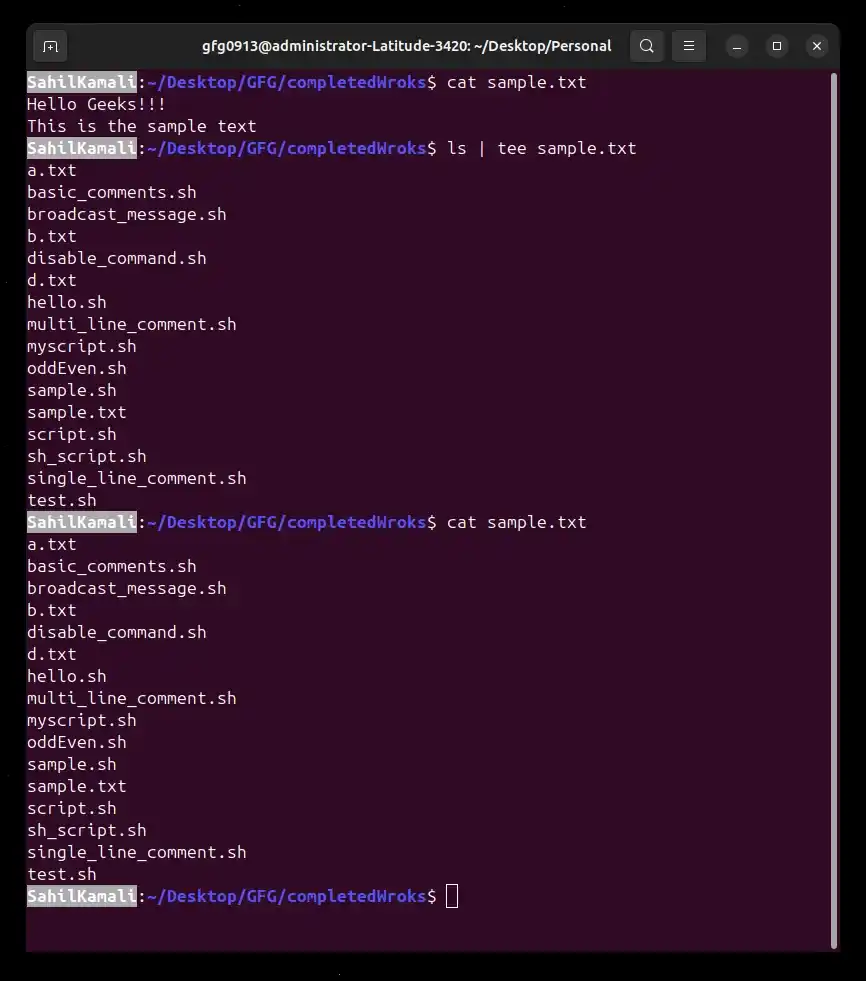
Example 1: Using tee
Display command output on the terminal while saving it to a file at the same time.
**Command:
ls | tee sample.txt
- **ls: Lists files and directories.
- ****| (pipe):** Passes the output to tee.
- **tee: Writes the output to sample.txt and also prints it on the terminal.
- Existing content in the file is overwritten.
**Output:
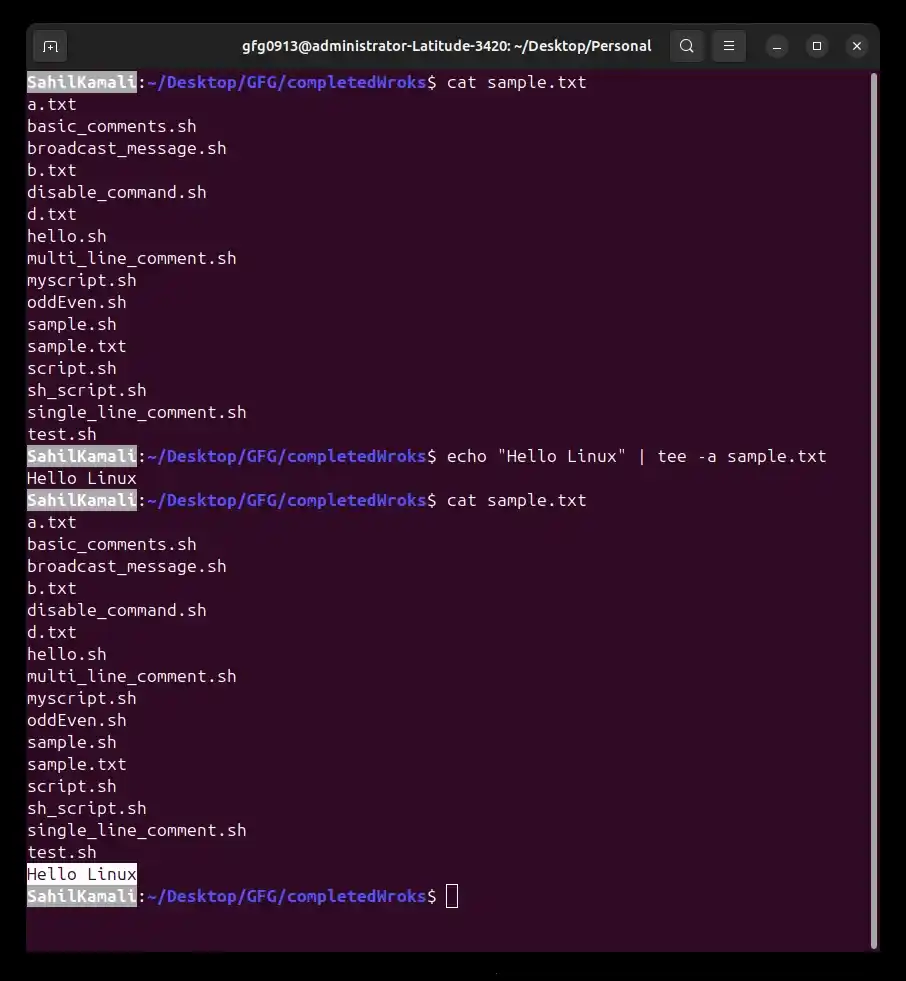
Example 2: Using tee -a (Append Mode)
Append command output to a file while displaying it on the terminal.
**Command:
echo "Hello Linux" | tee -a sample.txt
- **echo "Hello Linux": Generates text output.
- **-a: Option tells tee to append to the file instead of overwriting it.
- Existing content in sample.txt remains intact.
**Output: