Scheduling Tasks Using at Command in Linux (original) (raw)
Last Updated : 28 Apr, 2026
The at command is a standard Linux utility for scheduling a command or script to run one time at a specified future time. It's the perfect tool for tasks you don't want to run right now, but also don't need to run on a repeating schedule.
- Running a resource-heavy script after work hours (e.g., at midnight).
- Scheduling a system shutdown or reboot for a specific time.
- Running a quick command (like downloading a file) in 10 minutes, after you've closed your terminal.
Syntax:
at [-q queue] [-f file] [-mldv] TIME
- **-q queue: Specifies the job queue (default is "a").
- -**f file: Reads the job from the specified file.
- **-m: Sends an email to the user after the job has been executed.
- **-l: Lists the user's pending jobs.
- **-d: Deletes a pending job.
- **-v: Displays the time of job execution.
at Vs cron
This is the most common point of confusion. Both schedule tasks, but they have different jobs:
- **at: For one-time tasks. You set it, it runs, and it's gone.
- **cron: For recurring tasks. Use this when you want something to run every Monday, every hour, or on the 1st of every month.
To Schedule Tasks Using at Command
1. Install the at package:
On Debian/Ubuntu
sudo apt install at
On RHEL/Fedora/CentOS
sudo dnf install at
2. Start and Enable the atd Service****:**
The atd (at daemon) is the service that runs in the background and checks for jobs to execute.
Start the service
sudo systemctl start atd
Enable it to start automatically on boot
sudo systemctl enable atd
Scheduling a Job by at
**1. Type at followed by the time. This opens the interactive at> prompt.
at now + 1 minute
**2. Type the commands you want to run, one per line.
at> echo "This command ran 1 minute later" > /tmp/at_test.txt
at> /usr/bin/touch /tmp/another_file.log
**3. Press Ctrl+D to save the job.
The terminal will confirm the job is scheduled, giving you a Job ID. A minute later, you can check for the files:
ls /tmp/
at_test.txt another_file.log
cat /tmp/at_test.txt
This command ran 1 minute later

**Example 1: Scheduling a command to run at a specific time:
**Command:
at 2:30 PM
at> echo "Hello, World!" > ~/hello.txt
at> Ctrl+D
This example schedules the echo command to write "Hello, World!" to a file at 2:30 PM.

**Example 2: Using a file to specify commands:
**Command:
$ echo "ls -l" > myscript
$ at 10:00 PM -f myscript
In this example, a script file (myscript) containing the ls -l command is scheduled to run at 10:00 PM.

Example 3: System Shutdown at Specific Date:
**Command:
at 11:45pm July 31
at> shutdown now
In this example , the computer will shutdown on a specific date
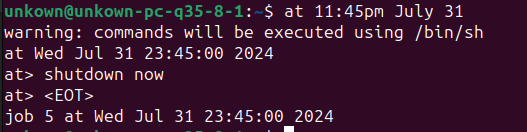
Example 4 : Delete a file on a specific Time:
**Command:
at 11:45pm
at> rm hello.txt
The hello.txt file will be removed at 11:45PM today

Time Working in "at":
| **Time Format | **Example Command | **What It Does |
|---|---|---|
| **Minutes/Hours | at now + 5 minutes | Runs in 5 minutes. |
| at now + 1 hour | Runs in 1 hour. | |
| **Specific Time | at 10:30 | Runs at 10:30 AM today. |
| at 6:00 PM | Runs at 6:00 PM today. | |
| **Keywords | at noon | Runs at 12:00 PM today. |
| at midnight | Runs at 12:00 AM tonight/tomorrow. | |
| at teatime | Runs at 4:00 PM today. | |
| **Dates | at 10:30 tomorrow | Runs at 10:30 AM tomorrow. |
| at 11:45pm July 31 | Runs at the specified date and time. |
Service Used by the at Command in Linux
The at command in Linux is used to schedule one-time tasks to run at a specified time in the future. It relies on the atd (at daemon) service, which runs in the background and manages the execution of these scheduled jobs.
atd Service Management of the at Command in Linux
The atd daemon handles the execution of tasks scheduled using the at command. When a user schedules a job, it is stored in the /var/spool/at directory. The atd service periodically checks this directory and executes the jobs at their scheduled time.
Components of atd Service
- **Job Queue: Maintains a queue of jobs scheduled for execution at specific times.
- **Scheduler: Continuously checks pending jobs and ensures they are executed at the correct time.
- **Executor: Executes the scheduled commands or scripts when their time arrives.
- **Time Handling: Manages timing calculations to ensure accurate execution of jobs.
- **Logging and Reporting: Records job execution details, errors, and status for monitoring and troubleshooting.
at Command Table:
| **Command | **What It Does |
|---|---|
| at [time] | Interactively schedule a job for [time]. |
| atq | Lists all pending jobs in the queue. |
| atrm [Job ID] | Removes the specified job from the queue. |
| at -f [script] [time] | Schedules the [script] file to run at [time]. |
| echo "cmd" | at [time] | Pipes a command to be run at [time]. |
| Ctrl+D | Exits and saves your interactive at> prompt. |