Filtering, Displaying, and Maintaining Logs using journalctl in Linux (original) (raw)
Last Updated : 17 Nov, 2025
The journalctl command in Linux is one of the most powerful tools for viewing, filtering, and managing system logs managed by systemd-journald.
- Allows administrators to search and filter specific system events quickly and accurately.
- Enables users to customize log displays for better readability and focused analysis.
- Helps in efficient log storage management by controlling size, age, and persistence of logs.
- Simplifies system monitoring and troubleshooting through organized and detailed log insights.
Filtering Logs by Message Interest
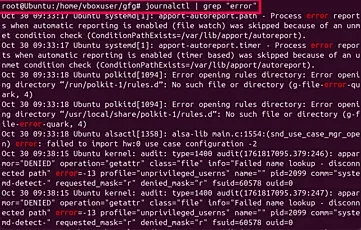
You can use the -g or --grep option in journalct to filter logs by specific keywords or messages of interest. This helps focus only on relevant log entries instead of reading through large amounts of data.
1. Basic Filtering by Keyword
Displays logs containing a specific word or message.
**Command:
journalctl -g "error"
- Shows all log entries that include the word “error”.
- Useful for quickly identifying system or service errors.
**Output:
2. Filtering by Keyword Within a Time Range
Filters log entries containing a specific keyword within a given time period.
**Command:
journalctl -g "error" --since "2024-06-01 08:00:00" --until "2024-06-01 10:00:00"
- Displays all log entries containing “error” between 8:00 AM and 10:00 AM on June 1, 2024.
- This helps narrow down specific events in time-sensitive troubleshooting.
**Output:

3. Filtering by Multiple Keywords
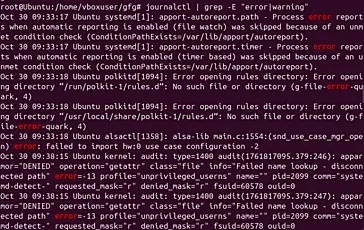
You can search for logs that contain more than one keyword.
**Command:
journalctl -g "error" -g "warning"
- Shows all log entries containing either “error” or “warning”.
- Ideal for identifying both critical and cautionary system messages.
**Output:
4. Filtering by Exact Match
You can filter logs for messages that match a phrase exactly using regular expressions.
**Command:
journalctl -g "^Service started$"
- Displays only log messages that exactly match “Service started”.
Modifying the Journal Display
The journalctl command provides various options to customize how logs are displayed making them more readable or machine-friendly for automation.
1. Default Output
Displays logs in the default detailed format.
**Command:
journalctl
**Output:
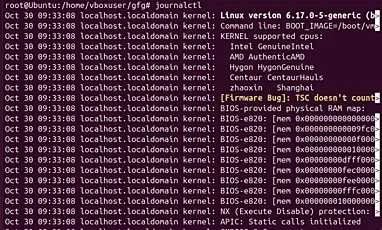
- Shows logs with timestamps, service names, and messages.
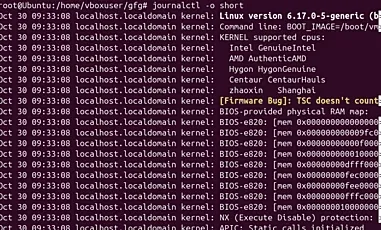
2. Short Output Format
Displays logs in a compact format with essential details only.
**Command:
journalctl -o short
**Output:
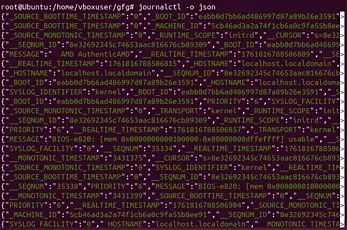
3. JSON Output Format
Displays logs in JSON format for programmatic parsing.
**Command:
journalctl -o json
**Output (truncated):
4. JSON Pretty Format
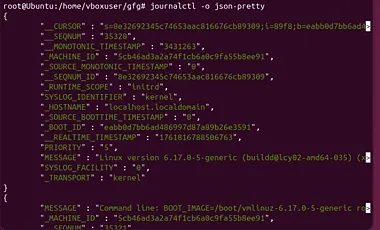
Shows logs in human-readable JSON format.
**Command:
journalctl -o json-pretty
**Output:
5. Verbose Output
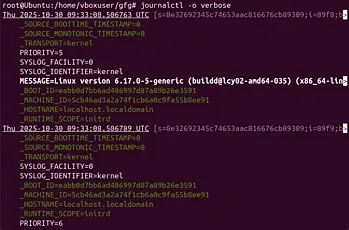
Displays logs with maximum detail, including internal metadata.
**Command:
journalctl -o verbose
**Output:
Journal Maintenance
Maintaining the system journal helps manage disk space and performance. Over time, logs can grow large - so it’s important to control size, age, and persistence.
1. Limit the Size of Journal Logs
Restrict the total space used by journal logs.
**Command:
sudo journalctl --vacuum-size=1G
**Output:

- Keeps journal size within 1 GB by deleting older entries automatically.
2. Limit the Age of Journal Logs
Delete logs older than a specific time.
**Command:
sudo journalctl --vacuum-time=2weeks
**Output:

- Keeps logs for the last 14 days, removing older ones.
3. Enable Persistent Log Storage
By default, some systems keep logs only in memory (lost on reboot).
- To make logs persistent across reboots:
**Commands:
sudo mkdir -p /var/log/journal
sudo systemctl restart systemd-journald
- Creates a directory for permanent log storage and restarts the journald service.
- Logs will now persist even after system restarts.
4. Compress Old Logs
Reduce disk space by compressing old archived logs.
**Command:
sudo journalctl --vacuum-files=5
**Output:
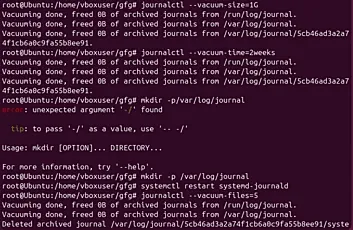
- Keeps the last 5 journal files and compresses or deletes older ones.
5. Check Disk Usage of Journal Logs
To see how much space your logs are using:
**Command:
journalctl --disk-usage
**Output:

- Helps you monitor and plan log storage effectively.