Viewing and Creating Hidden Files in Linux (original) (raw)
Last Updated : 7 Apr, 2026
In Linux, hidden files are files or directories whose names begin with a dot (.) and are not displayed by default when listing directory contents.
- Hidden files are used to store configuration settings and system-related data.
- They are typically hidden to prevent accidental changes or deletions by users.
- Viewing and creating hidden files allows users to manage and customize system behavior when needed.
Hidden files can be viewed using two different methods: the command line and the GUI.
Method 1: Command line to View Hidden Files in Linux
Execute the below command to view all the hidden files in the terminal itself.
$ ls -a
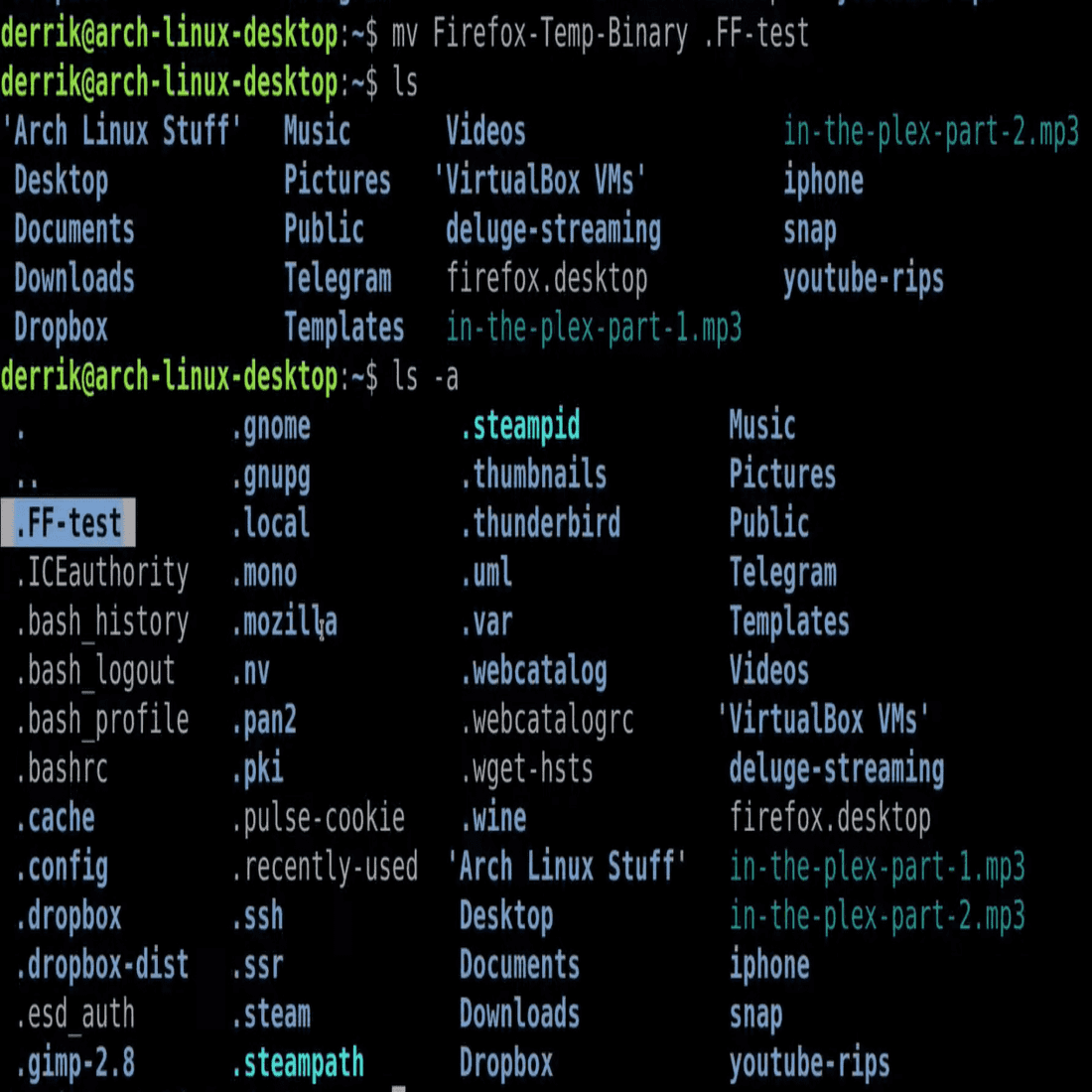
This command will show every hidden record (whose names start with a . (dot) image) in your ongoing Terminal catalog.
Method 2: File Manager Toolbar Hidden Files in Linux
To display hidden records in Linux File manager:
- Open the file manager.
- Click on the "three-bar" or "options" menu at the top right.
- Select "Show Hidden Files" (or press the keyboard shortcut 'Ctrl + H').
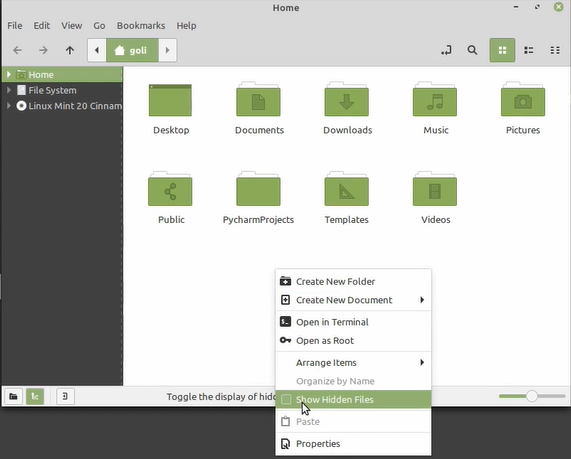
This will show every hidden record (whose names start with a . (dot) image) in your ongoing Terminal catalog.
**Note: "Ctrl + H" is a keyboard shortcut used to show hidden files.
Creating Hidden Files can be done in two best ways in Linux:
- **Method 1: Command Line to Hide Files in Linux
- **Method 2: GUI (Graphical User Interface) to Hide Files in Linux
To hide a record in Linux, you have to add a spot (.) toward the start of the filename.
Method 1: Command-line to Hide Files in Linux
Hide the file by moving it under a new filename. The period (.) at the beginning of the new filename indicates that it’s hidden.
$ mv Firefox-Temp-Binary .FF-test
After renaming by adding '.' (dot) with '$ls' command file cannot be viewed as it is hidden.
Method 2: GUI (Graphical User Interface) to Hide Files in Linux
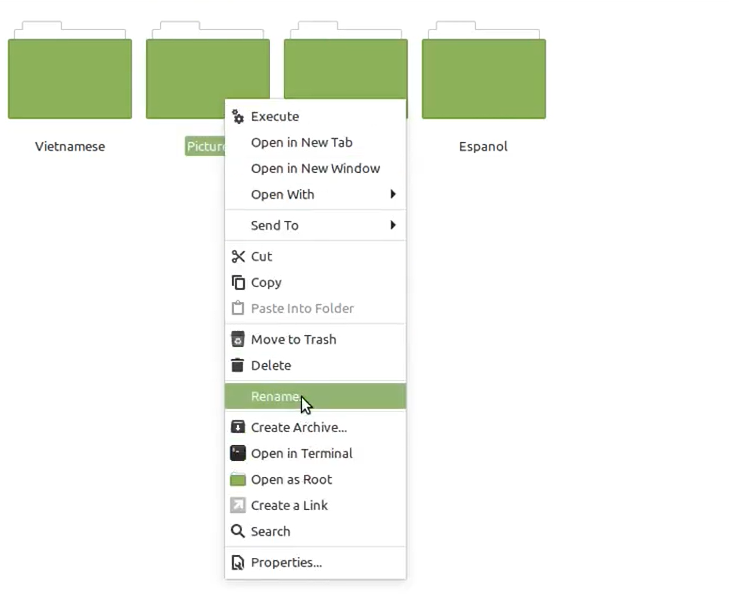
You can also hide files through the graphical interface by renaming them with a dot at the beginning of the file name.
**Step 1: Right-click on the file and select the Rename option.
**Step 2: Make the file hidden by placing a .(dot) at the beginning of the filename.
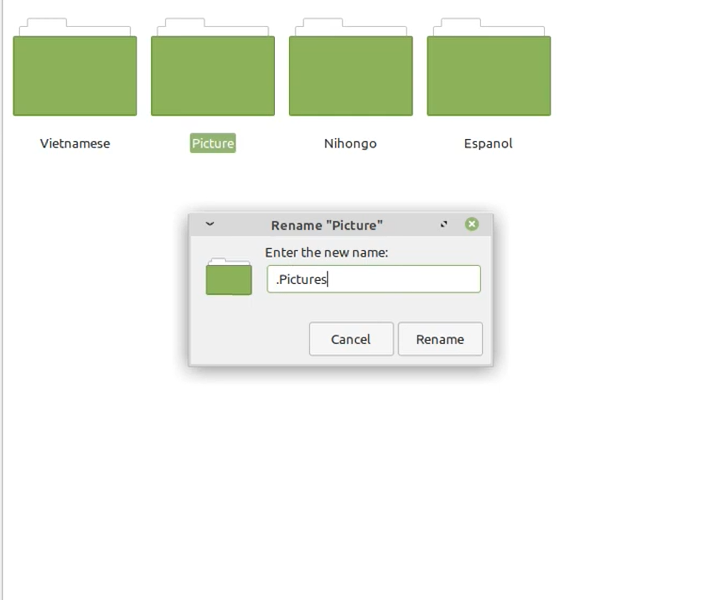
Renaming the file by clicking 'Rename' and adding .(dot) at the beginning of the new file name will hide the file. Once renamed, the file will become hidden in your file manager.
Unhiding files in Linux
Just as you can hide files, you can also unhide them by renaming them and removing the dot from the beginning of the file name.
We can unhide by 2 different methods:
- **Method 1: Command-line to Unhide File in Linux
- **Method 2: File Manager toolbar (GUI) to Unhide File in Linux
Method 1: Command-line to Unhide File in Linux
Use the 'mv' command to rename the hidden file and remove the dot from the file name:
$ mv .FF-test Firefox-Folder

This command makes the file visible again.
Method 2: File Manager toolbar (GUI) to Unhide File in Linux
To unhide hidden records in Linux File manager:
- Click the three even bars symbol at the upper right corner of the File Manager. Thusly, a drop-down menu will appear. From that point, check the Show Hidden Files check box. As a result, hidden records can be viewed in the File Explorer. Then renaming the hidden file by removing '.' (dot) at the beginning of the file, the name will unhide the file.
- Click on the Rename option.
- After renaming the file by removing . (dot) in front of the file will make the file unhidden.
**Note: "Ctrl + H" keyboard shortcut is used to show hidden files. After hidden files are shown renaming the file by removing . (dot) in front of it make the file from hidden to normal. That's how GUI way used to unhide a file.
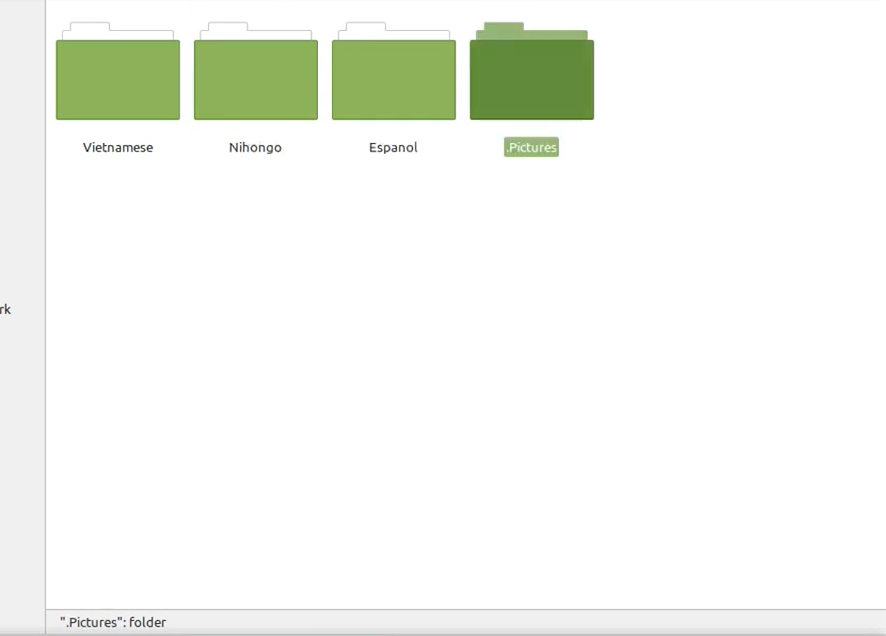
After renaming the file removing .(dot) in front of the file will make the file unhidden.
**Hiding Files via Keyboard shortcut (GUI)
To hide unhidden files in Linux "Ctrl + H" keyboard shortcut is used.
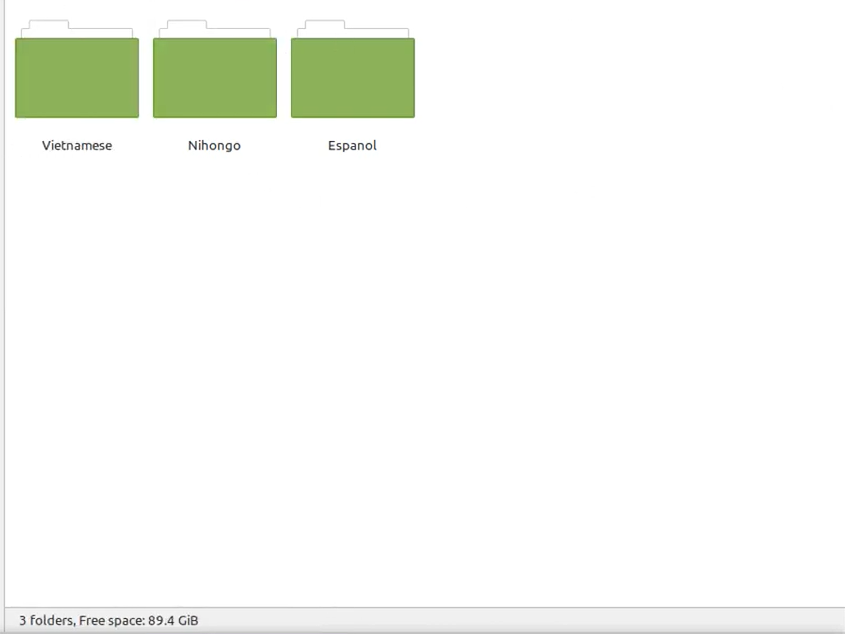
**Note: Some Linux file managers (like GNOME) also support a .hidden file, where you can list filenames to hide them without renaming. This method works only in GUI environments and does not apply to the command line.