Kali Linux Shortcut Keys (original) (raw)
Last Updated : 10 Oct, 2023
**Kali Linux (formerly known as Backtrack Linux) is an open-source Debian-derived Linux distribution designed primarily for digital forensics and penetration testing. It serves as a specialized operating system used by cybersecurity professionals and ethical hackers to assess the security of computer systems. Kali Linux comes preloaded with a variety of tools that can be employed for tasks such as identifying vulnerabilities and analyzing computer data.
**A keyboard shortcut (or hotkey) is a quick way to execute specific functions within a computer program or operating system by pressing a combination of keys simultaneously.
Kali Linux users often engage in extensive typing tasks. They gather information before attempting to penetrate a system and employ testing tools for various security assessments. This typically involves frequent interaction with command-line terminals. To enhance productivity in Kali Linux and save time, you can learn special keyboard shortcuts that facilitate common actions. This guide provides a list of these shortcuts and instructions on creating custom ones.
There are two main categories of **Shortcut Keys in Kali Linux:
- **Predefined Shortcut Keys: These are keyboard shortcuts that come predefined with Kali Linux.
- **Users Define Shortcut Keys: Users can create their own custom keyboard shortcuts for specific functions.
In this guide, we will assume the use of the Xfce desktop environment, which is the default in Kali Linux. Other desktop environments like GNOME and KDE may have different key combinations for similar actions.
General Shortcuts:
| Keyboard Shortcuts | Description |
|---|---|
| **Ctrl + Alt + T | Open a new command line terminal. |
| **Alt + F4 | Close current window |
| **Alt + F11 | Maximize current window. |
| **PrtSc | Take a screenshot. |
| **Super + PrtSc | Open Kazam (screenshot/screencast tool) |
| **Alt + F3 | Open Application Finder |
| **Ctrl + N | New |
| **Ctrl + X | Cut |
| **Ctrl + C | Copy |
| **Ctrl + Z | This shortcut is used to undo. |
| **Ctrl + S | Save |
| **Ctrl + Q | This shortcut is used to Quit. |
| **F1 | this shortcut is used to online help. |
| **F10 | Left click menu or cursor. |
| **Alt + F1 | Using this shortcut, we can open the window. |
| **Alt + F2 | Using this shortcut, we can open the command window. |
| **Alt + F7 | Using this shortcut, we can move the window. |
| **Alt + Space | Using this shortcut, we can activate the window menu. |
| **Alt + F10 | Toggle maximization state. |
| **Ctrl + Alt + D | Using this shortcut, we can minimize all windows. |
| **Alt + F8 | With the help of this shortcut, we can resize the window. |
Terminal Shortcuts:
| **Keyboard shortcut | Description |
|---|---|
| Ctrl + D | Close terminal window |
| Ctrl ++ | This shortcut is used to Zoom in. |
| **Ctrl +- | This shortcut is used to Zoom out. |
| **Ctrl + L | Clear terminal |
| Ctrl + C | Cancel currently running command. |
| Ctrl + A | Move cursor to beginning of line. |
| Ctrl + B | Move cursor backward one character. |
| Ctrl + E | Move cursor to end of line. |
| Ctrl +F | Move cursor forward one character. |
Screenshot shortcuts:
| Keyboard shortcut | Description |
|---|---|
| Print Screen | Using this shortcut button, we can take a screenshot. |
| Ctrl + Print Screen | Screenshot to clipboard |
| Alt + Print Screen | Using this shortcut, we can take a screenshot of a window. |
| Ctrl + Shift + Print Screen | With the help of this shortcut, we can take a screenshot of an area to the clipboard. |
| Ctrl + Alt + Print Screen | With the help of this shortcut, we can take a screenshot of a window to the clipboard. |
| Shift + Ctrl + Alt + R | Using this shortcut, we can record a screencast. |
Workspace Shortcuts:
| Keyboard shortcut | Description |
|---|---|
| Shift + Ctrl + Alt + ← | Using this shortcut, we can move the window one workspace to the left. |
| Shift + Ctrl + Alt + → | Using this shortcut, we can move the window one workspace to the right. |
| Shift + Ctrl + Alt + ↑ | Using this shortcut, we can move the window one workspace up. |
| Shift + Ctrl + Alt +↓ | Using this shortcut, we can move the window one workspace down. |
Create Custom Keyboard Shortcuts (Users define Shortcut Keys)
**Step 1: First to access the keyboard settings menu, simply search for "**keyboard" in the application launcher.
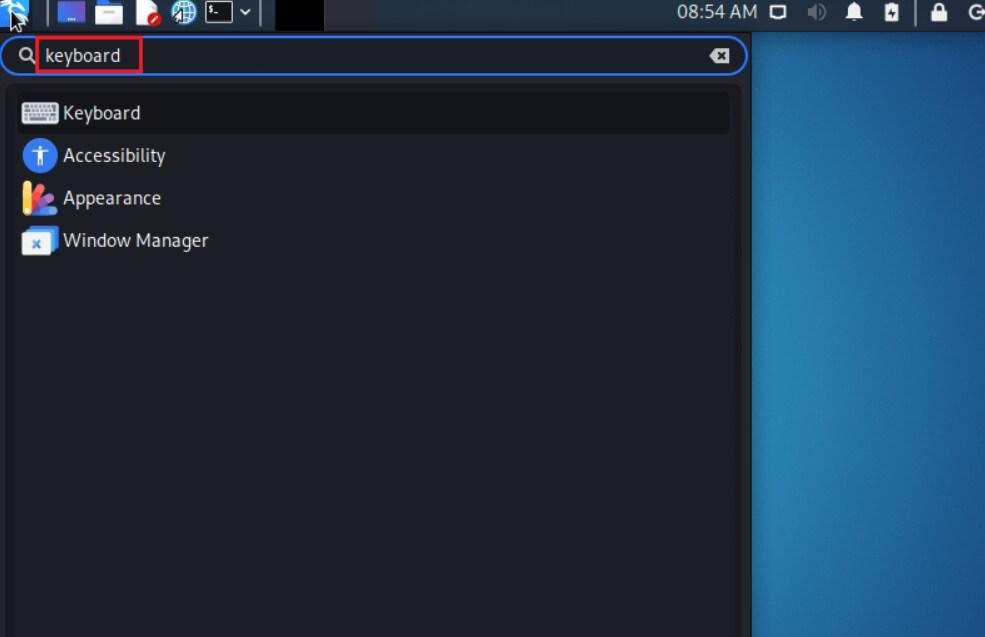
Open the keyboard settings menu to access shortcuts.
**Step 2: Click on the "**Application Shortcuts" tab. Here, you will find a list of all the keyboard shortcuts that are currently set up. If you want to create your own shortcut, you can use the "**add" button at the bottom. If you want to delete a shortcut, you just need to select it and click on "**remove".
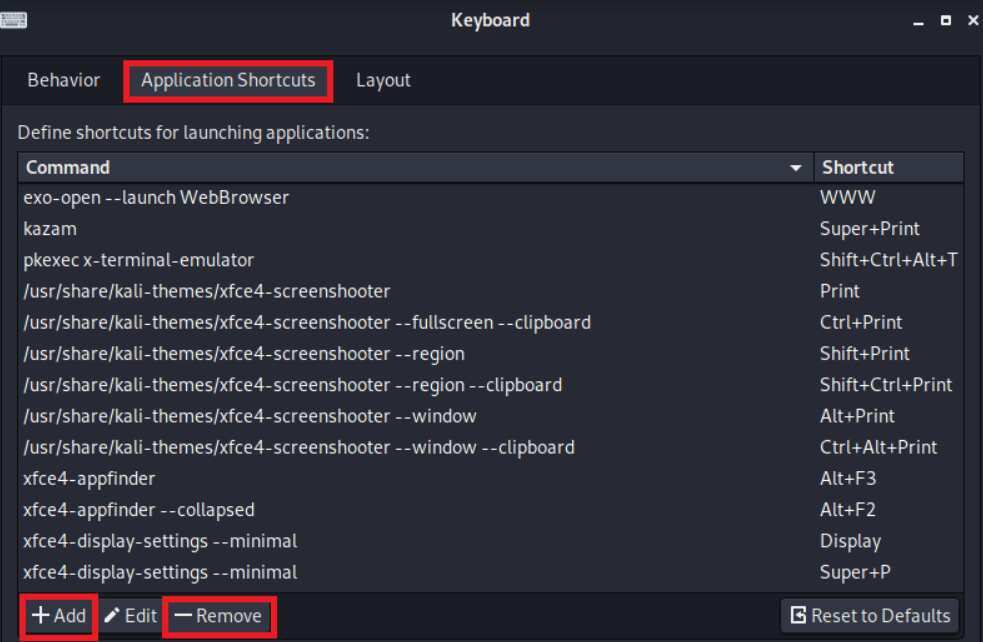
How to customize and view the keyboard shortcuts that are already set up.
Note:
- ****#** – requires given Linux commands to be executed with root privileges either directly as a root user or by use of a **sudo command.
- ****$** – requires given Linux commands to be executed as a regular non-privileged user.
Important points on Kali Linux
- To check how much memory is being used on Linux, we can use a command called "**Free".
- ****"top"** command Show the utilization of Linux and currently active processes.
- ****"Grep"** command helps find words or phrases in a file or text.
- **Penetration testing is when a security expert tries to find and use weaknesses in a computer system. This helps find any gaps in the system's protection that a bad person could use.
- **BASH (Bourne Again Shell) is a program that understands and follows commands. It is like a special language that helps you communicate with your computer. It was made to be an easier and more useful version of another program called Bourne Shell. BASH has some extra features like editing commands and is the default shell for most Linux computers. It is like a process that can be run in a terminal window and can understand and execute commands written in its language.
- **Sniffing is when someone listens to other people talking or steals information from a network. **Spoofing is when someone pretends to be someone else. In this case, the attacker sends fake messages over the network to trick the victim.
Conclusion
This guide showed shortcuts for Kali Linux. It also explained how to make your own shortcuts, which can help you work faster and use the mouse less. Most of the shortcut's work for any Linux system too, not just Kali Linux. And in bonus you got some important point or FAQs that frequently used or asked in Kali Linux.