How to Create Directory in Linux | mkdir Command (original) (raw)
Last Updated : 3 Nov, 2025
The mkdir command in Linux stands for “make directory” and is used to create new folders quickly and efficiently from the terminal.
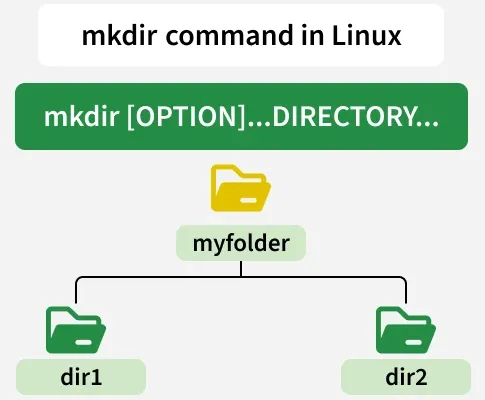
- It helps users organize their files by creating one or multiple directories at once, with options to set permissions and create nested folders easily.
- Used to create new directories within the Linux file system.
- Allows the creation of multiple directories simultaneously in a single command.
Examples
1) How to create a directory in Linux using the `mkdir` command?
To create a single directory, use the following syntax:
**For Example:
If we want to create a directory name "jayesh_gfg".
**Syntax:
mkdir jayesh_gfg
- This command creates a directory named "jayesh_gfg" in the current location. You can replace "jayesh_gfg" with any name you prefer.

mkdir jayesh_gfg
- Here we have used `ls` command to display all files and directories.
2) How to create a directory with verbose output using `mkdir` command?
If we want to create a directory name "geeksforgeeks" and see verbose at same time. You can enter your directory_name.
**Syntax:
**mkdir -v geeksforgeeks

mkdir -v geeksforgeeks
Here we have used `ls` command to display all files and directories.
3) How to create multiple directories in Linux using `mkdir` command?
To create multiple directories at once, you can specify multiple directory names separated by spaces:
**For Example:
If we want to create a directory name "jayesh_gfg_1, jayesh_gfg_2, jayesh_gfg_3".
**Syntax:
mkdir jayesh_gfg_1 jayesh_gfg_2 jayesh_gfg_3
- This command creates three directories named "jayesh_gfg_1", " jayesh_gfg_2" and "jayesh_gfg_3" in the current location.

mkdir jayesh_gfg_1 jayesh_gfg_2 jayesh_gfg_3
Here we have used `ls` command to display all files and directories.
4) How to resolve permission denied error in `mkdir` command?
If you encounter a "permission denied" error while creating a directory, you may not have permission to create directories in that location. To resolve this you can give root access to the user by using "sudo" command.
**For Example:
If we want to create a directory name "geeksforgeek" with "sudo" permission. you can replace "geeksforgeek" directory_name with your directory_name. While using this command it may ask you to enter the password of root.
**Syntax:
sudo mkdir geeksforgeek

sudo mkdir geeksforgeek
5) How to Create Directory **Using Absolute and Relative Paths
The 'mkdir' command also supports absolute and relative paths. For example:
mkdir /path/to/directory
This command creates a directory named "directory" at the specified absolute path.
mkdir my_folder/sub_folder
This command creates a directory structure with "my_folder" as the parent directory and "sub_folder" as its subdirectory.
Options and their Practical Implementation in mkdir
**Syntax of `mkdir` Command in Linux
mkdir [options...] [directory_name]
Here, replace [directory_name] with the desired name of the directory you want to create. Let's delve into the functionality of the 'mkdir' command with various examples.
1) `--help` Option in `mkdir`Command in Linux
It displays help-related information and exits.
**Syntax:
**mkdir --help
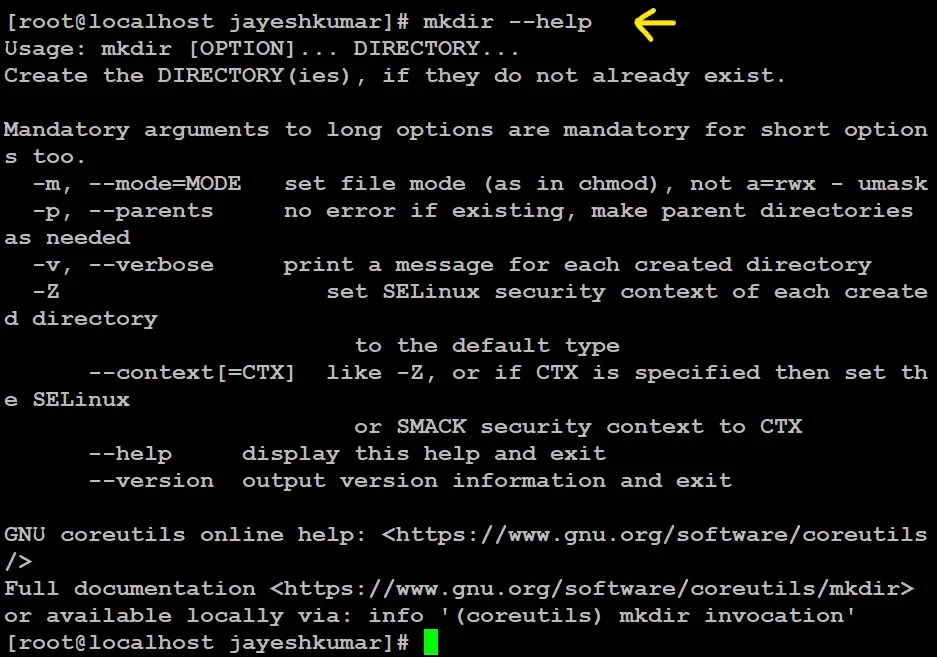
mkdir --help
2) `--version` Option in `mkdir`Command in Linux
It displays the version number, some information regarding the license and exits.
**Syntax:
**mkdir --version

mkdir --version
3) `-v` or `--verbose` Option in to Create Directory in Linux
It displays a message for every directory created.
**Syntax:
**mkdir -v [directories]

mkdir -v [directories]
- Here we have used `ls` command to display all files and directories.
- As we can see we have created tow directory with "names = jayeshghg_1 and jayeshgfg_2", replace these names with the directory name you want.
4) `-p` Option to Create Directory in Linux
A flag which enables the command to create parent directories as necessary. If the directories exist, no error is specified.
**Syntax:
**mkdir -p [directories]
**Suppose you execute the following command -
**mkdir -p first/second/third
If the first and second directories do not exist, due to the -p option, mkdir will create these directories for us. If we do not specify the -p option, and request the creation of directories, where parent directory doesn't exist, we will get the following output -

mkdir first/second/third
If we specify the -p option, the directories will be created, and no error will be reported. Following is the output of one such execution. We've also provided the -v option, so that we can see it in action.

-p option
5) `-m` Option to Create Directory in Linux
This option is used to set the file modes, i.e. permissions, etc. for the created directories. The syntax of the mode is the same as the chmod command.
**Syntax:
**mkdir -m a=rwx [directories]
The above syntax specifies that the directories created give access to all the users to read from, write to and execute the contents of the created directories. You can use 'a=r' to only allow all the users to read from the directories and so on.
![mkdir -m a=rwx [directories]](https://media.geeksforgeeks.org/wp-content/uploads/20230427163917/100.webp)
mkdir -m a=rwx [directories]
| **Option | **Description |
|---|---|
| --help | Shows help info for using mkdir. |
| --version | Displays the installed version of mkdir. |
| -v / --verbose | Prints messages for each directory created. |
| -p | Creates parent directories if they don’t exist (no error if they already exist). |
| -m | Sets permissions for new directories (e.g., -m 755). |