more command in Linux with Examples (original) (raw)
Last Updated : 3 Nov, 2025
The more command in Linux is used to view the contents of a text file one screen (or page) at a time in the terminal, allowing users to scroll through long files easily.
- Forward navigation only - you can move ahead line by line (Enter) or page by page (Space).
- Cannot scroll backward, unlike the less command.
- Useful for reading logs, configuration files, or command outputs (cat file.txt | more or more file.txt).
- You can search text within a file by typing /pattern.
Example
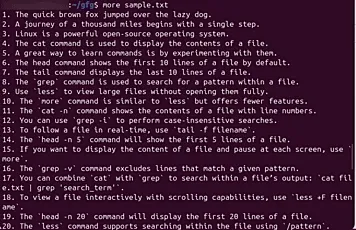
The command used to display the contents of a file one page at a time.
more sample.txt
**Syntax:
**more [-options] [-num] [+/pattern] [+linenum] [file_name]
where,
- **[-options]: any option that you want to use in order to change the way the file is displayed. Choose any one from the followings: ('-d', '-l', '-f', '-p', '-c', '-s', '-u')
- **[-num]: type the number of lines that you want to display per screen.
- **[+/pattern]: replace the pattern with any string that you want to find in the text file.
- **[+linenum]: use the line number from where you want to start displaying the text content.
- **[file_name]: name of the file containing the text that you want to display on the screen.
**Navigating Through Text Files Using the 'more' Command
While viewing text files with 'more', you can use the following controls for navigation:
- **Enter key: Scrolls down one line at a time.
- **Space bar: Moves to the next page or screen.
- ****'b' key:** Goes back one page.
- ****'q' key:** Quits the more command and exits the view.
- ****'=' key:** Show current line number.
**Common Options for the more Command
Here is a list of the most frequently used options of the more command that help control how file content is displayed on the terminal screen.
**1. '-d' (Prompt Navigation Help)
Use this command in order to help the user to navigate.
- It displays "[Press space to continue, 'q' to quit.]" and,
- Displays "[Press 'h' for instructions.]" when wrong key is pressed.
**Example:
more -d sample.txt

2. '-f' (Disable Line Wrapping)
Displays long lines without wrapping them, showing them as they are in the file. This option is useful when the exact formatting of text is important.
**Example:
more -f sample.txt

**3. '-p' (Clear and Display)
Clears the screen before displaying the next page, making the reading experience cleaner by removing previously shown content.
**Example:
more -p sample.txt
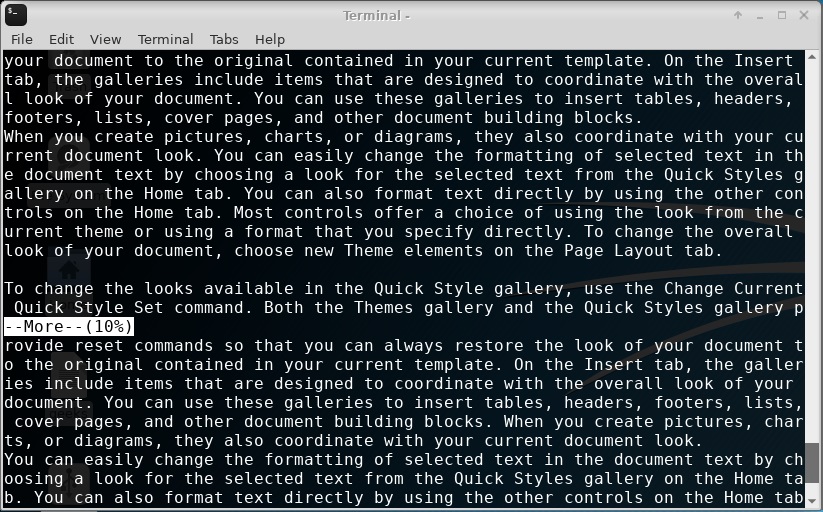
4. '-c' (Overlapping Text)
Overlaps the new text over the old text on the same screen space, providing a continuous reading flow without clearing the screen.
**Example:
more -c sample.txt

5. '-s' (Squeeze Blank Lines)
Compresses multiple blank lines into a single blank line, making large documents more concise and easier to read.
**Example:
more -s sample.txt

**6. '-u' (Omit Underlines)
Removes underlined characters, which can be useful when viewing text files with special formatting that is not needed for content comprehension.
**Example:
more -u sample.txt
**7. '+/pattern' (Search Pattern)
This option is used to search the string inside your text document. You can view all the instances by navigating through the result.
**Example:
more +/reset sample.txt

**8. '+num' (Start at Line Number)
Displays the content starting from the specified line number, useful when you want to skip over the beginning of a file
**Example:
more +30 sample.txt

**Using 'more' to Read Long Outputs
We use more command after a pipe to see long outputs. For example, seeing log files, etc.
cat a.txt | more