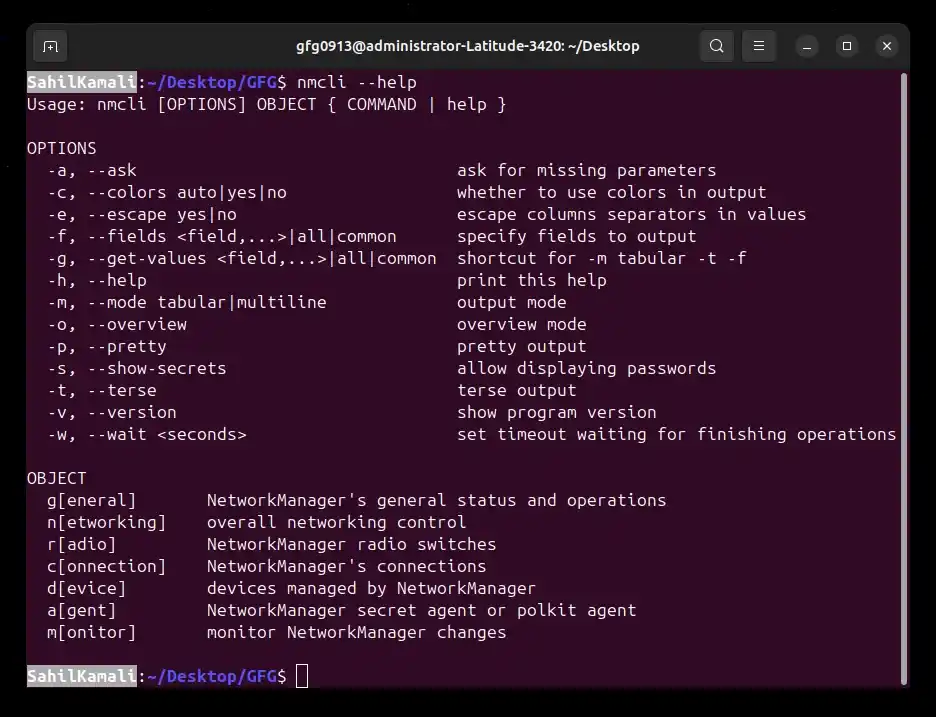
Manage Network Connections From the Linux Command Line with nmcli (original) (raw)
Last Updated : 14 May, 2026
Network connectivity is a fundamental requirement for any Linux system, especially in servers and headless environments where graphical tools are not available. The nmcli (Network Manager Command-Line Interface) is a command-line utility used to manage network connections through the terminal.
- Manage network connections (create, modify, delete, activate, deactivate)
- Display detailed status of network devices and connections
- Works without a graphical interface (ideal for servers and headless systems)
- Supports automation and scripting for network management tasks
- Provides flexible and structured control over NetworkManager operations
Example 1: List All Network Connections
Displays all saved network configurations on the system. Helps identify available connections along with details like name, UUID, type, and associated device.
**Command:
nmcli connection show
- **nmcli: Invokes the NetworkManager command-line tool
- **connection: Targets saved network connections
- **show: Displays details of all connections
**Output:

Viewing connections
Example 2: Check Device Status
Shows the current state of all network devices. Helps identify whether devices are connected or disconnected along with additional information like the device type and the connection type it is associated with.
**Command:
nmcli dev status
- **nmcli: Runs the NetworkManager CLI tool
- **dev: Refers to network devices
- **status: Shows current device state
**Output:

check device status
Example 3: Display Device Details
Shows detailed information about a specific network device. Useful for checking IP address, MAC address, driver details, and other configuration data.
**Command:
nmcli device show eno1
- **nmcli: Runs the NetworkManager CLI tool
- **device: Targets network devices
- **show: Displays detailed information
- **eno1: Specifies the device name (replace with your actual interface)
**Output:

Display Device Details
Example 4: Add a New Ethernet Connection
Creates a new network connection for a specified interface. Useful for setting up a new network or configuring additional interfaces on the system.
**Syntax:
nmcli connection add type ifname con-name
- **connection_type: Specifies the type of connection (e.g., ethernet, wifi)
- **interface_name: Name of the network interface
- **connection_name: User-defined name for the connection
**Command:
nmcli connection add type ethernet ifname eth1 con-name my_eth_connection
- **nmcli: Invokes the NetworkManager CLI tool
- **connection: Targets connection management
- **add: Creates a new connection
- **type ethernet: Specifies connection type
- **ifname eth1: Defines the network interface
- **con-name my_eth_connection: Assigns a custom name
**Output:

Adding new ethernet connection
- This command creates a new Ethernet connection named "my_eth_connection" associated with the network interface "eth1". Adjust the interface name and connection name as needed.
**Verification Command:
nmcli connection show
**Output:

nmcli connection show
Example 5: Modify Connection Settings
Modifies the settings of an existing network connection. Commonly used to configure static IP addresses, gateway, and other network parameters.
**Syntax:
nmcli connection modify
- **connection_name: Name of the connection to modify
- **setting_name: Network parameter to change (e.g., ipv4.addresses)
- **setting_value: New value for the specified setting
**Command:
nmcli connection modify my_eth_connection ipv4.addresses "192.168.1.2/24" ipv4.gateway "192.168.1.1"
- **nmcli: Invokes the NetworkManager CLI tool
- **connection: Targets connection management
- **modify: Updates an existing connection
- **my_eth_connection: Specifies the connection name
- **ipv4.addresses "192.168.1.2/24": Sets static IP with subnet mask
- **ipv4.gateway "192.168.1.1": Defines the gateway address
**Note: Changes may require reactivating the connection to take effect
**Command:
nmcli connection up my_eth_connection
Syntax
nmcli [OPTIONS] OBJECT { COMMAND | help }
- **OPTIONS: Modify the behavior of the command or the format of its output
- **OBJECT: Specifies the target for the operation.
- **COMMAND: Defines the action to perform on the specified object, for example show, add, or modify
**Common OBJECT Values
- **nm: Shows NetworkManager status
- **connection or con: Manages network connections
- **device or dev: Manages network devices
Options Available in nmcli Command in Linux
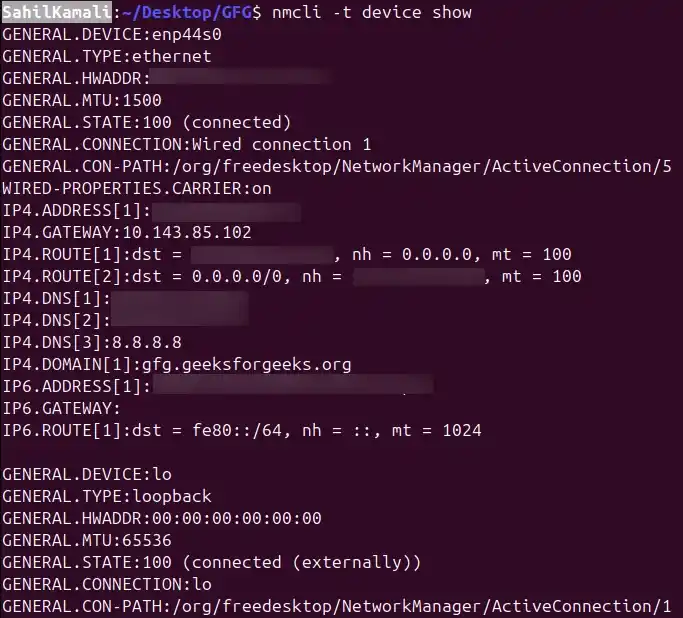
1. -t, --terse
Displays output in a compact, machine-readable format by removing headers and formatting.
- Useful for scripting and automation where clean, parseable output is required
- Reduces unnecessary text and presents data in a simple delimiter-based format
- Commonly used in shell scripts for extracting values
**Syntax:
nmcli -t
**Example: Display Device Status in Pretty Format
Shows formatted output with headings and aligned columns.
**Command:
nmcli -t device status
**Output:
2. -p, --pretty
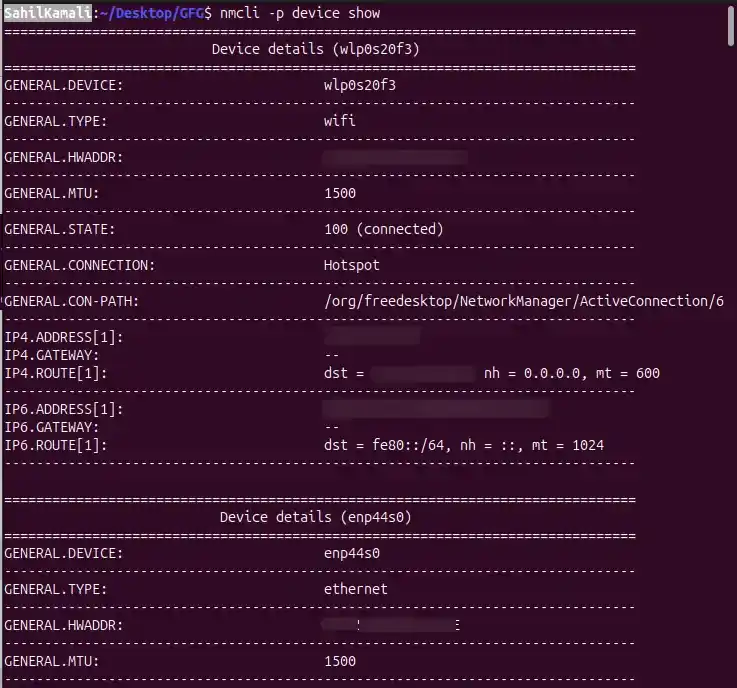
Displays output in a well-structured and human-readable format with headings and spacing.
- Improves readability when working directly in the terminal
- Adds formatting such as section headers and aligned columns
- Useful for manual inspection of network details
**Syntax:
nmcli -p
**Example: Display Device Status in Pretty Format
Shows formatted output with headings and aligned columns.
**Command:
nmcli -p device status
**Output:
3. -m, --mode {tabular | multiline}
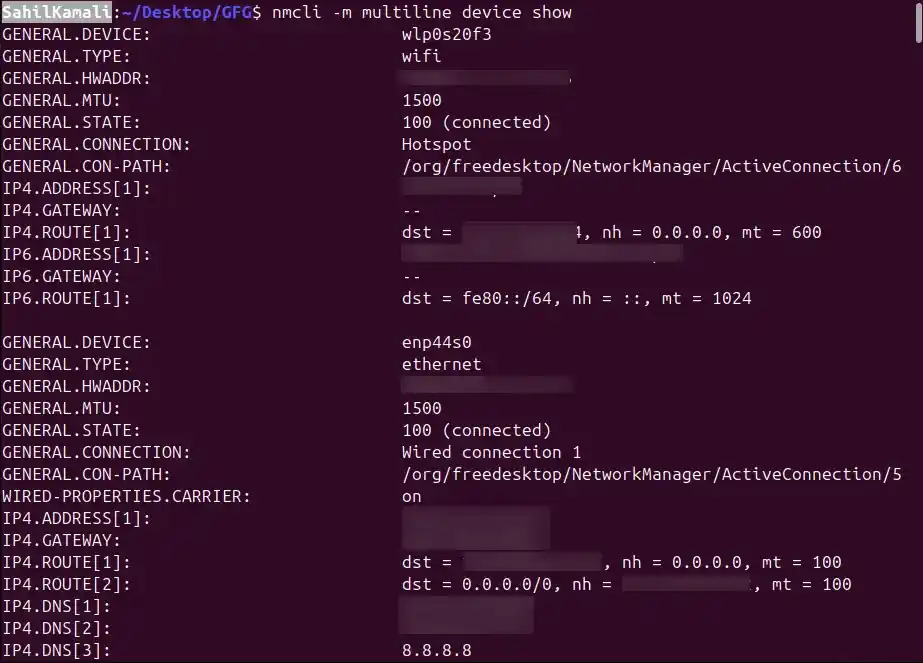
Controls how output is displayed by switching between tabular (default) and multiline formats.
- **tabular: shows data in rows and columns
- **multiline: shows each field on a separate line for detailed viewing
- Useful when working with detailed device or connection information
**Syntax:
nmcli -m {tabular | multiline}
**Example: Display Device Details in Multiline Format
Shows detailed information where each field is printed on a separate line.
**Command:
nmcli -m multiline device show
**Output:
4. -f, --fields
Displays only selected fields from the output instead of showing all available information.
- Helps in filtering specific data fields
- Reduces clutter when only limited information is required
- Can use all to display all fields or common for commonly used fields
**Syntax:
nmcli -f
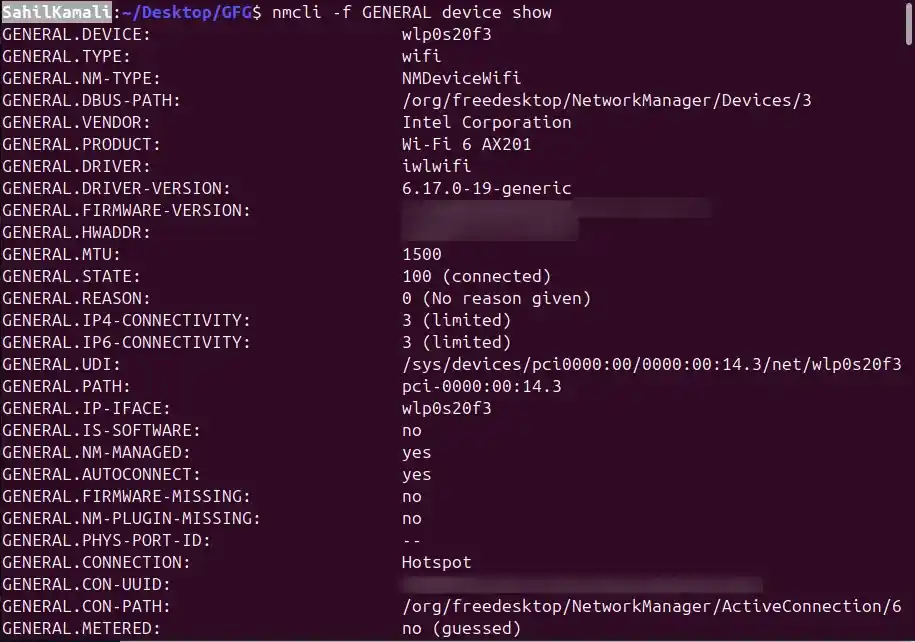
**Example: Display Only General Device Information
Shows only GENERAL fields for each device.
**Command:
nmcli -f GENERAL device show
**Output:
5. -v, --version
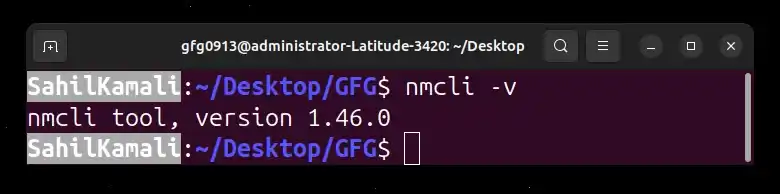
Displays the installed version of the nmcli tool.
- Useful for checking compatibility and debugging issues
- Helps verify installed NetworkManager version
**Syntax:
nmcli -v
**Output:
6. -h, --help
Displays help information about nmcli commands and usage.
- Provides a quick reference for syntax and available options
- Useful for beginners and troubleshooting command usage
**Syntax:
nmcli -h
**Output: