How to Manage Process in Linux (original) (raw)
Last Updated : 30 Jul, 2025
A process means a program in execution. It generally takes an input, processes it, and gives us the appropriate output. Every time you launch an application or execute a command, the system creates a process for it. It involves controlling and monitoring all the running programs on the system. The Linux kernel is in charge of managing these processes, making sure they get the right resources and run smoothly on the CPU.

- **Foreground processes: Such kind of processes are also known as **interactive processes. These are the processes that are to be executed or initiated by the user or the programmer; they can not be initialized by system services. Such processes take input from the user and return the output. While these processes are running, we can not directly initiate a new process from the same terminal.
- **Background processes: Such kind of processes are also known as **non-interactive processes. These are the processes that are to be executed or initiated by the system itself or by users, though they can even be managed by users. These processes have a unique PID or process if assigned to them, and we can initiate other processes within the same terminal from which they are initiated.
Process States in Linux
A process goes through several states during its lifetime. These states help the system track what each process is doing:
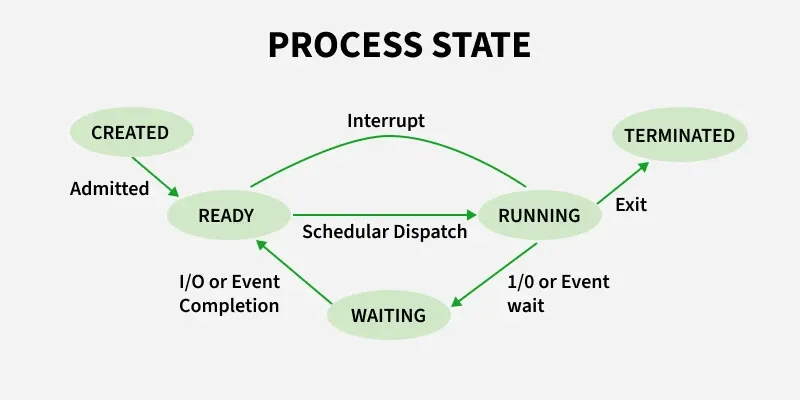
- **Created: The process has been launched, and its data structures are being set up.
- **Ready: Waiting for its turn on the CPU.
- **Running: Actively executing on the processor.
- **Sleeping (waiting): Waiting for something like input or a resource.
- **Stopped: The process is paused, usually by a user command.
- **Zombie: A Zombie process is one that has finished execution, but its parent has not yet read its exit status. It's "dead" but still occupies an entry in the process table.
- **Orphan: An Orphan process is one whose parent has terminated, but it is still running. The orphan process is re-parented to the
initprocess (PID 1). - **Terminated: The process is fully finished, resources are cleaned up.
Practically Managing the Processes
These commands help you monitor, control, and manage processes effectively, ensuring your Linux system runs smoothly and stays secure.
**1. Example of foreground process.
sleep 5

This command will be executed in the terminal and we would be able to execute another command after the execution of the above command.
**Note: In this case, the name of the process is sleep 5 but you may change the same as per your need.
**2. Stopping a process in between of its execution. To stop a foreground process in between of its execution we may press _CTRL+Z to force stop it.
sleep 100

Pressing _CTRL+Z in between the execution of the command will stop it.
**Note: In this case the name of the process is sleep 100 but you may change the same as per your need.
**3. To get the list of jobs that are either running or stopped.
jobs
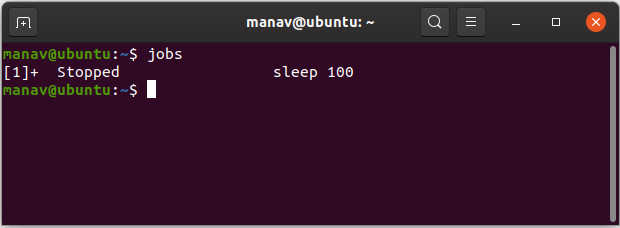
It will display the stopped processes in this terminal and even the pending ones.
**4. To run all the pending and force stopped jobs in the background.
bg

This will start the stopped and pending processes in the background.
**5. To get details of a process running in background.
ps -ef | grep sleep

**Note: In this case the name of the process is sleep 100 but you may change the same as per your need.
**6. To run all the pending and force stopped jobs in the foreground.
fg
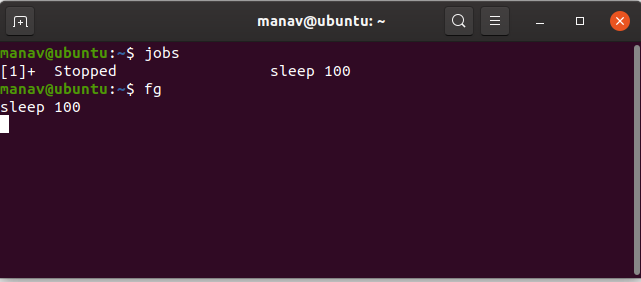
This will start the stopped and pending processes in the foreground.
**7. To run a process in the background without getting impacted by the closing of the terminal.
nohup sleep 100 &

While executing, it will even store all the output after execution in _nohup.out file.
**Note: In this case, the process is sleep 100, you may modify it as per your need.
**8. To run some processes in the background directly.
sleep 100&

This will run the process in the background and will display the process id of the process.
**Note: In this case, the process is sleep 100, you may modify it as per your need.
**9. To run processes with priority.
nice -n 5 sleep 100

The top priority is -20 but as it may affect the system processes so we have used the priority 5.
**Note: In this case, the process is sleep 100, you may modify it as per your need.
**10. To get the list of all the running processes on your Linux machine.
top

This will display all the processes that are currently running in your system.