How to Rename File in Linux | rename Command (original) (raw)
Last Updated : 11 Jul, 2025
Changing the names of files in Linux is something we often do, and the "**rename" command is like a helpful friend for this job. This guide is like a journey to becoming really good at renaming files on Linux, showing you how handy and useful the "rename" command can be.
Whether you're just starting out or you're already good at working with files, this article will teach you what you need to know. It covers everything from simple renaming to more advanced tricks.
`rename` Command - Rename file in Linux
It's a tool you use on the command line in Linux to change the names of lots of files all at once. It works by following a set of instructions, kind of like a recipe, to rename files in a specific way. Here we will break down the basics of the "rename" command, show you some different ways you can use it, and explain how to do more complicated things, making it easier for you to organize and handle your files in Linux.
How to install the `rename` Command in Linux
The availability of the rename command can vary across different Linux distributions. In this article, we are using Debian-based systems (e.g., Ubuntu)
To install `rename` Command on **Debian-based systems (e.g., Ubuntu)
sudo apt-get install rename

Installing rename command
To install `rename` Command on **Red Hat-based systems (e.g., Fedora)
sudo dnf install rename
**Syntax of the `rename` command in Linux
The basic syntax of the rename command is as follows:
rename [options] expression files
- **Options: These are additional flags that modify the behavior of the
renamecommand. - **Expression: This is the regular expression or Perl code that defines the transformation to be applied to the filenames.
- **Files: These are the filenames or patterns of filenames that match the files to be renamed.
**Options Available in `rename` command in Linux
| Options | Description |
|---|---|
| -s | Ignores symbolic links when renaming files. |
| -v | Displays which files are being renamed. |
| -n | Performs a dry run, showing the final changes without actually renaming files. |
| -o | Prevents overwriting existing files during the renaming process. |
| -V | Shows version information and exits. |
| -help | Displays the help message and exits. |
**1) rename `-s` option
This option renames the files ignoring the symbolic links.
**Example:
rename -s 's/root/new/' sym.png

`-s` option

list all files
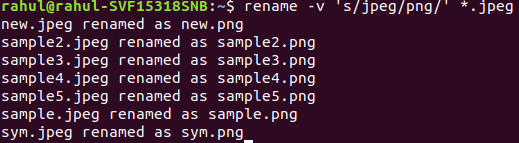
**2) rename `-v` option
This option is used to show which files are being renamed, if there are any.
**Example:
rename -v 's/jpeg/png/' *.jpeg
`-v` option
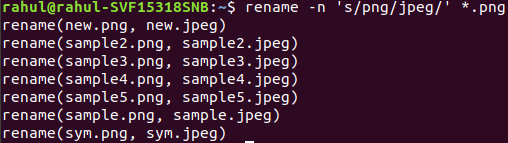
**3) rename `-n` option
This option comes into play when the user wants to see only the final change.
**Example:
rename -n 's/png/jpeg/' *.png
`-n` option
**4) rename `-o` option
This option will not be going to overwrite the existing files.
**Example:
rename -o 's/jpeg/png/' *.jpeg

`-o` option
**5) rename `-V` **option
This option will show the version information and exit.
**Example:
rename -V 's/jpeg/png/' *.jpeg

`-V` option
6) **rename `-help` option
This option will show the help message and exit.
**Example:
rename -help

`-help` option
Examples of `rename` Command to remane File in Linux
**1) Renaming a Single File Using `rename` Command in Linux
When you want to rename a single file in Linux, the rename command comes in handy. Let's consider an example where you have a file named "file.txt" and you want to replace it with "name newfile.txt"
The basic syntax of the rename command is:
rename 's/old_pattern/new_pattern/' filename.s/old_pattern/new_pattern/: This is a Perl-style regular expression that defines the substitution pattern. It instructs therenamecommand to replace occurrences ofold_patternwithnew_pattern.filename: This is the name of the file you want to rename.
rename 's/file/newfile/' file.txt
Here,
The specific command used in the example is: rename 's/file/newfile/' file.txt.
s/file/newfile/: This part of the command specifies that it should substitute the first occurrence of "file" with "newfile" in the filename.file.txt: This is the name of the file that you want to rename.

renaming single file
To confirm the changes, you can use the `**ls` command to list the contents of the directory.
**2) Renaming Multiple Files Using `rename` Command in Linux
When dealing with the task of renaming multiple files in Linux, the rename command becomes an indispensable tool. Let's explore an example where several files with the '.txt' extension need to be changed to '.sh', demonstrating the command's syntax and execution.
**Basic Syntax:
The syntax of the rename command for renaming multiple files is:
rename 's/old_pattern/new_pattern/' *.extension
Here,
s/old_pattern/new_pattern/: A Perl-style regular expression specifying the substitution pattern. It directs the **`** **rename`command to replace instances of ` **old_pattern`with `** **new_pattern`.*.extension: The asterisk (*) serves as a wildcard character, matching any sequence of characters, and `extension`represents the targeted file extension (e.g., `*.txt`).
Suppose there are multiple files in the current directory with the '.txt' extension, and the goal is to change their extension to '.sh'. The command would be:
rename 's/.txt/.sh/' *.txt
Here,
s/.txt/.sh/: Dictates the substitution of '.txt' with '.sh' in the filenames.*.txt: The wildcard * matches all files in the current directory with the '.txt' extension.
To confirm the changes, use the ` ls` command to list the contents of the directory

renaming multiple files
`mv` Command to Rename files in Linux
The `**mv` command in Linux is a versatile utility used for various file operations, including renaming. This command allows you to move files and directories, and by moving a file to a new location with a different name, you effectively rename it. Below is a step-by-step guide on how to use the `** ** mv` command to change the name of a file.
The ` mv` command stands for "move" but is also commonly used for renaming files. It takes two arguments: the source file or directory and the destination file or directory.
**Basic Syntax :
mv [options] source destination
Here,
source: The file or directory you want to rename.destination: The new name for the file or the path to the new location.
Suppose you have a file named "old_name.txt" in the current directory, and you want to change its name to "new_name.txt."
mv gfg.txt geeksforgeeks.txt
The `** ** mv` command is followed by the names of the source file ("gfg.txt") and the destination file ("geeksforgeeks.txt"). This effectively renames the file.
- The `
mv`command does not explicitly have a "rename" option; it is commonly used to move and rename files simultaneously.
After executing the ` mv` command, use ` **ls`**to list the contents of the directory. You should see the file listed with its new name, "geeksforgeeks" confirming the successful renaming operation.
**Rename Multiple Files Using `mv` Command
Suppose you have multiple files in the current directory with names like "file1.txt," "file2.txt," and so on, and you want to change their extension to '.sh.'
for f in *.txt; do mv -- "$f" "${f%.txt}.sh"; done
Here,
for f in *.txt; do:- Initiates a loop that iterates over files in the current directory with the ` **
.txt`**extension. `*.txt`is a wildcard pattern that matches all files with a `.txt`extension.
- Initiates a loop that iterates over files in the current directory with the ` **
mv -- "$f" "${f%.txt}.sh":`mv`is the move/rename command.`--`is used to indicate the end of options and is a safety measure in case a filename starts with a hyphen (`-`).`"$f"`represents the current filename in the loop.`"${f%.txt}.sh"`generates the new name for the file by removing the `.txt`extension and appending `.sh`. This uses the${variable%pattern}syntax, where `%`removes the shortest match of `pattern`from the end of the variable.
done:- Marks the end of the loop.

renaming multiple files
Also Check:
- Renaming All Files and Directory Names to Lowercase in Linux
- How to Rename a Folder in Linux
- mv-Renaming and moving files in Linux
Conclusion
In this article we discussed how to rename file in Linux using the handy "**rename" command and "**mv" command. This guide is perfect for everyone, whether you're new or experienced.
You'll understand the basic command structure, discover advanced renaming tricks, and see how "rename" excels at batch renaming. Find out the specific roles of the "mv" and "rename" commands, and get practical insights into their uses. With straightforward explanations and helpful installation tips, this guide helps you confidently manage and organize your Linux files through smart file renaming methods.