SSH Command in Linux (original) (raw)
Last Updated : 1 Jun, 2026
SSH (Secure Shell) is a secure communication protocol that allows a user to access and control a remote computer over a network.
- Unlike older protocols like Telnet or Rlogin, SSH encrypts every piece of data, preventing attackers from spying on login credentials and commands.
- SSH typically uses TCP port 22 and is supported by all major Linux distributions.
Basic Syntax of the SSH Command
To connect to a remote server, use:
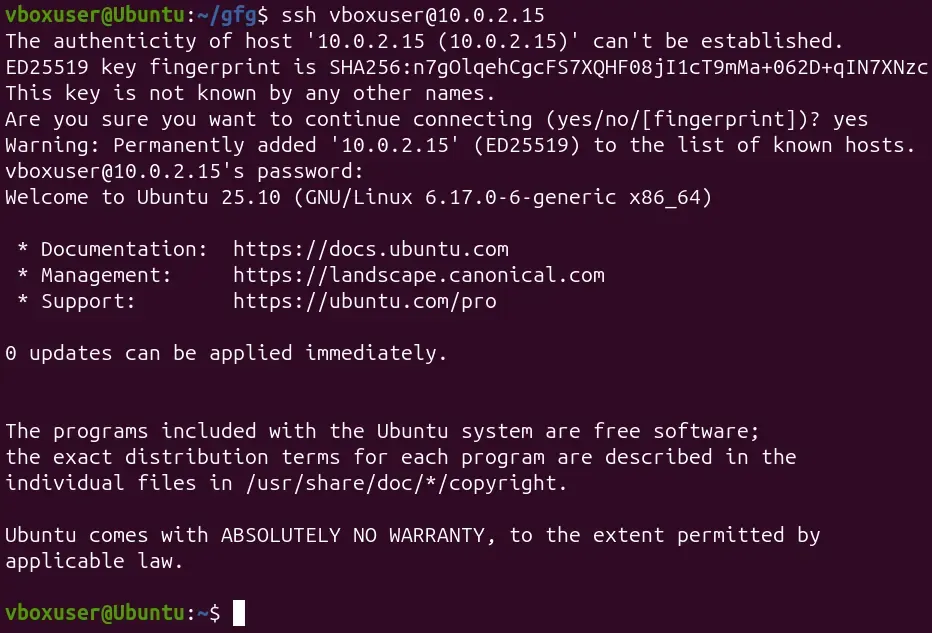
ssh [username]@[hostname or IP address]
Here, Replace [username] with your remote server username, and [hostname or IP address] with the server's hostname or IP address.
Example:
**Output:
Installing SSH
To install SSH, you simply install the OpenSSH package, which provides both the client and server components.
On Ubuntu/Debian:
sudo apt update
sudo apt install openssh-client openssh-server
On CentOS/Fedora/RHEL:
sudo dnf install openssh-clients openssh-server
Start and enable the SSH service:
sudo systemctl start sshd
sudo systemctl enable sshd
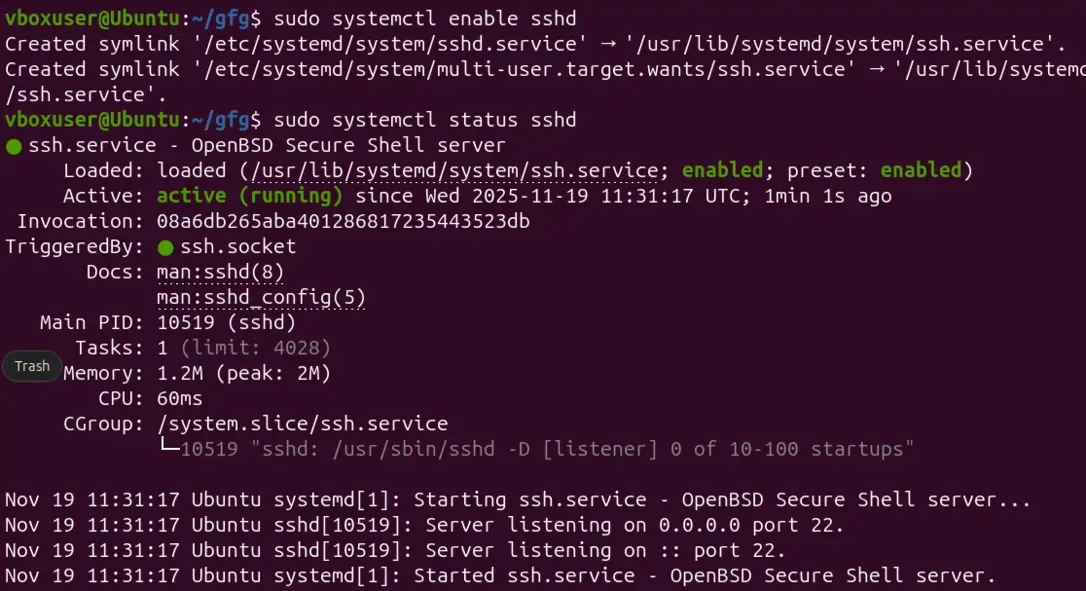
Check status:
sudo systemctl status sshd
**Output:
Given below the examples by using SSH Command.
Example 1: Connect to a Remote Server Using SSH
- Username > vboxuser
- Server IP > 10.0.2.15
- If it’s your first time connecting, SSH will ask to verify the server’s fingerprint. Type yes, press Enter, and then enter the user’s password.
- Once authenticated, you will be logged into the remote machine and can run commands just like a local terminal.
**Output:
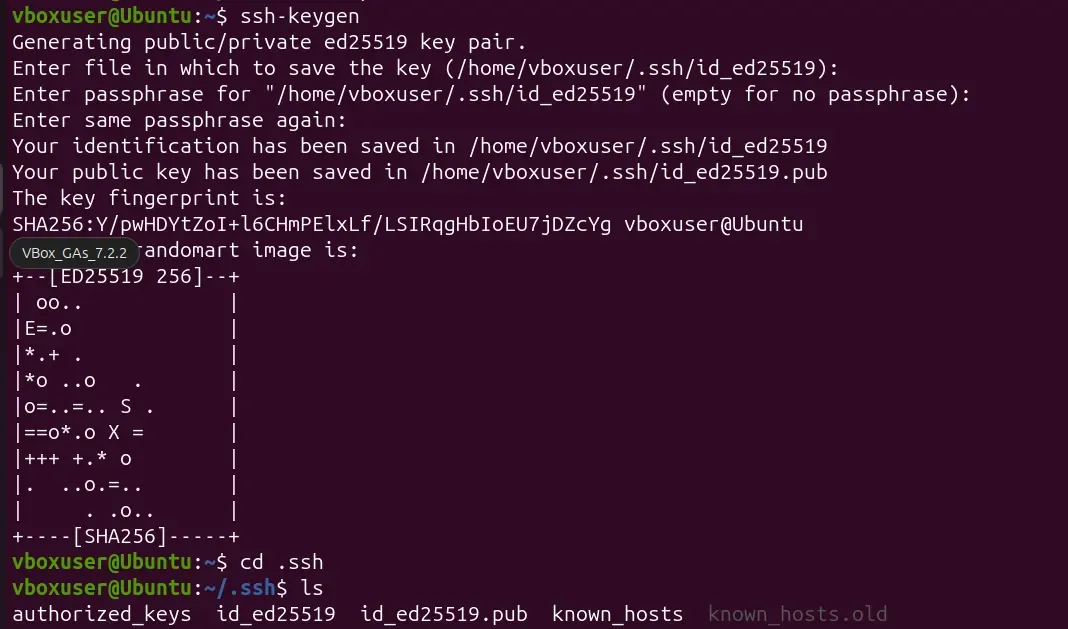
Example 2: Using SSH Key Authentication
SSH keys offer better security than passwords.
- Generate keys on your local machine
ssh-keygen
- Copy your public key to the remote server:
ssh-copy-id username@server_ip
- Now you can log in without entering a password:
ssh username@server_ip
Common SSH Options
These options help troubleshoot issues, improve performance, and customize the connection.
| Option | Purpose | Example |
|---|---|---|
| -p | Connect to a custom SSH port | ssh -p 2222 user@host |
| -v | Enable detailed debugging output | ssh -v user@host |
| -C | Enable compression | ssh -C user@host |
| -4 | Force IPv4 | ssh -4 user@host |
| -6 | Force IPv6 | ssh -6 user@host |
| -X | Forward GUI applications | ssh -X user@host |
Before You Connect: Requirements
To successfully connect to a remote Linux machine using SSH, ensure the following:
- The server must be switched on and connected to a network.
- You should have valid login credentials
- The OpenSSH server must be installed and active.
- Port 22 (or the configured custom port) should be open on your firewall.
How SSH Secures Communication
SSH uses multiple layers of cryptography:
- **Symmetric Encryption: Uses one shared key for encrypting and decrypting the session.
- **Asymmetric Encryption: Uses a public/private key pair for authentication and key exchange.
- **Hashing: Ensures message integrity - any tampering is immediately detected.